You have your complete personal project ready to install, but now you're wondering, "How do I get it onto my phone?" In this post, we'll tell you how to install an app you created with Google AI Studio on your Android device. The good news is that You no longer need to publish them in the store or pay for a developer account to do so..
How to install an app you created with Google AI Studio on your Android device
Among the various fields that have been revolutionized by AI, one that stands out is the mobile application development and compilationFor years, doing this on Android was reserved for those who mastered Kotlin, understood the Activities lifecycle, and knew how to configure Gradle. But now, with the arrival of Google AI Studio's Build mode, the barrier has fallen.
Today, all you need to do is describe what you want in natural language and AI generates a complete native project (See the entry) How to install and create Google AI Studio apps on AndroidIf you're reading this, you probably already have yours ready or are thinking about starting one. The obvious question is: how do you install an app you created with Google AI Studio on your Android device?
The good news is that you no longer need to publish on Google Play or pay for a developer account for personal use. Google recently enabled a workflow that allows you to install your creation from Google AI Studio directly on your Android. You do it via USB and keeping the application completely privateWe'll tell you the steps below.
Requirements to install an app you created with Google AI Studio on your Android device
Before connecting any cables, make sure you have three essential elements to install an app you created with Google AI Studio on your Android device. First, a WebUSB compatible browserChrome or Edge in their latest version are the recommended options. This is necessary because AI Studio uses this technology to communicate with your device without needing to install the Android SDK locally.
Secondly, you need a USB data cableNot all charging cables support data transfer. If you have any questions about this, you can find helpful information in the entry How to tell if a USB cable is for video or only for chargingAnd thirdly, Your Android phone must have USB debugging enabled.which you can do like this:
- Go to Settings – About phone and tap the build number seven times in a row until the message "You are now a developer" appears.
- Then go back to Settings – System – Developer options.
- There, enable the USB Debugging switch. Without this, AI Studio will not be able to detect your device.
Step 1: Build and refine your app in AI Studio
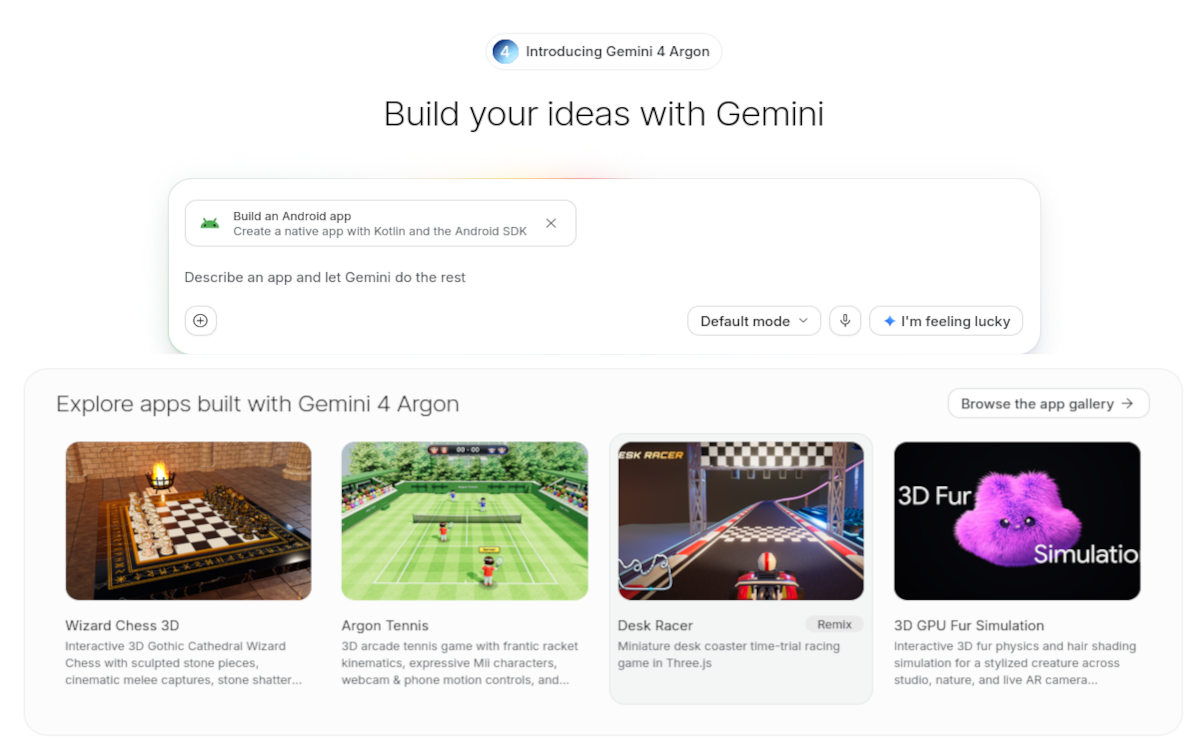
You probably already have your project complete and now you want to install an app you created with Google AI Studio on your Android device. To recap, you opened AI Studio and selected Build mode. Then, you chose the Android platform from the selector and You described what you wanted to buildAnd the magic began.
The AI agent generated a project based on Kotlin and Jetpack Compose, which you can now preview in the built-in emulator that runs directly in your browser. But before you install an app you created with Google AI Studio on your Android device, You should run some tests, if you haven't done enough.
If you see something isn't working, use the chat panel to request corrections, or edit the code directly in the corresponding tab. Of course, you have to keep the inherent limitations of the emulatorFor example, you can't test the camera, Bluetooth, or GPS, and Google Play services don't work on it. That's why you have to install it on a physical device.
Step 2: Connect and select your device
Installing an app you created with Google AI Studio on your Android device isn't just a whim. It's actually the only way to validate that everything is working correctly Before finalizing the project, connect your Android phone to your computer via USB and return to the AI Studio preview.
Next, on the right side panel you will see a button that says "Install on device" (Install on device). Clicking it will open a browser USB device selectorSelect your mobile device from the list and accept the debugging notice that will appear on the mobile device screen.
With this, AI Studio will package the APK, transfer it, and install it automatically. The process usually takes less than a minute And when finished, the app will automatically open on your phone, ready to use. It's that easy to install an app you created with Google AI Studio on your Android device!
Step 3: If the installation button does not appear
Sometimes the installation button appears disabled in AI Studio. This happens when You are using a browser version that does not support WebUSB, or your mobile device is not detected.In these cases, the alternative to installing an app you created with Google AI Studio on your Android device is to export the project as a ZIP file and compile it locally with Android Studio.
Indeed, AI Studio allows you to download all the source code, and from Android Studio you can generate an installable APK (this is the traditional method). However, this method requires having Android Studio installed and some familiarity with Gradle. So, if you chose AI Studio precisely to avoid that environment, The USB option is your first route.
Therefore, if the installation button does not appear, check that the USB cable works and that you've accepted the debug dialog on your mobile device. Problems almost always arise at these two points in the process. If everything goes well, in just a few minutes your personal project will be ready for its first real test.
There you have it! Now you know how to install an app you created with Google AI Studio on your Android device. This process is becoming increasingly simple, making it easier for us to... create and test our own mobile toolsAnd it's a field we're only just beginning to explore!

From a young age, I've been fascinated by all things scientific and technological, especially those advancements that make our lives easier and more enjoyable. I love staying up-to-date on the latest news and trends, and sharing my experiences, opinions, and tips about the devices and gadgets I use. This led me to become a web writer a little over five years ago, focusing primarily on Android devices and Windows operating systems. I've learned to explain complex concepts in simple terms so my readers can easily understand them.