- An app may disappear from Google Play because it is outdated, disabled, or removed by the developer or manufacturer.
- Google Play Store is usually still installed as a system app, although sometimes it is shown as "Market" or is disabled in the settings.
- If the Play Store is not pre-installed, it is possible to install it manually from reliable sources such as APKMirror, along with Google Play Services.
- Ad-blocking browser extensions can give the impression that apps or elements from Google Play have disappeared by hiding part of the interface.

If one day you're just minding your own business with your phone, like a Samsung Galaxy S21 Ultra 5G, without any fuss or recent updates, and suddenly An app you had installed disappears from Google Play or seems to have vanished from your phoneThe feeling is one of utter bewilderment. Just when you need to open Pokémon Go, it asks you to log in and something's wrong; you go to the Google folder to look for the Play Store and… it's not there. Not in the folder, not in the app drawer, not disabled, not hidden. Nothing.
This situation can drive you crazy, especially when None of the typical solutions (restarting, clearing cache, checking for updates) seem to fix the problemSometimes you can still access the Google Play Store through your browser, but you can't find the Play Store app anywhere to reinstall it, because it doesn't actually exist as a regular app. On top of that, you read on forums like Samsung Members that other people are experiencing the same problem, and it's still not entirely clear what's going on.
In this guide we will review, calmly but thoroughly, all the common causes and the most complete solutions when an installed app disappears from Google Play or when the Play Store itself seems to have flown away.
Why an installed app might disappear from Google Play or your mobile device
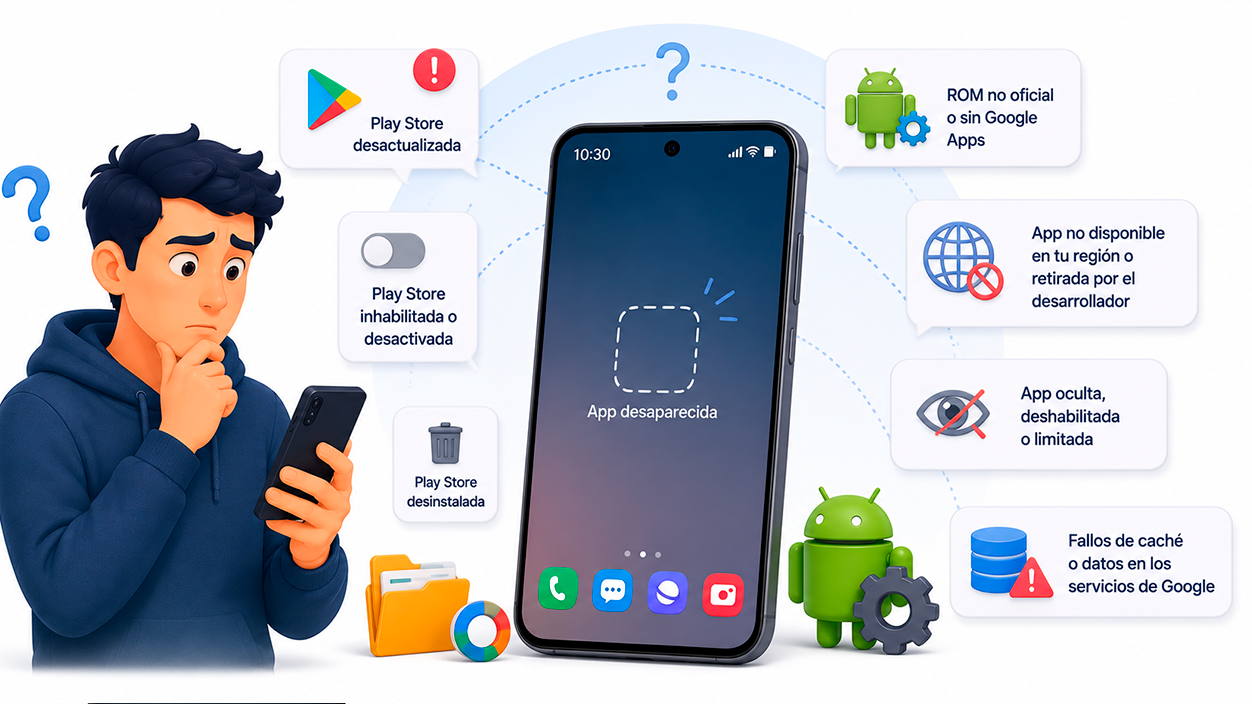
The first thing is to understand that when we talk about a “Installed app disappeared” on Google Play Several different situations can occur: you might not find the app on your phone, it might not appear in your Google Play library, the Play Store itself might have disappeared from your device, or the app might appear but not work properly. Each case has its own explanation and solution.
Often, the root of the problem lies in the fact that You do not have access to the Play Store under the proper conditionsThis can be due to several typical reasons: the Play Store app is outdated, disabled or turned off in the settings, it has been uninstalled, or you are using an unofficial Android ROM or distribution that doesn't include Google apps (neither the Play Store, nor Google Play Services, nor anything similar).
It's also possible that the specific app you're looking for, such as Pokémon Go or another popular game or serviceIt may have temporarily or permanently become unavailable on Google Play in your region, or the developer may have removed it. In these cases, even if you have it installed, it may no longer appear when you search for it in the store, creating the impression that it has "disappeared" from the system.
On the other hand, it must be considered that Android offers options for disguisedisable or limit apps At the system level, whether from the application menu itself or through some manufacturers' custom interfaces, a tap where you shouldn't have, an update that rearranges menus, or a misunderstood safe mode can cause you to miss the app... even though it's still there.
In the specific case mentioned at the beginning (Samsung S21 Ultra 5G, without recent updates and with no apparent problems until Pokémon Go stopped working and the Play Store "disappeared" from the Google folder), what usually happens is that The Play Store is disabled, its icon has moved, or there has been a cache or data failure in Google services.Therefore, before panicking, it's a good idea to methodically review all the possibilities.
Check if the Google Play Store is outdated, disabled, or hidden
One classic reason why the Play Store seems to have disappeared is that their updates have been uninstalledGoogle Play Store comes pre-installed as a system application on most certified Android phones, so it cannot be completely deleted in the normal way, but its updates can be removed and it can be left in the factory version.
When this happens, you may find that the app is no longer called “Google Play Store” but something like “Market” or “Google Market”This is especially common on older versions of Android or on devices that haven't been used in a while. If you see one of those icons in your app list, even if it looks old or strange, open it: since it has an internet connection, the system usually forces an update to the latest version of the Google Play Store, and after a few minutes, everything returns to normal with the current name and icon.
Another very common possibility is that the app is disabled or deactivated from the Device SettingsOn many Android versions, if you go to Settings > Apps, you'll see several tabs or filters: "All apps," "Disabled," "Running," etc. If you ever pressed the disable button in the Play Store, the app disappears from the app drawer and seems to no longer exist, but it's actually still installed and you just need to re-enable it.
The standard route to check this is as follows: go to Device settings > Applications > AllOn some models, you'll need to tap a drop-down menu to select "All apps" or a filter called "Disabled" or "Deactivated." Once there, look for "Google Play Store" or "Google Play" and check the button that appears. If you see a button that says "Enable" or "Activate," tap it, and the app will be operational and visible again in your app list.
Keep in mind that, depending on the manufacturer and the Android version, The text may change slightly between “Disable/Enable” and “Deactivate/Activate”The behavior is the same: when disabled, the app doesn't appear and stops working, but you can restore it with a single tap without needing to download anything extra. In versions prior to Android 6, disabled apps could be seen as a separate tab next to "All," while from Android 6 onwards they are usually managed with menus or filters.
What to do if you really don't have the Google Play Store app
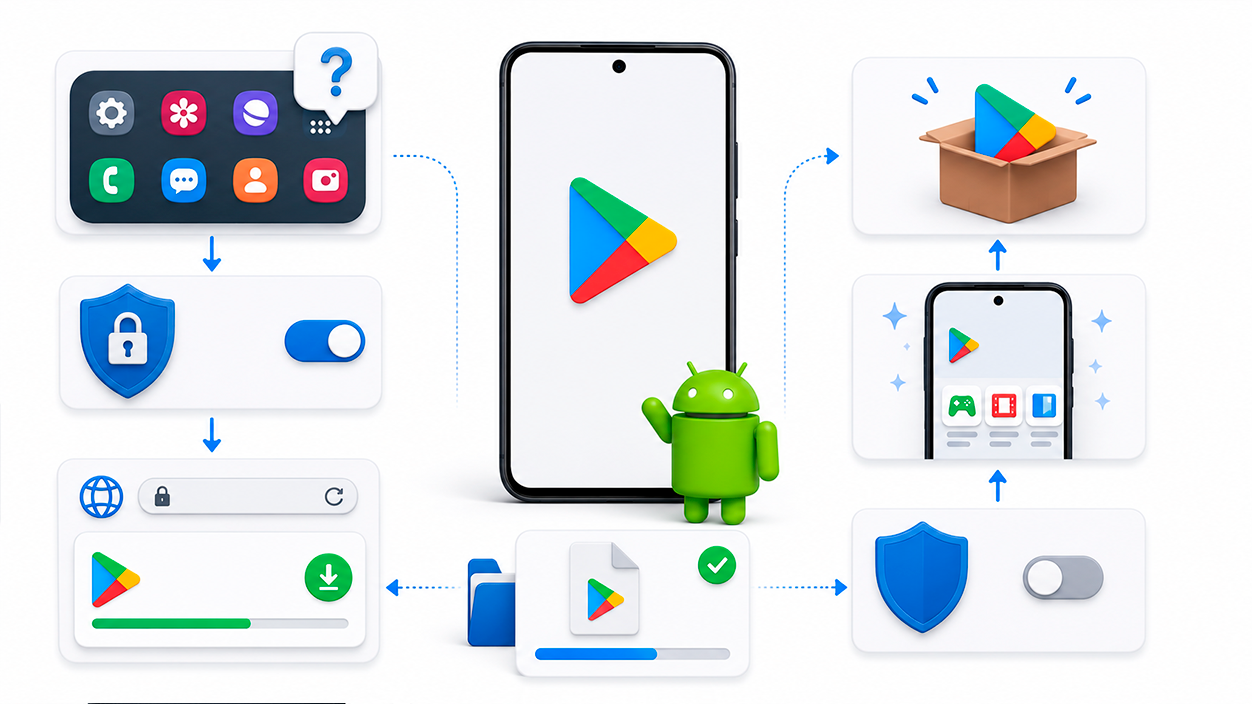
On certain devices, especially those with modified ROMs or that are not certified by Google, it may happen that Google Play Store is not pre-installed or has been removedIt is also possible that the store has been corrupted due to a system failure, and a manual reinstallation is the most practical solution.
If you check in Settings > Apps > All and neither “Google Play Store” nor “Market” nor anything similar appears anywhere, you'll need to resort to reliable external sources. To install an app from outside the Google Play Store, “Unknown sources or origins” must be allowedThis option is located in Settings > Security, where you will see a switch that, when activated, allows you to install APK applications downloaded from the Internet or transferred from another device.
On older Android phones, instead of being in Security, this setting could be found in Settings > ApplicationsBut the idea is the same: to temporarily authorize the installation of external apps. Once you've activated this option, you must access a secure APK repository from your mobile device, such as APKMirror, which is one of the best-known websites for downloading original versions of Android applications.
Access the specific page from your browser. Google Play Store APK On APKMirror (or another reliable source), download the version appropriate for your device and, once the download is complete, open it to install. The Android assistant will guide you through the installation process. The first time you open the Play Store installed this way, it will likely need to update internally, so leave it connected for a few minutes to allow it to update.
Once you see that the Google Play Store is working correctly, go back to Settings> Security (or the corresponding section in your Android version) and disable the "Unknown sources" option to avoid accidentally installing apps from untrusted sources in the future. It's a good security practice to keep this option disabled unless you absolutely need it.
When the missing app is Pokémon Go or another specific app
In many cases the concern arises because You cannot access a specific game or service.As in the example of Pokémon Go, the issue might be more with the Play Store itself than with the game itself. It's possible that Pokémon Go is installed but you can't log in, that it doesn't appear when you search for it on Google Play, or that there are regional changes affecting its availability in the store.
If you see that the game icon is still on your mobile device, but it fails to open or log in, the first thing to do is confirm that the The Play Store and Google Play Services are working and up to date.These services manage many of the login, synchronization, and notification functions; if there is a failure there, it is common for games and apps that use them to stop behaving properly.
To check Google Play Services, go to Settings > Apps > All and locate “Google Play Services”. You’ll see the storage space it uses, the version, and the option to update or uninstall updates. If you suspect something is wrong, you can Clear the cache and, in more extreme cases, uninstall updates to force a clean updateNext, restart your device and check if Pokémon Go is working normally again.
If, in addition, you don't find Pokémon Go in the search results when you go to Google Play, check that It is not a regional or compatibility issue.Sometimes, developers restrict apps to certain countries or specific device models; other times, they temporarily remove them for maintenance or technical issues. In that case, even if you have the app installed, the Play Store may no longer show it for new downloads or updates.
Finally, if you've seen on forums like Samsung Members that other users of the same model are experiencing the same problem at the same time, it's very likely that whether you are dealing with a specific fault of the manufacturer, the Android version, or Google services in that combinationIn these cases, it's usually a matter of waiting for a patch or automatic update to be released, although it's advisable to periodically check the system settings and the Play Store itself to install any pending updates that may correct the problem.
Installing Google Play Store when it didn't come pre-installed on the device
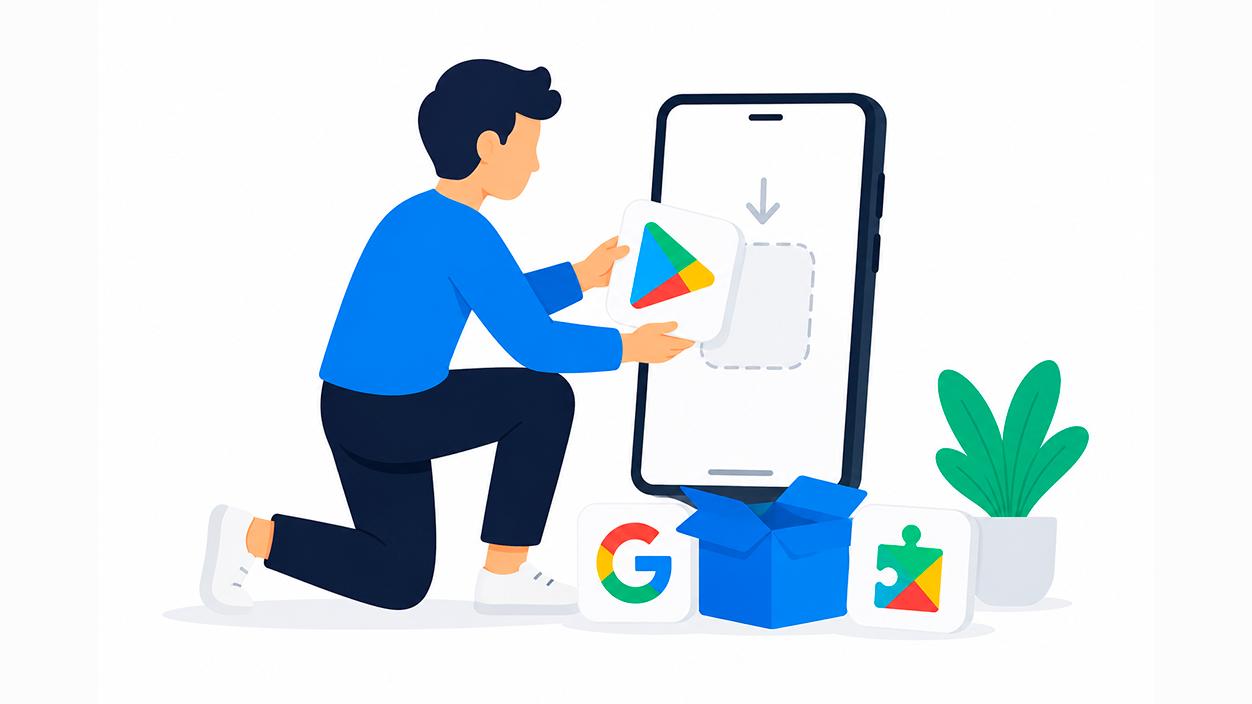
There is a particular set of circumstances in which Your mobile phone or tablet does not include any Google apps by default.This happens with many devices purchased from certain Asian retailers, with custom ROMs, or with some models designed for markets where Google apps aren't included by default. In this situation, you won't see the Google Play Store, and you also won't have Google Play Services, Gmail, YouTube, or anything similar.
If your device falls into that category and you want to use Google Play, you'll need to manually install what's known as Google app package (GApps) Or, at the very least, the combination of Google Play Services and the Google Play Store. The basic procedure is similar to what we saw before: enable unknown sources, download the appropriate APKs from a trusted source like APKMirror, and install them in the correct order.
Specifically, if you don't have the Play Store but can check if Google Play Services exist, go to Settings > Apps > All and search for “Google Play Services”. If it doesn't appear, you'll need to install it manually. From your device's browser, go to the corresponding APKMirror link (or a similar repository) to download the “Google Play Services” APK that's compatible with your device's Android version and architecture, install it, and then repeat the process with the “Google Play Store” APK.
It's important to choose the correct versions: installing an incompatible APK can cause forced closures, excessive battery consumption, or constant errorsTherefore, it's recommended to check your model's information (Android version, processor type, whether it's ARM, ARM64, etc.) and select the APK variant that matches that data. Many repositories clearly show what configuration each file requires.
Once Google Play Services and the Play Store are installed, the next step is Sign in with your Google account in the store. From there you can download Pokémon Go and any other compatible app just as you would on a traditional Android device. Although this method usually works, keep in mind that some uncertified devices may experience minor glitches or unusual behavior, precisely because they weren't originally designed to run Google apps.
Interference from ad blockers and browser extensions
Another problem that can be confusing is when The Google Play app works on mobile, but from the browser on the computer the store doesn't display correctly or certain pages don't load.or even elements of the interface seem to disappear. In these cases, the culprit may be ad-blocking extensions such as AdBlock Plus, uBlock Origin, or other similar blockers.
If, for example, you're trying to access an app's page on play.google.com from your PC's browser and it's not displaying correctly or you're seeing strange behavior, it's worth investigating. Temporarily disable your ad blocker on that siteThe procedure varies slightly depending on the length, but the general logic is very similar in all of them.
In the case of AdBlock Plus, you must click on the extension icon in the top right corner of the browserYou may see a small counter above the icon; this indicates the number of items blocked on the current page. Tapping it will open a small panel with a toggle switch. Slide this switch to the left or turn it off to stop AdBlock from working on the Google Play domain or the page you're viewing.
Once AdBlock Plus is disabled for that site, reload the page (using the refresh button or the corresponding browser key) so that it Reload the store without ad filtersIn many cases, that is enough for elements that seemed to have "disappeared" to reappear normally.
With uBlock Origin, the process is very similar: click on the uBlock icon in the extensions area, and you'll see a large power button. If you press it, the button will turn gray, indicating that uBlock Origin stops blocking ads and scripts on that websiteAgain, refresh the page for the change to take effect and check if the Google Play content appears correctly.
If you don't know which ad blocker you have, or suspect you may have more than one installed, check your browser's extensions bar and... Disable them one by one on the Google Play website.All these extensions usually offer an option like "Don't block on this site" or "Pause on this domain." After making the changes, refresh the page. This is a quick way to rule out that the problem is with the browser and not with the Play Store itself or the missing app.
Mobile devices also have browsers with built-in ad blockers that can sometimes interfere with loading the Google Play web view. If you notice unusual behavior when managing your apps on the web version, try using the official Google browser or Chrome without ad blockers to isolate the problem.
Final recommendations to prevent apps from “disappearing”
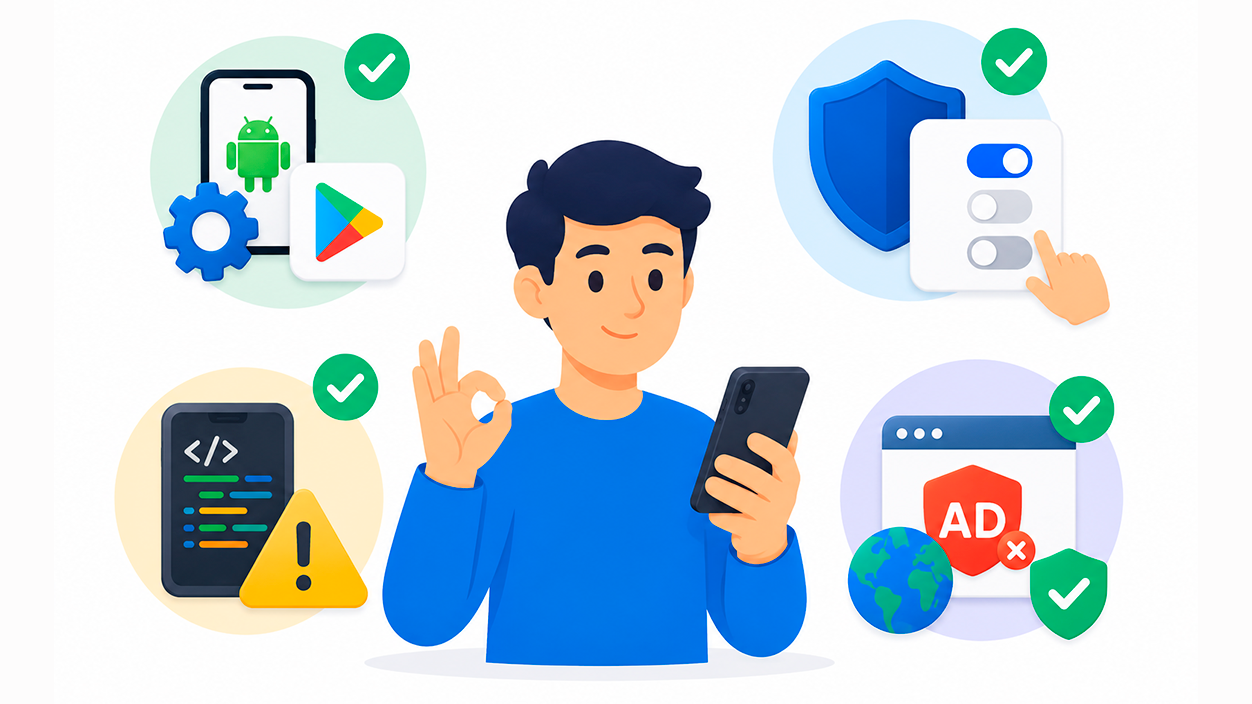
After reviewing all the most common causes and solutions, it is worth keeping some things in mind. Best practices to minimize the possibility of an installed app disappearing from Google Play or your mobile device without knowing why. They're not foolproof measures, but they do significantly reduce scares.
First, maintain it whenever you can the Android system, Google Play Store and updated Google Play ServicesUpdates typically fix internal bugs, improve compatibility with new apps, and resolve conflicts that sometimes cause unexpected crashes or strange behavior such as missing icons or unresponsive apps.
Secondly, avoid unnecessarily fiddling with the system app list in Settings, especially the options for disable, deactivate, or uninstall system app updatesIf you're unsure what an app does, it's best to leave it alone; many of them are necessary components for the Play Store, Google Services, or even your phone's menus to function correctly.
It is also recommended that, before installing unofficial ROMs or modifying the system, you investigate whether These changes will affect Google apps and compatibility with the Play StoreWhile custom ROMs can offer advantages, they can also leave you without direct access to the Google Play Store, forcing you to resort to manual installations and more technical solutions that not everyone wants to or knows how to use.
When using browsers with ad blockers or aggressive extensions, get used to Disable them on sensitive sites like Google Play, banks, or critical services.This will prevent you from confusing an extension problem with a problem with the service itself, and you'll save time looking for errors where there aren't any.
And if you ever find yourself, as in the case of the Samsung S21 Ultra 5G, suddenly unable to access Pokémon Go, the Play Store seems to have disappeared from the Google folder, and no quick fix works, remember that It's most likely a configuration error, a disabled app, or a pending update.Calmly reviewing the Settings, checking if Google Play is disabled, reinstalling from APKMirror in extreme cases, and making sure that browser blockers are not interfering usually restores everything to normal without the need for drastic measures.


I am a technology enthusiast who has turned his "geek" interests into a profession. I have spent more than 10 years of my life using cutting-edge technology and tinkering with all kinds of programs out of pure curiosity. Now I have specialized in computer technology and video games. This is because for more than 5 years I have been writing for various websites on technology and video games, creating articles that seek to give you the information you need in a language that is understandable to everyone.
If you have any questions, my knowledge ranges from everything related to the Windows operating system as well as Android for mobile phones. And my commitment is to you, I am always willing to spend a few minutes and help you resolve any questions you may have in this internet world.