- Verification of the correct physical installation of the GPU in the main PCIe x16 slot.
- Critical BIOS settings to prioritize dedicated graphics over integrated graphics.
- Importance of a deep cleaning of controllers using specialized tools.
- Power supply and firmware compatibility check between board and card.
Jan AI not detecting the graphics card: causes and solutions? There's nothing more frustrating than building a powerful PC or installing software like Jan AI and realizing that The system does not recognize the graphics card.It's a fairly common situation that can leave you with a black screen or, even worse, cause your computer to run at half speed because it's using the processor's integrated graphics instead of the power of your GPU.
This problem can come from anywhere: from a poorly connected cable or a silly mistake when inserting the part, to deep software conflicts or an outdated BIOS. To solve this headache, we'll go through all the possibilities step by step, from the simplest to the most technical adjustments, to bring your hardware back to life.

Basic assembly and connection errors
Sometimes we rack our brains looking for complex faults when the problem is a botched physical installationThe first thing you should check is which PCIe x16 slot you've inserted the card into. Generally, it should always be in the first PCIe slotThe one closest to the processor, since the BIOS usually assigns priority boot to that port. If you've put it in a lower slot, the system probably won't detect it or performance will drop drastically when working in x8 mode.
Another very typical mistake, and one that happens more often than we admit, is connect the monitor cable to the motherboard instead of directly to the GPU. Many motherboards have HDMI or DisplayPort outputs for integrated graphics (especially if you have Intel processors other than the "F" series or AMD Ryzen processors other than the "G" series). If you have a dedicated graphics card, The monitor must be connected to the GPU panel.Otherwise, the PC will ignore the powerful card and use the integrated one.
Warning signs: The POST and VGA LED
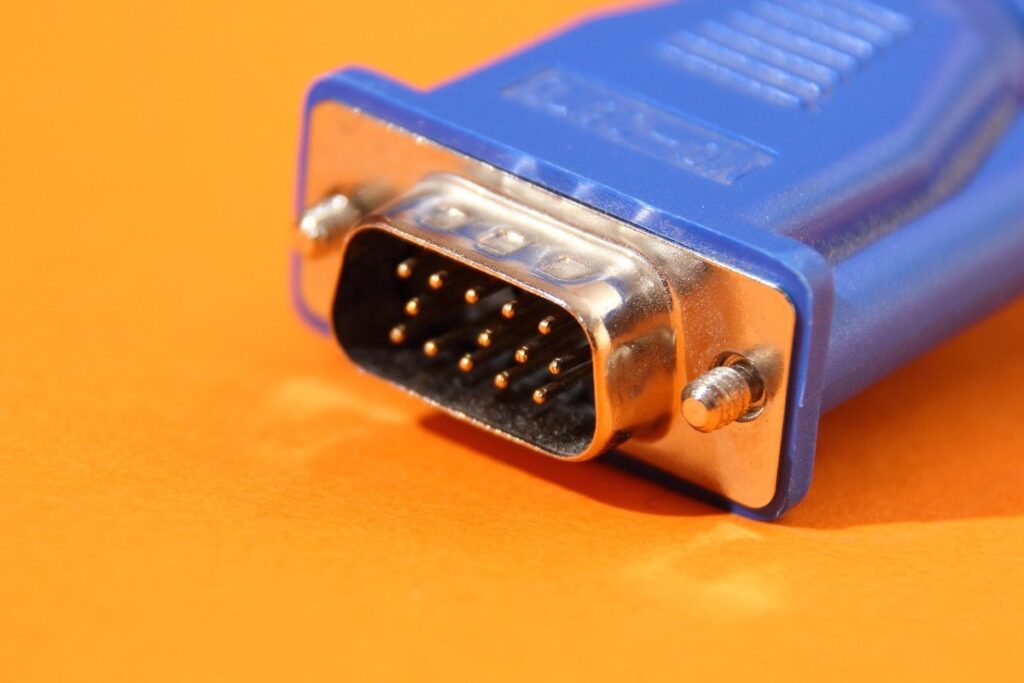
If your PC won't even boot and the monitor just stays black, check the motherboard. Modern motherboards have some Diagnostic LEDs (POST) which indicate where the fault is. If the indicator stays on in VGAThis means the BIOS has detected a problem with the graphics card. This can also manifest as the familiar BIOS beeps (such as one long beep followed by two short ones).
In these cases, there is a possibility that the card is defective or incompatibleAlthough PCIe is backward compatible, a damaged component can prevent booting. Before assuming the card is dead, try performing a Clear CMOSThis involves resetting the BIOS to factory settings using the dedicated button on the motherboard or by bridging the corresponding jumper for a few seconds with the power off, thus eliminating any incorrect power or frequency setting.

Advanced BIOS and Firmware Settings
If you're lucky enough to access the BIOS using the integrated graphics, check the video settings. On motherboards like Asus, you should go to System Agent Configuration and then to Graphics Configuration. Make sure the option Primary Display is set to Auto or PCIE and that the iGPU Multi-Monitor function is disabled to force the system to recognize the dedicated GPU.
Don't ignore updates either. Sometimes, the motherboard BIOS It's too old to recognize a newer GPU architecture. Updating the motherboard firmware may fix the root detection problem. In very specific and rare cases, a root scan might even be necessary. GPU BIOS update, something that manufacturers occasionally release to correct stability or power management errors.
Troubleshooting software and drivers
If the PC displays an image but the graphics card doesn't appear in Device Manager, the problem is almost certainly with the drivers. Sometimes, remnants of old drivers cause conflicts. Ideally, you should use Display Driver Uninstaller (DDU)which completely erases all traces of previous drivers, leaving the system clean for a fresh and error-free installation from the manufacturer's official driver.
If you still don't see it, try activating the option to Show hidden devices in the "View" tab of Device Manager. If the card now appears but with a yellow triangle, there's a driver error. In very specific situations with gaming or AI software, you might need modify device ID in the program's configuration files (.xml), looking for the hexadecimal code of the PNP device in the system information (msinfo32) to force compatibility.
Finally, remember to check that the ensure the power supply is correctIf you forgot to connect the 6-pin or 8-pin EPS cables from the power supply to the card, the system will display an on-screen warning or simply won't detect the hardware. Make sure your power supply has sufficient watts to power the GPU, since a lack of power can cause the card to disappear from the system after an unexpected crash.

To resolve the issue of Jan AI or the system not recognizing your GPU, it is essential to first rule out physical faults such as the PCIe slot or the monitor cable, check the error LEDs on the motherboard, and clean the drivers with DDU, also ensuring that the BIOS is updated and configured to prioritize dedicated hardware over integrated hardware.

Passionate about technology since he was little. I love being up to date in the sector and, above all, communicating it. That is why I have been dedicated to communication on technology and video game websites for many years. You can find me writing about Android, Windows, MacOS, iOS, Nintendo or any other related topic that comes to mind.