- Keep both original databases and perform the merge on a copy.
- KeePassXC identifies entries using UUIDs and uses their modification dates.
- Merging may result in deletions; it does not guarantee that everything will remain as active entries.
- Check the result before replacing the main vault and resynchronizing it.
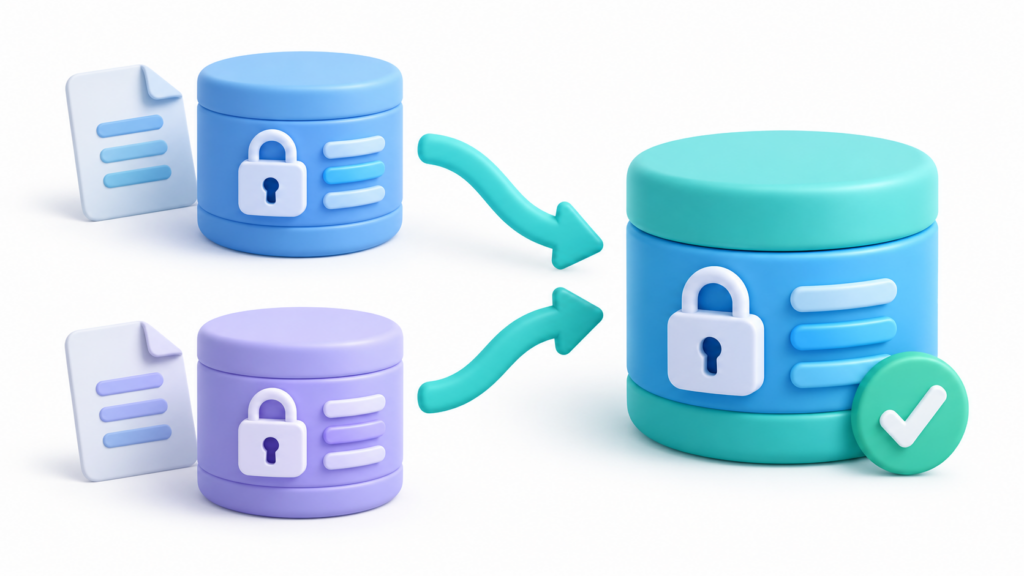
If you have two copies of your vault with different changes, KeePassXC allows you to merge databases to gather your entries. This feature is useful when a sync service creates a conflicting file or when you've updated passwords on different devices.
Before you begin, keep both original files. Merging isn't about automatically choosing the correct copy of everything: you need to review the result, especially if you've modified the same entry in two places or deleted items.
Before merging, save a copy of both databases.
Locate the two files .kdbx And verify that you can open each one with its corresponding credentials. Don't rely solely on which one has the most recent archive date: both copies may contain changes you need.
Prepare a working folder outside the location being synchronized and create copies with easily distinguishable names, for example:
boveda-original-PC.kdbxboveda-original-movil.kdbxboveda-trabajo-fusion.kdbx
Use the third copy as a working copy and keep the other two unmodified. If your phone has pending changes that need to be saved or uploaded, resolve this before assuming the cloud file contains them.
During the operation, avoid editing the vault on other devices. You don't need to convert it to CSV or copy passwords into unencrypted documents.
How to merge two databases in KeePassXC
With the copies prepared, perform the operation from KeePassXC:
- Open and unlock the working copy who will receive the changes.
- Enter Database > Merge from database, either Database > Merge From Databasedepending on the language.
- Select second base
.kdbx. - Enter the unlocking elements requested by that database: password, key file, or additional protection, as appropriate.
- When finished, review the affected entries and save the result.
The changes are incorporated into the open database. You shouldn't assume that the other copy is also updated.
Working on a copy is especially useful if you have automatic saving enabled: you don't depend on being able to cancel all changes before they are written to disk.
What happens with repeated entries, changes, and deletions?
The merger compares the unique identifiers of the entries, called UUIDsand their modification marks. When the identifier matches, the most recently modified version becomes the current one, and the previous one is added to the history. New entries and groups are added.
Two records created separately can have the same title and correspond to the same service, but retain different UUIDs. Don't expect the merger to deduct them as a single account. If duplicates appear, compare their data before removing any.
Don't interpret "most recent" as "correct." If an old password has been resaved since then, it may become the current version. Double-check important credentials and review their history.
Eliminations require special attention
A permanent deletion can leave a record that propagates during the merge. Therefore, An entry that exists in a copy may disappear from the result if the other one registers its deletion.
The fact that an entry never existed at second base is not the same as having been deleted. Emptying the trash is also not the same as permanent deletion. Do not empty trash or perform cleanup while attempting to recover versions.
Check the result before replacing the usual vault
Before using the merged database as your main file, review a representative sample:
- A new entry created on each device.
- A password that was recently changed.
- An entry that you would have edited in both copies.
- Notes, attachments, and other important fields.
- The tickets you expected to find in the trash.
Next, close the merged copy and reopen it to verify that you can unlock the saved file. Keep the originals until you've confirmed that the result contains everything you need.
The history can help recover previous versions, but It does not replace a separate backupDo not empty it before finishing the review.
How to resync files between PC and mobile
Once the result is validated, decide which file will be the main vault. Avoid leaving multiple editable copies with similar names within the usual folder.
KeePassXC can work with a database located in a folder synchronized via services like Dropbox, Google Drive, or OneDrive. That service transfers the file; you shouldn't assume it will always correctly handle your internal changes.
To reduce new conflicts:
- Close the old versions on other devices after securing your changes.
- Place the validated base in the main location.
- Wait for the service to complete the synchronization.
- Open that location from each device and check for a recent entry.
- Avoid editing simultaneously while confirming that everyone is using the correct file.
KeePassXC does not have its own mobile app. Its documentation lists compatible clients such as KeePassDX and KeePass2Android on Android, and Strongbox and KeePassium on iOS. Verify that your chosen client supports your database format and protection.
What to do if the conflict appears in KeePass2Android
KeePass2Android can detect that the file has changed since you opened it and offer options for merge, overwrite, or cancelThe behavior also depends on the configuration and how you access the storage.
If you need to preserve changes from both versions, don't choose to overwrite without checking the contents of each. If you're unsure about the state of the copies, keep the files and perform the merge from your computer.
Just because a change appears on your mobile device doesn't mean it's been uploaded to the remote destination. Verify synchronization before deleting any files or app caches.
The most reliable way to resolve these situations is to keep the originals, merge them onto a copy, and check the important entries before redistributing the vault.

I am a technology enthusiast who has turned his "geek" interests into a profession. I have spent more than 10 years of my life using cutting-edge technology and tinkering with all kinds of programs out of pure curiosity. Now I have specialized in computer technology and video games. This is because for more than 5 years I have been writing for various websites on technology and video games, creating articles that seek to give you the information you need in a language that is understandable to everyone.
If you have any questions, my knowledge ranges from everything related to the Windows operating system as well as Android for mobile phones. And my commitment is to you, I am always willing to spend a few minutes and help you resolve any questions you may have in this internet world.