- Reviewing notification access permissions and disabling battery optimization for the smartwatch app is essential for receiving notifications.
- Most failures are due to silent modes, unstable Bluetooth connection, or notification blocking on the phone itself.
- Properly configuring which apps can notify the watch from the official app prevents important messages from being missed.
- If nothing else works, restarting, re-pairing, or resetting the watch to factory settings often resolves persistent software problems.

Si Notifications are not reaching your smartwatch If you have an activity tracker, it's normal to get frustrated: it vibrates whenever it wants, messages don't appear, or the watch goes silent while your phone keeps ringing. Don't worry, there's usually a solution, and in most cases, It can be fixed by tweaking a few settings. both on the phone and on the watch itself.
In this guide you will find All the common reasons why a smartwatch stops showing notifications and the detailed steps to fix it on Wear OS, Galaxy Watch, Xiaomi, Mi Band and virtually any other brand, and we explain how Connect the Huawei watch to the phoneThe idea is that, upon completion, Have WhatsApp notifications, calls, and emails back on your wrist again and all the other apps you're interested in, without missing anything important.
Check the basics: clock restarts and silent modes
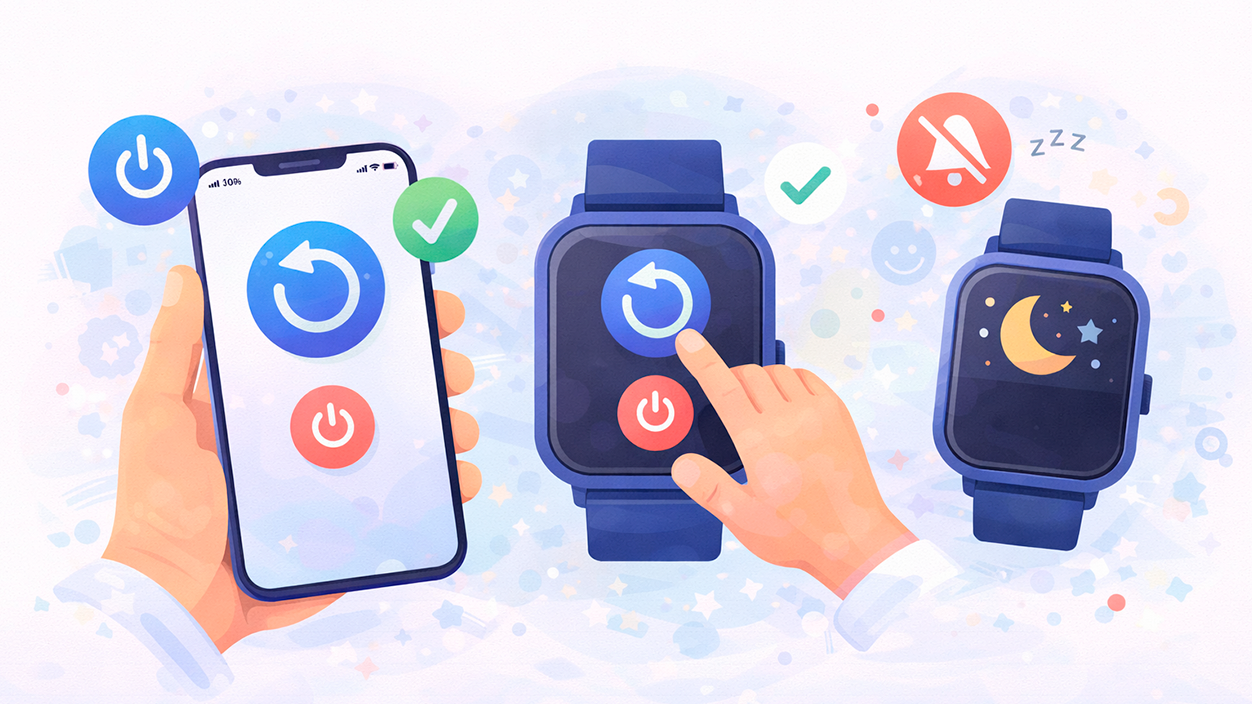
Before we get into advanced settings, it's worth reviewing the basics: many times a simple restart of the phone and watch It brings notifications back to life. It might sound silly, but it fixes more problems than you'd think.
On watches with Wear OS, usually all that's needed is swipe down from the top of the screen Go to the quick panel and tap the restart option. If you're running Wear OS 2 or later, you can also go to Watch Settings and find the power menu to turn it off and on again.
In addition, it's a good idea to turn your phone completely off and then back on. Many Bluetooth connection errors or background service issues are resolved by doing this. restart the mobile systemAnd that directly affects the sending of notifications to the smartwatch.
Another key point is to make sure the watch isn't in a mode that silences or hides notifications, such as the cinema mode, theater mode, or similarThese modes usually darken the screen and block vibrations so that nothing disturbs you at the cinema or at night.
If your watch has a physical power button, pressing it once will usually exiting movie theater modeIn models without a button, the usual procedure is to tap the screen twice quickly to reactivate the screen and deactivate that special mode, thus restoring the alerts.
Verify that the mobile phone is receiving notifications correctly.
A very common mistake is thinking that the problem is with the clock when in reality The notifications don't even reach the phone.The smartwatch or fitness tracker simply reflects what the phone receives, nothing more. If the phone doesn't vibrate or display notifications from an app, the watch won't either.
Start by checking that the Android system itself has notifications enabled for the apps you're interested in. On most Android phones, you'll need to go to Settings > Apps & notifications > Notifications (The name may change slightly depending on the customization layer).
Within that menu, the section usually appears App notificationsThis list shows each app with its permission status. If it says "No" or is disabled for the app that isn't notifying you, open the app and re-enable notifications.
For added security, it's advisable to go into each app you're interested in (WhatsApp, Telegram, email, social networks, etc.) and check that its internal settings also comply. Notifications are enabledSome have their own notification settings that may be turned off even though the Android system has them turned on.
Don't forget check that the phone has an internet connection when you expect notifications. If there is no mobile data or Wi-Fi, or if coverage is poor, No message or notification will reach the smartphone.Therefore, it won't appear on the wrist either. A simple test is to open a website on your phone (for example, a news site) to check that it navigates without problems.
Access permissions for notifications in the smartwatch app
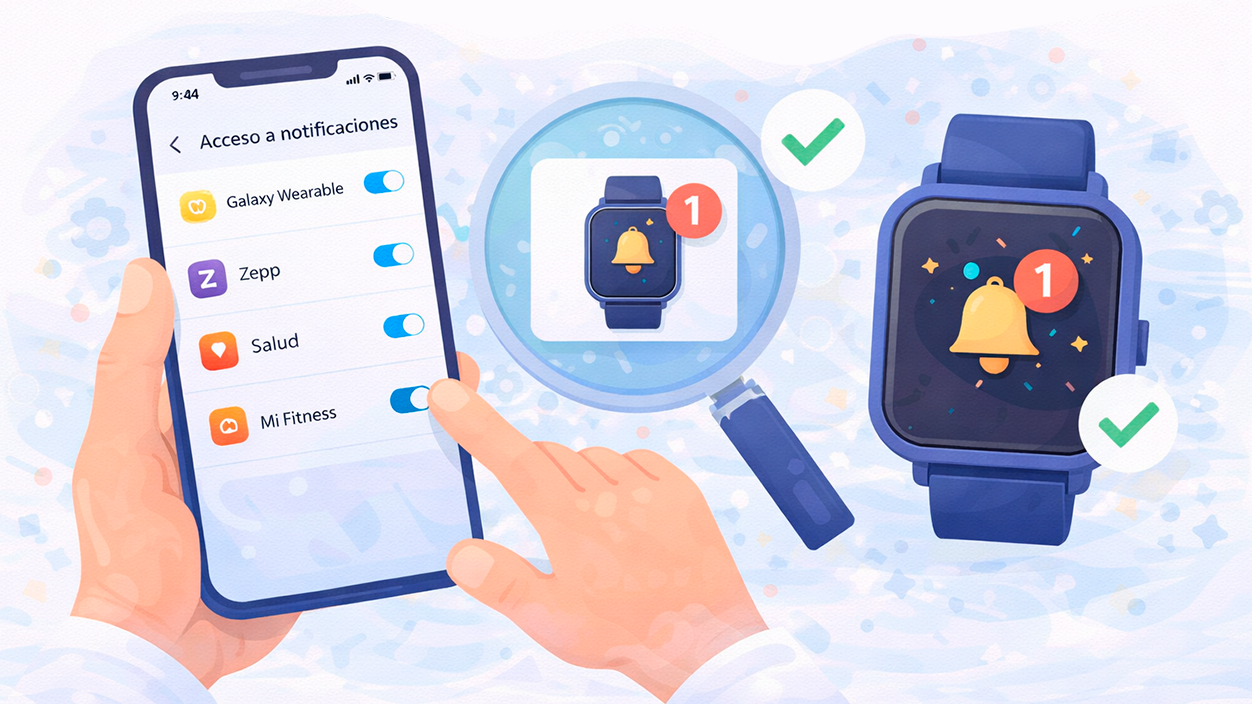
All smartwatches and fitness trackers require a companion app installed on your phone, such as Galaxy Wearable, Mi Fitness, Zepp, Huawei Health, the Fitbit app, or the Wear OS app. To forward notifications to the watch, These applications must have permission to access system notifications.
Normally, when you set up the watch for the first time, the app requests this permission. If you previously denied it, or if the system revoked it during an update, the smartwatch will stop displaying notifications. Fortunately, it's easy to check and reactivate this permission on Android through the device settings.
In recent versions of Android, enter Settings > Applications Then tap the menu icon (the three dots). Inside, you should see a section called "Special access" or something similar; there you'll find "Notification access," where you'll see all the apps that have requested that permission.
Locate the application that manages your watch or bracelet (Galaxy Wearable, Mi Fitness, Mi Fit, Zepp, etc.) and Activate the notification access switch if it isn't already. This step is essential: without it, the phone can't read the notifications to forward them to the wearable.
On Xiaomi phones with recent versions of MIUI, permission management may be somewhat hidden. In those cases, it's advisable to check the menu of Advanced settings, privacy and security, where you will usually find the "Special permissions" or "Notification usage rights" section to grant the watch app full access to notifications.
Disable battery optimizations for the clock app
Android incorporates energy-saving mechanisms that identify background apps and They close them when they think they consume too muchThis is fine for extending the phone's battery life, but it's a headache for apps that need to stay active all the time, like those that manage a smartwatch.
If the system decides to "optimize" the resource consumption of a watch app, it may kill the process that maintains the connection with the wearable or the service that listens for notifications. Result: Suddenly, the notifications stop arriving at the wrist. even though everything seems to be set up correctly.
To avoid this problem, you need to exclude the clock app from battery optimization. On many Android devices, this is done from... Settings > Applications by searching for the wearable app and entering its advanced options, where there is usually a section called "Optimize battery usage" or "Battery optimization".
Within that menu, mark the watch or fitness tracker app as "Don't optimize" or similar, so that the system doesn't close it when it wants to save energy. This way, The app will be able to continue running in the background and receiving alerts to send to the smartwatch.
In operating systems like MIUI (Xiaomi), EMUI (Huawei), One UI (Samsung), and similar ones, there are also specific power-saving settings worth checking. Look for menus like “Battery saving in apps,” “Battery management,” or “Auto-start” and make sure that The watch app is allowed to start and remain active..
Choose which apps you want to receive notifications on your smartwatch
Even when notification access permission is granted and the battery isn't limiting the app, the watch may still be "mute" for certain applications. On most platforms, the wearable app includes an internal list of apps authorized to send notifications to the watch.
To check it, open the app that manages your fitness tracker or watch on your phone (Galaxy Wearable, Mi Fitness, Zepp, Fitbit, Huawei Health, etc.) and go to the settings of the paired device. There you will usually find a menu of Notifications, Notices or similar, which groups all the options related to the messages that arrive on the wrist.
In that section, you'll see a list of the applications installed on your phone, each with its corresponding switch. Review the list carefully and verify that WhatsApp, Telegram, email, social media, and any other important app are enabled to send notifications to the wearable.
Some manufacturers allow you to selectively block certain apps directly from the watch or the app itself. In that case, the option might be unintentionally enabled. “Block app notifications”This is where a list of muted apps is stored. If you see one you want to unblock, uncheck its block.
Furthermore, on fitness trackers and watches, it's common for only a few basic apps to be activated by default. Therefore, if you notice that calls are notified but chat messages aren't, it's a good idea to access the notifications menu and... Enable messaging and networking applications one by one. that you want to receive.
Specific settings on Samsung Galaxy Watches
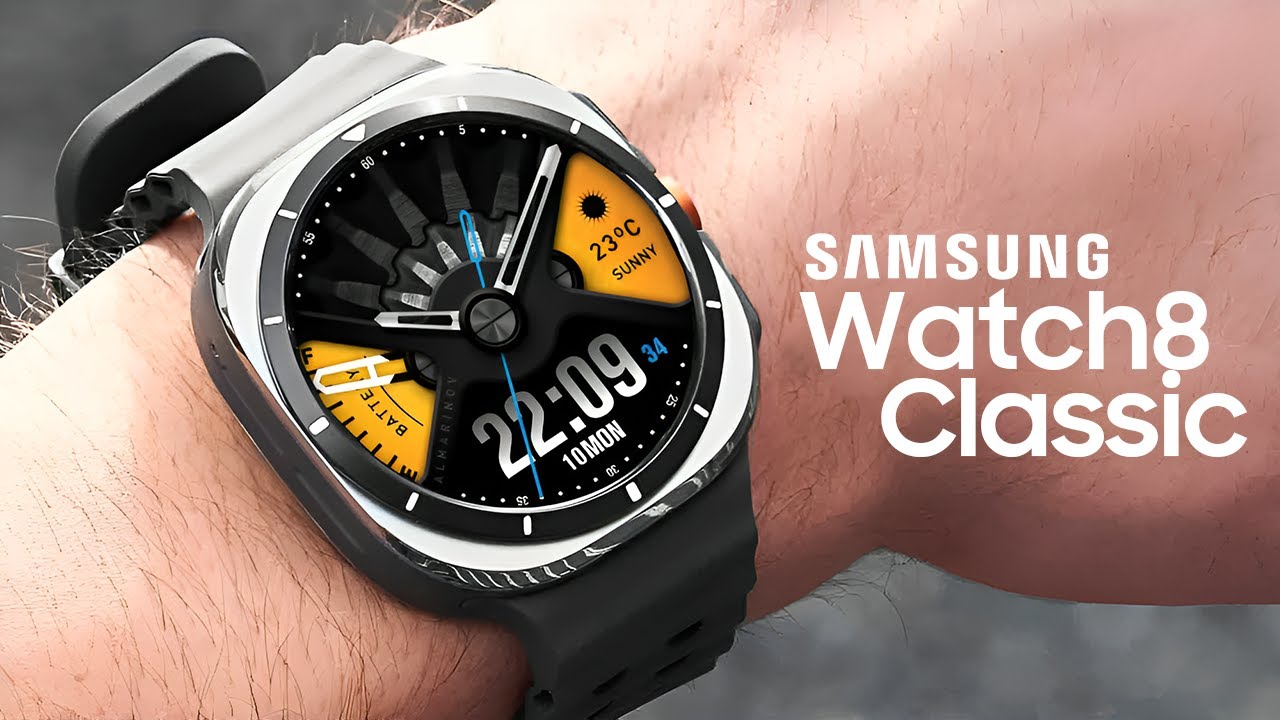
Galaxy Watch devices with One UI Watch (or earlier versions) have their own specific features. If you're not receiving notifications or they only fail in some apps, check the app on your phone. Galaxy Wearable and go to “Watch settings > Notifications”which contains almost everything important. If you need more help, consult our Samsung smartwatch guide.
Within that menu you will see if notification sending is globally enabled and you will be able to Choose one by one the apps that should send notifications to the watchCheck that the ones you're interested in aren't unchecked, especially if the problem only occurs with specific apps like WhatsApp or email.
In some newer models, such as the Galaxy Watch 7, security settings and wrist detection also play a role. The watch needs to detect that you're wearing it to show you certain alerts, and if something goes wrong with that sensor, it can Block notifications for securityYou can also check how Lock your Wear OS watch with a security code.
If you notice that your watch isn't detecting your wrist properly, check the detection options in the wearable's settings. Some users have found that the system suggests... disable wrist detection when the watch does not recognize the skin well (this happens, for example, with some tattoos), but this option is not always in the same place on all models.
When you have doubts about a menu you can't find (such as the security section on newer models), it's worth checking Samsung's official help or updating the Galaxy Wearable app, since Certain sections change their name or location with each software version and can be misleading.
Key settings on Xiaomi, Mi Band and Mi Fitness app
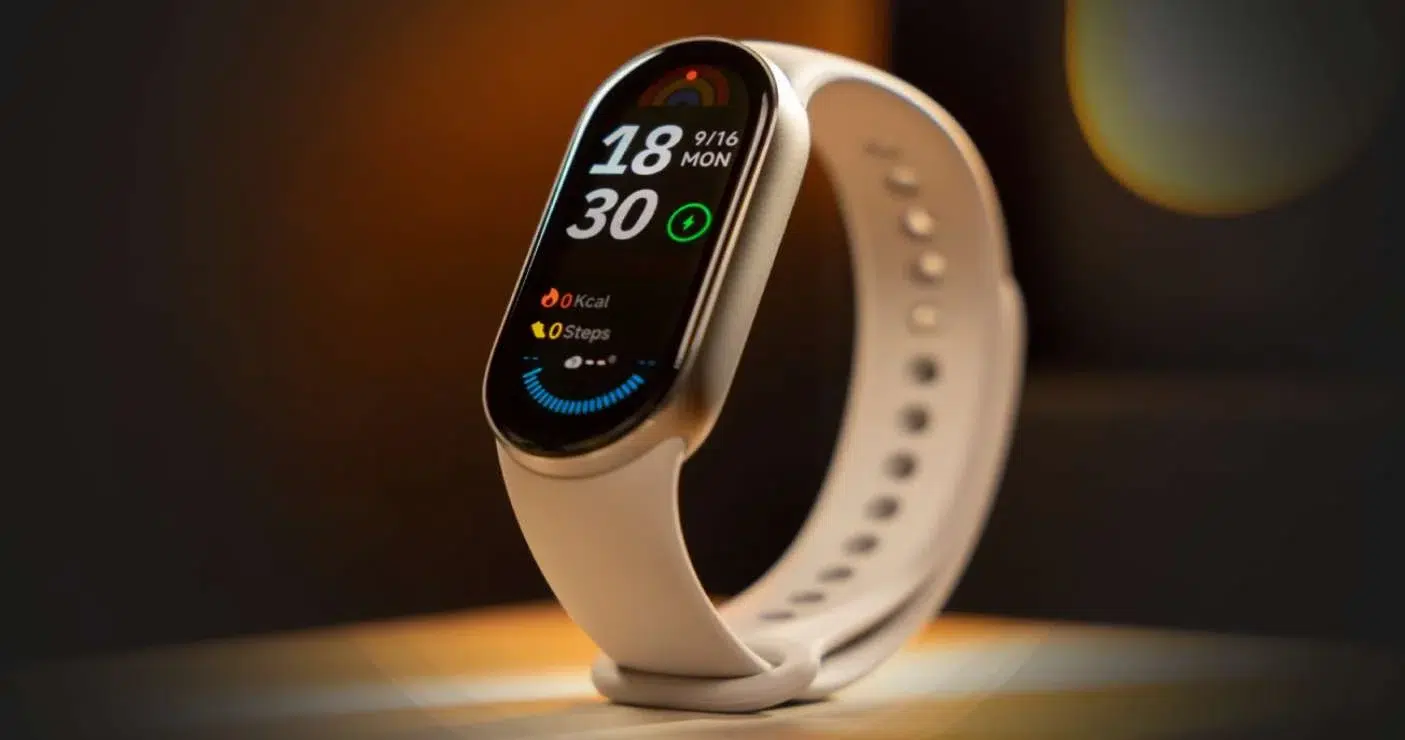
Within the Xiaomi ecosystem (watches and fitness trackers linked to Mi Fitness or other apps from the brand), there are several critical points that can block notifications even when everything seems fine. The first is, as always, stable Bluetooth connection between mobile and wearable.
Check on your phone that the watch or Mi Band appears connected, and that the Mi Fitness app shows the device as paired without any warnings. If the connection is working correctly, the next step is to review the system permissions for the Mi Fitness app, especially in the case of... Xiaomi phones with the latest versions of MIUI.
On these Xiaomi devices, you need to go to the advanced security settings: within Passwords, privacy and security You'll find options like “System security” or “Special application permissions”That's usually where the section is located. “Notification usage rights”where you need to enable My Fitness so that it can read and forward notifications.
It's also a good idea to make sure notifications are appearing correctly in your phone's status bar. If the app itself isn't displaying alerts at the top, it means the system is blocking them. In MIUI, you can check this by going into... Settings > Notification and status bar > Notification managementby selecting the desired app and activating its notifications.
Once all that is correct, open My Fitness and go to the section of Message notificationInside, you should be able to turn on the general option to receive messages and choose, one by one, which applications you want to receive notifications from on your bracelet or watch, such as chats, email, or social networks.
How to adjust notification permissions on iOS for compatible watches
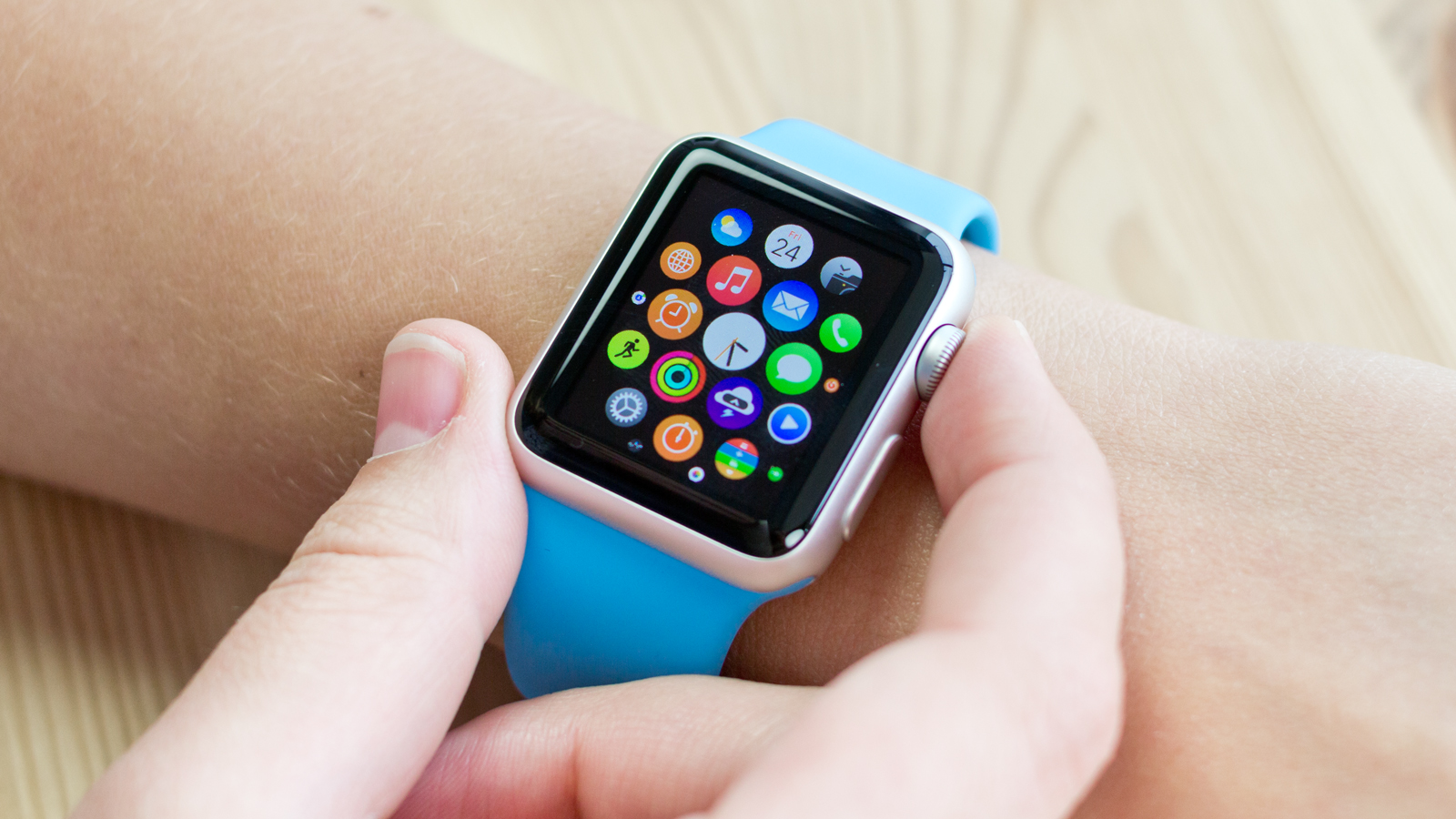
If you use a watch compatible with iPhone (other than an Apple Watch, but a third-party model with its own app), notification management also depends on several iOS menus. The first is in Settings > Bluetooth, where you must tap the information icon next to the watch name.
The device specifications usually include an option like this. “Share system notifications” or similar. Make sure Activate this switch so iOS can forward to the watch notifications from apps installed on the iPhone.
Then, in the main menu of Settings > Notifications, Change the “Show previews” option to “Always”This allows notification content (text, sender, etc.) to be sent in full to the wearable, avoiding restrictions when the screen is locked.
Additionally, check the "Other apps" section within Notifications and verify that The notification switches are all active for the apps you're interested in.If an app has notifications completely disabled on the iPhone, the watch will never receive anything from it.
Keep in mind that many messaging apps don't send messages to the watch in real time while You have your mobile screen open in the chat itself.In other words, if you're reading a conversation on your iPhone, it's normal that those notifications won't be duplicated on the watch, since the system understands that you're already seeing them.
When is it advisable to reset the watch to factory settings?
If you've verified the Bluetooth connection, granted all permissions, checked Do Not Disturb mode, disabled battery optimizations, and the watch still isn't notifying you, there might be a deeper software issue with the wearable. In those cases, reset the watch to factory settings It is usually the last resort to try.
The reset erases all apps, settings, downloaded watch faces, and locally saved data on the watch. It's a drastic process, but in return It returns the smartwatch system to the same state it was in when it came out of the box., eliminating carried-over configuration errors or corrupted files.
Before doing so, check in the watch app if there are any types of cloud backupSince some manufacturers allow you to restore at least the basic settings and watch faces after a reset, it's also a good idea to make sure you know your account credentials (Google, Samsung, Xiaomi, etc.) to re-link the device.
Already on the clock, Go into the system settings and look for a section called “Reset”, “Restart” or “Erase all data”Follow the steps provided by the device itself and, once completed, Configure the smartwatch again using the official app on your mobile phone., verifying during the process that you grant all the necessary permissions.
After that complete reset and a clean setup, the vast majority of persistent notification issues disappear. provided the problem is not physical (for example, a faulty Bluetooth module or a broken key sensor).
Once you have everything in order—system permissions, battery optimization disabled for the watch app, a stable Bluetooth connection, Do Not Disturb modes enabled, and the wearable app properly configured—you should be able to: Notifications will once again flow normally from your mobile to your wristIf you still don't get any warnings, it's very likely that the problem is with the hardware or a serious software bug, in which case you would have to consider a repair or consult with the brand's official support.

I am a technology enthusiast who has turned his "geek" interests into a profession. I have spent more than 10 years of my life using cutting-edge technology and tinkering with all kinds of programs out of pure curiosity. Now I have specialized in computer technology and video games. This is because for more than 5 years I have been writing for various websites on technology and video games, creating articles that seek to give you the information you need in a language that is understandable to everyone.
If you have any questions, my knowledge ranges from everything related to the Windows operating system as well as Android for mobile phones. And my commitment is to you, I am always willing to spend a few minutes and help you resolve any questions you may have in this internet world.