- Differentiate between frame losses due to network, rendering, and encoding using the statistics panel.
- Analysis of the discrepancy between system ping tests and actual bitrate stability in OBS.
- Using log files and changing servers to locate invisible connection failures.
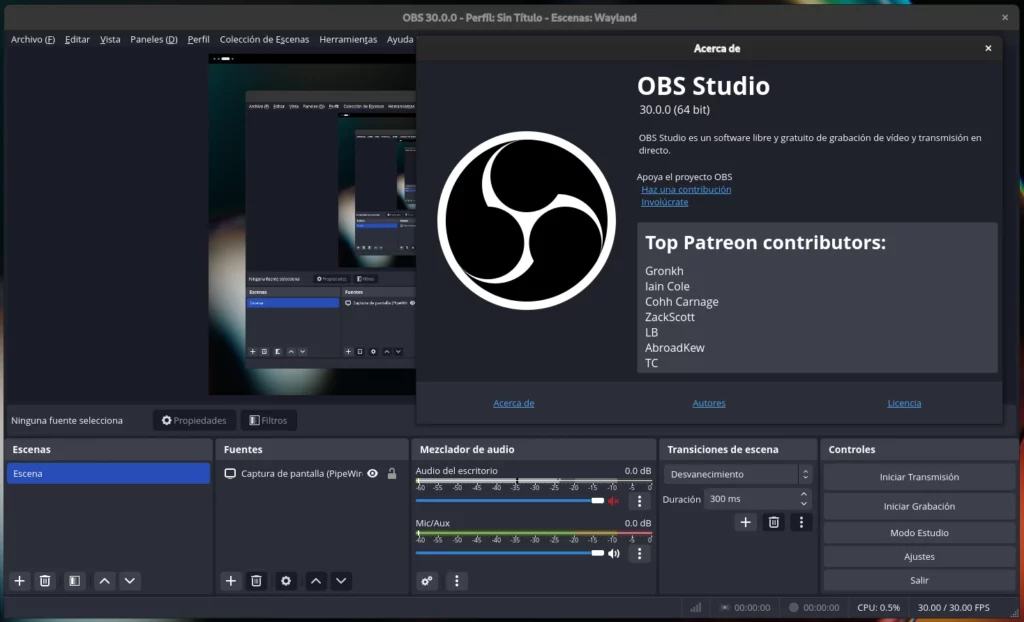
Suddenly, your live stream is choppy and the dropped frame rate keeps climbing. It's an anomaly for which there seems to be no explanation. In this post, we'll tell you what's wrong. What to do when OBS drops frames And how to identify the cause in the statistics. Clues for action when everything seems to be working normally, but OBS insists that something is wrong.
Sometimes you hit a wall because standard tests, such as pinging from the command prompt, tell you that Packet loss is nonexistent and that the speeds are optimal. However, when you press the transmit button, the program starts dropping frames like there's no tomorrow, leaving you completely baffled as to what the root of the problem is.
How to analyze OBS statistics to find the culprit
Is OBS dropping frames for no apparent reason? To stop guessing, the first thing to do is open the Statistics window. NoteThis is where the real reason for the image jumps is broken down, as not all frame drops are the same. It is crucial to distinguish between network frame losswhich is usually linked to the stability of the bitrate or the server, and the loss due to rendering or encoding.
- Lost frames (network): If you see the percentage go up here, the problem is in the path between your PC and the streaming server, even if your download speed is amazing.
- Lost frames (rendered): This happens when your graphics card is overloaded and cannot process the scene in time.
- Lost frames (encoding): It indicates that your processor or GPU encoder cannot handle the chosen quality settings.

Common causes when the internet seems to be working fine
It's very common for users to get frustrated when the command prompt shows 0% packet loss while OBS is losing 70% of the frames. This happens because streaming traffic It's constant and resource-intensive, unlike a ping command which sends tiny packets. There may be micro-interruptions or instability on the route to the specific server of the platform you're using.
Another possibility is that there is a conflict with the network software or that el firewall is interfering in data transmission. Sometimes, a recent system or OBS update can cause erratic behavior that only occurs when trying to stream live, making the connection unstable only for that specific process.

Steps to diagnose the problem thoroughly
When you feel like you're crashing into a wall, the best tool is... log files from OBS. These files store a detailed history of what happens internally and allow you to see if there are specific connection errors or CPU usage spikes that are not easily detected in the task manager.
If the problem persists, it's worth trying to change the streaming server Manually instead of leaving it on automatic. Sometimes, the assigned server is overloaded or has a poor connection route from your internet provider, which means that even if your fiber optic connection is symmetrical and fast, the data doesn't reach its final destination correctly.
The key to solving buffering issues during live streaming and situations where OBS loses frames lies in differentiating whether the problem is hardware-related or network-related by using the statistics window, reviewing the program's logs, and verifying that the data flow to the server is stable, since a connection that seems perfect in speed tests can fail spectacularly when managing a constant streaming bitrate.

Editor specialized in technology and internet issues with more than ten years of experience in different digital media. I have worked as an editor and content creator for e-commerce, communication, online marketing and advertising companies. I have also written on economics, finance and other sectors websites. My work is also my passion. Now, through my articles in Tecnobits, I try to explore all the news and new opportunities that the world of technology offers us every day to improve our lives.