
Congratulations! You can now open and edit Markdown files directly with Google Docs. This good news is a relief for those who write technical documentation, manage repositories on GitHub, or work daily with artificial intelligence tools. In this post, we'll tell you all about this feature, including its features and how to use it. Steps to use it and what limitations you should be aware of.
You can now open and edit Markdown files directly with Google Docs!
For a long time, handling .md files in Google Docs was an awkward task. You had to first convert them to Google formatAnd that process often broke formatting, deleted comments, or altered the original document structure. This was a real hassle for those who needed to edit documents in Markdown formatespecially in collaborative environments.
But that situation changed completely. Google has incorporated native support for Markdown files in Google Drive and Google DocsNow you can open, edit, and collaborate on .md files directly in Google Docs, without needing to convert any formats. Finally! But what exactly does this new feature mean?
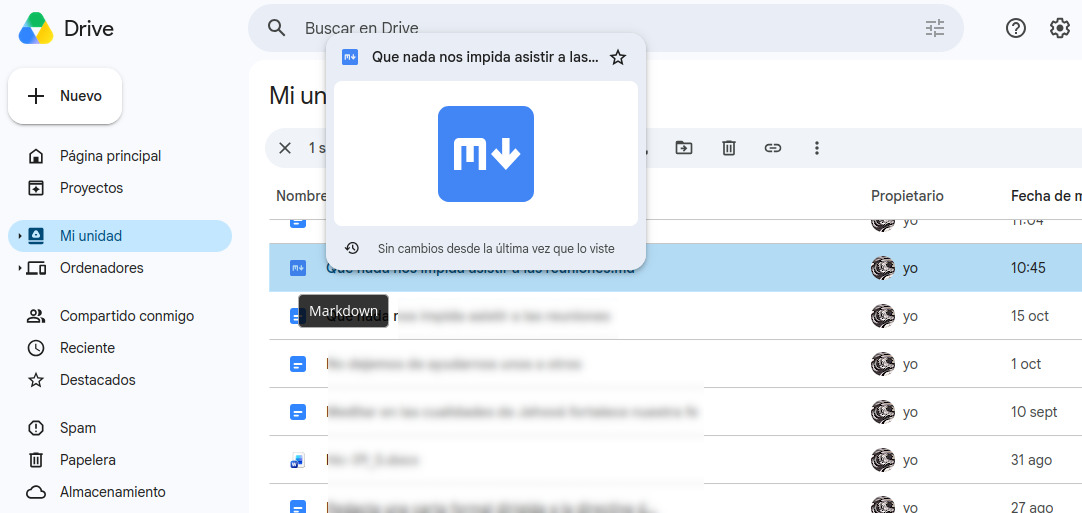
Well, in simple terms, Google Docs now works as a real Markdown editorWhen you upload an .md file to Google Drive, you can open it directly in Google Docs, and the file remains in .md format. Docs acts as an editor, not a converter: your file isn't transformed into a Google document. Rather, it remains the same Markdown file within your Drive.
Thinking about it rationally, the ability to open and edit Markdown files directly with Google Docs is fundamental. Previously, importing Markdown into Docs meant an irreversible change in the file type. Collaborators, for example, would see a Google Doc instead of the Markdown source code. But now, A .md tag appears next to the document title which reminds the whole team that they're editing a Markdown file. Brilliant!
Preview Markdown files in Google Drive
Even without opening the editor, Google Drive now correctly renders Markdown files.Want to see it? Open Google Drive, right-click on your .md file, and choose "Open with" and then "Preview." At the top of the viewer, you can toggle between Markdown view (source code) and "Preview" view (rendered format).
This means you can see directly in Drive how headers, tables, and clickable links are rendered, instead of encountering raw code. quickly review technical documentation or check if the format is correctThis preview feature is very useful. Let's now see how to open and edit Markdown files directly in Google Docs.
How to open and edit Markdown files directly with Google Docs
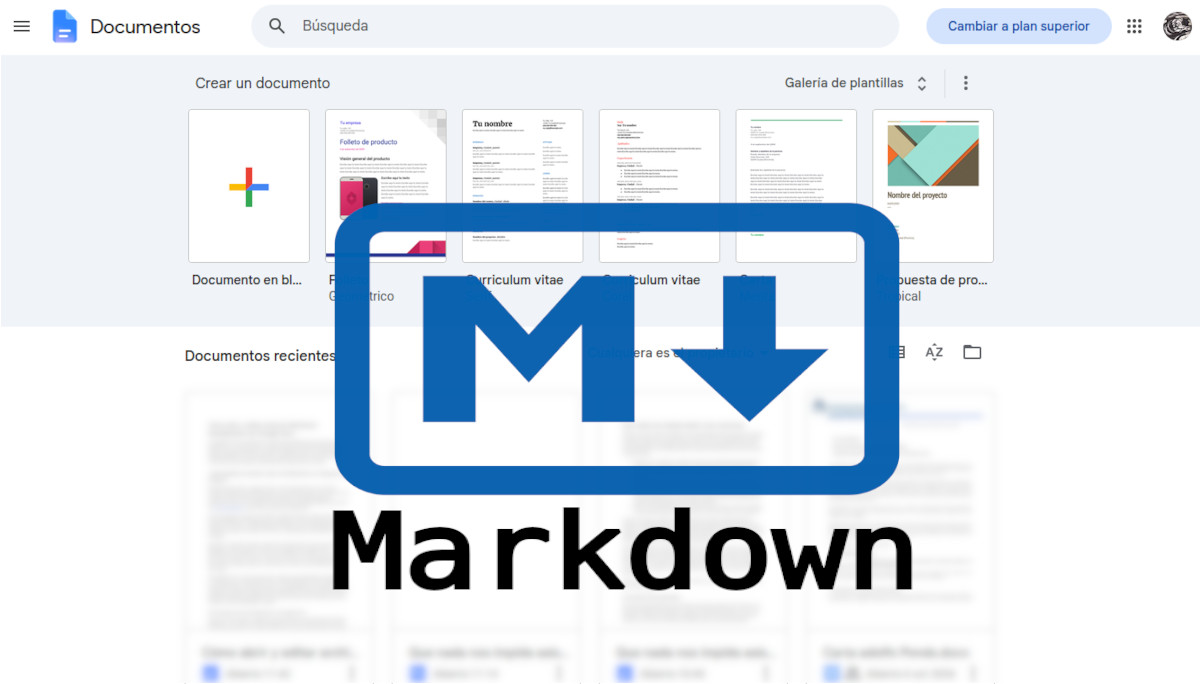
Opening and editing Markdown files directly with Google Docs is just as easy. After uploading the .md file to Google Drive, Double-click on it to open it in Google DocsThe file will start in "Markdown mode" and you will see the .md tag next to the title.
If you prefer operate from within DocsAlternatively, you can use the "Open" option in the "File" menu to upload a Markdown file, which will automatically open in Docs. The editing experience is similar to that of a regular Google Docs document.
For example, you can use the usual toolbar to Apply bold, italics, headings, and other formattingThe system will then convert those actions to the corresponding Markdown syntax in the background. You can also view and edit the Markdown source code directly, switching between formatted view and code view.
What about comments in collaborative environments?
What happens when a team tries to open and edit Markdown files directly with Google Docs? No problem! For these scenarios, the md files... They natively support comments, sharing, and real-time collaborationYou can invite your team members to comment on and suggest changes to an .md file, just as you would with a regular Google Doc.
Even more importantly: when you return to open the file with other toolsThe comments and format will be preserved. Google claims It explicitly states that "you can preserve comments and formatting when you reopen the document in Google Docs or other tools." This solves a long-standing problem: previously, during format conversion, comments often disappeared without a trace.
Limitations when opening and editing Markdown files directly with Google Docs
Are there limitations to opening and editing Markdown files directly with Google Docs? Yes, there are. Despite being a very useful feature, it's not perfect. Markdown is a relatively simple markup language and It cannot support all of Google Docs' formatting capabilitiesGoogle lists several clear limitations:
- Smart chips are converted into normal text or links.
- The web format (HTML) is transformed into plain text.
- Font color, highlighting, and text alignment are removed.
This means that if you apply these formatting options to an .md file in Google Docs, that style information will be lost when you save. However, The version history of Google Docs is still availableIf you accidentally lose a file format, you can recover it from "File > Version History". Finally, let's see how to enable the feature to open and edit Markdown files directly with Google Docs.
How to enable native Markdown support in Google Docs
The good news is that you don't have to do anything to open and edit Markdown files directly with Google Docs. This feature It began to be rolled out gradually on October 5, 2026 It's available to all Google Workspace customers and users of personal Google accounts. No administrator activation or user settings are required.
If you have previously used the Google Docs Markdown pasting function (which is activated in "Tools > Preferences"), that switch controls something different: it allows you to paste Markdown text into a regular Google Doc and automatically convert it to the correct format. Native editing of .md files is a separate feature and is available by default.
It's a fact! You can finally Work with .md files on a mature collaboration platform without sacrificing formatting or commentsBeing able to open and edit Markdown files directly with Google Docs is one of the most practical recent improvements for technical writing. Take advantage of it!
Index

From a young age, I've been fascinated by all things scientific and technological, especially those advancements that make our lives easier and more enjoyable. I love staying up-to-date on the latest news and trends, and sharing my experiences, opinions, and tips about the devices and gadgets I use. This led me to become a web writer a little over five years ago, focusing primarily on Android devices and Windows operating systems. I've learned to explain complex concepts in simple terms so my readers can easily understand them.