- A PCIe 4.0 SSD will work in PCIe 3.0 if the slot supports NVMe.
- In a PCIe 3.0 x4 connection, the speed is limited by the link.
- Before purchasing, check the format, lanes, and restrictions in the plate manual.
- Paying more for Gen 4 only makes sense if its features justify the difference.

Yes, you can install an NVMe PCIe 4.0 SSD in an NVMe-compatible PCIe 3.0 slot. The drive will negotiate a Gen 3 connection and operate at the speed allowed by that slot. The SSD and motherboard do not need to be from the same generation.
The crucial check is in the computer manual. Not all M.2 slots support NVMeNot all of them offer four PCIe lanes. In some systems, a slot may also be disabled or its function may change depending on the installed processor or the other ports that are occupied. Let's see what you should look for before buying and what performance you can expect.
Why does a PCIe 4.0 SSD work on PCIe 3.0?
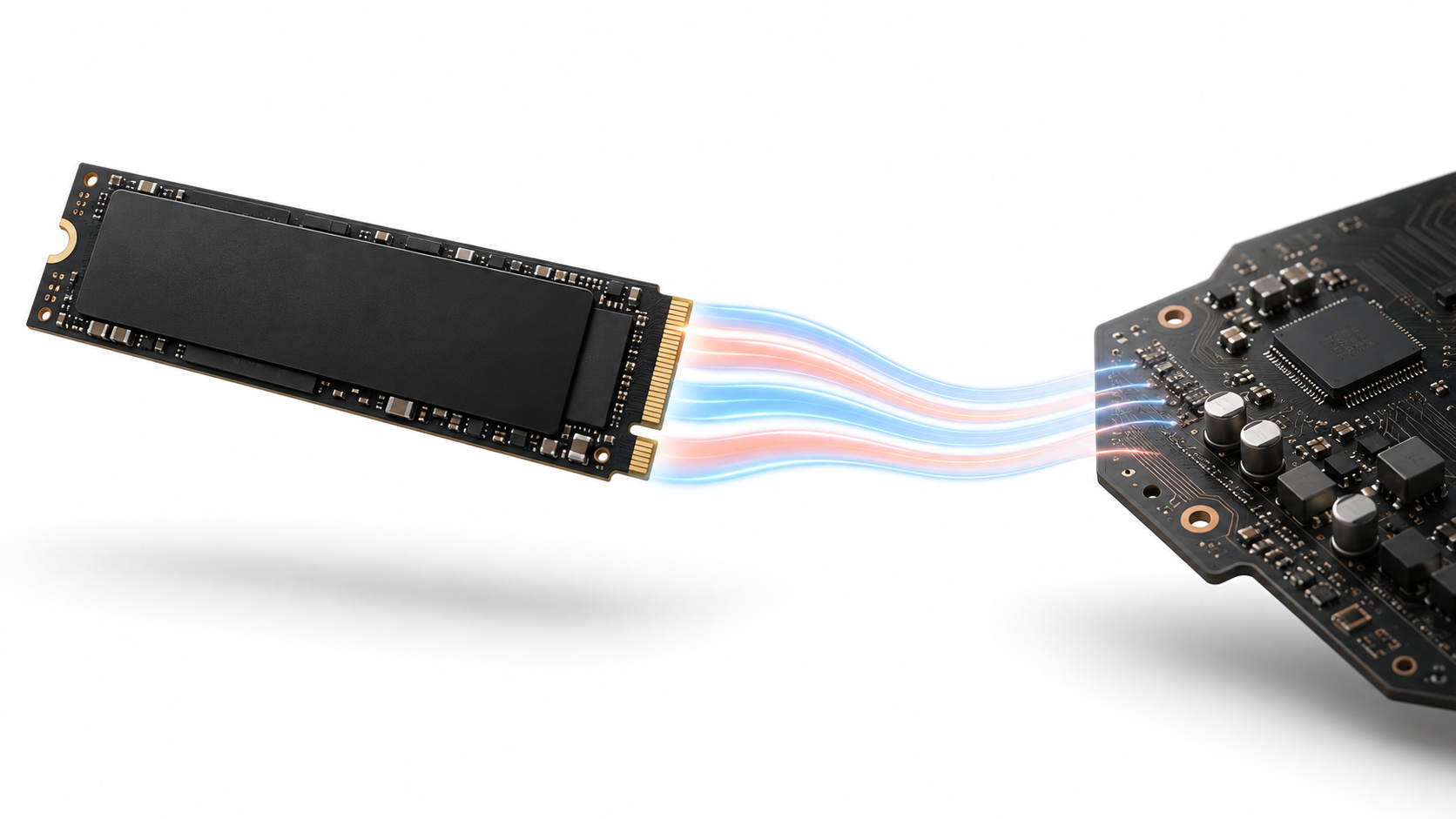
PCI Express allows devices and slots of different generations to negotiate a common speed. Therefore, a Gen 4 SSD can communicate with a Gen 3 slot, but The link will function as PCIe 3.0The SSD retains its own characteristics; what is reduced is the bandwidth available for transferring data with the computer.
In a typical four-lane connection, PCIe 3.0 x4 offers approximately 3,94 GB/s theoretical bandwidth per directionPCIe 4.0 x4 doubles that figure to around 7,88 GB/s. These are link limits, not guaranteed read or write speeds: the controller, SSD memory, and the task being performed also play a role.
There is an important technical detail: PCIe 3.0 and PCIe 4.0 use the same 128b/130b encoding. The main difference between the two generations is that the speed increases from 8 to 16 GT/s per lanedoubling the available bandwidth.
The essential check: Does your M.2 slot support NVMe?
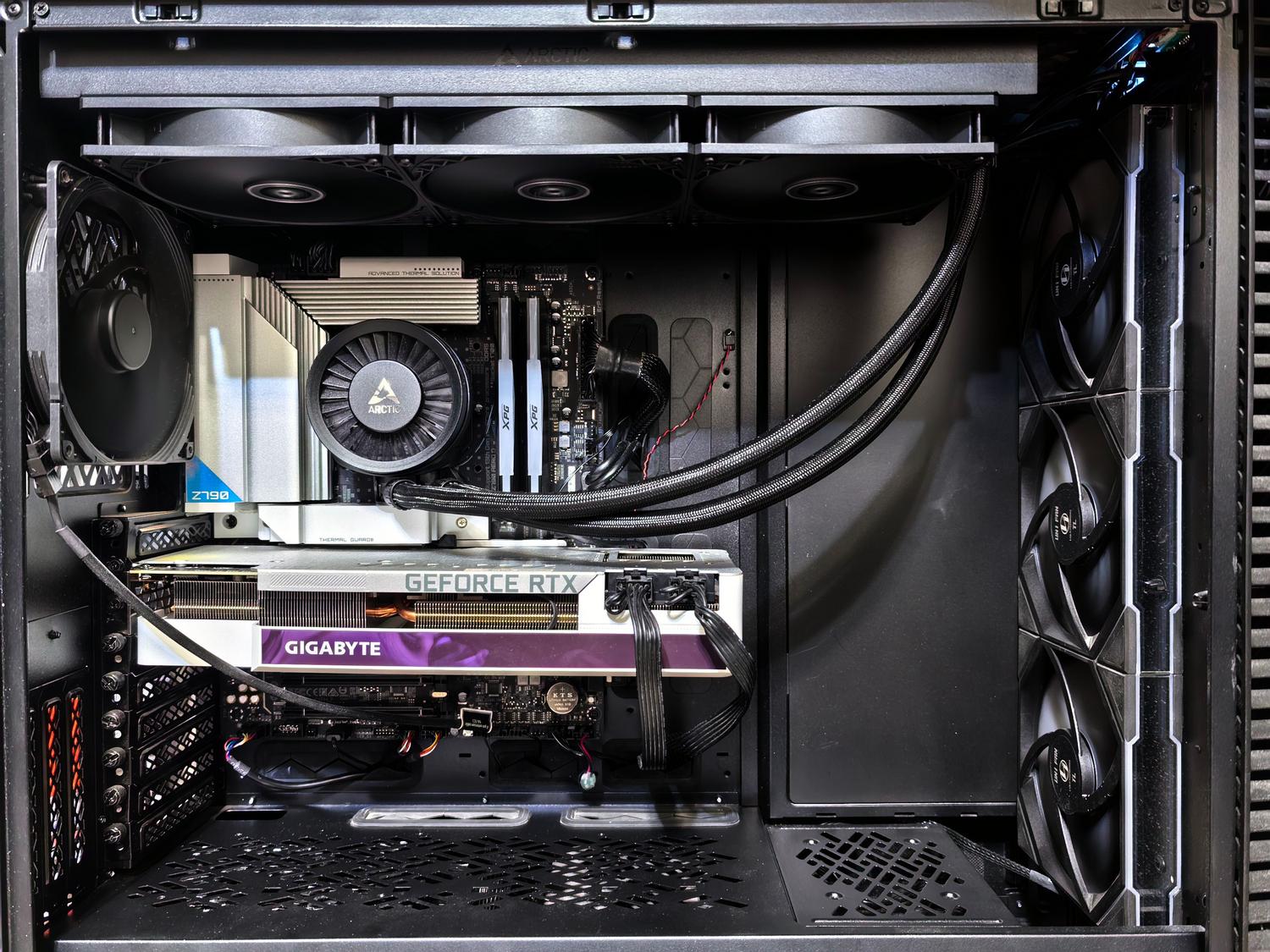
M.2 describes the drive and slot format, but does not guarantee its interface. An M.2 SSD can communicate via SATA or via PCIe and NVMe. If your computer's slot only supports M.2 SATA, an NVMe PCIe 4.0 SSD will not work in it, even if its size seems suitable.
Find the exact model of your motherboard or laptop and open its specifications or manual. For each M.2 slot, check the following:
- Supported interface: It must specify PCIe or NVMe. If only SATA is listed, that slot is not compatible with the SSD we're dealing with.
- Generation and lanes: A PCIe 3.0 x4 slot offers more bandwidth than a PCIe 3.0 x2 slot.
- Compatible length: Check if it accepts the physical format of the drive, such as M.2 2280.
- Operating conditions: Some slots share resources with SATA ports or other connections, and others require a specific processor.
- Space for heatsink: Especially in laptops or compact devices, an SSD with an integrated heatsink may not fit.
These conditions matter more than the chipset name alone. For example, there are Z590 motherboards with an M.2 PCIe 4.0 slot that remains disabled when installing certain processorsWhile other slots on the same motherboard continue to operate at PCIe 3.0. If the manual distinguishes between M.2_1, M.2_2, and M.2_3, check the entry for the specific slot you intend to use.
What speed will the SSD actually have?
If you install a drive advertised with 7.000 MB/s sequential read speed in a slot PCIe 3.0 x4That figure will not be reached: the link limits the theoretical throughput to approximately 3.940 MB/s before considering other factors. An actual speed lower than that limit may be normal depending on the model, the drive's capacity, and the test conditions.
If the slot only uses two PCIe 3.0 lanesThe theoretical limit drops by approximately half. Therefore, simply reading "PCIe 3.0" on the technical specifications is insufficient: the "x2" or "x4" specification significantly alters the result.
The speeds listed on the box usually correspond to sequential tests performed under specific conditions. Opening Windows, launching applications, or loading a game combines small operations with tasks that also depend on the CPU and software. Doubling the bandwidth does not mean that the computer will complete all those tasks in half the time.
It's also worth comparing specific models. Just because an SSD is Gen 4 doesn't guarantee better response times or higher sustained performance than any Gen 3 SSD: its controller, memory type, capacity, and cache management all matter.
Temperature, cache, and other factors that affect performance
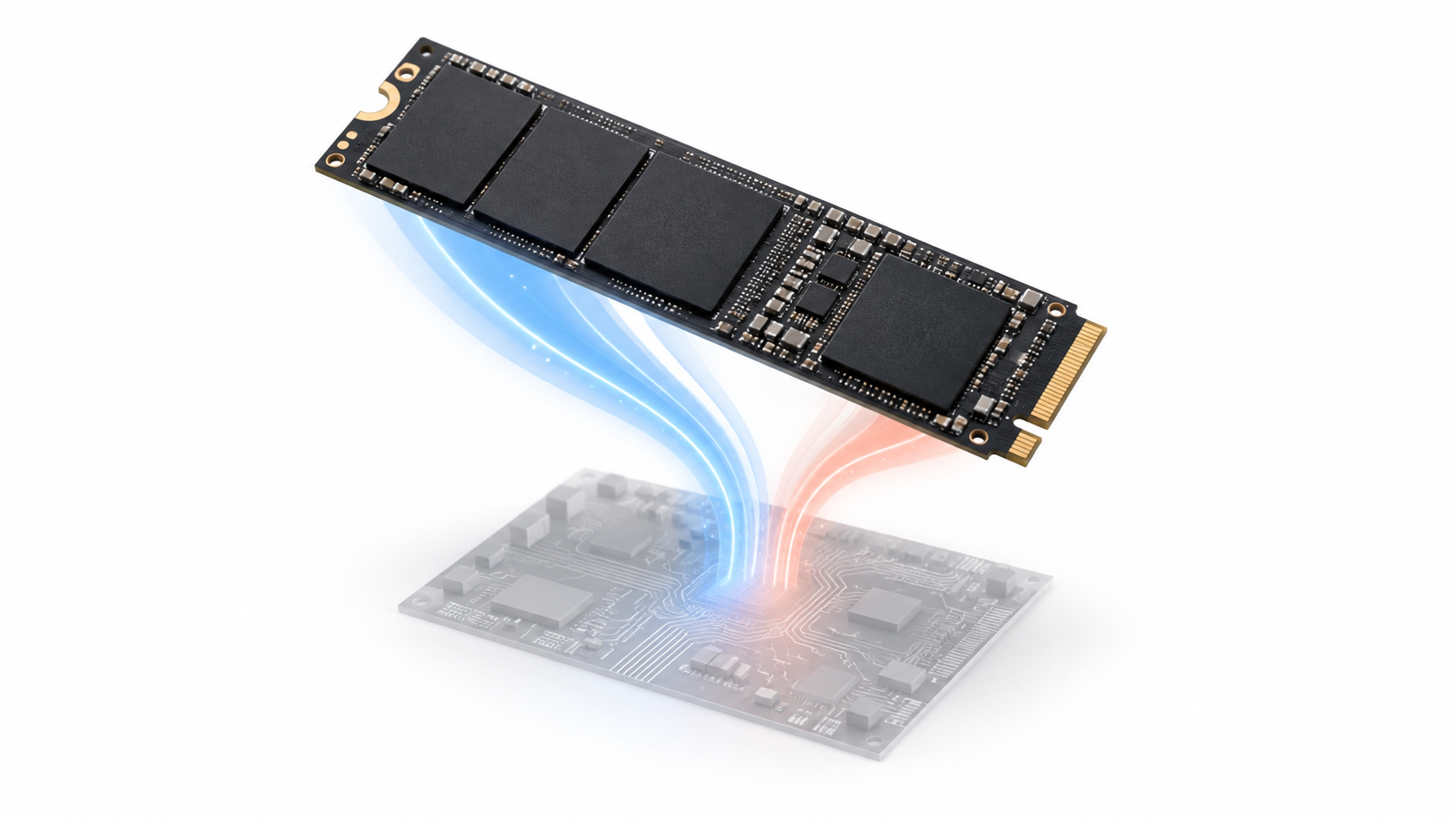
During long transfers or intensive tasks, speed may drop even if the slot is correct. Some SSDs slow down when their write cache fills up. They may also activate thermal protection to manage the temperature during sustained load.
Not all PCIe 4.0 SSDs need a large heatsink. If the motherboard includes an M.2 thermal cover, check the instructions before installing another one on top. On a laptop, first check the available space and use the thermal solution provided by the manufacturer.
The SSD path can also be a factor: a slot connected to the chipset shares communication with other devices. To determine the exact specifications for your system, the storage configuration diagram in the motherboard manual is more helpful than general guidelines about brands or chipsets.
Is it worth buying a PCIe 4.0 for a PCIe 3.0 computer?
It might be worth it if the Gen 4 SSD you've chosen offers the capacity, warranty, resistance and sustained performance It's what you're looking for, and the price fits your budget. You can also take advantage of its increased bandwidth if you later upgrade it to a system with a compatible PCIe 4.0 x4 slot.
On the other hand, if you're paying significantly more just for an advertised maximum speed of 7.000 MB/s, remember that Your Gen 3 slot will not be able to provide the necessary bandwidthFor browsing, office applications, and many games, you may be more interested in prioritizing the capacity and quality of the drive than its maximum sequential read speed.
There are cases where having more bandwidth is indeed useful: moving very large files, working with heavy audiovisual material, or performing processes that read and write large amounts of data. Even so, the advantage will depend on the entire workflow, including the speed of the source or destination drive.
How to install it and what to check if it doesn't appear
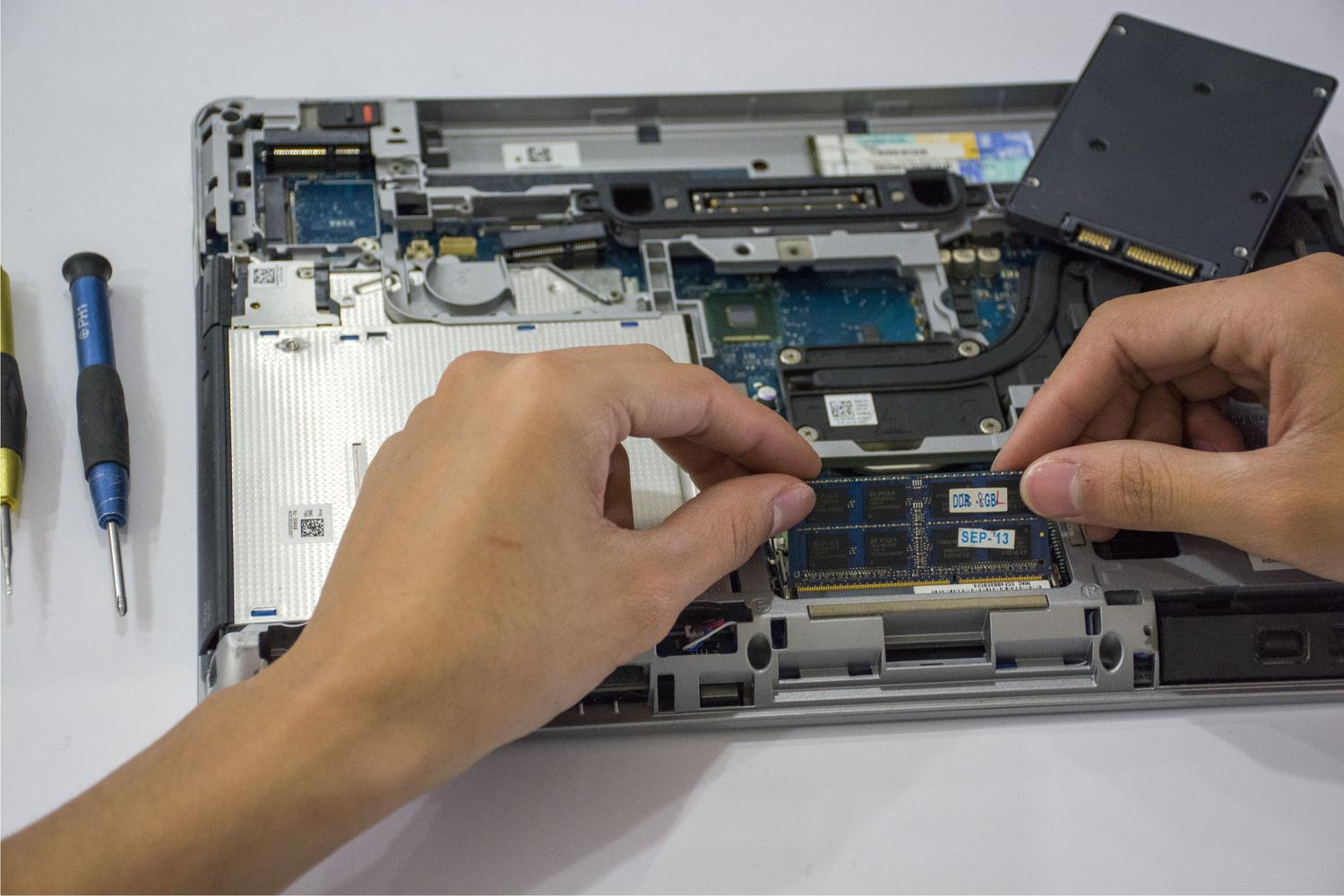
- Consult the manual and choose an M.2 slot that supports NVMe PCIe SSDs and the physical size of your drive.
- Turn off and unplug your computer. Insert the SSD following the instructions on the motherboard and secure it with the corresponding locking system, without forcing the connector.
- Check if the UEFI or BIOS detects it. If it doesn't appear, first check the chosen slot and its possible restrictions with the CPU or other ports.
- In Windows, open Disk Management. If it's a new drive intended for storage, you might need to initialize it and create a volume before you can see it in Explorer.
- If you want to boot Windows from itYou will need to install or clone the system and configure the boot process. On older computers, also verify that their firmware supports booting from NVMe.
If the SSD appears but is underperforming, check the allocated lanes, temperature, and link mode configured in the UEFI. Our guide on How to tell if the BIOS is limiting PCIe to Gen3 It helps investigate that last case. If Windows doesn't detect the drive, also check What to do when Windows doesn't recognize a new NVMe SSD.
The practical answer is simple: A PCIe 4.0 SSD can indeed work in PCIe 3.0Provided the slot supports NVMe and the motherboard meets the requirements. Before buying, check the interface, size, and number of lanes. This will tell you whether it will work and what portion of its speed you'll be able to use.

I am a technology enthusiast who has turned his "geek" interests into a profession. I have spent more than 10 years of my life using cutting-edge technology and tinkering with all kinds of programs out of pure curiosity. Now I have specialized in computer technology and video games. This is because for more than 5 years I have been writing for various websites on technology and video games, creating articles that seek to give you the information you need in a language that is understandable to everyone.
If you have any questions, my knowledge ranges from everything related to the Windows operating system as well as Android for mobile phones. And my commitment is to you, I am always willing to spend a few minutes and help you resolve any questions you may have in this internet world.