- Free OCR tool integrated into the Microsoft PowerToys ecosystem for Windows 10 and 11.
- Ability to instantly capture and copy text from non-editable images, videos, or applications.
- Multilingual support through the management of OCR language packs via PowerShell.
- Operation based on configurable keyboard shortcuts to optimize daily productivity.

Have you ever struggled to manually transcribe the content of an image or video because there was no way to select the text? Fortunately, the tool PowerToys Text Extractor It does the dirty work for you thanks to optical character recognition (OCR)A smart move by Microsoft.
This suite of utilities, already a classic for those who want to get the most out of their PC, allows Windows 10 and 11 to behave much more intelligently. It's a feature inspired by Joe Finney's Text Grab project, designed to... captures any fragment of text that appears on the screen, regardless of the application you are using at that moment.

How to get started with the PowerToys Text Extractor
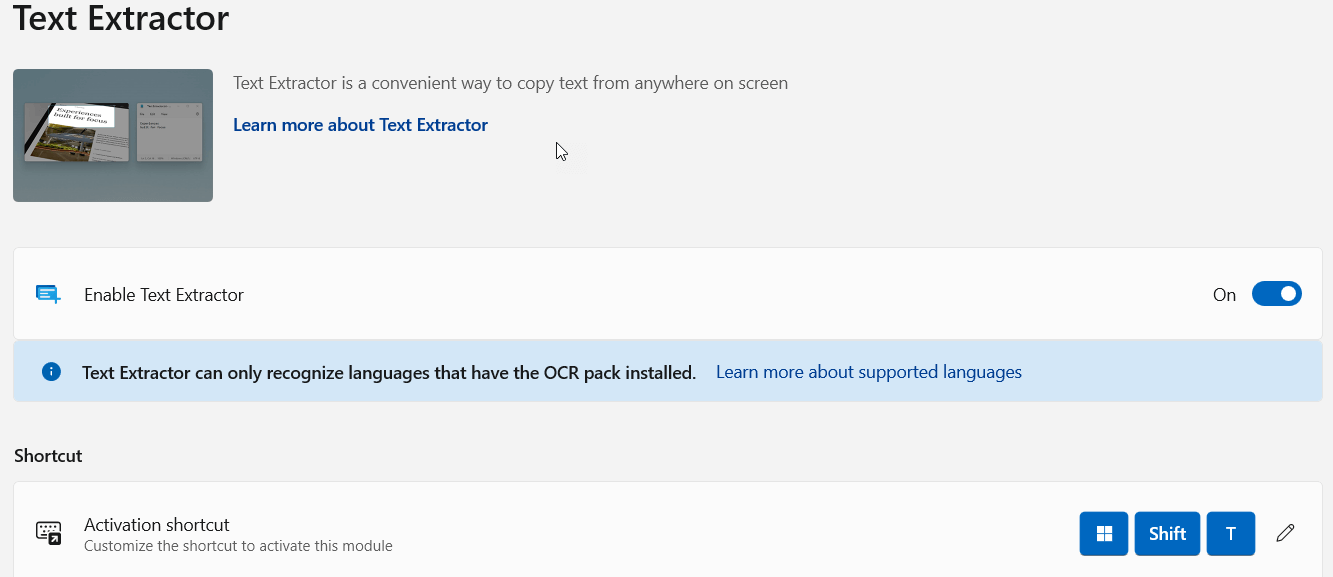
To start using PowerToys Text Extractor, the first thing to do is make sure you have the latest version of PowerToys installed on the system. Once the application is open, simply go to the menu of "More tools" (usually located in the three lines in the upper right corner) and look for the Text Extractor option.
It's essential to check that the box is selected. If everything is in order, you'll see the default shortcut. If you're not happy with the keyboard shortcut, you can click the pencil icon and save the changes for easier use.
When you want to extract something, press the key combination (the default is Ctrl+C). You'll see the screen darken slightly with an overlay; at that moment, click and drag the mouse to select the area containing the text. As soon as you release the key, the magic happens and the content is automatically saved to the clipboard, ready for you to copy wherever you want.
Handling tips and quick settings
Although PowerToys' Text Extractor is easy to use, you might encounter some occasional difficulties. Sometimes, when trying to select text, you miss by a few pixels and have to start over. To avoid this, PowerToys includes a trick: If you hold down the button while selecting the area, you can move the capture box without changing its size. When you release it, you will regain control of the region.
If for any reason you regret the capture or capture the wrong window, don't worry, you can simply press the Esc key at any time, which will immediately close capture mode.
Language management and OCR support
For PowerToys Text Extractor to recognize words correctly, it needs that the system has the corresponding language installedIf you try to use it and get an error saying that no languages are installed, you'll have to use PowerShell to fix the problem.
- To know What languages do you have available?You can run a specific command in PowerShell (make sure you don't use PowerShell 7, as these libraries are not part of .NET Core). command Get-WinUserLanguageList will give you the list of installed languages.
- If you need view the status of the packages To put it more clearly, open PowerShell as administrator and type: Get-WindowsCapability -Online | Where-Object {$_.Name -like "Language*"}
You'll see that some appear as Installed and others as NotPresent. For example, the code es-ES refers to Spanish from Spain and en-US to English from the United States. - For install a missing languageFor languages like American English, you can use the following command: Add-WindowsCapability -Online -Name followed by Language.Basic~~~en-US~0.0.1.0. Similarly, if you want to clean the system, just replace the final command with Remove-WindowsCapability.
Troubleshooting common errors
Common problems with PowerToys Text Extractor? You might encounter the annoying message "a" even though you've done everything correctly. This usually happens in very specific configurations. If you have the package installed but the system doesn't recognize it and your primary drive isn't C:, there's a quick fix.
The solution is to copy the OCR folder from your current drive (for example, X:/Windows/OCR) and paste it directly into the path. This usually corrects the path problem and allows the tool to function normally.
This utility is just one more piece of an ecosystem designed to boost productivity, allowing everything from key remapping to the remapping of keys, making Windows a much more flexible and efficient environment for any advanced user.

Editor specialized in technology and internet issues with more than ten years of experience in different digital media. I have worked as an editor and content creator for e-commerce, communication, online marketing and advertising companies. I have also written on economics, finance and other sectors websites. My work is also my passion. Now, through my articles in Tecnobits, I try to explore all the news and new opportunities that the world of technology offers us every day to improve our lives.