
Excellence lies in the details, especially in academic and professional settings. Small things, like preventing numbers and their units from being separated in Word, distinguish a professional document from a sloppy one. Need help with this? We'll tell you how in this post. How to correct this typographical detail and obtain an impeccable text.
How to prevent a number and its unit from being separated in Word

There's a typographical detail that betrays a careless document even more than any spelling mistake: seeing an orphaned "50" at the end of a line and a lone "kg" at the beginning of the next. It's not a serious error, but it is a visual annoyance. It disrupts the flow of reading and detracts from the writer's score.The thing is, Word, by default, treats the space between a number and its unit as a valid breakpoint.
Is there a way to prevent a number and its unit from being separated in Word? Yes, there is, and applying it is easier than it seems. The solution is called non-separation space, either hard spaceAnd it's one of those Word features that almost no one knows about. But using it can make the difference between a correct text and a truly professional one.
What exactly is a non-separation space?

When we type "100 MB" and press the normal space bar, Word interprets that gap as a place where he can break the line if the text no longer fitsThis is a basic rule of typesetting: the processor looks for white space to justify or align the paragraph. If it finds one between the number and the unit, it doesn't hesitate to use it as a break point.
However, to prevent a number and its unit from being separated in Word, there's the "Non-breaking space" option. This special character looks identical to a normal space on screen and in print, but It tells Word that it cannot break the line at that point.So, if the set "100 MB" doesn't fit at the end of the line, Word will move both parts together to the next line.
So how do you insert a non-breaking space? The quickest way in Word to Windows It involves placing the cursor where the normal space would go (between the number and the unit) and pressing: Ctrl + Shift + Barra espaciadora. In MacThe combination is Alt + SpacebarThis is a keyboard shortcut in Word which you should memorize right now.
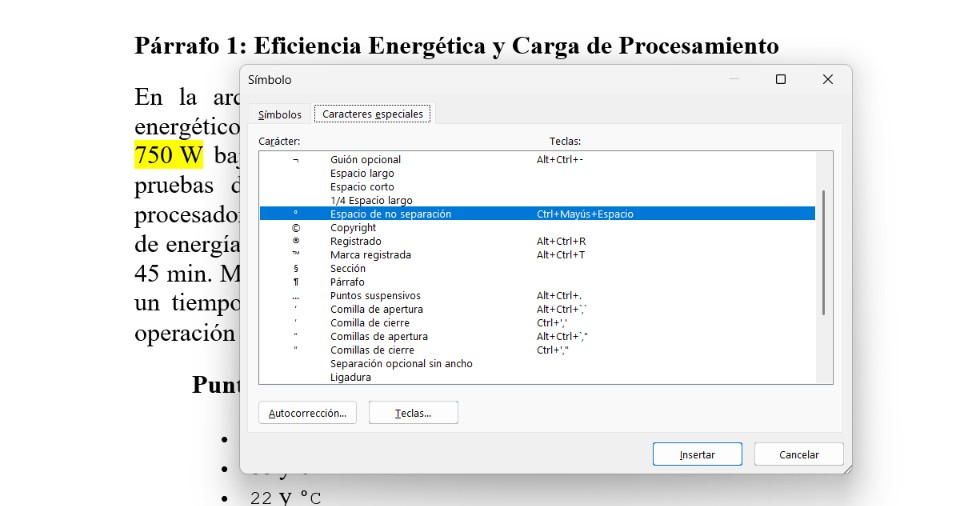
Even if you don't notice a visible difference, the result is immediate: the space is still there, but now it's "hard." If you resize the window or change the font size, you'll see that the number and unit move to the next line together, like an indivisible block. Another way to insert non-breaking space is by going to Insert – Symbols – More symbols – Special characters, select Non-separation space and click Insert.
Preventing a number and its unit from being separated in Word: how to know if you're doing it right
With this simple trick, you can prevent a number and its unit from being separated in Word. As we mentioned, the non-breaking space is invisible in normal view, which is good for the final result but bad for auditing your own work. Therefore, if you want to see it, you just have to... Activate Word formatting markswhich allow you to see certain invisible characters, such as spaces, tabs, and paragraph breaks.
To do this, open the tab Start and click on the button with the ¶ symbol, which you will find in the group Paragraph. The same thing happens if you use the shortcut Ctrl + Shift + 8. With this feature enabled, Word will display small marks on spaces and other formatting elements. A normal space appears as a small dot centered on the line.
And what does a space without separation look like? This character is displayed as a small raised circleIt looks similar to a degree symbol (°). So, if you see that circle between "100" and "MB", you're on the right track. It's worth noting that these markers are never printed or exported to the PDF, so you can leave them enabled while editing without worrying about them being seen by others.
Preventing a number and its unit from being separated in Word: documents that have already been written

With non-break spacing (Ctrl + Shift + Spacebar), you can prevent a number and its unit from being separated in Word while you type. You just have to remember to insert this special character between the number and its unit, instead of normal spacing. But what if you're working on a pre-written report with forty pages full of "10 mm", "5 kg", and "220 V"?
There's no need to correct them one by one: Word has internal code for non-breaking spacing: ^sWhat you have to do is open Find and replace (Ctrl + B) and in the "Search" field type the number and the unit with the normal space (example, "10 mm"). You will see that in the text, all the times both elements appear together are highlighted.
Then, in the "Replace" field, type the same thing, but instead of pressing the spacebar, insert the non-breaking space with Ctrl + Shift + Spacebar. Finally, click Replace All. You prevent that number and its unit from being separated throughout the document.
Other cases where it is advisable to use non-separating spaces

Preventing a number and its unit from being separated in Word by using a non-breaking space is a habit worth adopting. And not just with numbers and units: it's also useful in other situations. For example, you can apply it with monetary amounts such as "150 euros", or with dates such as "November 10th".
Another example is the abbreviations and personal titlesExpressions like "Mr. García," "Dr. López," or "p. 25" can benefit from this technique to avoid unsightly line breaks. The same applies to... technical documents with expressions like "Windows 11", "USB 3.0", or "Wi-Fi 6". Of course, it must be used in moderation so that Word doesn't end up leaving large spaces or unnatural layouts on some lines.
There you have it! Next time you type a quantity with a unit, don't just press the space bar. Before Think about whether that number and that unit should always go hand in hand.If the answer is yes, use Ctrl + Shift + Spacebar. The gesture takes a fraction of a second longer than normal spacing, but it saves you the embarrassment of seeing a "100" hanging at the end of a page and a missing "%" on the next.
Index

From a young age, I've been fascinated by all things scientific and technological, especially those advancements that make our lives easier and more enjoyable. I love staying up-to-date on the latest news and trends, and sharing my experiences, opinions, and tips about the devices and gadgets I use. This led me to become a web writer a little over five years ago, focusing primarily on Android devices and Windows operating systems. I've learned to explain complex concepts in simple terms so my readers can easily understand them.