- MultiStar is a Good Lock module that allows you to customize and expand the multi-window functions on Samsung devices.
- It allows switching between split screen and pop-up windows, forcing compatibility with any application.
- It includes an immersive mode to remove status and navigation bars, optimizing visual space.
- It's especially powerful on foldable devices, though it offers productivity improvements on any model with One UI.
The Samsung Galaxy phones already include features for use two applications in split screen or open them in pop-up windows. However, the The standard options available may fall short when you want to keep several applications active, make better use of space, or modify how windows behave.
To expand these possibilities there is Samsung MultiStarThis is one of Good Lock's productivity-oriented modules. With it, you can adjust multi-window settings, resize apps, and access special features for Galaxy Z Fold, Galaxy Z Flip, tablets, and Samsung DeX.
What is Samsung MultiStar and what do you need to use it?
MultiStar is a official Samsung Good Lock module This expands upon the multitasking features included in One UI. It's worth noting that it doesn't add split-screen functionality or pop-up windows from scratch: these tools are already part of the operating system.
Its function is to modify how applications behave when you use those modes. For example, it can keep multiple applications active, display more content within each window, or prevent a pop-up window from minimizing when switching activities.
Compatibility depends on several factors:
- The Galaxy phone or tablet model.
- The version of One UI installed.
- The Good Lock and MultiStar version.
- The functions supported by each application.
- The availability of Good Lock in the country of the account.
The current version of MultiStar available on the Galaxy Store is designed for devices running One UI 8 or later. Older versions exist for older operating systems, but they don't all receive the same features or updates.
How to install MultiStar from Good Lock
The recommended method is to install it from the official Good Lock app:
- Open Galaxy Store on your Samsung device.
- Seeks Good Lock and verify that the developer is Samsung Electronics.
- Install and open the application.
- Locate the module MultiStar within the catalog.
- Press the download button located next to the module.
- Once installed, return to Good Lock and enter MultiStar.
Depending on the country and device, Good Lock may also appear on Google Play. However, some modules are still only available for download from the Galaxy Store.
Installing APKs from unknown sources is not recommended. MultiStar requires permissions and access to internal One UI functions, so a modified or incompatible version could cause crashes, errors, or unexpected behavior.
To learn about the rest of the available tools, you can consult our Complete guide to Samsung Good Lock.
Main features of MultiStar
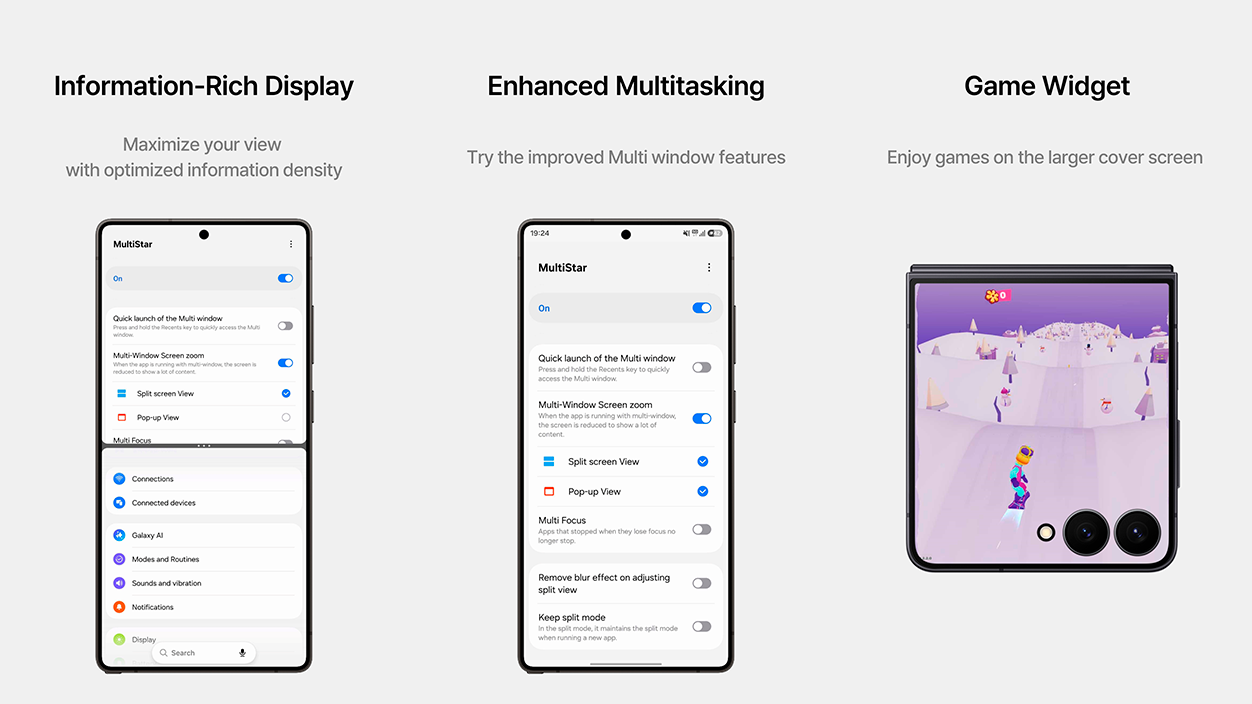
The exact names of the settings may change depending on the version of One UI, but these are the most important common features.
Use multiple applications without pausing them
The option known as Multi Focus This setting allows you to keep multiple apps active within the multi-window. Without it, One UI may limit or pause the activity of the window you're not currently using.
This feature is useful for continuing to view updated information in one application while interacting with another. However, keeping two processes active can increase battery consumption, temperature, and memory usage.
Show more content in each window
The function Multi Window Screen Zoom It reduces the interface size when you're using multiple apps. This way, each window can display more content, which is especially useful on tablets and Galaxy Z Fold phones.
The result depends on how each application is designed. Some text or controls may end up being too small, so it's best to test the setting before leaving it permanently enabled.
Prevent pop-up windows from minimizing
Some apps open new activities or screens that cause their pop-up window to close or become a floating icon. MultiStar has a setting for this. prevent the pop-up view from minimizing during certain internal changes.
It doesn't work identically with all applications, especially when permissions, login pages, or protected content are involved.
Remove split-screen blur
In certain versions of One UI, MultiStar allows you to remove the blur effect that appears around apps when using split-screen mode. This is primarily an aesthetic tweak that can make the transition between windows appear cleaner.
Hide bars in split screen
Immersive mode can hide the status bar and navigation bar while using multi-window, thus utilizing more screen space.
This setting doesn't block notifications or activate a focus mode. It only temporarily hides some interface elements while you're working with split apps.
How to force apps into split screen
MultiStar can enable an option that attempts to open applications in split screen or a pop-up window whose developer has not declared multi-window support.
After activating the corresponding setting, you can try opening the application from the recent applications menu:
- Open the application you want to use.
- Enter the recent apps view.
- Tap the icon located above the preview.
- Select Open in split-screen view o Open in pop-up view.
Forcing compatibility does not modify the application's internal design. Therefore, you may see cut-off buttons, overlapping elements, incorrect proportions, or restarts when resizing the window.
There are also applications that block multi-window functionality for security, digital rights management, or video playback reasons. MultiStar cannot guarantee that they will function correctly.
Options for Galaxy Z Fold, Galaxy Z Flip and tablets
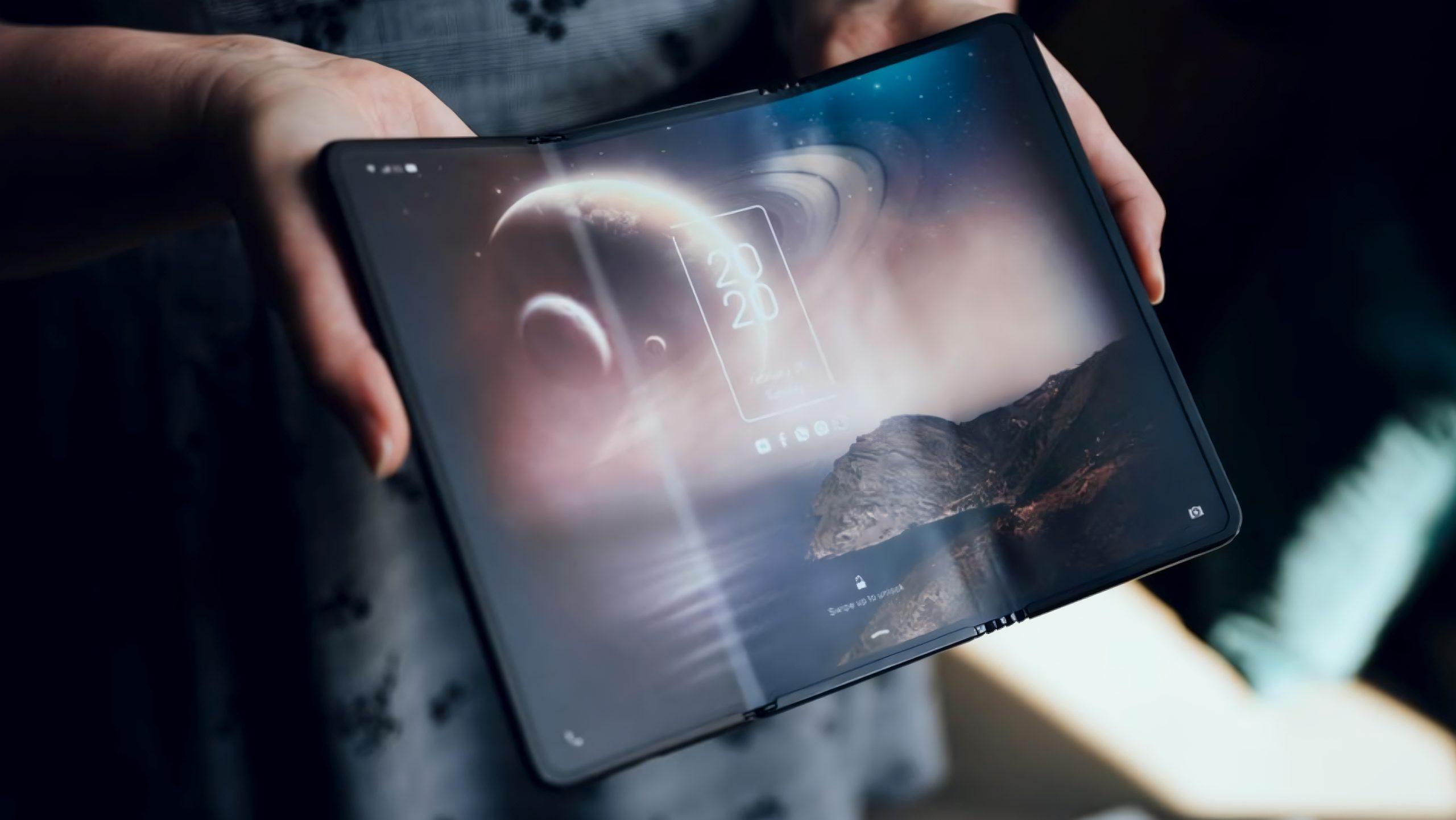
MultiStar is particularly effective on devices with large or foldable screens. The section dedicated to these models may display different functions depending on the device.
Features for Galaxy Z Fold
On the Galaxy Z Fold, the module can offer settings for:
- Maintain split screen when switching between device states.
- Adapt applications to the full screen size.
- Modify how they utilize the area surrounding the interior camera.
- Reduce the size of the windows to show more information.
These settings are especially useful when combining a browser with Samsung Notes, consulting a document while composing an email, or dragging information between applications.
Features for Galaxy Z Flip
On compatible Galaxy Z Flip models, MultiStar incorporates the section I ♡ Galaxy FoldableFrom here you can configure the Launcher Widget and select applications that can be opened from the external screen.
Not all applications are optimized for the small size of that screen. Although MultiStar may allow you to launch them, their controls might be too small or difficult to use. You can find more details about this setting in our guide on the Flex Window of the Galaxy Z Flip.
Features for Galaxy tablets
On a tablet, Multi Window Screen Zoom and split-screen maintenance allow you to make better use of the available screen space. Specific options will depend on the model and the version of One UI installed.
What does MultiStar bring to Samsung DeX?
On Samsung DeX compatible devices, MultiStar can enable additional settings such as:
- Use higher resolutions with certain monitors and accessories.
- Increase the number of applications that can remain open.
- Re-run recent applications when starting or closing DeX mode.
These options do not eliminate the device's physical limitations. Opening many applications simultaneously can increase memory consumption and cause the system to close background processes.
The available resolution also depends on the screen, adapter, cable used, and the capabilities of the Galaxy model.
Common mistakes when using Samsung MultiStar
If MultiStar doesn't appear, a feature is missing, or an application still won't open correctly, check these points:
- MultiStar does not appear in Good Lock: Check that your device and One UI version are compatible and that Good Lock is up to date.
- The module is closing: Update MultiStar from the Galaxy Store after installing a new version of One UI.
- Certain adjustments are missing: Some features are only available on Galaxy Z Fold, Z Flip, tablets, or DeX-compatible devices.
- One app still doesn't support split screen: The adjustment forces the attempt to open, but cannot fix applications designed to work only in full screen.
- Both apps consume too much battery: Turn off simultaneous execution when you don't need it.
- The interface looks too small: Disable Multi Window Screen Zoom or increase font and screen size from One UI settings.
After a major system update, you may need to wait for Samsung to release an adapted version of MultiStar. Good Lock modules modify internal One UI components and are not always available on the first day of a new update.
Samsung MultiStar is especially useful for those who already use split-screen, pop-up windows, or Samsung DeX and want better control over how they work. It doesn't automatically turn every app into a perfect multitasking tool, but it allows you to keep several apps active, display more content, and make better use of the screens on foldable Galaxy phones and tablets.
Their usefulness will depend on the model and the applications used. Therefore, the best strategy is to activate the settings one by one, test their functionality, and keep only those that truly improve the experience.

I am a technology enthusiast who has turned his "geek" interests into a profession. I have spent more than 10 years of my life using cutting-edge technology and tinkering with all kinds of programs out of pure curiosity. Now I have specialized in computer technology and video games. This is because for more than 5 years I have been writing for various websites on technology and video games, creating articles that seek to give you the information you need in a language that is understandable to everyone.
If you have any questions, my knowledge ranges from everything related to the Windows operating system as well as Android for mobile phones. And my commitment is to you, I am always willing to spend a few minutes and help you resolve any questions you may have in this internet world.