- Select Silence in Settings > Sounds and vibration.
- Activate Temporary Silence and choose how long it will last.
- When finished, the mobile phone regains sound or vibration.
- Use Do Not Disturb if you need to allow certain calls.

If you're going into a meeting and don't want to forget to unmute yourself, you can put your Samsung Galaxy on silent for a specific timeOpen Settings > Sounds and vibrationselect Silence and activate Temporary silenceThen, choose how long you want it to last.
When the countdown finishes, your phone will return to its previous mode. If it was in Sound mode, it will return to that mode; if it was in Vibrate mode, it will vibrate again.
How to activate temporary silent mode on a Samsung Galaxy
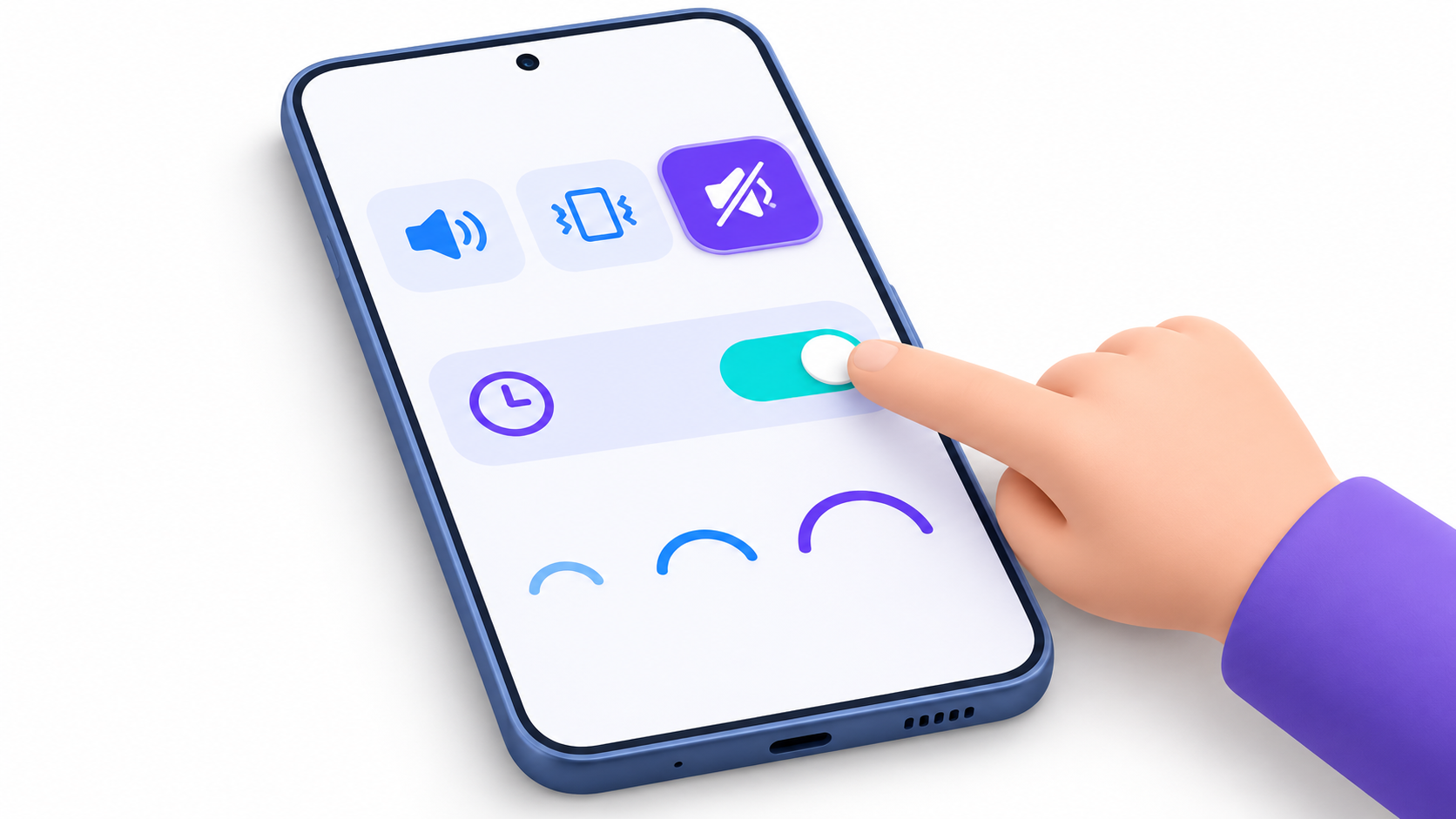
- Open Settings > Sounds and vibration.
- On the sound mode selector, tap SilenceThe temporary silence option appears when that mode is selected.
- Active Temporary silence and it plays Mute during.
- Choose one of the available intervals or press Personalize to adjust the duration. For example, you can set an hour and a half for a movie.
If the meeting ends earlier than expected, you can retrieve the buzzer without waiting for the countdown to finish: return to Sounds and vibration and select SoundIf you prefer the phone to only vibrate, choose Vibration.
What is silenced and what happens when time runs out

Temporary silence applies the profile Silence During the selected interval. While active, calls and notifications may still come through, even if you don't hear the ringtone or alerts. When finished, the Galaxy reverts to its previous profile.
If you also want to prevent a video from playing sound when you open it, download the multimedia volume separately. And if you have an alarm set for that interval, check the settings of ClockThe application allows you to configure whether alarms are silenced when the system sound is turned off.
What to do if Temporary Silence does not appear

First, check that you have selected Silence en Settings > Sounds and vibrationThe option may vary depending on the Galaxy model and software version.
If it's not available, try Do not disturb From the quick settings. Tap and hold its icon to open the settings and review the duration options and exceptions. It's also the best alternative if you want to silence most notifications but allow calls from specific contacts.
If you need to repeat the silence every day or activate it when you arrive at the office, you can Put your Samsung on silent with Modes and Routines.
Index

I am a technology enthusiast who has turned his "geek" interests into a profession. I have spent more than 10 years of my life using cutting-edge technology and tinkering with all kinds of programs out of pure curiosity. Now I have specialized in computer technology and video games. This is because for more than 5 years I have been writing for various websites on technology and video games, creating articles that seek to give you the information you need in a language that is understandable to everyone.
If you have any questions, my knowledge ranges from everything related to the Windows operating system as well as Android for mobile phones. And my commitment is to you, I am always willing to spend a few minutes and help you resolve any questions you may have in this internet world.