- Steam Families is only intended for people from the same household, so the platform may reject invitations.
- Leaving a family or freeing up a place can trigger waiting periods of up to a year.
- You should not share your Steam Guard password or codes to overcome the error.
- If all members meet the requirements, the safe solution is to review the accounts and contact Steam Support.

You try to accept an invitation, but Steam responds that your activity doesn't show you live with the other members. Or perhaps you left a group and, when you try to join another, you find your account is on hold. If something similar happens to you and Steam Families is not workingThe message usually responds to a specific limitation and not to a general server failure.
Steam Families has been officially available to all users since September 2024 and allows you to bring together in the same group a maximum of six peopleHowever, Valve specifies that it should only be used with close family members living in the same household. For this reason, sending an invitation does not guarantee that the other account will accept it.
Before changing settings or reinstalling the program, it's advisable to identify whether the block is due to home verification, a waiting period, a still blocked spot or the particular restrictions of the game you are trying to share.
What does the error "you don't belong to the same household" mean?
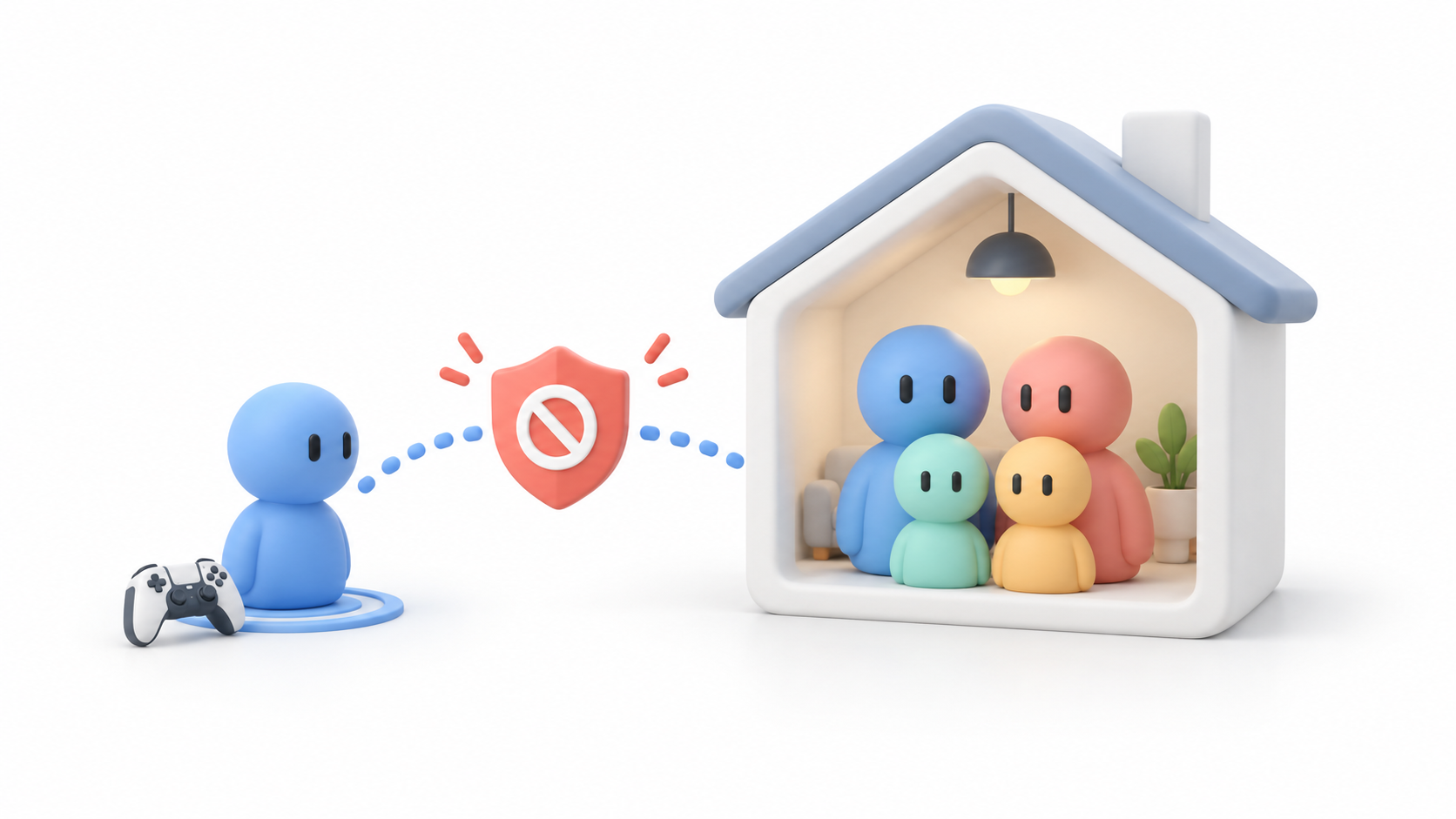
The most common message indicates that the Account activity does not prove that you are part of the same household. than the current family members. It doesn't necessarily mean you've configured the group incorrectly: Steam checks various signals related to account usage to determine if they meet its requirements.
Valve doesn't detail all the criteria used, precisely to prevent them from being easily circumvented. Furthermore, it warns that the participation requirements may change as the system is refined. Therefore, logging in once from the same connection doesn't guarantee that an account will automatically be considered part of the household.
This error can occur when:
- Members regularly use Steam since different addresses.
- One of the accounts was recently created or shows little activity.
- Members buy and use their games from different regions.
- Steam does not have enough activity to confirm that the accounts belong to the same household.
- A VPN, a proxy, or frequent connection changes make verification difficult.
If you actually live together, use Steam normally from your home internet connection and try again later. If the problem persists, the appropriate option is Contact Steam Support, since there is no button to manually verify the address.
What to check before accepting an invitation

Since Steam Families is no longer a beta feature, you shouldn't look for the old option. Steam Families Beta within the trial version participation. Management is done from the family section of the account or from the current settings of the Steam client.
Before resending the invitation, please check the following:
- Update the Steam client and restart it completely.
- Make sure the recipient is logged into the correct account.
- Go into family settings and check that the group has not reached the limit of six members.
- Check if the invited account already belongs to another Steam family.
- Check if any warnings related to a waiting period.
- Temporarily disable any VPN or proxy and reconnect using your usual home internet connection.
- Cancel the pending invitation and create a new one if the previous one has expired or is showing an error.
Signing out and signing back in may fix a temporary syncing problem, but it does not remove household restrictions or waiting periods associated with the account.
Waiting periods when leaving or changing families
One of the causes that causes the most confusion is the Steam Families waiting periodAdults can voluntarily leave a group, but they cannot always create another one or immediately join a different family.
Valve calculates the restriction based on when the account joined its previous family. An adult account may have to wait. up to one year from their joining the previous group before creating or accepting another family's invitation.
There is also a limitation associated with the number of places. When a member leaves the group or is expelled, that space may remain subject to a one year reuse periodThis prevents the continuous replacement of members to share libraries with different people.
If Steam displays a specific date, there are no local settings that can change it. Reinstalling the client, switching computers, or creating another invitation will not modify the countdown stored on the servers.
Do not share the password to try to bypass the lock
One alleged trick involves giving the username, password, and Steam Guard code to the group creator so they can access it from their computer. This practice is unsafe and contrary to Valve's recommendations.
The other person could access your library, inventory, payment methods, purchase history, and personal data. They could also modify security settings or trigger penalties using your account. Even with someone you know, sharing your credentials removes one of the main protections against account theft.
It is also not advisable to try to trick the system by VPN, location spoofing, or artificial accessIn addition to not guaranteeing that the invitation will be accepted, sudden changes in connection may trigger additional security checks.
If you have already shared your data, immediately change your password, review authorized devices, close any sessions you don't recognize, and keep active Steam Guard.
Why some games don't appear in the family library

Even if the family is correctly set up, not all titles are shared. Developers can exclude their games from Steam Families, and certain titles are not compatible due to their technical specifications.
A game might not appear when:
- The editor has decided exclude it from the family loan.
- You need an external account, key, or subscription.
- This is either free content or an item that cannot be shared separately.
- The copy belongs to a member whose library is temporarily unavailable.
- A parental restriction has been applied to the child's account.
- There are regional differences that prevent the use of that copy in the user's location.
You can check the game's page in the store to see if it supports sharing. It's also a good idea to check that it's not hidden by library filters and that the owner is still a family member.
If you want to learn more about how libraries are combined, you can consult our guide for Share games on Steam.
Why two people can't open the same game
Steam Families allows multiple members to play different titles from the shared library simultaneously. However, each available copy of a game can only be used by one member. one person at a time.
If the family has only one copy, only one member can play it. If two different members have bought the same game, there will be two copies available and two people can play it simultaneously.
This limitation applies to the number of copies, not the entire library. Therefore, someone using a shared game should not automatically block all other titles contributed by that account.
Parental controls and types of members

Steam Families also integrates the tools that replace the old Family Mode. When adding a person, you must indicate whether they are being added as a family member. adult or minorbecause the permits are different.
Adults can manage the group and invitations, while child accounts may be subject to controls such as:
- Choose the games they can access.
- Limit access to the store, community, or chat.
- Check the playing time.
- Establish daily limits or permitted hours.
- Approve or reject purchase requests.
If a game doesn't appear on a child's account, first check the family restrictions. It may be correctly shared, but blocked by parental controls configured by an adult.
What to do if Steam Families still isn't working
If all members live in the same household, there is no waiting period and the family still has available places, perform these final checks:
- Install any pending Steam client updates.
- Close Steam completely and log back in.
- Check that the Steam servers are working properly.
- Temporarily disable your VPN or proxy.
- Try managing the family from the web and from the desktop client.
- Capture the entire error message and send it to Steam Support.
Don't delete the family or expel its members as a first measure. These actions can trigger additional restrictions and leave a spot blocked for much longer than the original issue.
Common mistakes when setting up Steam Families
The first common mistake is following an outdated guide and looking for the option to activate the beta. Steam Families It exited the testing phase in September 2024Therefore, that configuration is no longer needed.
It is also advisable to avoid these mistakes:
- Inviting people from another address: Steam Families is designed for members of the same household.
- Confusing a vacant space with an available space: The gap left by a user can maintain their waiting period.
- Leave the group to try again: Leaving one family can prevent joining another for months.
- Share your credentials: Giving out your Steam Guard password or codes puts your account at risk.
- Assuming all games are shared: Some developers exclude their titles or require external services.
- Try to use a single copy between two people: Each copy only supports one simultaneous player.
- Ignoring parental controls: A child account may have the game blocked even if it appears in the family library.
When Steam Families is not workingThe message displayed by the customer usually reveals whether the problem lies with the residence, the waiting period, or the game's availability. Identifying the cause first prevents applying ineffective solutions and, above all, avoids a hasty test leaving the account blocked for an extended period.
If all members truly belong to the same household and the error persists after updating the client and reviewing the restrictions, the safest course of action is to contact Valve. There is no legitimate method to bypass the verification, but Steam Support can check if it's an incorrect block or a condition the account doesn't yet meet.

I am a technology enthusiast who has turned his "geek" interests into a profession. I have spent more than 10 years of my life using cutting-edge technology and tinkering with all kinds of programs out of pure curiosity. Now I have specialized in computer technology and video games. This is because for more than 5 years I have been writing for various websites on technology and video games, creating articles that seek to give you the information you need in a language that is understandable to everyone.
If you have any questions, my knowledge ranges from everything related to the Windows operating system as well as Android for mobile phones. And my commitment is to you, I am always willing to spend a few minutes and help you resolve any questions you may have in this internet world.