- Since iOS 27, automations can be synced as part of shortcuts.
- They arrive deactivated by default on the other device.
- Synchronizing a routine does not replace its execution requirements.
- In iOS 26 and earlier, personal triggers were configured separately.

If you like Sync iPhone Shortcuts automations With other devices, the first step is to check the system version. Since iOS 27, Apple has allowed syncing them as part of the shortcuts themselves, a change from how personal automations worked in previous versions.
There is one crucial detail: Automations are disabled by default on the other deviceTherefore, finding the shortcut in your collection doesn't mean its trigger is already working. You must check its status, conditions, and the actions you want to execute.
What changes when syncing automations in iOS 27
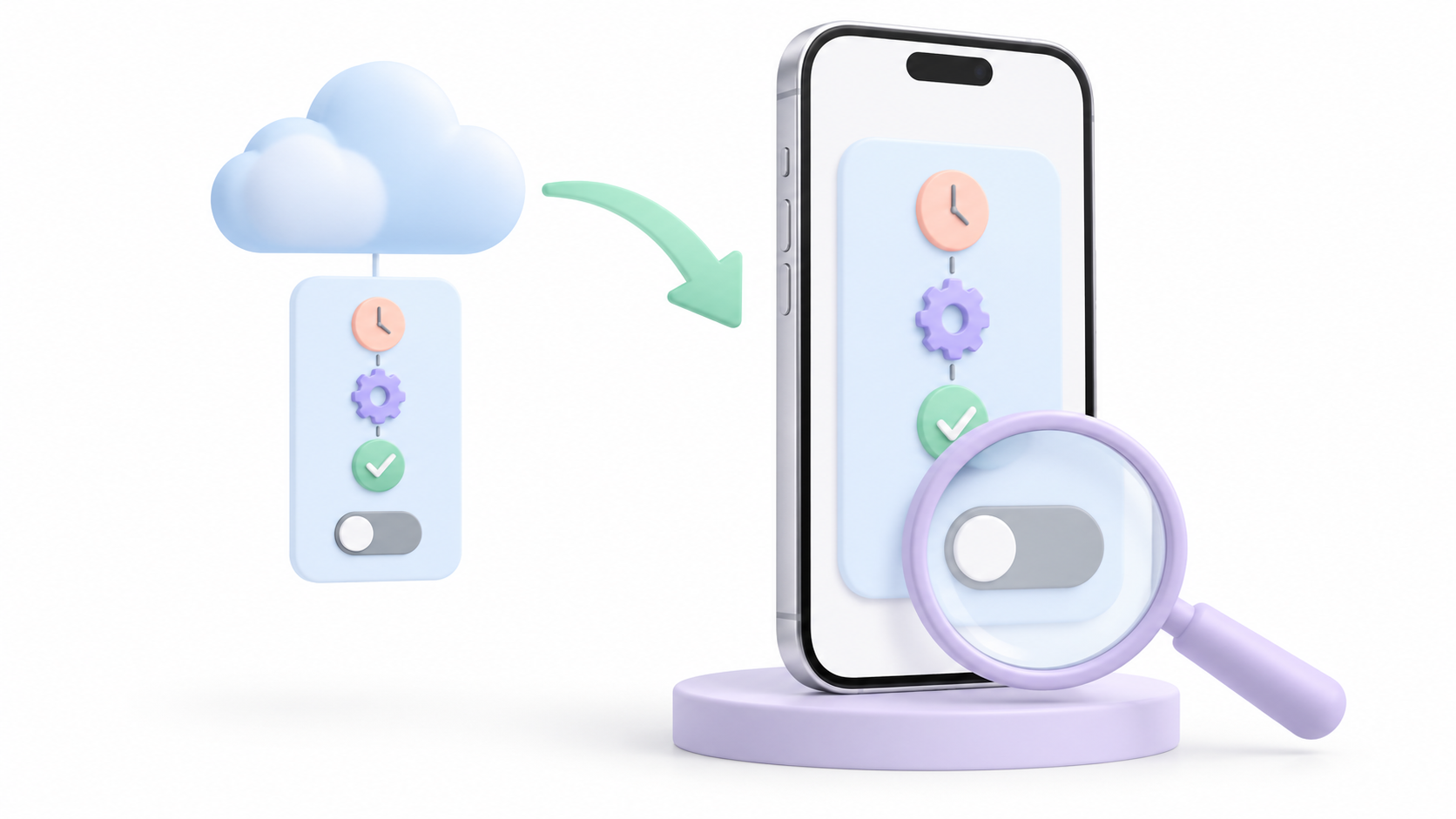
Apple includes two related changes in its Shortcuts news for iOS 27Automations are integrated directly into shortcuts and can be synchronized across devices.
This changes the previous behavior. In the iOS 26 documentation, personal automations were device-specific: they were saved in the iCloud backup, but they didn't appear synced across devices.
It is important to distinguish between these concepts:
- Synchronization: It keeps the content updated across the devices configured to use it.
- Backup: It retains information for retrieval; this does not imply that it will be immediately available on another computer.
- Activation: determines if an automation can respond to your event on that device.
With the new functionality, you might find a synchronized automation, but still have to activate it before using it. Check the version on each device before comparing their options.
Enable iCloud syncing in Shortcuts
To keep your collection up to date, devices must use the same Apple account and have Shortcuts synchronization enabled.
- Open Settings on the iPhone.
- Locate the settings of ShortcutsYou can use the Settings search bar.
- Activate the option to Sync with iCloud.
- Check the same settings on the other iPhone or iPad.
- Open Shortcuts on both devices and check if the content appears.
If you also use a Mac, the option is located in Shortcuts > Settings > General > Sync with iCloudThe availability of new features depends on the version of the corresponding system.
Synchronization also transmits changes and deletions to shortcuts. Keep this in mind when organizing a collection that you use from multiple computers.
Check and activate automation on the other device
Apple's current guide specifies that automations are synchronized with automation disabledThis is the first thing you should check when the shortcut appears but doesn't run when the event occurs.
- Open Shortcuts on the target device.
- Enter the view Automation to locate shortcuts that include a trigger.
- Use the disabled automations filter if you need to find them.
- Open the shortcut and review its event, its conditions, and the actions.
- Activate automation on the device where you want to use it and check that it works.
Don't confuse manual shortcut testing with trigger testing. The former checks the actions; the latter verifies that the intended event initiates the flow.
How to set up an automation shortcut in iOS 27

In the updated version, you can incorporate the trigger into the shortcut itself. The process described by Apple is as follows:
- Open an existing shortcut or create a new one.
- Prepare the actions and verify that they work by running them manually.
- Enter Edit and then in Automation.
- Select a trigger, such as a time of day or arrival at a location.
- Configure your conditions and check when it should run.
For an initial test, I recommend a simple event that you can easily reproduce. A similar event allows you to observe the results without needing to move around or connect to external devices.
If you need the shortcut to work even when the device is locked, check that option in your privacy settings. Some actions require additional settings or interaction, so not all workflows will work entirely in the background.
Synchronization does not replace the requirements of each device.
An automation system might depend on a specific accessory, application, or connection. As a practical check, verify that these conditions also exist on the target device.
For example, a routine linked to iPhone connection with CarPlay That connection needs to happen. You shouldn't expect the same event to occur simply because the shortcut appears on another device.
If the routine controls the personal access point, configure a specific state: activate it upon connection and deactivate it upon disconnection, if that's your goal. An operation that toggles the state could turn it off when it was already on.
Furthermore, the access point shares the mobile data connection and depends on its availability and the operator. Automating its activation does not, in itself, guarantee data savings.
What to check if it doesn't appear or doesn't run
Separate the problem into two cases: content that does not appear y Synced content that doesn't work automatically.
- The shortcut is not appearing: Check the Apple account, connection, and iCloud sync on both devices.
- It appears, but it doesn't start: Check if automation is disabled on the target device.
- The event does not activate it: Check the activator and its conditions.
- It stops during execution: Identify the action that is failing and review its parameters and permissions.
- It only works with an unlocked device: Check the execution options and action requirements.
Shortcuts may request access to data needed to complete a task. Review those requests before assuming the failure is an iCloud issue.
As a diagnostic, you can create a simple shortcut and check if it syncs. This helps distinguish a general collection problem from one related to a specific automation.
What to do if you are using iOS 26 or earlier
In versions prior to the new system, Shortcuts could be synchronized, but personal automations could not.The fact that a routine doesn't appear on another device doesn't necessarily mean that iCloud is failing.
One way to reduce workload is to save reusable actions in a synchronized shortcut and configure the personal trigger separately on each device. This way, you can maintain the shortcut's logic and adapt the conditions to each team.
If you want to explore other tasks, you can consult our guide to iPhone Shortcuts Tricks.
Before considering an automation ready, check three things: that the shortcut appears on the other device, that your automation is enabled, and that the expected event successfully executes it.

I am a technology enthusiast who has turned his "geek" interests into a profession. I have spent more than 10 years of my life using cutting-edge technology and tinkering with all kinds of programs out of pure curiosity. Now I have specialized in computer technology and video games. This is because for more than 5 years I have been writing for various websites on technology and video games, creating articles that seek to give you the information you need in a language that is understandable to everyone.
If you have any questions, my knowledge ranges from everything related to the Windows operating system as well as Android for mobile phones. And my commitment is to you, I am always willing to spend a few minutes and help you resolve any questions you may have in this internet world.