- NotebookLM allows you to import and search Google Drive documents using natural language through the Discover Sources feature.
- The synchronization of updated files in Drive must be done manually using the specific button in the sources panel.
- The tool supports a wide variety of formats, from Google Docs and Slides to PDFs, audio, and YouTube URLs.

If you enjoy organizing your ideas and analyzing data, you've probably already heard of NotebookLMThis Google tool isn't your typical notebook. It's a AI-based research assistant which uses artificial intelligence to help you digest mountains of information without your head exploding in the process. Sync NotebookLM with Google Drive This can be a great idea for working more smoothly.
What truly makes this platform stand out is its ability to integrate with the Google ecosystem. While it may initially seem entirely manual, recent updates have made it so manage your Drive sources be a walk in the park, allowing us to connect knowledge scattered across the cloud with an intelligent analytics center.
NotebookLM: what it is and what its advantages are
Before we continue, let's take a moment to explain What exactly is NotebookLM?. This is a Google AI tool that acts as an assistant based on your own documents. This is An important nuance: instead of responding only with general information from the internet, analyze the sources the user provides. (PDF, Google Docs, presentations, websites, etc.) and generates responses based on that content.
From this, one can extract clear advantages:
- Work with your documentsYou can summarize, explain, and answer questions using only the information you have uploaded.
- Reduces hallucinations: usually cites the specific sources from which the information is obtained.
- Generates automatic summariesCreate outlines, FAQs, timelines, and key points in seconds.
- AI Podcast (Audio Overview): converts documents into easy-to-listen-to audio conversations.
- Integration with Google DriveThis allows you to use documents stored in Drive without having to download them. This article explains how to sync NotebookLM with Google Drive.
- Ideal for studying and researchingIt is very useful for students, journalists, consultants, lawyers, and content creators who work with large volumes of information.
For example, a user can upload 20 PDF reports and ask questions like these to NotebookLM: "What are the common conclusions of all the documents?" o "Give me a 1-page executive summary"Something that would normally require hours of reading is easily achieved after syncing NotebookLM with Google Drive.
The magic of discovering sources in Google Drive
Until recently, if you wanted to add a document to NotebookLM, you had to know the exact file name and search for it manually. Now, Google has implemented a feature Discover sourceswhich changes the rules of the game. You no longer need to remember if you named that file "Final_Summary_v2" or "March_Meeting_Notes".
Basically, you can type a simple phrase into the search bar, like "solar energy documents" or "files Laura sent me," and the AI will scan your Drive to find them. suggest up to 10 files that fit that theme. This is a lifesaver for graduate students or journalists who handle hundreds of pages and don't want to waste time navigating through endless folders.
Additionally, you can apply time filters to narrow the searchIf you know the information you need is from September, simply indicate this and the tool will filter the results. Once selected, these files are imported into your digital notebook to generate study guides, audio summaries, or concept maps.

The synchronization process: Is it automatic?
Syncing NotebookLM with Google Drive is easy… as long as it's done correctly. This is where many users stumble. It's crucial to understand that NotebookLM doesn't create a live, constant link to the original document, but rather… generates a static copy of the file at the time of import. This means that if you change a comma in your original Google Doc, the change won't magically be reflected in the AI.
To update the information, you must go to the sources panel and look for the button "Click to sync with Google Drive"This button will only appear if the system detects that the original file has been modified and if you have write permissions for that document. If you use formats other than Google's (such as an uploaded PDF), unfortunately, you will have to... Delete the source and re-upload it manually.
There are some limitations to be aware of before syncing NotebookLM with Google Drive: the tool doesn't import comments or footnotes. Also, in the case of spreadsheets, while it can extract data from multiple tabs, it treats everything as a single data source.
Supported formats and storage limits
NotebookLM's versatility is quite broad, though not limitless. You can work with [unclear - possibly "text" or "text"], as well as Microsoft Word, PDF, plain text, Markdown, and CSV files. It even allows you to embed URLs from web pages and public YouTube videos, provided they have subtitles available.
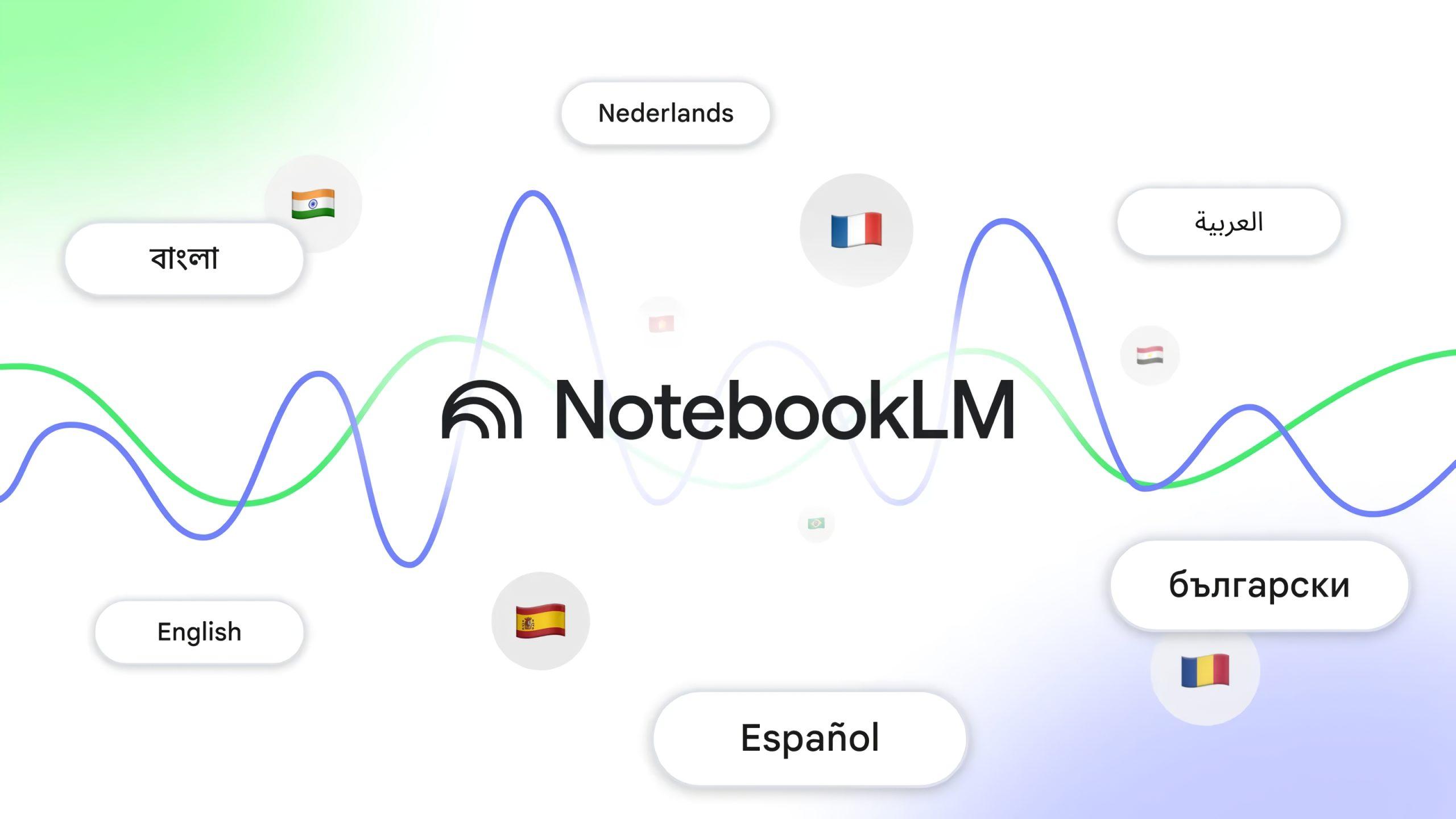
As for audio files, it supports a huge list of languages and formats such as MP3 and WAVIt automatically transcribes the content so you can question the audio via chat. For images, it accepts almost any common format, from JPEG to WebP.
If you're worried about storage space when syncing NotebookLM with Google Drive, you should know that each source can be up to 200 MB in size. In total, you can add up to 50 sources per notebook, which is more than enough for the vast majority of research or business management projects.
Collaboration and sharing of notebooks
For those who work in teams, especially in enterprise environments, there is the possibility of share notebooksYou can invite other users via their email address by assigning them the role of editor. Editors have almost the same powers as the owner, except they cannot delete the notebook or manage who has access.
An important detail is that if you use Gemini's Deep Research feature to populate your notebook with other users, this is a security and operational restriction of the tool that you should consider when planning your collaborative workflow.

If you need to share AI-generated audio (the popular podcast), remember that these are not permanently saved in the notebook guide. The safest way to distribute them is download the fileupload it to Google Drive and share the file link with open viewing permissions for anyone with the link.
The ability to integrate Drive's smart search with the analytical power of AI transforms this tool into a command center where information is no longer chaotic, but an organized asset that updates with a simple click and is easily shared with the team. As you can see, syncing NotebookLM with Google Drive is a great idea. It's worth knowing the details to do it right.

Editor specialized in technology and internet issues with more than ten years of experience in different digital media. I have worked as an editor and content creator for e-commerce, communication, online marketing and advertising companies. I have also written on economics, finance and other sectors websites. My work is also my passion. Now, through my articles in Tecnobits, I try to explore all the news and new opportunities that the world of technology offers us every day to improve our lives.