One of the things we love about Telegram is how easy it is to install and use the app on a computer. That's why it's so frustrating when Telegram doesn't play the audio from voice messages on a PC. In many cases, this is due to... audio codec errors installed on the operating system. Below, we explain how to permanently solve this problem.
Telegram not playing voice message audio on PC: Causes and solutions
Telegram offers one of the more stable, fluid, and uncomplicated multiplatform experiences Of all the messaging apps, Telegram works flawlessly, whether it's Android, iOS, Windows, macOS, or Linux, and the transition between devices is seamless. That's why it's so perplexing when Telegram doesn't play voice messages on your PC. Has this ever happened to you?
First of all, it is advisable Check the audio settings of the operating system you're using. Is there no general audio, or is it only with Telegram? In the latter case, you need to verify that the application is not mutedboth within and outside of it. Other times, everything is resolved when you install the app from the official store instead of downloading the executable from its website.
On the other hand, Telegram does not play the audio of voice messages on the PC due to the lack of codecsThis often happens with the "N" versions of Windows, those that don't include pre-installed multimedia technologies. To fix it, you just need to download the appropriate audio codec pack. A complete reinstallation is rarely necessary as a last resort.
Check the obvious: the volume mixer and the internal output settings
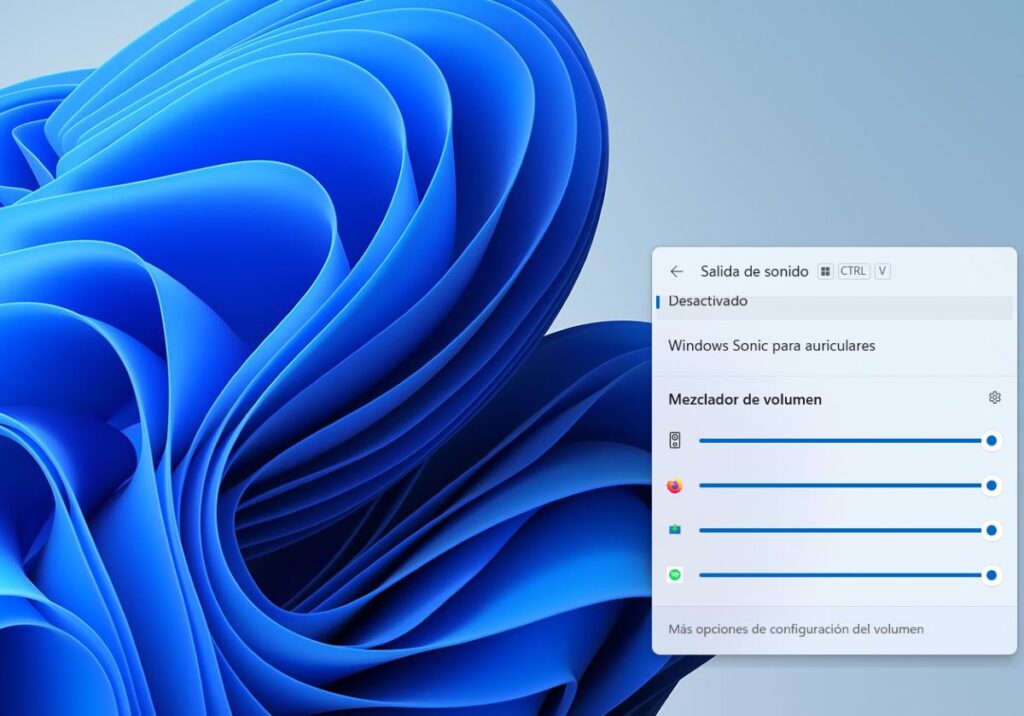
If Telegram isn't playing voice message audio on your PC, it's best to start by checking the obvious. Remember that Windows has a volume mixer that lets you mute and adjust the audio for individual applications. If everything else works except for Telegram's audio, it means that... The system has silenced the app..
To verify this in Windows, right-click on the speaker icon in the taskbar and select Open volume mixerThere, make sure the Telegram slider isn't at its minimum or muted. And if Telegram doesn't appear in the mixer, check the theme. What to do if an app doesn't appear in the Windows volume mixer to give you a solution.
On macOS, you need to go to System Settings – Sound – Output. While Apple doesn't natively separate volume by application, It is advisable to verify that the audio output is correctThis is especially important if you have multiple output devices connected: speakers, Bluetooth headphones, etc. Telegram might be sending the sound to a different output; in that case, you won't hear anything.
Check the internal volume of Telegram Desktop
If everything is okay outside the app, it's time to Check Telegram's internal volumeYou probably already know that the PC app has its own volume control, independent of the system volume. If this control is set too low or muted, it will give the impression that Telegram isn't playing voice message audio on your PC.
Checking it is easy. Go into a chat and play an audio message. A panel with buttons to control the volume and playback speed will appear at the top. Hover your cursor over the volume button and check that it has sufficient volume or that it is not turned offEven if the system has sufficient volume, if this control is too low or turned off, you won't be able to hear anything.
Telegram does not play audio from voice messages on PC: OPUS codecs and format
Let's try another solution related to something more technical. In case you didn't know, Telegram uses an audio codec called OPUSDesigned to be extremely bandwidth-efficient without sacrificing quality, this codec is typically included in Windows and other operating systems, which is why playing audio on Telegram is generally trouble-free.
However, if for some reason your operating system doesn't have the necessary codecs, it won't be able to decode Telegram audio notes. This is very common in... the "N" version of Windows 10This is the version that doesn't have multimedia technologies pre-installed from the factory. This special version was designed for the European market by order of the European Commission to promote free competition and reduce Microsoft's monopoly.
Whether you have the "N" version of Windows 10 or not, it's worth checking if your operating system has the codecs for the OPUS format. The most effective way is Download the Media Feature Pack from the official Microsoft websiteRun the file and follow the instructions to install the necessary audio and video componentsThis almost always fixes the problem of Telegram not playing audio from voice messages on the PC.
Other solutions if Telegram does not play audio from voice messages on your PC
What else can you do if Telegram isn't playing voice message audio on your PC? This has worked for some users with the same problem. Install the Telegram app from the official storeIn Windows, Microsoft filters the application, so the available version integrates better with the OS.
This is different from Download the Telegram executable from their website.This version is more general and may have operational problems, such as becoming mute or failing to download files. If you have this version installed, try deleting it and installing the version available in the store (Microsoft Store, App Store, etc.).
Another alternative consists of Install the Telegram app as a progressive web app.This way, you use the browser version of Telegram as if it were a Windows application, complete with icon and notifications. If you're interested in trying this option, check out the topic How to install any website as an application on Windows 11.
Finally, if Telegram does not play the audio of voice messages on your PC, Try using the portable versionThis doesn't require installation and is unlikely to conflict with your operating system. As you can see, there's always a way to enjoy all the benefits of the messaging app we love so much.

From a young age, I've been fascinated by all things scientific and technological, especially those advancements that make our lives easier and more enjoyable. I love staying up-to-date on the latest news and trends, and sharing my experiences, opinions, and tips about the devices and gadgets I use. This led me to become a web writer a little over five years ago, focusing primarily on Android devices and Windows operating systems. I've learned to explain complex concepts in simple terms so my readers can easily understand them.