Did you just install Telegram, but the app isn't working properly? Maybe you want to make a call or send a voice note, but the app isn't responding. Sometimes, the problem is that Windows has not given the app permission to access the microphone or cameraWhat to do if Telegram isn't asking for permissions on Windows and therefore isn't working? Below, we show you the most effective solutions to this problem.
Why doesn't Telegram ask for permissions on Windows?
When you install Telegram Desktop on Windows, the application will typically request certain system permissions to function correctly. For example, it needs to have access to camera, microphone, location and network To be able to video call, send audio notes, and more. However, the problem arises when Telegram doesn't request permissions on Windows. Why does this happen?
To a large extent, The cause depends on how you installed Telegram on WindowsBasically, there are two ways to do it: download it from the Microsoft Store or download the .exe file for Windows from the official Telegram pageVisually, both versions look the same, but there are important substantial differences.
The Telegram you download from the Microsoft Store It's a packaged version or one based on the UWP/Desktop Bridge architecture. These applications run inside a secure "container," meaning that Windows tightly controls what the app can do. So, if the system decides that the application doesn't have microphone permission, for example, the app might not even attempt to request it.
For their part, the version you download from the website It comes in a standard executable format and has fewer system restrictions. Therefore, as soon as you install it and try to use a feature that requires the microphone or camera, you're more likely to encounter the Windows "Allow access" dialog. So, the question is: how did you install Telegram? From the Microsoft Store or from its own app store? .exe file?
Of course, this isn't the only reason why Telegram isn't asking for permissions on Windows. It could also be due to... team privacy policies, to child profiles or activated parental controls or even a faulty installation. What can you do to fix this annoying problem? Below, we list the most effective solutions.
Grant permissions manually from the system settings
The first thing you should do if Telegram isn't asking for permissions on Windows and that's why it's not working is to grant them manually. This This is useful if the app never asked for permissions, or if it did and you said no, intentionally or unintentionally.In this last case, the app will not ask you again, even if you click on the button to send a voice message or to make a video call.
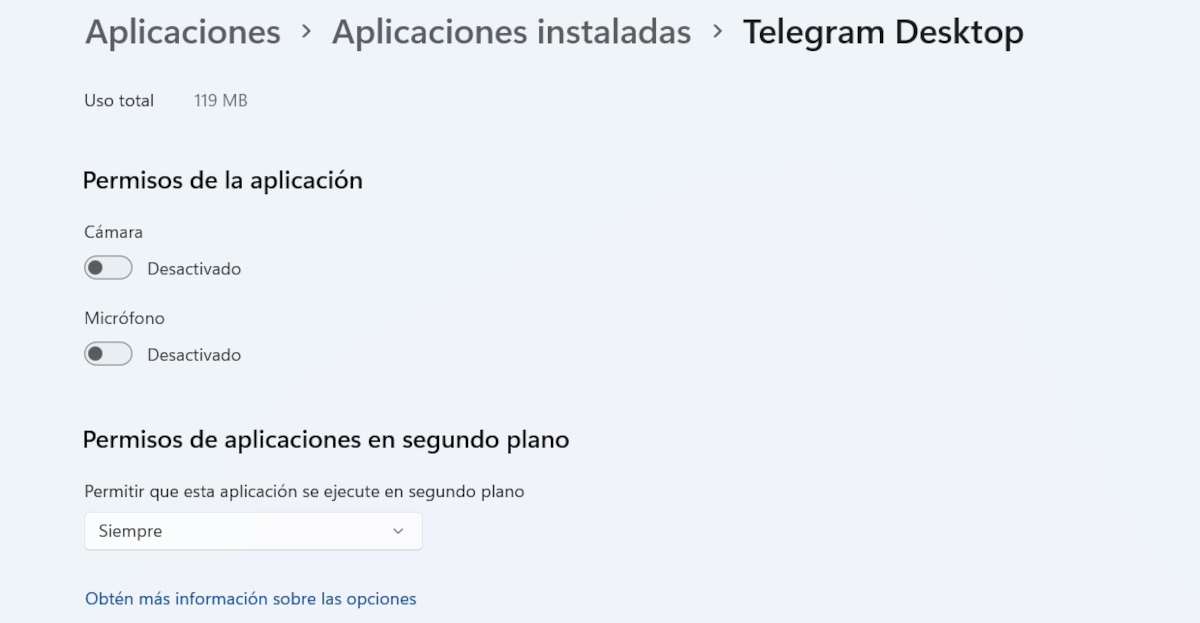
To grant permissions manually, you need to open the Configuration from Windows. From there you can take two paths. One involves going to Applications – Installed applications and look for the Telegram Desktop app in the list. Once you find it, click on the three dots and select Advanced options.
At that point, you'll see the switches to grant permission to the Camera and to Microphone. Activate them. Also, right below you'll find the option to allow Telegram to run in the background. If you want it to run at all times, expand the tab and select Always.
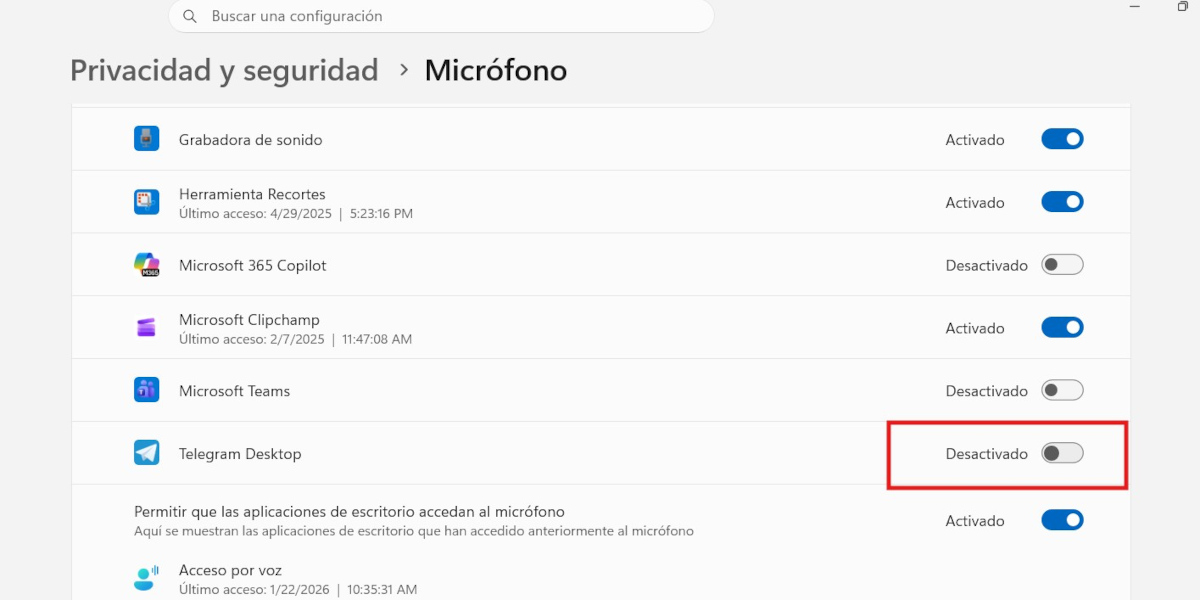
The second way to manually grant permissions to an app is by going to Configuration – Privacy and securityScroll down to the section Application permissionsYou will see a list of all the permissions that can be granted. Click on Camera and see if Telegram has permission to access it; do the same with Microphone, Location and any other permission you wish to grant him.
Telegram doesn't ask for permissions on Windows: run it as Administrator
If after doing the above Telegram still doesn't ask for permissions on Windows, it's advisable to force system permissions for the appWe do this by running the application as Administrator. This will resolve any issues the app may have if it can't access certain save folders or peripherals due to a lack of special privileges. Here's how:
- Close Telegram completely (make sure to close it in the system tray, next to the clock).
- Beam Right-click on the Telegram icon on your desktop.
- Select "Run as administrator".
- Try performing the action that was failing. For example, using the microphone or downloading a file. Does it work? Problem solved!
Repair or reset the Telegram app
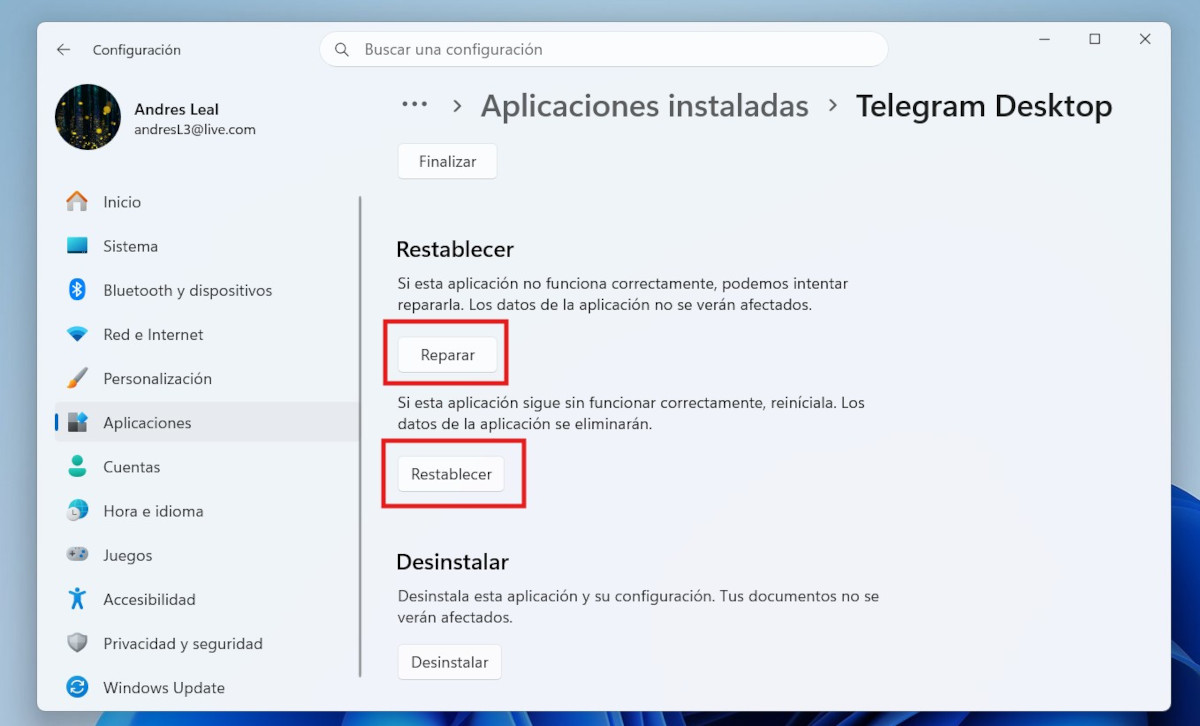
What else can you do if Telegram isn't asking for permissions on Windows and that's why it's not working? If none of the above works, it's possible the app... has been installed improperlyTo fix this, Windows has built-in tools that repair or reset applications. You can use them like this:
- Go to Settings – Applications – Installed applications.
- Search for Telegram Desktop
- Click on the three dots and select Advanced options.
- Scroll down and you'll see two options: Repair and Reset.
The first option, Fix, It corrects errors in the app without deleting the data you've entered. The second, Restore, deletes all local application data.
Therefore, first click on Repair and, if Telegram still doesn't ask for permissions, click on Reset. After the resetTelegram should behave as if it were the first time you opened it and, hopefully, request permissions correctly.
Telegram doesn't ask for permissions on Windows: Reinstall from scratch
Are you still having permission problems? If so, it's best to uninstall and reinstall the app. However, keep this in mind: If the problematic version was the one you downloaded from the Microsoft Store, try installing the version from the official website. And vice versa.This way you rule out compatibility issues with either version.
And during installation, pay attention to whether any windows appear requesting permissions. Another alternative is Try the portable version of Telegram (which doesn't require installation) or even the web versionThese versions handle permissions differently and may work when the installed version fails. We hope these suggestions help if Telegram isn't requesting permissions on Windows and therefore isn't working.

Index