- iCloud settings and optimized storage are usually the main culprits for images not transferring.
- The stability of the physical connection and the device's trust permissions are critical steps for data access.
- There are specific settings in the Windows Photos app and in the file system that can block importing.

There's nothing more frustrating than connecting your device to your computer, seeing that the computer recognizes the phone, but then getting an error message when you try to transfer images, or worse, the process freezing completely. It's a fairly common problem that often happens just when we want to... free up memory space or make a backup before using a new mobile phone.
Fortunately, this glitch is usually not serious and doesn't mean your photos have been deleted. Generally, it's a permission conflicts, cloud configurations or minor communication glitches between the Apple and Microsoft ecosystems. Below, we'll tell you step-by-step what you can do to fix this problem and regain control of your files.
Why does this problem occur?
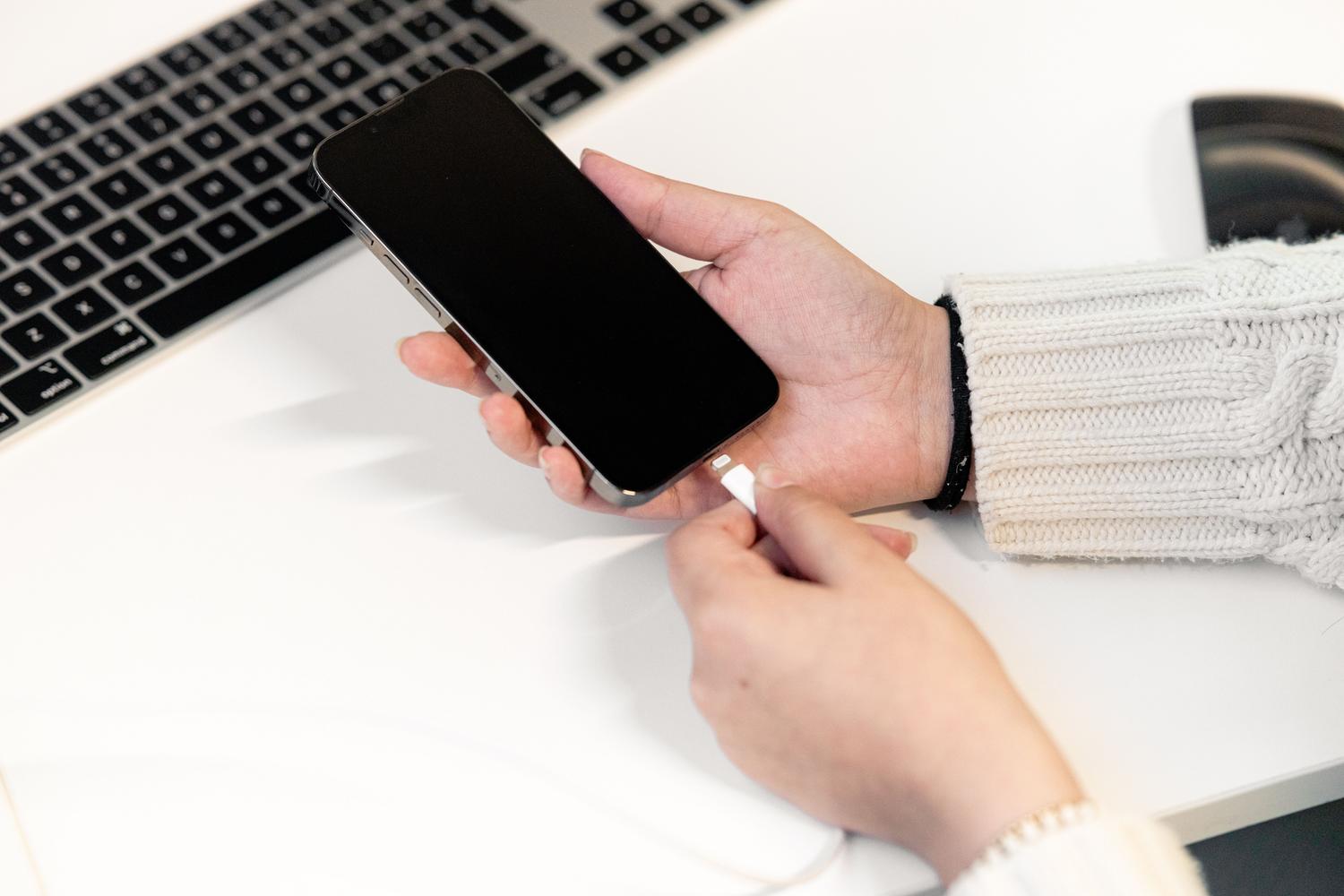
Before we get started, it's vital to understand what's happening behind the screens. Often, the problem lies in having the option to optimize storage in iCloud. This means that the iPhone doesn't save the actual photo, but a tiny version to save space, and the original image is in the cloud, so Windows doesn't find anything to physically copy.
Another common reason is the volume of data you are trying to moveIf you try to transfer thousands of photos at once, Windows Explorer or the Photos app may crash. Other factors that can affect this include: faulty USB cables (especially if they are not original), outdated drivers, or the iPhone entered sleep mode during the transfer, cutting off the data flow.
Quick tips and basic settings
Sometimes the solution is the simplest and we overlook it. The first thing is to make sure the phone be unlocked at all timesIf the screen turns off or the device is locked for security reasons, Windows will immediately lose access to the Pictures folder.
Another key setting is in your iPhone's settings. Go to Settings > Photos and, at the very bottom, in the "Transfer to Mac or PC" section, select the option "Preserve originals"This prevents the phone from trying to convert files to a Windows-compatible format on the fly, a process that often results in "something went wrong" errors.
- Restart both devices: It sounds like a cliché, but restarting your PC and iPhone clears temporary memory and completes pending updates that might be blocking the USB port.
- Check the cable: Try using the original Apple cable. Many cheap cables only charge the battery, but They do not transmit data. in a stable manner.
- Trust the computer: If you don't see the "Trust this computer" prompt when you connect the cable, go to Settings > General > Transfer or Reset > Reset location and privacy and reconnect the device.
Advanced solutions in Windows
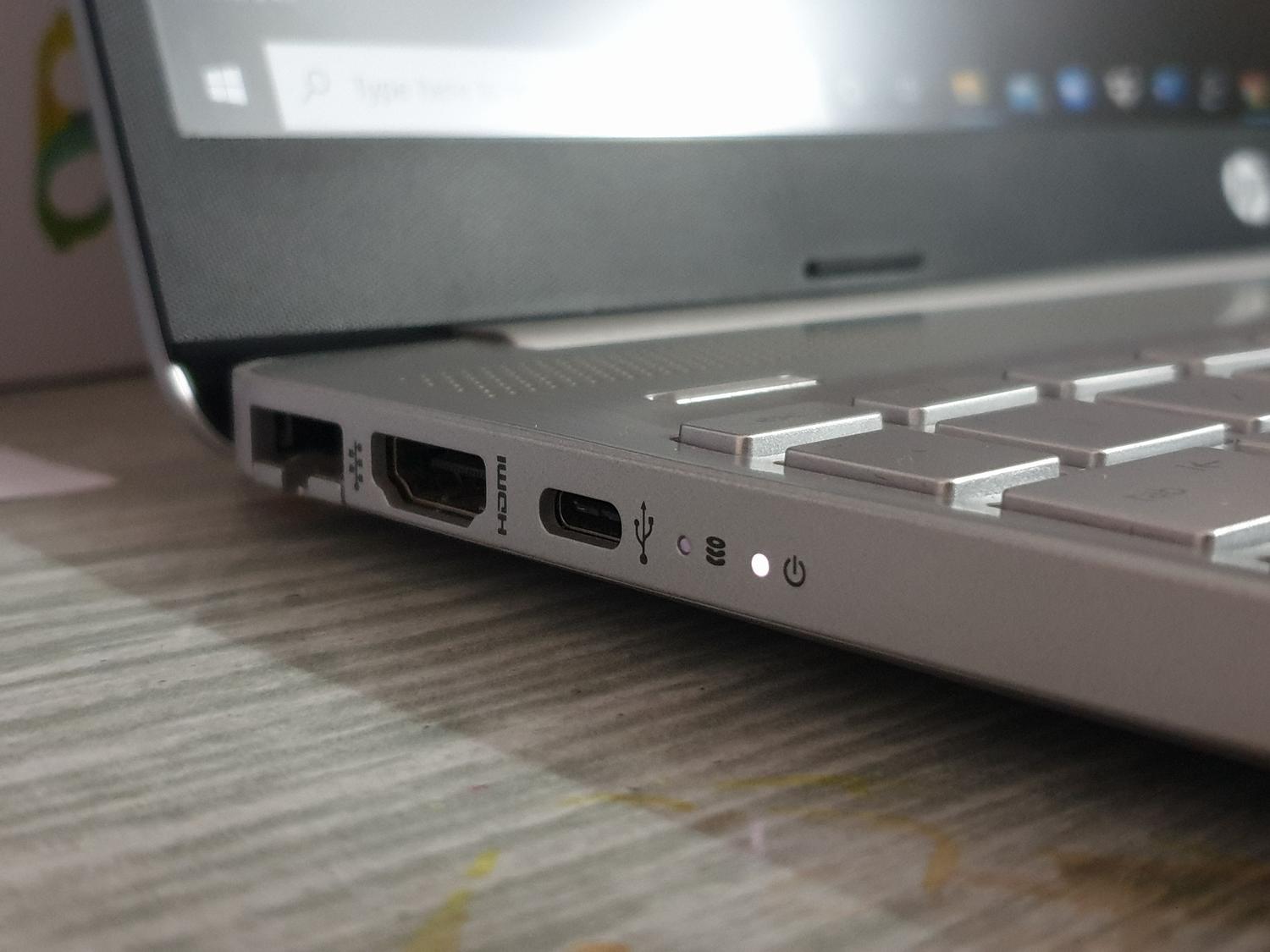
If the above hasn't worked, the problem might be with your PC's software. A common issue occurs with hardware acceleration in the Microsoft Photos app. To fix this, go into the app's settings and disables accelerated video encoding by hardware, since this causes incompatibilities with Apple formats.
It's also essential to check the permissions of the folder where you want to save the images. Right-click on the "Pictures" folder, go to Properties > Security, and make sure your user account has the necessary permissions. full control over the folderIf the system does not have permission to write files to that directory, the import will consistently fail.
In more technical cases, Apple support might be having trouble. You can open the Run dialog box (Windows + R), type services.msc and look for "Apple Mobile Device Support". Right-click, select Properties, and make sure the startup type is set to "Automatic"If it's stopped, restart it.
System repair and maintenance
If you suspect corrupted files on your Windows system, you can use the command prompt. Open CMD as administrator and run the commands. DISM.exe /Online /Cleanup-image /Restorehealth followed by Sfc /scannowThese processes analyze the system and repair any damaged components that may be interfering with the reading of external devices.
Don't forget to keep everything up to date. A version of outdated iOS or an unpatched Windows Security issues can cause communication errors. Go to the settings of both devices and force a search for updates to ensure the USB drivers are optimized.
Alternatives for error-free transfer
When the traditional "copy and paste" method fails, there are third-party tools that manage the connection more robustly. Programs like MobileTrans, Coolmuster iOS Assistant or FoneTool They allow selective management of photos, preventing the system from crashing when trying to move huge folders.
These utilities are usually more effective because They do not strictly depend on the Windows Photos appInstead, they create their own communication bridge with the iPhone. They allow you to preview images before exporting them and offer the ability to make complete backups with a single click, eliminating the stress of import errors.
To resolve this issue, simply ensure a good internet connection, adjust iCloud settings to ensure the photos are stored on your device, and optimize Windows permissions. If the "Keep Originals" settings and restarting services don't work, using specialized software or repairing system files via commands is often the definitive solution for clearing your iPhone's memory without losing any photos. Now you know why your iPhone appears in Windows but fails to copy photos: what to check.

Passionate about technology since he was little. I love being up to date in the sector and, above all, communicating it. That is why I have been dedicated to communication on technology and video game websites for many years. You can find me writing about Android, Windows, MacOS, iOS, Nintendo or any other related topic that comes to mind.