- Webcam failure in Windows 11 may be due to drivers, permissions, or physical issues.
- Updating drivers and reviewing privacy settings usually resolves most cases.
- Windows 11 includes automatic fixes and camera-specific settings that are a good idea to use.
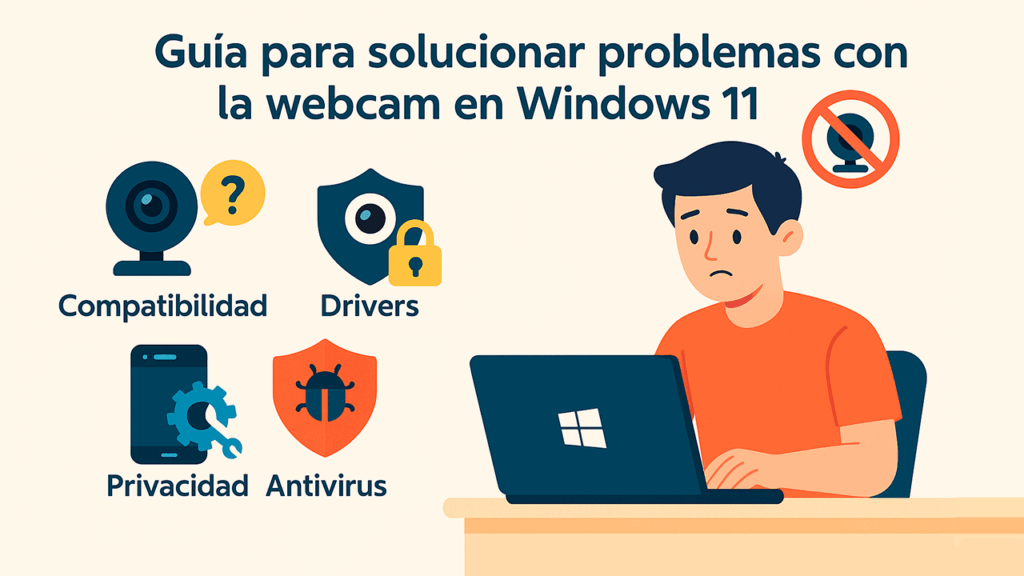
Nowadays, connecting to virtual meetings, online classes, or simply saying hello to family via video call is a fundamental part of our routine. However, there's nothing more frustrating than trying to join a call and realizing that Your webcam is not responding in Windows 11If this has happened to you or you want to anticipate potential issues, here's a comprehensive guide to solving this annoying problem.
In the following lines, we explain to you all solutions Possible solutions, from the simplest to the most advanced, to get your camera working like new again. We'll help you whether your webcam is external or built into your laptop, covering topics such as updates, hardware issues, configuration, and even those little-known privacy options that can block your camera without you even realizing it.
Common reasons why the webcam doesn't work in Windows 11
Before you start fiddling with settings and updates, it's a good idea to know why your webcam might stop working. The most common issues in Windows 11 are usually due to:
- Compatibility issues: If your camera is very old, the manufacturer may not have released drivers for Windows 11.
- Faulty physical connections: A loose cable or a faulty USB port can cause intermittent disconnections or the camera not even being recognized.
- Outdated or obsolete drivers: After updating Windows, some drivers become incompatible and you may need to check for a newer version.
- Pending system updates: Windows sometimes fixes these types of errors by releasing patches in system updates.
- Restrictive privacy settings: Windows 11 includes measures to protect your privacy, but they can block apps from accessing your camera.
- Antivirus blocking devices: Some security programs identify the webcam as a potential threat and disable it without warning.
Understanding the origin of the failure will help you choose the right solution without going around in circles.
Getting started: basic checks before getting into trouble

The first and simplest, although it may seem obvious, is Restart your computerYes, often a simple reboot clears the settings, removes minor temporary software crashes, and can bring the camera back to life without further complications.
If you use an external webcam, check physical connectionsMake sure the USB cable is securely connected to both the camera and the computer. Try a different USB port, preferably a 3.0 one, and if you have another computer handy, connect the webcam to rule out a problem with the device itself.
For laptops with built-in cameras you can also check if there is one physical on/off key of the camera (some models have it), as well as checking that there is no manual shutters covering the lens.
Compatibility and drivers: the heart of the operation
A common cause of failure is that the camera, especially if it's several years old, is no longer compatible with Windows 11 because the manufacturer hasn't created updated drivers. To resolve any issues:
- Find the model of your webcam or laptop on the manufacturer's official website and check if there is specific drivers for Windows 11If you can't find them and your camera only worked up to Windows 10, incompatibility could be the culprit.
- Check here for programs to search for and update drivers in Windows and make the process easier for you.
In modern cameras, another classic is that Windows, after an update or a clean installation, has not installed the correct driver by default. Luckily, you can easily fix this from Device Manager:
- Click the Start button and search for “Device Manager.”
- Expand the “Cameras” or “Imaging Devices” section.
- Right-click on the problematic camera and select “Update driver.”
- Choose “Search automatically for drivers.”
- If Windows finds a better version, it will install it in a few seconds.
If the driver is damaged or does not install properly, you can uninstall it (right click > Uninstall device) and restart your computer so that Windows detects it again at startup.
System Updates: The Importance of Staying Up-to-Date
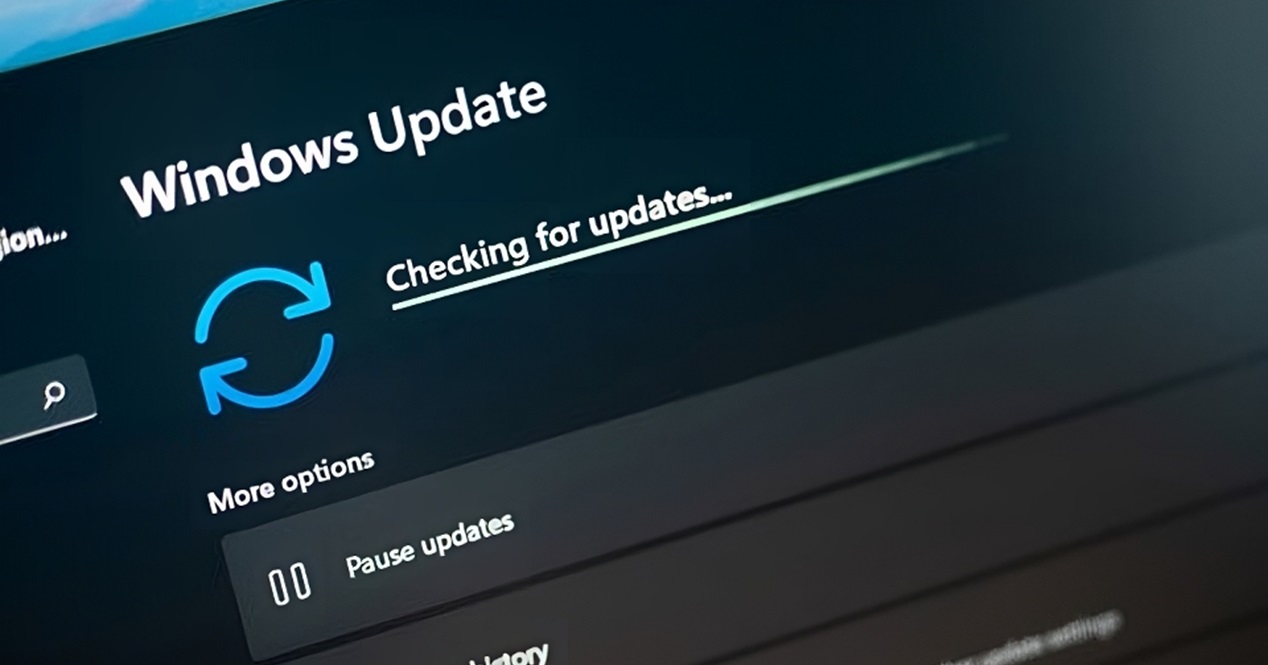
Keeping Windows 11 fully updated is key. Microsoft typically releases compatibility patches, security, and improvements to connected devices, so a pending update could be responsible for your unruly webcam.
- press Windows + I to open Settings.
- In the left menu, select “Windows Update.”
- Click “Check for updates” and let the system download and install whatever it finds.
- Don't forget to look in the "Optional Updates" section, where drivers for cameras, sound, and other peripherals often appear.
- Restart your computer after applying the updates and see if the camera works again.
There are cases where a recent update has caused the failure, and other times the solution lies precisely in having the latest patch installed. Therefore, It is important to keep the system updated to fix errors in Windows.
Privacy and Permissions Settings: Is Your Own Windows Blocking You?
Windows 11 is heavily committed to privacy, which sometimes works against you when you want to use the camera in certain apps. If your webcam works in some apps but not in others, or simply isn't detected by the system, check the permission settings:
- press Windows + I to open Settings.
- Go to “Privacy and Security.”
- Click on “Camera”.
- Make sure the “Camera Access” option is enabled.
- Below, you'll see a list of apps: enable or disable access based on your needs. For example, you can allow Teams or Zoom to use it, but exclude programs you don't need.
Some programs, such as Camera Recorder, WhatsApp Desktop, or web browsers, require explicit permissions. Here's how to activate your webcam in Windows 11. to make sure there are no restrictions.
The role of antivirus and security software

Sometimes the culprit for the camera not responding in Windows 11 can be the antivirus. Many security programs incorporate functions to protect yourself against unauthorized access to your webcamThis is great for keeping people from spying on you, but sometimes it's so restrictive that it blocks everything.
To check if this is the case, try temporarily disable antivirus (Look for the option in the program's control panel) and restart your computer. If the camera comes back online, adjust the settings to include your webcam as an exception, or check for possible blockages in the privacy section of your antivirus.
If your software doesn't have this option or you can't find where to manage it, check the manufacturer's website. Many offer guides for enabling devices like cameras or microphones.
Reset the camera: return it to factory settings
Sometimes it happens that the internal configuration of the camera becomes corrupted or suffers some conflict. Windows 11 allows reset the camera app to its original state easily:
- Open Settings > Apps > Installed Apps.
- Find the “Camera” app in the list.
- Tap the three-dot icon next to it and select “Advanced Options.”
- Scroll down until you see the "Reset" button and tap it. Confirm when prompted.
- Restart your computer and test the camera again.
This solution is especially useful If everything seems fine but the camera still doesn't appear or shows strange errors on the screen.
Windows Troubleshooter: Your Automatic Ally

Windows 11 includes several automatic troubleshooters Designed to detect and correct common hardware and software issues. One of these is focused on the camera and comes standard with all current Windows installations:
- press Windows + I to enter Settings.
- Select “System” from the left side menu.
- Choose “Troubleshoot.”
- Click on “Other troubleshooters.”
- Find the “Camera” section and click “Run.”
This wizard will analyze the most common errors and attempt to automatically correct problems. It's a good idea to use this feature before trying more advanced solutions.
Special case: cameras that do not appear in the device manager
If your camera doesn't even appear in the device list, you're likely experiencing a hardware issue, a USB port recognition problem, or the camera is completely dead. Before you give up on it:
- Try the webcam on another USB port or on another computer, if it's external.
- If no one recognizes it, it's probably broken.
- On laptops, check the BIOS/UEFI to see if there is an option to enable or disable the built-in camera (check your manual as each brand is different).
- Some BIOS settings can block the webcam even before the operating system boots.
If after all this the camera is still missing, you'll need to consider repairing your laptop or purchasing an external webcam compatible with Windows 11.
Other useful tricks in persistent cases
Sometimes the problem is due to a small USB device conflictDisconnect all non-essential devices (printers, hard drives, etc.) and leave only the webcam connected. This way you will see if any other peripheral is interfering..
It can also help update motherboard drivers (chipset) from the manufacturer's website. Some older drivers may cause USB port or power management issues, affecting the camera.
Don't forget to check if there are any background apps controlling the camera. Programs like Zoom, Teams, or Skype can hijack access and block the device from other uses. Close all of these programs and try again.
What if nothing works? Time to seek professional help.
If you have tried all the solutions we have listed and You still can't get the webcam to work in Windows 11., there's likely a more serious physical failure. Taking the equipment to a service center, especially if it's under warranty, is the best option in these cases.
However, most problems can be resolved by following the steps we've outlined. Remember that Always use hardware compatible with Windows 11, keeping your system and drivers up to date, and reviewing your privacy settings are habits that will save you from these types of headaches in the future.
With this collection of solutions and tips, you have everything you need to diagnose, identify, and in most cases, Bring your webcam back to life in Windows 11From the silliest mistakes to the most complicated, the important thing is to take it step by step, without going crazy, so you don't miss any details and can once again enjoy your video calls and online meetings without any problems.

I am a technology enthusiast who has turned his "geek" interests into a profession. I have spent more than 10 years of my life using cutting-edge technology and tinkering with all kinds of programs out of pure curiosity. Now I have specialized in computer technology and video games. This is because for more than 5 years I have been writing for various websites on technology and video games, creating articles that seek to give you the information you need in a language that is understandable to everyone.
If you have any questions, my knowledge ranges from everything related to the Windows operating system as well as Android for mobile phones. And my commitment is to you, I am always willing to spend a few minutes and help you resolve any questions you may have in this internet world.