- TikTok usage time can reach more than two hours daily for many teenagers, affecting sleep, attention, and well-being.
- TikTok offers daily limits, breaks, sleep reminders, a statistics dashboard, and activity status to regulate screen time.
- There are specific measures for minors, such as the automatic 60-minute limit, Family Pairing, and privacy and messaging restrictions.
- Android and iOS settings allow you to add additional external control to more firmly manage your TikTok usage.

TikTok has become one of the apps where we spend the most time each dayespecially among teenagers and young adults. What starts as "just popping in to watch a couple of videos" easily ends up being an hour or more of endless scrolling without us even realizing it. That's why more and more users are asking themselves... how to control your TikTok usage time while still enjoying the platform.
Added to all this is the concern of many parents about the their children's screen time on TikTokas well as the impact it can have on your attention, sleep, and mental well-being. The good news is that the app itself, along with the Android and iOS tools, offers several powerful features for limiting usage, scheduling breaks, reviewing statistics, and activating parental controlsFurthermore, there are already scientific studies analyzing how this intensive use affects digital well-being.
What is TikTok usage time and how does screen time work?
When we talk about "TikTok usage time" we are referring to the amount of time we spend each day inside the appWhether on your mobile device or browser, you're watching videos, chatting, or creating content. TikTok is especially addictive because its design is intended to keep you scrolling without noticing the passage of time, with a personalized feed and a never-ending scroll.
To try to counteract that effect, the platform has developed several options for screen time that allow you to set daily limits, schedule breaks, receive bedtime reminders, or view dashboards with usage statistics. These features are designed for both adult users who want to self-regulate and for minors and their families through the system of Family Synchronization / Family Pairing.
The goal of these tools is not to demonize the app, but to help you use it wisely.Reducing compulsive use and promoting healthier digital habits is especially relevant if you notice that TikTok is affecting your ability to concentrate, stealing hours of sleep, or interfering with your studies, work, or personal relationships.
Daily screen time on TikTok: how to set a usage limit
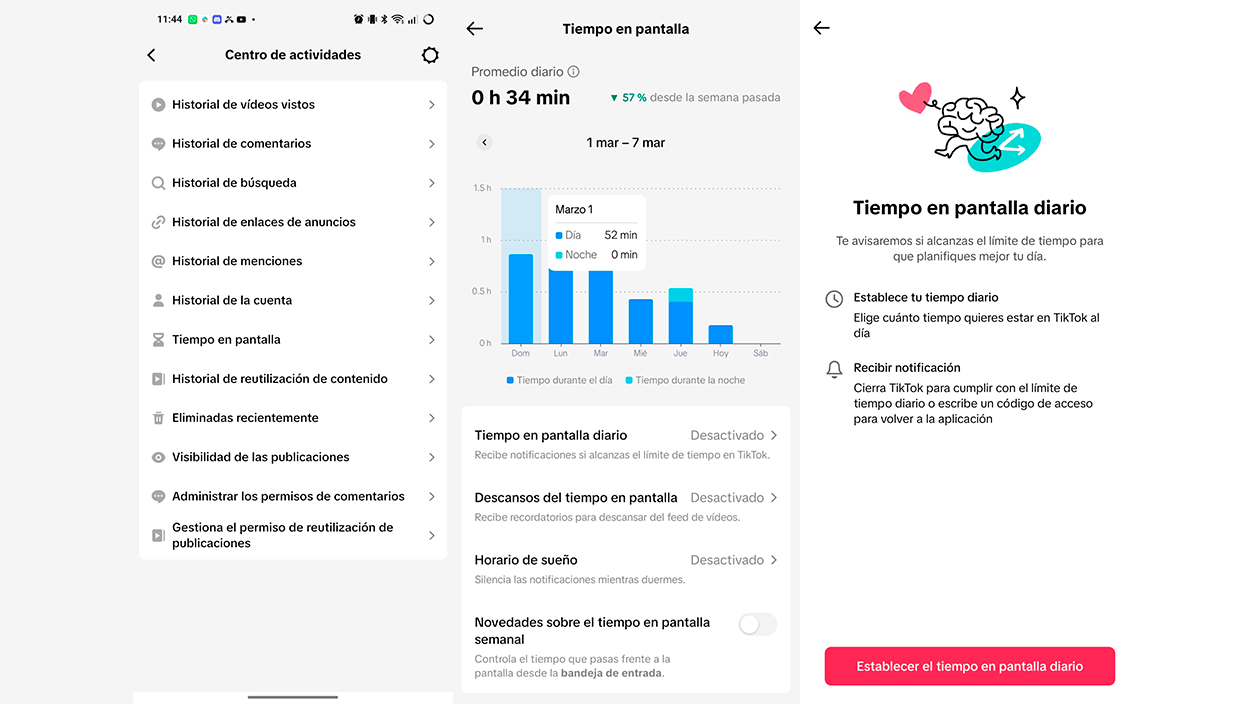
TikTok's daily screen time feature is the "classic" usage limitYou choose how many minutes a day you want to spend on the app, and when you reach that limit, TikTok shows you a notification. From there, you can decide whether to close the app or enter a passcode to continue using the platform.
For users between 13 and 17 years old, TikTok activates by default a 60-minute daily limitIn other words, children already face an initial barrier that they should consciously overcome if they want to stay within the app, instead of letting themselves be carried away by scrolling without realizing how much time has passed.
Activating or modifying daily screen time from the app is very easy.Simply open TikTok, go to your profile from the bottom bar, and tap the Menu button (☰ icon) at the top. From there, you'll enter “Settings and privacy”, you look for the section “Screen time” and you select “Daily screen timeIn that menu you can choose between several predefined options or set a custom limit for each day, plus completely deactivate the function if at any point you no longer need it.
If you also usually use TikTok on your computer, You can set the daily screen time from your browser.You just have to click on your profile picture at the top of the website, enter “Settings", gonna "Screen time" and activate"Daily screen time”, then choosing the maximum duration. The Changes you make are shared between the app and the web versionSo the limit applies to your total usage across all devices.
When you exceed your set usage time, TikTok sends you an in-app notification This allows you to decide whether to stop or continue entering the access code. This feature is also integrated with Family Sync, so parents can participate in managing the daily spending limit on their children's accounts.
Schedule breaks and sleep reminders on TikTok
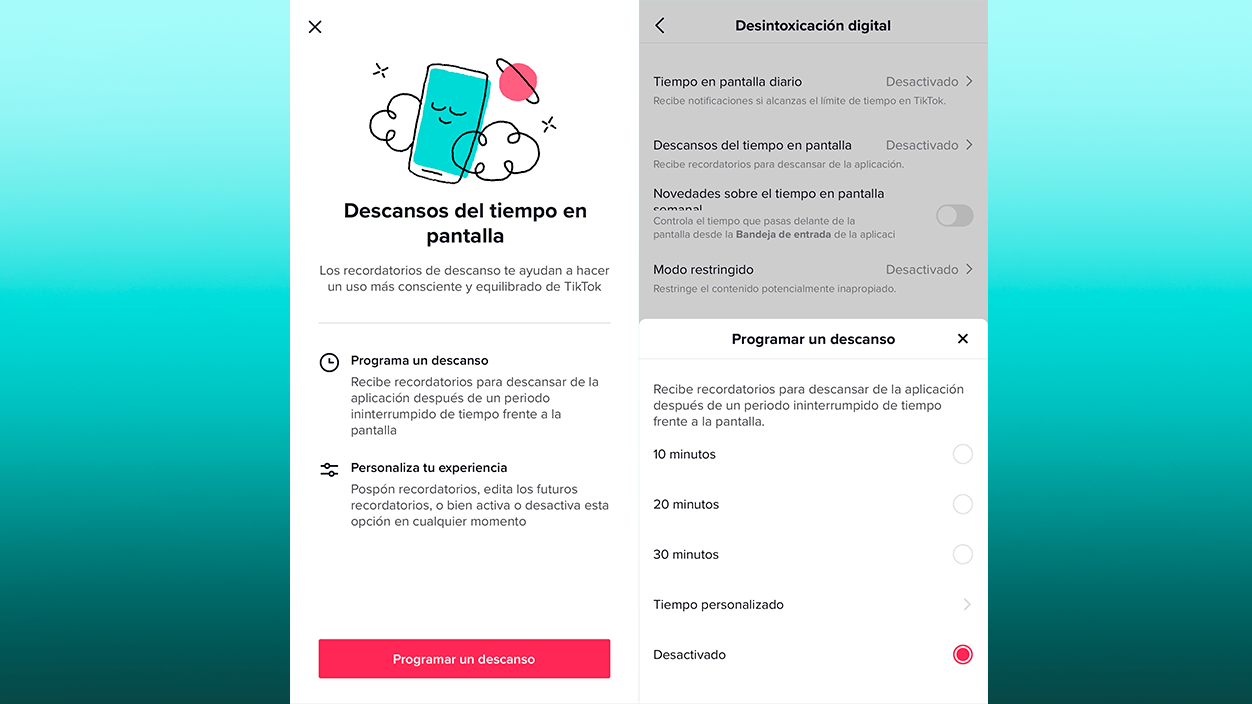
In addition to the daily usage limit, TikTok includes tools designed to help you take breaks and prevent you from spending too much time watching videos at a time. Among them are break reminders and bedtime alerts. rest reminders They allow the app to notify you after a certain period of continuous use. You can Choose how often you want to receive the notificationso that TikTok suggests you stop for a moment, get up, or change your activity before continuing to scroll.
On the other hand, TikTok also includes a bedtime reminderDesigned especially for young users, this feature displays a notification when your set time to stop using the app is reached, helping to prevent nighttime use from affecting sleep.
To activate these options, go to your profile, tap the Menu button (☰), access Settings and Privacy, and look for the Screen Time section. There you'll find the options for rest reminders and bedtime reminders, which you can activate and configure according to your habits.
Weekly updates on screen time on TikTok
If you want to get an overall view of how much you use TikTok each weekThe platform offers a notification system that sends you a weekly summary of the time you've spent on the app. It's a very visual way to see if your video consumption is increasing, decreasing, or staying steady.
These notifications can appear both in the TikTok inbox such as in the form of push notifications on your mobile device. The summary compares your usage time from the last week with the previous week, so you can easily see if you're overdoing it or if you've managed to reduce your screen time.
To activate them from the app, go to your profile, tap the menu ☰, go to “Settings and privacy” and then to “Screen time”. Within this section you will see the option “New developments regarding screen time”which you can activate or deactivate with a simple tap. If you prefer not to receive push notifications and only see them within the app, you can also adjust that.
That's enough go to “Profile”, Press the menu button ☰, go to “Settings and privacy” and then to “Notifications”. In that menu you can specifically disable push notifications from “Weekly Screen Time Updates”So you'll still have the summary in your TikTok inbox, but without your phone interrupting you.
In the web version, the process is even simpler: Click on your profile picture, go to “Settings”, then to “Screen Time” and there you will be able to activate or deactivate weekly updates with a single button. This flexibility allows you to adapt the level of "control" to what best suits you at any given time.
TikTok screen time and usage metrics dashboard
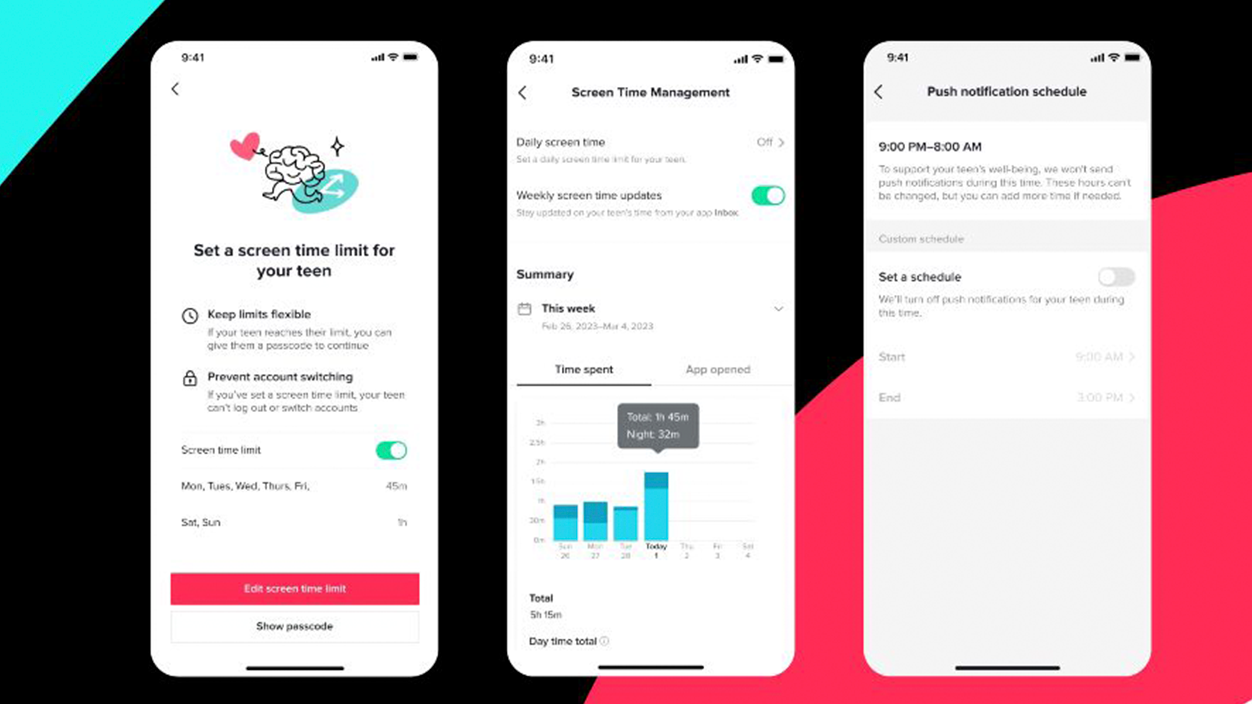
In addition to alerts and limits, TikTok includes a fairly comprehensive dashboard with usage metrics. This allows you to see in detail how much time you spend on the app and how often you open it. It's a very useful tool for becoming aware of your habits and checking if the changes you make are having an effect.
To access this panel from the app, go to your profile, tap the menu button ☰, select “Settings and privacy” and go to “Screen time”. As you scroll down you will see the panel with the summary of your activityOn the web, access is similar: profile picture at the top, “Settings”, “Screen time” and then the “Summary” option.
Within the panel you can consult the Daily usage time during the current weekTaking into account both what you've consumed on your mobile device and what you've viewed in your browser. You can also tap or click on "TikTok open" to see how many times you've opened the app each day, which helps detect if you're compulsively opening it many times throughout the day, even if it's just for "a minute."
The panel also includes a date filter to view previous weeks.This is usually done up to three weeks prior. This way you can compare your behavior over time and see if the control measures you're using (limits, breaks, bedtime, etc.) are working or if you need to adjust them.
This panel is also part of the tools available in the Family Synchronization / Family PairingThis allows parents to review their children's account usage data and make joint decisions about limits. Remember that any changes you make to screen time settings are synced across both the app and the web version, so you don't need to configure them twice.
TikTok activity status: who sees when you're online

Another feature that influences how we experience the time we spend on TikTok is activity status.This shows whether you're online or when you were last active. This only applies between accounts that follow each other and only if both of you have the feature enabled.
If you and one of your followers follow each other and have the Activity status activatedYou'll be able to see if the other person is online and how long ago they were last online. At the same time, this means they'll be able to see the same about you. If only one of you has the feature enabled, neither of you will see the other's activity, so it's an all-or-nothing option that's quite privacy-friendly.
When someone is online at that moment, a green dot over your profile pictureThis indicator appears in your inbox, in direct message threads, on the profiles of mutual followers, and in the user list when you tag someone or share a video with them. The dot may remain visible for a short time after the person has gone offline, so it's not an instantaneous indicator.
If the person is not online, TikTok shows a relative timestamp of the last moment of activity (For example, X hours ago). This information is mainly displayed in the inbox and message threads. It's important to know that the app only shows this information for a maximum of 2 days; if someone doesn't log into TikTok for more than 48 hours, their status stops being displayed.
To turn Activity Status on or off, you can go to the privacy settings at any time.From the app, go to your profile, tap the Menu button, go to “Settings and privacy,” then to “Privacy,” and there you’ll find the Activity Status toggle. It’s disabled by default, and you must be over 18 to use this feature.
How to limit TikTok using your mobile settings (Android and iOS)
In addition to TikTok's internal features, both Android and iOS include tools to limit the usage time of any app.These include TikTok. They are very useful if you want extra control "from the outside" or if you want to ensure that the limits don't depend solely on the platform's own settings.
On Android, you can go to system settings and look for the "Digital Wellbeing and Parental Controls" section. Inside, you'll see a control panel showing the usage time of each applicationWhen you enter TikTok you can set an "app timer": you choose how many minutes a day you allow the app to be used and, once the limit is exceeded, Android blocks its use until the next day (or until you change the setting).
On iPhone, the process involves going to the "Screen Time" menu within the device settings. Once this feature is activated, you can access "App Usage Limits." Add a new limit and select TikTokThere you define the maximum daily usage time and, when it runs out, iOS locks the app with an on-screen reminder, allowing you to enter a code if you want to temporarily bypass the limit.
These options are especially interesting for parents who want to have additional control over their children's screen timeOr for users who know they tend to disable app limits when they "feel like playing a little longer." Because they're integrated into the operating system, these blocks are somewhat harder to ignore or manipulate without leaving a trace.
In combination with TikTok's internal tools (daily screen time, breaks, sleep reminders, activity dashboard), The Android and iOS controls offer an extra layer of support for managing potential infinite scrolling addictionUsing these functions consciously and adapted to each case can make the difference between a healthy use of the platform and a use that ends up taking a toll on well-being.
Controlling TikTok usage time isn't about demonizing the app, but about learning to integrate it into our lives in a balanced way.Taking advantage of its positive aspects (entertainment, creativity, information, community) without letting it absorb our attention to the point of affecting sleep, studies, work, or mental health. With screen time tools, automatic limits for minors, the statistics dashboard, Family Sync, and Android and iOS controls, we have increasingly more resources to decide how much TikTok we want in our daily lives and to guide younger users toward more responsible use.


I am a technology enthusiast who has turned his "geek" interests into a profession. I have spent more than 10 years of my life using cutting-edge technology and tinkering with all kinds of programs out of pure curiosity. Now I have specialized in computer technology and video games. This is because for more than 5 years I have been writing for various websites on technology and video games, creating articles that seek to give you the information you need in a language that is understandable to everyone.
If you have any questions, my knowledge ranges from everything related to the Windows operating system as well as Android for mobile phones. And my commitment is to you, I am always willing to spend a few minutes and help you resolve any questions you may have in this internet world.