
Do you have countless folders filled with files with chaotic names? If you've ever tried to organize hundreds of photos, documents, or songs one by one, you probably know how tedious it is. In this guide, we'll show you how. How to use PowerRename to rename hundreds of files at onceWe'll see how to use it from scratch, master its variables, and organize your files without errors.
How to use PowerRename to rename hundreds of files at once

Use PowerRename to rename hundreds of files at once It's the best thing you can do if you want to organize your folders a bit.PowerRename is one of the most powerful tools in PowerToys (the suite of Microsoft utilities that you can also use for Keep a window always visible in Windows 11).
PowerRename is ideal for anyone who needs to organize thousands of files in just a few seconds. With it, you can use simple searches, adding filters and even regular expressionsAdditionally, you can use it to rename files using numbers or based on the date they were edited or released. Below is a quick guide to learning how to use PowerRename to rename hundreds of files at once.
Step 1: Install and activate the tool
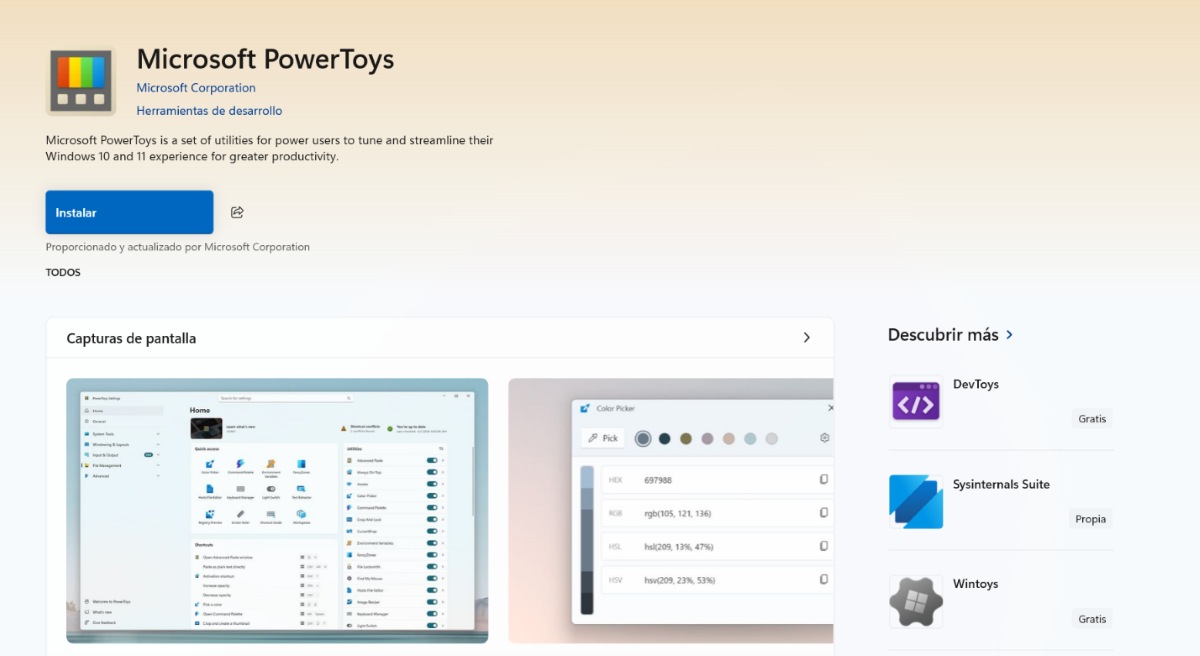
The first thing you need to do is download the tool. If you don't already have it... Microsoft PowerToys, download it from the Microsoft Store or your official GitHub pageOnce inside Microsoft Power Toys:
- Locate the module PowerRename and make sure it's activated (on On).
Step 2: Use PowerRename to rename hundreds of files at once
Once you've enabled PowerRename from Microsoft Power Toys, the tool will integrate directly into your system. To use PowerRename to rename hundreds of files, follow these steps:
- Open Windows File Explorer and select all the files you want to rename (press Ctrl + E to select all(if that's what you need).
- Right click on the selected files.
- In the context menu, find and select PowerRename (if you are using Windows 11 and have the shortcut menu, you may need to click Show more options first).
Step 3: Get to know the PowerRename interface
Once the above steps have been taken, The PowerRename window will openThere you'll see two main panels: on the left you can configure the rules, and on the right you'll have a real-time preview of how the names will look before applying the changes. This will prevent you from making major mistakes.
Next, we'll show you Several ways to use PowerRename to rename hundreds of files at once:
Find and replace simple text
This is the most common use of the tool. For example, If you want to change the name To replace "Old_File" with "Recent_File", do the following:
- In the "Search" box: Write the exact text you want to remove or change (Old_file).
- In the "Replace with" box: Write the new text (Recent_file).
- Review the changes in the preview and click on Apply.
To add numbering or other data

If you want to use PowerRename to rename hundreds of files using sequential numbering (for example Photo_0001, Photo_0002…), you can do the following:
- In «Search»: Select the text you want to change (or leave a space if you just want to rename everything from scratch).
- In «Replace with»: Write the base name and use variables enclosed in dollar signs. For example, File_$num – This will list the files (File_1, File_2). And if you put Guide_$YYY-$MM-$DD The current date will be added automatically.
- Information icon (i): In the bottom left corner of the PowerRename window, you'll see a small information icon. Clicking it will display a list of all the date, time, and numbering variables you can use.
Let's say you have a list of about 1000 photos that you want to rename. The trick is in Use leading zeros to help Windows sort your files correctly.In this way, they will look like this: Photo_0001, Photo_0002… until you reach photo number 1000. What do you need to do to achieve this?
- In the picture "Look for": Put .* (a period and an asterisk). This tells the tool to "select the entire current file name".
- In the picture "Replace with": Write the name you want, followed by the variable of three or four zeros. For example: Photo_$num (4)
- For this to work, you have to Check the boxes "Use regular expressions" and "File name only" so that it doesn't delete or alter the file extension.
Keep in mind that The order of the files within the folder mattersWhen using PowerRename to rename hundreds of files at once, they will be renamed in the same order they appeared in your folder before you opened the tool. If you want them sorted chronologically, you need to sort the folder by Capture Date or Modification Date before selecting all and right-clicking.
Change only the file extension
If what you want is rename the extension of your files (For example, to convert .txt to .md or .jpeg to .jpg, do the following:)
- In the options on the left sidebar, make sure to check the box Extension only.
- In Search you put the old extension (for example jpeg) and in Replace you put the new one (jpg).
PowerRename extra options
When using PowerRename to rename hundreds of files at once, you have at your disposal Various useful switches that will save your lifeIf you look at the left panel, you will find the following extra help:
- Distinguishing between uppercase and lowercase letters: In this way, the tool will not confuse, for example, Photo with photo.
- Match all occurrences: If a word is repeated several times in the same name, it will change them all.
- Convert uppercase/lowercase: If you activate this option, you can change all the text to lowercase, uppercase, or Title Case (where the first letter of each word will be capitalized) with just one click.
Once you are happy with all the changes made to the different files, To finish, click the Apply button. in the bottom right corner, and all the changes will be applied. See? It's not so difficult to use PowerRename to rename hundreds of files at once!

From a young age, I've been fascinated by all things scientific and technological, especially those advancements that make our lives easier and more enjoyable. I love staying up-to-date on the latest news and trends, and sharing my experiences, opinions, and tips about the devices and gadgets I use. This led me to become a web writer a little over five years ago, focusing primarily on Android devices and Windows operating systems. I've learned to explain complex concepts in simple terms so my readers can easily understand them.