- VirtualBox 7 includes USB 2.0 and 3.0 without installing the Extension Pack.
- First, check where the device stops being detected.
- On Linux hosts, check the permissions of vboxusers.
- Capturing a USB drive and being able to read its files are different things.

It's a classic: you set up your virtual machine, everything goes smoothly, but the moment you plug in a USB drive to transfer some files, VirtualBox completely ignores it.. Este problema es súper común y, aunque puede desesperar, la mayoría de las veces no es que el programa esté roto, sino que faltan un par de ajustes o que no sabemos exactamente cómo hacer que el sistema anfitrión le «ceda» el dispositivo al invitado.
VirtualBox es una herramienta brutal y gratuita que nos permite emular sistemas operativos, pero por defecto viene muy recortada en cuanto a controladores de hardware. Para que el hipervisor pueda interactuar con removable storage units and other peripherals, we need to give it a boost with some specific add-ons and configure the appropriate permissions, especially if we use Linux.
The first essential step: The Extension Pack
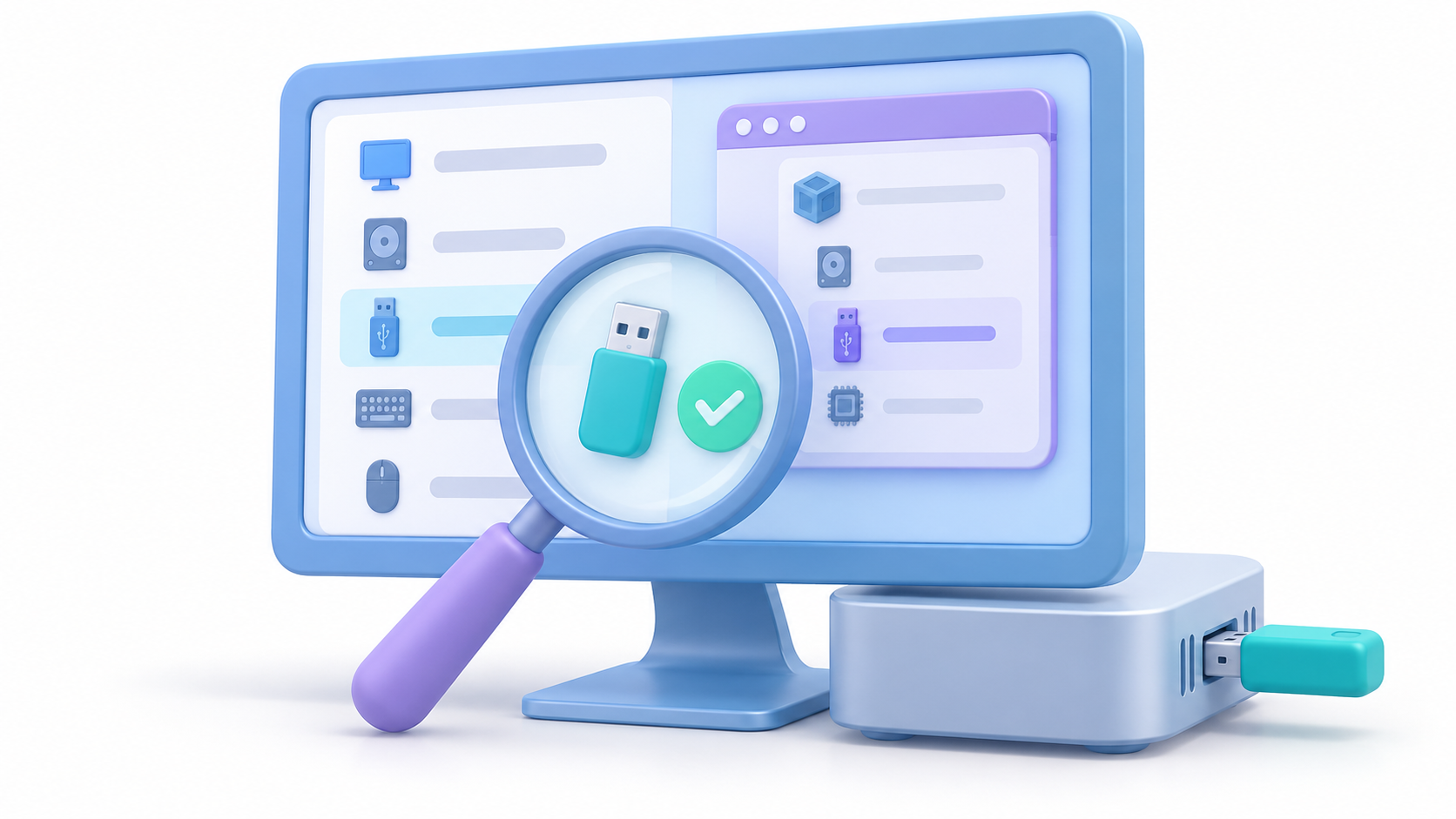
If you try to connect a USB device and nothing happens, it's most likely because VirtualBox only supports the USB 1.1 standard by default, which is now considered outdated. To be able to use USB 2.0 or 3.0, tienes que instalar el Oracle VM VirtualBox Extension Pack.
Para conseguirlo, vete a la sección de descargas de la web oficial de VirtualBox. Busca el apartado del Extension Pack y descarga el archivo que dice «Todas las plataformas»Once you have the file, simply double-click on it and follow the installation wizard. If you already have an older version, choose the option to update the package to avoid compatibility conflicts.
Controller settings in the virtual machine

Simply installing the package is not enough; you also need to tell the virtual machine to use it. First of all, Shut down the virtual machineBecause if it's turned on, the settings options will appear locked and you won't be able to touch anything.
- Enter the cogwheel of Configuration and go to the tab of USB.
- Check the box «Activar controlador USB».
- Here's the trick: choose between USB 2.0 (EHCI) or USB 3.0 (xHCI). If you see that 3.0 gives you enumeration errors or doesn't recognize the device, Try switching to USB 2.0which is usually much more stable and compatible.
- An extra tip is to add a blank USB filter Clicking on the plus sign icon sometimes helps the system detect the hardware more easily.
How to transfer the USB from the physical system to the virtual system

Many people think that the USB device should magically appear in the VM as soon as it's plugged in, but that's not how it works. The device is first detected by the host system (your actual PC) and You can't be in two places at the same time. Tienes que «robárselo» al sistema físico para pasarlo al virtual.
Cuando la máquina esté arrancada, busca en la parte inferior de la ventana el small USB iconRight-click on it and you'll see a list of all the devices connected to your computer. Look for the name of your USB drive (sometimes it shows the brand name, like SMI Corporation, or just a code) and select itAt that moment, the host system will disconnect it and mount it in the virtual machine, where it will then appear. "This team" or the guest system's file explorer.
Specific solutions for Linux and Ubuntu users
In Linux, things get a little more complicated because the following come into play: kernel and system permissionsIf the command lsusb te muestra el pendrive pero VirtualBox dice que no hay dispositivos disponibles, es probable que tu usuario no tenga permiso para acceder al hardware USB.
La solución definitiva aquí es añadir tu usuario al grupo de VirtualBox. Debes ejecutar en la terminal el comando para join the user to the vboxusers groupIf you don't do this, even if you install the Extension Pack, the hypervisor won't have the necessary privileges to enumerate the devices. Also, make sure that the kernel modules are correctly loaded and there are no conflicts with udev or usbfs.
Complex cases and remote access
There are situations where, even after doing all of the above, the device still doesn't appear. In these cases, the best course of action is reinstall VirtualBox Install the latest version from scratch, as older versions may have bugs with modern hardware. There is also the VRDP protocol for remote access, which allows you to use remotely USB peripherals, aunque es cierto que el rendimiento puede ser inestable o no compatible con dispositivos muy especializados.
Si te encuentras en un callejón sin salida, recuerda que siempre puedes intentar Install the Guest Additions (extensiones de invitado) dentro del sistema operativo virtualizado, ya que esto optimiza la comunicación entre el anfitrión y el invitado, permitiendo que en ocasiones los USB sean reconocidos de forma más fluida sin tener que marcarlos manualmente cada vez.
Para solucionar este problema, la clave reside en instalar el Extension Pack adecuado, seleccionar el controlador USB 2.0 o 3.0 en la configuración con la máquina apagada y, en caso de usar Linux, asignar correctamente los permisos al grupo vboxusers. Una vez configurado esto, basta con seleccionar el dispositivo desde el menú de iconos inferiores para transferir el control del hardware desde el equipo físico hacia la máquina virtual.

I am a technology enthusiast who has turned his "geek" interests into a profession. I have spent more than 10 years of my life using cutting-edge technology and tinkering with all kinds of programs out of pure curiosity. Now I have specialized in computer technology and video games. This is because for more than 5 years I have been writing for various websites on technology and video games, creating articles that seek to give you the information you need in a language that is understandable to everyone.
If you have any questions, my knowledge ranges from everything related to the Windows operating system as well as Android for mobile phones. And my commitment is to you, I am always willing to spend a few minutes and help you resolve any questions you may have in this internet world.