- Resizable BAR allows the CPU to access all of the GPU's VRAM via PCIe, bypassing the traditional 256MB block limit and reducing bottlenecks in demanding games.
- To use Re-Size BAR, joint compatibility of CPU, GPU, motherboard, BIOS, VBIOS and drivers is required, in addition to installing the system in UEFI mode and disabling CSM in the BIOS.
- Activation is done in the BIOS with options such as Above 4G Decoding and Re-Size BAR Support, and is verified from Windows with the NVIDIA Control Panel or tools such as GPU-Z.
- The actual performance improvements average between 3% and 5% depending on the game and hardware, but since it's a free and future-proof feature, it's worth enabling it whenever your computer is compatible.
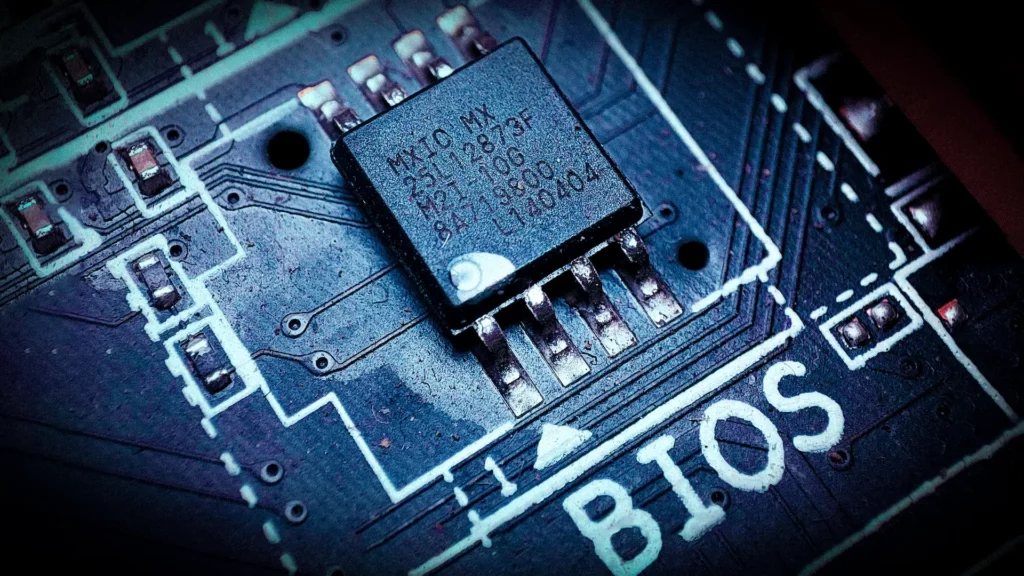 ¿What is the Re-Size BAR from BIOS and how do I verify that it works? If you're interested in getting the most out of your gaming PC, you've probably heard of the Re-Size BAR or Resizable BAR from the BIOS and the very famous AMD Smart Access Memory. It's not magic or overclocking, but it is a feature that allows you to squeeze out a few FPS completely free of charge if your hardware supports it. The key is understanding exactly what it does, how to activate it, and, above all, how to verify that it's actually working.
Although the term sounds somewhat technical, the idea behind Resizable BAR is quite simple: allow the CPU to access all of the graphics card's VRAM at onceInstead of doing it in small, limited chunks, this eliminates bottlenecks in certain situations and improves smoothness in modern games. Let's see, step by step, what it is, how it works, what you need to use it, how to activate it in the BIOS, and how to verify that it's working in Windows.
What is Resizable BAR and why does it matter?
Resizable BAR stands for Resizable Base Address RegisterThis feature has been included in the PCI Express specification since PCIe 2.0, although until recently virtually no one paid attention to it. In a classic configuration, without this feature, the processor can only address 256 MB blocks of VRAM from the GPU via the PCIe bus. In other words, the CPU sees the graphics card's memory as a fixed 256 MB window.
This means that, in a system without an active Resizable BAR, All requests for graphical data are broken down into these blocks.Textures, geometry, shaders, and other elements are transferred in small fragments that are queued up. When the game is very demanding or there are many scene changes, this process creates a bottleneck because the CPU cannot obtain the data as quickly or flexibly as it could.
When Resizable BAR is activated, things change completely: The CPU gains direct access to all the VRAM of the graphics card thanks to the PCIe busInstead of moving information through a rigid 256 MB buffer, this "window" is allowed to change size dynamically, allowing the processor to request exactly the data it needs, when it needs it, and also perform multiple concurrent requests.
In practical terms, this means that, during a game, Game world textures and data can flow with less waiting. between GPU and CPU. If you have an open-world game that loads several gigabytes of environment data at once, without Resizable BAR the graphics card has to perform many transfer rounds with the CPU. With Resizable BAR, the system can handle a much larger volume of data per cycle, making better use of the PCIe bus bandwidth (for example, the 31,5 GB/s of a PCIe 4.0 x16 link).
Relationship between Resizable BAR, AMD Smart Access Memory and nomenclatures
Both NVIDIA and AMD have embraced this technology, although each manufacturer presents it under their own trademark.In NVIDIA's case, the name is the same as the specification: Resizable BAR. AMD has named the functionality as Smart Access Memory (SAM)But underneath it is exactly the same concept defined by PCIe.
It should also be noted that AMD SAM was originally designed with the AMD Ryzen 5000 CPU + Radeon RX 6000 GPU combination in mind.This is known as the “AMD Advantage” platform. NVIDIA, on the other hand, since it doesn't manufacture desktop processors, has had to work with Intel and AMD to support different CPU and motherboard combinations with their GeForce RTX 30 series cards.
At the user level, the important thing is that when you see terms like “Re-Size BAR Support”, “Resizable BAR” or “Smart Access Memory” in BIOS or in the notes of an updateThey are referring to the same underlying technology, although AMD SAM and NVIDIA Resizable BAR have some differences in how they apply it to games through drivers.
How Resizable BAR works at a technical level
Without going into a computer architecture lesson, it's important to clearly understand what this function does. In a traditional configuration, The GPU exposes its VRAM to the system through a fixed-size base register (BAR)., normally 256 MB. When the CPU needs graphics data, it accesses that region and the GPU is responsible for "paging" content in and out of that space.
With Resizable BAR, the size of that base register It is no longer fixed at 256 MB and becomes adjustable according to the amount of memory the GPU wants to expose.In other words, the CPU can "see" much larger blocks or even the entire VRAM, instead of sipping on it in small chunks. The result is a reduction in swap operations and a decrease in the number of request queues.
In addition to this, we must also consider that The standard allows multiple parallel requests and simultaneous buffers.This is especially useful in games with rapidly changing scenes, complex effects, or large amounts of high-resolution textures. In this way, a graphics card with a lot of VRAM can transfer information to the processor much faster, fully utilizing PCIe bandwidth and reducing latency.
In a theoretical scenario, a GPU with 32 GB of VRAM could transfer all its contents to the CPU in just over a second via a PCIe 4.0 x16 link. Obviously, in a real game something not so drastic is done, but that margin gives an idea of this technology's ability to handle peak data demands without throttling performance.
Hardware requirements and compatibility
Having one of the new graphics cards is not enough to use Resizable BAR; The CPU, motherboard, BIOS, GPU VBIOS, drivers, and operating system need to communicate with each other.If one of these elements fails, the option will not appear or will not work correctly, even if you think you have activated it.
On the graphics card side, NVIDIA supports Resizable BAR across the entire GeForce RTX 3000 familyboth desktop and many laptop variants, while AMD provides support on all Radeon RX 6000 seriesIn the case of laptops with RTX 3000 series graphics, it's important to check the manufacturer's website, because Support usually depends on a laptop-specific BIOS update which enables the function.
As for processors, the currently accepted combinations are quite clear. With NVIDIA you can use 10th and 11th generation Intel CPUs, and AMD Ryzen 5000 CPUs and even certain Ryzen 3000 CPUs.With AMD SAM, the reference platform is Ryzen 5000 CPU along with RX 6000, although it also extends to several specific Ryzen 3000 series, excluding models such as the Ryzen 5 3400G and the Ryzen 3 3200G.
Regarding motherboards, Intel motherboards are compatible with Z490, H470, B460, H410 chipsets and the entire 500 series chipset family.For AMD, the main recommendation is motherboards with 500 series chipsetbut many motherboards with 400 series chipsets They can also use Resizable BAR as long as they have an updated BIOS that includes support for Ryzen 5000 and, very importantly, the appropriate AGESA microcode.
One detail that many overlook is that You need to have the latest BIOS version installed on your motherboard. to make the Above 4G Decoding and Re-Size BAR Support options appear. The same applies to the GPU: The RTX 3060 already comes with compatible VBIOSBut the RTX 3090, 3080, 3070, and 3060 Ti need a VBIOS update provided by NVIDIA or the assemblerAll of this is completed by installing the latest drivers: on NVIDIA, starting from GeForce Game Ready 465.89 WHQL and in AMD from Radeon 20.11.2 onwards.
Limitations of CPU + GPU combinations

There is an important issue of cross-compatibility: Not all CPU and GPU pairings can benefit from this technologyAlthough on paper both parts support it separately. For example, the combination of AMD Radeon RX 6000 GPUs with Intel CPUs are not officially supported for AMD SAM.because AMD has designed this feature to optimize for its own ecosystem.
Instead, NVIDIA has worked with Intel and AMD. to make Resizable BAR work with both modern Intel processors and most Ryzen 3000 and 5000 series processors. This means that configurations like NVIDIA GPU + Intel CPU, NVIDIA GPU + AMD CPU or AMD GPU + AMD CPU They can take advantage of the technology, as long as the motherboard and BIOS are up to date.
Therefore, if, for example, you have a RTX 3080 and a Ryzen 2700XIt's not enough to just look at the graph: you'll have to carefully check the motherboard manufacturer's documentation and driver notes to see if your processor and chipset actually support Resizable BAR, because in many cases Generations prior to Ryzen 3000 are excluded or they have limitations.
How to enable Re-Size BAR from the BIOS
Once you've confirmed that your hardware supports it, it's time to get down to business and activate the feature. Although each motherboard manufacturer places the options in slightly different menus, The general procedure for enabling Re-Size BAR from BIOS usually follows the same logic.
The first thing to do is start the PC and Enter the BIOS by pressing the Delete (Del) or F2 key at startupAccording to the motherboard, many modern motherboards initially load a simplified "EZ Mode," in which an icon or a direct option called Resizable BAR or Re-Size BAR Support may already appear. On some ASUS models, for example, simply click on the "Resizable BAR" icon in this simplified mode and set it to "Enabled," save with F10, and let the system restart.
On motherboards with more advanced configurations, you'll likely need to go to the advanced options menu, usually under something like “Advanced”, “PCI Subsystem Settings” or “Boot”In this type of BIOS, there are usually two key settings: “Above 4G Decoding” and “Re-Size BAR Support”AMD explicitly states that, for SAM, it is mandatory to enable Above 4G Decoding in addition to the Re-Size BAR option itself.
Another critical setting is the boot compatibility mode: The “Launch CSM” option must be disabled (CSM Disabled) for Resizable BAR to work. If your operating system was originally installed in Legacy/CSM mode, you'll have an additional problem: simply tweaking this option won't be enough, since You will need to reinstall Windows in UEFI mode so that everything aligns correctly. Many users have taken years to take advantage of the feature precisely because of this detail.
After activating Above 4G Decoding and Re-Size BAR Support, Save the changes (F10 or the Save & Exit option) and let the system restart.If everything is compatible, upon returning to Windows the operating system will detect the new GPU memory map configuration and the graphics drivers will take care of the rest.
How to check in Windows that Resizable BAR is working
Enabling the feature in the BIOS does not, by itself, guarantee that the Resizable BAR is actually working. It is important to note that... Verify in the operating system and GPU drivers that everything is greenbecause even the slightest incompatibility in BIOS, VBIOS or driver can leave it disabled without you noticing.
In the case of NVIDIA cards, the most direct method is Use the NVIDIA Control PanelJust right-click on the desktop, open the panel, and go to the menu. and then to In the window that opens, you'll see a field called "Resizable BAR"; if it says "Yes," it's enabled and active. If it says "No" or "Disabled," there's a problem with the compatibility chain.
Another very practical tool is GPU-ZRun the program as administrator, and in the main window you will see a status line for Resizable BAR. When the feature is actually working, It will appear as “Enabled”If it says “Disabled”, “Not available”, or something similar, you'll need to check the BIOS, VBIOS, and drivers. Keep in mind that some graphics card firmware updates are essential for Windows to correctly detect the function.
You can also check it in a slightly more technical way from within the system itself. Windows Device ManagerIn some cases, enabling Above 4G Decoding and Resizable BAR drastically changes the range of memory allocated to the GPU. In the card properties, under the "Resources" tab, You will see that the allocated memory ranges are significantly expanded.This indicates that the GPU is exposing more VRAM directly to the system. It's a slightly more technical way of looking at it, but useful if you want to be sure the mapping has actually changed.
Common problems and how to solve them
It is very common that, even with compatible hardware, Resizable BAR doesn't work the first timeIf the motherboard and graphics card theoretically support it but the programs indicate that the technology is disabled, it is almost always due to one of these causes.
The first and most common is that You don't have the motherboard BIOS updated to the latest versionMany manufacturers have added support through BIOS revisions released since 2021, including changes to AGESA in the case of AMD. Without this update, the options may not even appear or may not do anything even if you enable them. The same applies to the GPU: Without a VBIOS prepared for Resizable BAR, the card cannot expose its VRAM properly..
The second common problem is that the operating system is installed in an incorrect boot mode. If you have CSM enabled or the system disk in MBR format with Legacy installationEven if you try to force UEFI in the BIOS, you'll encounter boot errors or the Re-Size BAR option still won't work. In these cases, the clean solution is to back up your data and reinstall Windows in UEFI mode with the disk initialized as GPT, then activate CSM Disabled, Above 4G Decoding and Resizable BAR.
Finally, there are driver conflicts. If your system is running Very old NVIDIA or AMD drivers, prior to the versions that introduce official supportThe Resizable BAR simply won't activate even if the rest of the components are ready. Make sure you install at least GeForce Game Ready 465.89 WHQL (or higher) on NVIDIA and Radeon 20.11.2 or later on AMD, preferably after a clean uninstall.
Compatible games and real performance improvements

One of the biggest questions users have is whether Is all this fuss worth it to gain just a few FPS?The honest answer is that it depends on the game, the resolution, and how well your computer is already running, but in general, the improvement is there and, since it doesn't involve any additional cost, it's usually worth the effort if your hardware is compatible.
In the case of NVIDIA, Resizable BAR is applied via a list of officially supported gamesIn other words, not all titles benefit equally from day one. Among the games that already allow you to take advantage of the technology are, among others, Assassin's Creed Valhalla, Battlefield V, Borderlands 3, Control, Cyberpunk 2077, Death Stranding, DIRT 5, F1 2020, Forza Horizon 4, Gears 5, Godfall, Hitman 2 and 3, Horizon Zero Dawn, Metro Exodus, Red Dead Redemption 2 and Watch Dogs: LegionThe list has been expanding over time through driver updates.
AMD, for its part, has proposed Smart Access Memory in a slightly different way: SAM tries to work in all gameswithout such a limited list. Even so, the actual impact also varies greatly depending on the graphics engine and how each title handles textures and scene data.
In terms of numbers, the official marketing figures are quite optimistic. NVIDIA speaks of performance improvements of up to 12% in some specific games under an RTX 3080, while AMD has even announced up to a 15% with SAM in certain configurationsHowever, independent evidence paints a more conservative picture.
Specialized media outlets such as TechPowerUp have shown that, under real-world conditions, NVIDIA Resizable BAR typically provides an average improvement of 3-4% in officially supported gamesIn titles not on the list, the gain drops to 1-2% at most. On the AMD side, tests with an RX 6900 XT have shown an average increase of around 5%, with specific cases like Borderlands 3 at 1440p where increases of around 8% have been seen.
This leads us to one clear conclusion: Resizable BAR and AMD SAM do offer a performance improvement, but far from the advertised maximums.Even so, since this is an increase that doesn't require buying a new GPU or CPU, it makes sense to activate it as long as your computer supports it without excessive complications.
Medium and long-term advantages in gaming

Although the profits may seem modest right now, this technology This makes even more sense when thinking about the future.Games are increasingly handling more complex scenarios, higher resolutions, and enormous textures, which means that The amount of data that must flow between GPU and CPU continues to growIn that context, remaining tied to a fixed 256 MB buffer becomes a more obvious burden.
As more demanding titles appear, with giant open worlds and a greater density of effects, the fact that the CPU can access large portions of VRAM at once This will help reduce stuttering, occasional performance drops, and loading times in certain sections. Furthermore, each new generation of PCIe It approximately doubles the available bandwidth.This allows scaling the effective size of the buffers handled by Resizable BAR.
The standard contemplates the possibility of reaching up to 256 GB of addressable space in the base registryThis is a staggering figure compared to the 256 MB handled without this technology. With such a margin, there's more than enough room for future graphics cards with large amounts of memory and upcoming games to fully utilize this feature without encountering bus bottlenecks again.
In short, Resizable BAR and Smart Access Memory are those improvements that, once activated and properly configured, They become another piece of the foundation upon which the next years of PC gaming are built.improving little by little through both new games and driver updates.
Looking at the whole picture, from hardware requirements to the impact on FPS, it's clear that Enable the Re-Size BAR from the BIOS and verify its operation using tools such as the NVIDIA Control Panel or GPU-Z. It's one of the best ways to squeeze out extra performance without spending a penny. As long as your CPU, GPU, and motherboard combination allows it, keeping your BIOS, VBIOS, and drivers up to date, disabling CSM, enabling Above 4G Decoding, and checking the Resizable BAR status will guarantee a small but valuable boost in virtually all compatible games, with even greater potential for improvement as software and hardware continue to evolve.
Index
- 1 What is Resizable BAR and why does it matter?
- 2 Relationship between Resizable BAR, AMD Smart Access Memory and nomenclatures
- 3 How Resizable BAR works at a technical level
- 4 Hardware requirements and compatibility
- 5 Limitations of CPU + GPU combinations
- 6 How to enable Re-Size BAR from the BIOS
- 7 How to check in Windows that Resizable BAR is working
- 8 Common problems and how to solve them
- 9 Compatible games and real performance improvements
- 10 Medium and long-term advantages in gaming

Passionate about technology since he was little. I love being up to date in the sector and, above all, communicating it. That is why I have been dedicated to communication on technology and video game websites for many years. You can find me writing about Android, Windows, MacOS, iOS, Nintendo or any other related topic that comes to mind.