- Silent notifications from Telegram Desktop are usually due to a combination of internal app settings and Windows notification configurations.
- It's key to review "Notifications and sounds" in Telegram, try with or without native Windows notifications, and check Focus Assist and the volume mixer.
- Telegram Web and other clients like Unigram show that the Windows notification system works well if the integration is properly implemented.
- Properly managing sessions, permissions, and power-saving modes on mobile and PC reduces Telegram alert outages, delays, and failures.

¿What to do if Telegram Desktop isn't making sounds but visual notifications are coming through? This situation can be a real nuisance, especially if you depend on Telegram for work or to be reachable. The problem becomes more complicated when the mobile phone rings without issue, but the desktop client on Windows remains completely silent.Even with all sound options seemingly configured correctly. Below, we'll break down all the possible causes and the most effective solutions, from Telegram Desktop's own settings to the peculiarities of native Windows 10 and Windows 11 notifications.
Understanding the flaw: visual notification yes, sound no
The first step is to clarify exactly what is happening: In many cases, Telegram Desktop correctly displays the visual notification (icon with number, balloon, change in the chat list), but does not play any sound.This can happen both when using Telegram's internal notification system and when native Windows notifications are enabled.
Some users describe a fairly clear pattern: When the last chat you had open receives a message while Telegram is minimized or in the background, no sound is played and the pop-up banner doesn't even appear.After a while, the phone does show the notification, but then it disappears because the message has already been synced as read on the desktop.
In other cases, the symptom is different: No pop-up window appears and nothing sounds, but a small red "1" appears on the icon pinned to the taskbar. which indicates that there are new messages. The problem is that this indicator is too subtle and easily overlooked, so messages accumulate without the user noticing.
We must also mention a rather peculiar scenario: Telegram's internal sound (for example, when playing voice notes) works perfectly, but the notification tone for incoming messages is never heard.This indicates that the sound card, speakers, and the operating system itself are working correctly, and that the problem lies in how Telegram handles or sends those notifications to Windows.

Differences between Telegram's internal notifications and Windows native notifications
Telegram Desktop for Windows offers two main ways to manage notifications: its own integrated notification system or the operating system's native notificationsThat choice is more important than it seems, because each option comes with its own bugs and limitations.
Many users who have opted for native Windows notifications have encountered some clunky behavior. For example, Clicking on a Telegram banner doesn't always immediately open the application window.The correct chat is selected, yes, but only when you manually open Telegram. This significantly disrupts the smooth experience you'd expect from a messaging app.
There are more annoying details: Windows native notifications for Telegram Desktop often display without the contact or group avatar.This makes it difficult to identify at a glance who is messaging you. Furthermore, the ability to reply directly from the notification banner, which other apps utilize very effectively, It does not work on Telegram Desktop with the native Windows system.
Some users also complain that, on certain occasions, The notifications appear empty or without the message content.You can only see that there's something new, but the text isn't displayed. This makes the banner system much less useful, because it forces you to manually open the chat to find out what's been said.
What's striking is that this poor integration isn't a general Windows problem. Applications like Unigram, an unofficial, open-source client for Telegram, is available on the Microsoft Store.They make much better use of the system's capabilities: they correctly display avatars, the unread message count in the icon, and Use the native function to mute notifications from within the Windows notification center itself.something that Telegram Desktop doesn't quite manage to do with the same finesse.
Comparison with other clients: Unigram, WebZ and Telegram Web
The situation is even more paradoxical when compared to other Telegram clients. Unigram, despite being an independent development, offers a more integrated interface with Windows., smooth animations and consistent notification management, even with features like displaying the number of pending messages on the app icon.
There is also the case of Telegram WebZ (the modern web version of Telegram)which many consider more visually appealing than the official Windows desktop client. In terms of interface and animations, the web experience is superior in some aspects, which is surprising considering that the desktop app It is promoted as one of the most popular messaging apps in the Microsoft Store.
For those working from a browser, Telegram Web can be a valid alternative when the desktop client has notification problems.It works from any modern browser, is synchronized in real time with the mobile app, and does not require the phone to be constantly connected, unlike WhatsApp Web.
However, even on Telegram Web you need to configure notifications properly to avoid missing alerts. When you log in, the browser usually displays a message asking for permission to show notifications.If you accidentally pressed "Block," you won't receive any sounds or banners, even if everything seems fine within Telegram. It's a good idea to check the site's permissions in your browser settings and make sure notifications are allowed.
Additionally, from the Telegram Web menu itself (three lines at the top left > Settings > Notifications and sounds), You can enable background notifications, message preview, and sound.If any of these switches are disabled, you will receive incomplete or silent alerts that may confuse you with the fault we mentioned.
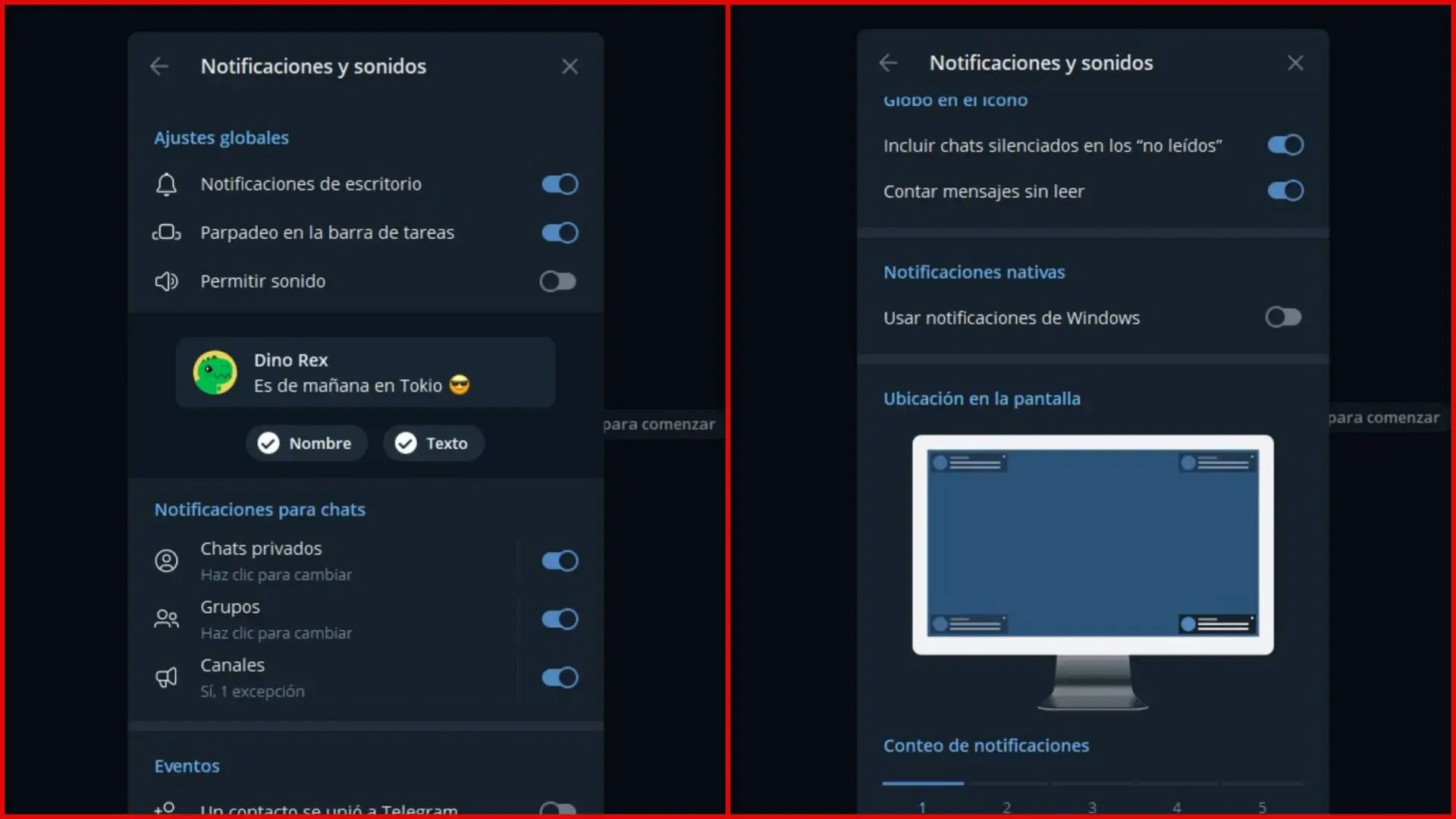
Review notification settings in Telegram Desktop
Before blaming Windows, it's essential to thoroughly investigate. The settings for notifications and sounds within Telegram DesktopOften, the reason you only see the visual alert but don't hear anything is simply due to a setting that's been incorrectly configured.
On the desktop client, open the main menu (three-line icon in the top left) and enter “Settings” > “Notifications and sounds”Inside you'll see several sections for private chats, groups, and channels. Make sure you haven't unintentionally silenced some specific type of chat, because that will result in silent notifications even if the icon is updated.
It is also important to check the volume and the type of tone chosen. Telegram allows you to configure different sounds for messages, groups, and calls.And in some cases, the sound file may be corrupted or not playing correctly. Changing the ringtone and testing if it plays from that same menu helps rule out this problem.
Don't forget to check the option to use or not use native system notifications. Telegram Desktop has a checkbox similar to "Use Windows notifications"If enabled, Telegram delegates the management of banners and sounds to the operating system; if disabled, it will use its own system. Trying toggle this setting on and off can be key, because on some devices one of the two options clearly works better than the other.
Finally, check if the problem occurs in all chats or only in one. Each individual chat allows you to customize your own notifications.You can mute or disable the sound for that specific contact or group. Go to the profile of the problematic chat and check that it's not set to mute.
Windows notification settings: Focus Assist and more
If everything seems fine within Telegram, it's time to look at the Windows side. In Windows 10 and 11, the key section is “System > Notifications”You must confirm that the "Get notifications from apps and other senders" option is enabled and, further down the list, that Telegram is allowed to send alerts.
In that list of applications, Verify that Telegram is not blocked, muted, or has its sound disabled.Sometimes, after a system or program update, Windows can change the behavior of some apps and disable banners or sounds without you noticing.
Another key piece is the Focus AssistThis mode, designed to reduce distractions, can block sounds and notifications from many apps when it detects you're playing games, mirroring your screen, or during specific times. If Telegram isn't on your "Priority List," its notifications may be silenced even if you still see small visual indicators.
A trick that has worked for several users is as follows: First, in Telegram, select the option to use Windows notifications.Go to Windows Settings > System > Focus Assistant and add Telegram to the list of priority apps. Once you've done that, return to Telegram. The option to use Windows notifications is unchecked. And, interestingly, the sound works again even with Focus Assist enabled.
It's also a good idea to take a look at the Windows volume mixer. Right-click on the volume icon > Open volume mixer and check that Telegram's volume is not turned down or muted. independently of the rest of the system. This detail often goes unnoticed and can leave you without sound only in that application.
Internet connection, battery, and background operation
Although the problem we are dealing with is mainly about sound, sometimes Notifications fail or arrive all at once due to connectivity or power management issuesThis is more noticeable on mobile devices, but it can also affect desktop behavior when synced with the phone.
If you notice that the messages appear all together when you open Telegram, both on mobile and PC, first check your connection. Check that your WiFi or wired network is working, that there are no unexpected outages, or that a firewall is blocking Telegram.You can try opening web pages in the browser or try another app with internet access to make sure the connection is stable.
On your mobile phone, it's key to disable battery saving mode if you want to receive timely notifications. Many Android skins severely restrict background appsThis causes Telegram to only sync and notify you when you manually open the app. Charge your phone to at least 50%, disable power saving mode, and check that Telegram isn't undergoing any aggressive optimizations.
It is also a good idea to restart your phone from time to time. A simple restart can resolve temporary errors affecting push notifications.This is especially true after installing system updates or updates to the Telegram app itself. It's not uncommon for notification behavior to improve after a restart, both on mobile and in linked desktop sessions.
On iPhone, check the focus modes (Do Not Disturb, Work, Personal, etc.). If any of those modes are active with restrictions for messaging appsYou will receive fewer notifications than you should, which in turn can result in strange desktop behavior when sessions are synchronized.
Telegram Web and WebZ: Check permissions and settings
When the desktop client becomes unstable, many users temporarily switch to Telegram Web or variants like WebZ. These versions allow you to continue using all chats, groups, channels, and even voice and video calls. directly from the browser, without installing anything additional.
To access Telegram Web, simply go to the official website and scan the QR code from your mobile device (Settings > Devices > Link device). Once inside, all content is synchronized in real time with the phone: contacts, messages, multimedia, channels and more.
The first step after logging in is to accept the browser's notification permission request. If you block those permissions, Telegram Web will not be able to display banners or sounds.even if you have left all notification options enabled within the platform itself.
From the Telegram Web menu, under Settings > Notifications and sounds, You can turn all desktop notifications, background notifications, message previews, and sound on or off.There is also a slider to adjust the sound intensity or volume depending on the browser you are using.
If you still don't receive notifications or they arrive without sound, check the notification settings of the operating system itself for that browser. In Windows you can manage notifications per application (Chrome, Edge, Firefox, etc.)And you may have inadvertently muted your entire browser while trying to reduce noise from other websites.
Managing sessions, contacts, and content on Telegram Web
Although it may seem unrelated to the sound problem, keeping track of your sessions and contacts helps you better understand where your notifications are coming from or stopping coming from. From Telegram Web you can manage all your active sessions (mobile, desktop, web) by going to Settings > Devices and closing the ones you no longer use.
Regarding contacts, the "Contacts" menu displays your entire synchronized address book. From there you can search by name, add new numbers, and adjust notifications for each person.If a specific contact is notifying you silently, check their profile and make sure they are not set to muted at the individual chat level.
Managing shared content is also useful: by accessing a contact's or group's profile and entering sections such as "Media", "Files", "Links" or "Voice", You can review everything that has been sent and confirm that the synchronization is working correctly.If you see strange gaps or content that only appears on mobile but not on the web, there may be connection or session problems that indirectly affect the notifications.
For downloads, Telegram Web relies on browser settings. Files are normally saved in the default downloads folder, unless you have changed it.If you receive notifications but can't find the files, check that setting to find out exactly where they are being stored.
Finally, Telegram Web also allows you to make voice calls and video calls. When you start a call, the browser will ask for permission to access the microphone and camera.If these permissions are blocked, the communication experience will be incomplete and, in some cases, the system may behave erratically with incoming call notifications.
All these adjustments and particularities mean that, when Telegram Desktop doesn't make sounds, but visual notifications do appear.You'll need to check both Telegram's internal settings and Windows' settings (including Focus Assist, the volume mixer, and notification permissions), as well as possible alternatives like Telegram Web or third-party clients. By spending a few minutes reviewing these points and trying combinations such as temporarily enabling native Windows notifications, adding Telegram to the priority list, and then switching back to internal notifications, the sound will usually return to normal, and you can once again trust that every important message will be clearly announced on your PC.
Index
- 1 Understanding the flaw: visual notification yes, sound no
- 2 Differences between Telegram's internal notifications and Windows native notifications
- 3 Comparison with other clients: Unigram, WebZ and Telegram Web
- 4 Review notification settings in Telegram Desktop
- 5 Windows notification settings: Focus Assist and more
- 6 Internet connection, battery, and background operation
- 7 Telegram Web and WebZ: Check permissions and settings
- 8 Managing sessions, contacts, and content on Telegram Web

Passionate about technology since he was little. I love being up to date in the sector and, above all, communicating it. That is why I have been dedicated to communication on technology and video game websites for many years. You can find me writing about Android, Windows, MacOS, iOS, Nintendo or any other related topic that comes to mind.