
Don't know how to reduce WhatsApp Desktop's resource consumption on your PC? After several updates, this application is no longer entirely native but now relies on WebView2, which has increased its resource usage. In this guide, we'll give you the best tips. Tricks and lightweight alternatives to optimize the application and restore your computer's speed. You'll also learn how to track WhatsApp Desktop's actual data usage on Windows. Let's get started.
Here's how you can make WhatsApp Desktop use fewer resources on your PC

If you feel like WhatsApp is slowing down your PC, you're not alone. The truth is, it's The new version of the official application consumes an excessive amount of RAM and CPU. Due to its new architecture: WebView2. What does this mean? That WhatsApp now functions internally like a tab in a demanding web browser. Therefore, in addition to consuming more resources, it accumulates gigabytes of temporary files in your storage.
Below we give you some Ideas to optimize your PC's performance and prevent WhatsApp from slowing down your system. We'll start with the most effective solutions and then look at other (less effective) practices to make WhatsApp Desktop consume fewer resources on your PC.
The best solution to reduce the resource consumption of WhatsApp Desktop on your PC: switch to WhatsApp Web
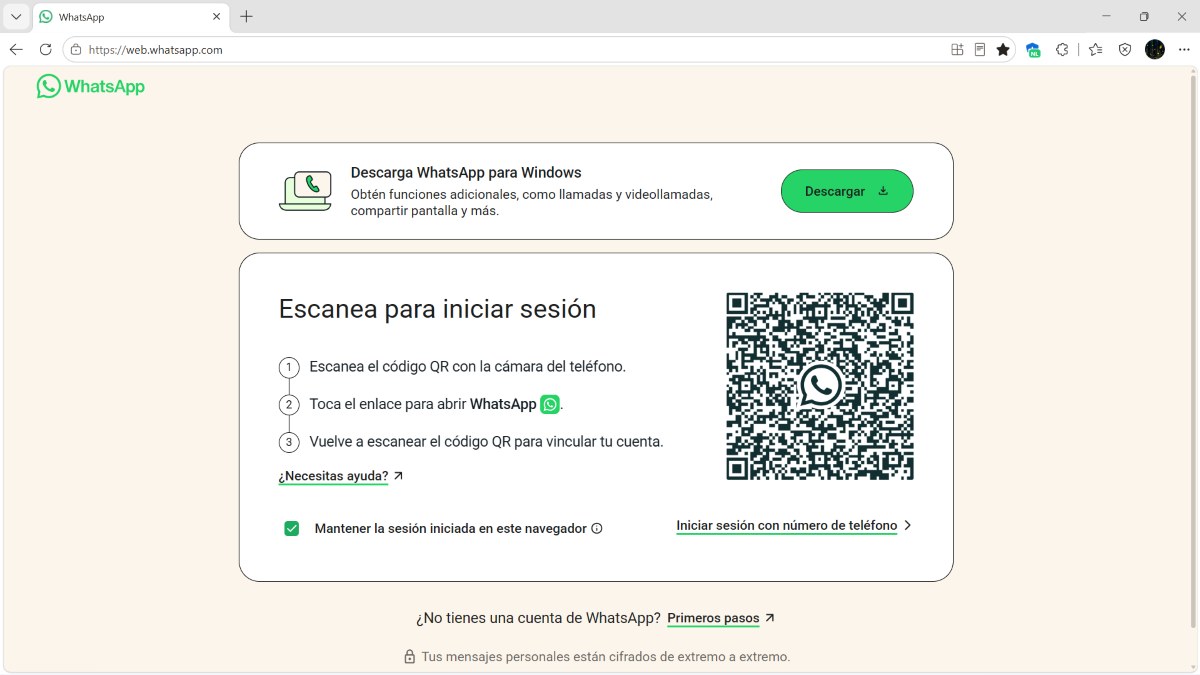
If you really want to make WhatsApp Desktop consume fewer resources on your PC, The definitive solution is to uninstall it and use the optimized web version through a lightweight browser like Google Chrome or Microsoft Edge. Honestly, this is the smartest way to save RAM and CPU. So, what can you do to avoid having to open your browser all the time?
These are the Steps to use the web version and create a shortcut isolated that consumes a minimal fraction of resources on your PC:
- Open your browser and log in web.whatsapp.com
- Log in and link your account, as you always do with the QR code.
- If you use Microsoft Edge: Click on the three-dot menu, go to Applications – Install this site as an application.
- And in Google Chrome: Click on the 3 dots Save and share. Install page as an application (or “Create shortcut” by selecting “Open as window”).
As a result, you will have a WhatsApp icon on your desktop and the taskbar opens in a separate window, without the browser's address bar. The good thing about this is that Visually it is identical to the desktop app, with the difference that consumes up to 70% less of RAM and is much more stable.
Disable automatic download of media files
However, if you absolutely cannot uninstall WhatsApp desktop, it is essential slow down data traffic and background processes generated by the application. One way to make WhatsApp Desktop consume fewer resources on your PC is by stopping the automatic downloads of everything you receive. To do this, follow these steps:
- Open WhatsApp on your PC and go to the Configuration (The cogwheel is at the bottom left).
- Now go to the section on Storage (Chats/Download settings).
- Uncheck the boxes for Photos, Videos, Audio, and Documents for automatic download.
- Thus, the app will only consume resources and storage when you decide to manually click on a specific file to view it.
Clean the cache and accumulated data on the disk
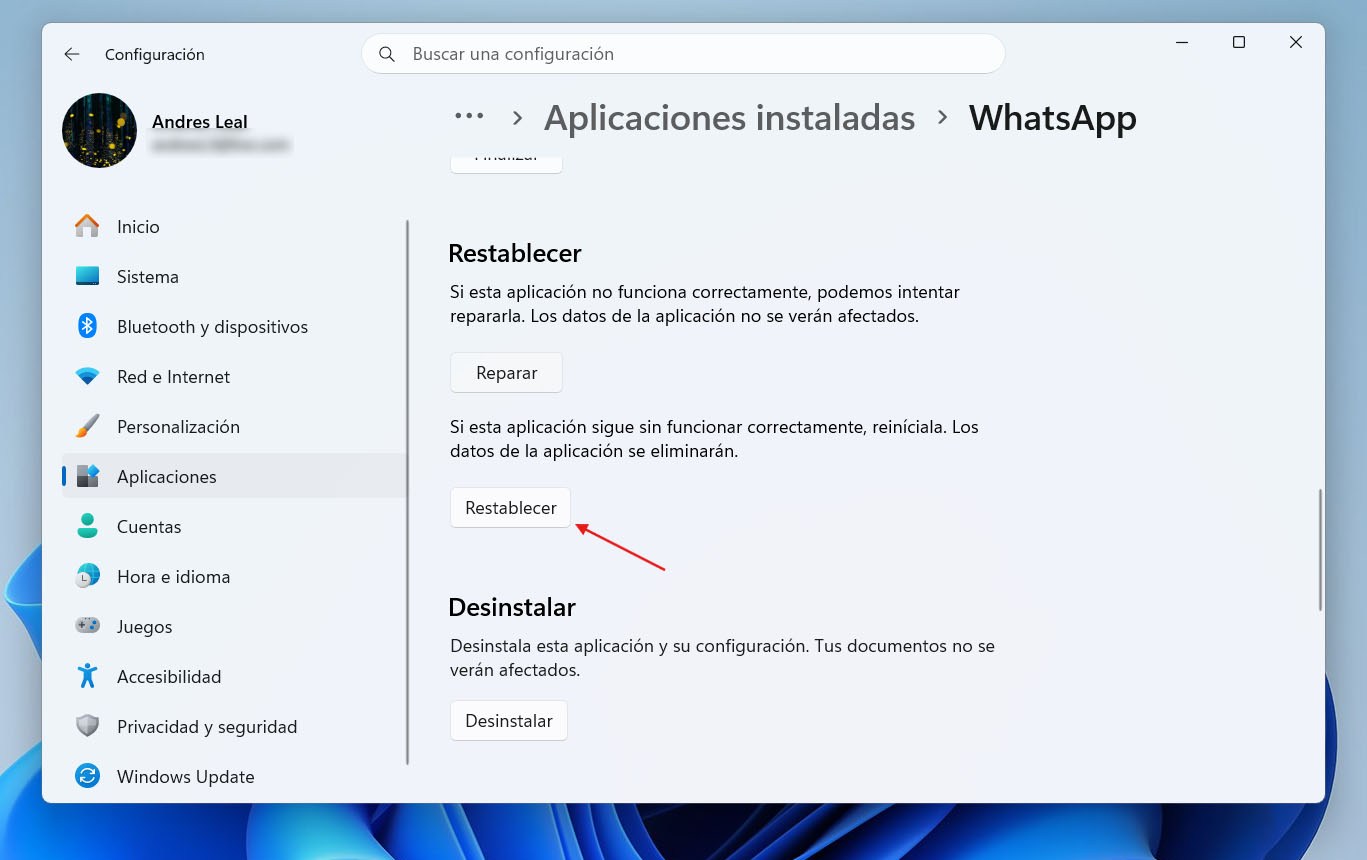
Another measure you can take if you want WhatsApp Desktop to consume fewer resources on your PC is to clear the cache and accumulated data on your disk. Did you know that, over time, the Windows app stores hidden copies of every photo and video received? This can lead to... saturate the file explorer and slow down system indexing (Some people have accumulated more than 40 GB without realizing it).
For delete all this accumulated junk in Windows 11 Without losing your conversations, do the following:
- Enter the Configuration Windows – Applications – Installed applications.
- Locate WhatsApp and click on the three dots to its right.
- Select Advanced options.
- Scroll down and click the button Restore. This clears the system cache. You'll just need to scan the QR code again to log in to WhatsApp.
Disable background permissions so that WhatsApp Desktop consumes fewer resources on your PC
One feature of the WhatsApp desktop app is that it continues to run synchronization processes even when you close it by pressing the X. You can reduce this unnecessary consumption from the operating system settings and make WhatsApp Desktop consume fewer resources on PC:
- Right there in Configuration From Windows, go to Applications – Installed applications – WhatsApp – Advanced options.
- Look for the section Background app permissions.
- In the "Allow this app to run in the background" drop-down menu, change the option Never.
How to track the actual usage of WhatsApp Desktop on Windows
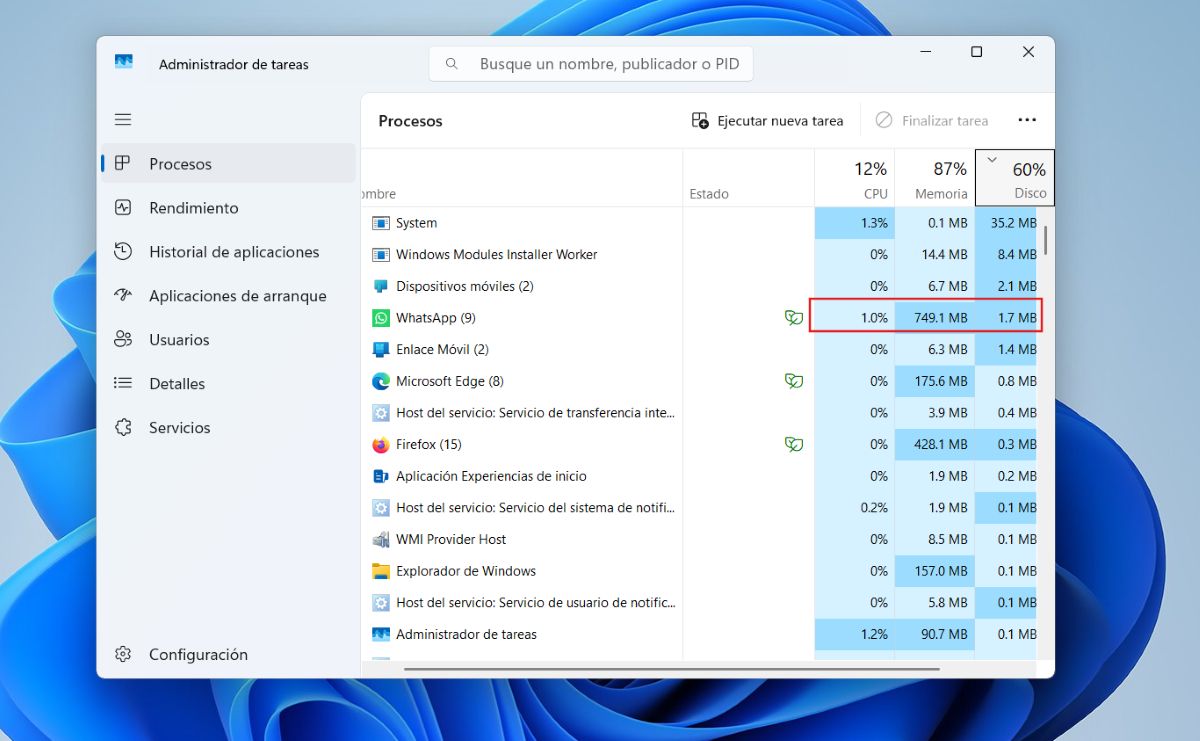
The above alternatives will help if you want WhatsApp Desktop to use fewer resources on your PC. But before deciding on one or the other, it's best to to know exactly what impact WhatsApp has in your PC's performance. Here are the steps to track actual resource usage in Windows 11:
- Open the Task Manager (Right-click on the taskbar – Task Manager).
- Within the tab Processes, seeks WhatsApp in the list, under the Applications section.
- To the left of the word WhatsApp you'll see a small arrow. Click on it to expand the options full.
- Look at the main columns to assess the impact on your PC:
-
- RAM Memory: This is WhatsApp Desktop's weak point. Some users report that it requires even more than 400 to 800 MB of RAM.
- CPU: When you're not using WhatsApp, this value should be at 0% or 1%. But if you notice it jumps to 10% or more, it means the app is running background tasks that are slowing down your PC.
- Grid: There you can see if the application is downloading multimedia files at that moment.
In conclusion, to make WhatsApp Desktop consume fewer resources on PC, The key is to optimize the applicationIf you definitely want to continue using it, disable automatic downloads, clear the accumulated cache, and close background processes. This way, you'll notice an immediate reduction in RAM and CPU usage.
Index
- 1 Here's how you can make WhatsApp Desktop use fewer resources on your PC
- 1.1 The best solution to reduce the resource consumption of WhatsApp Desktop on your PC: switch to WhatsApp Web
- 1.2 Disable automatic download of media files
- 1.3 Clean the cache and accumulated data on the disk
- 1.4 Disable background permissions so that WhatsApp Desktop consumes fewer resources on your PC
- 1.5 How to track the actual usage of WhatsApp Desktop on Windows

From a young age, I've been fascinated by all things scientific and technological, especially those advancements that make our lives easier and more enjoyable. I love staying up-to-date on the latest news and trends, and sharing my experiences, opinions, and tips about the devices and gadgets I use. This led me to become a web writer a little over five years ago, focusing primarily on Android devices and Windows operating systems. I've learned to explain complex concepts in simple terms so my readers can easily understand them.