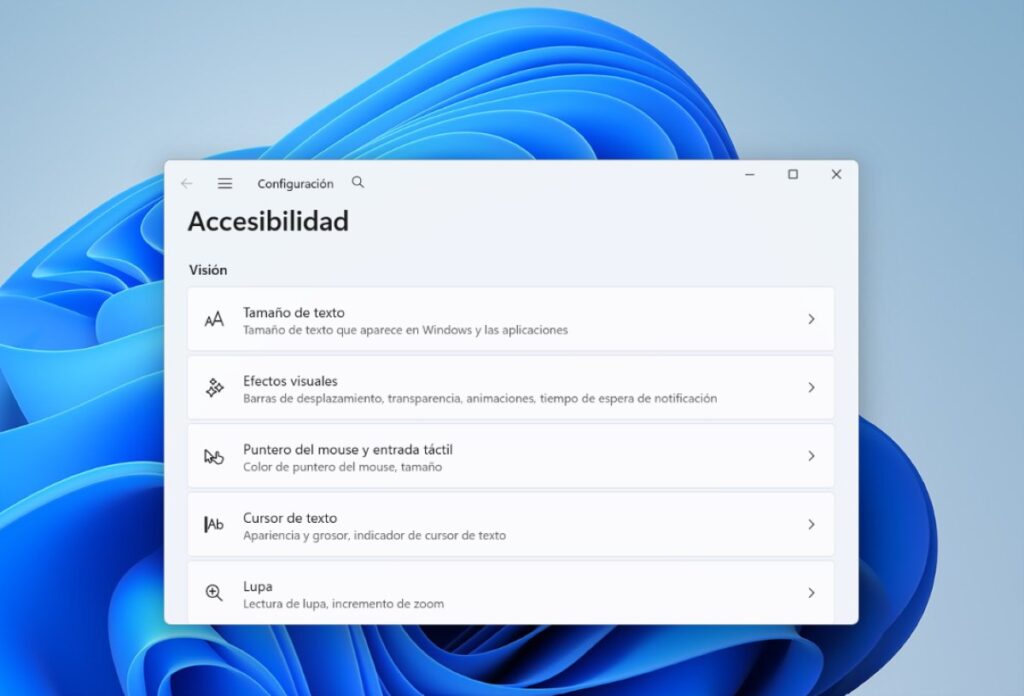
Windows 11 accessibility tools aren't just for people with limitations or disabilities. In fact, They are very useful for boosting your productivityFor example, they can optimize system performance and reduce eye strain. In this article, we'll see which accessibility settings you should enable in Windows 11, even if you don't need them.
Which accessibility settings should you enable in Windows 11 even if you don't need them?
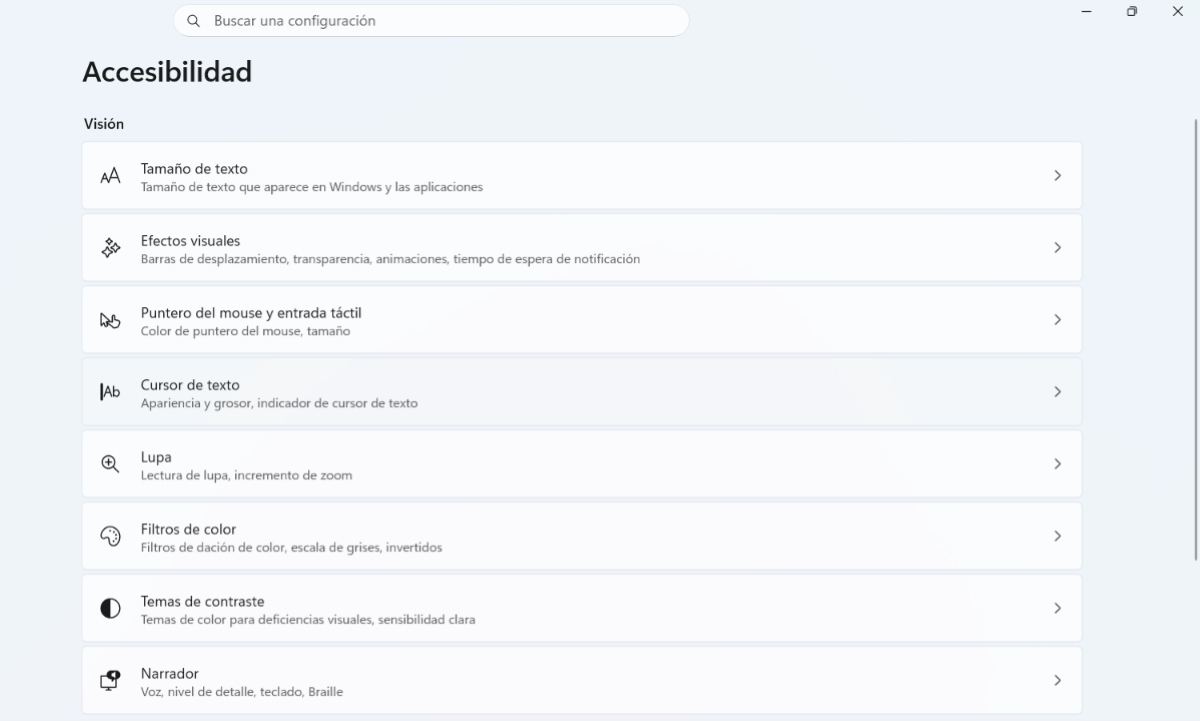
Knowing which accessibility settings you should enable in Windows 11 It can completely change your daily screen experienceIn this sense, you can make your PC run faster and your work more comfortable than ever. It is true that its original purpose It's about helping people with limitations, but these settings can help any user improve their user experience.
Next, we'll tell you which accessibility settings you should enable in Windows 11, even if you don't need them. We'll also explain how to activate them and what the benefits are of using them, even if you don't have a disability. In all cases, you can access Accessibility. pressing the Windows + U keys.
Live Captions
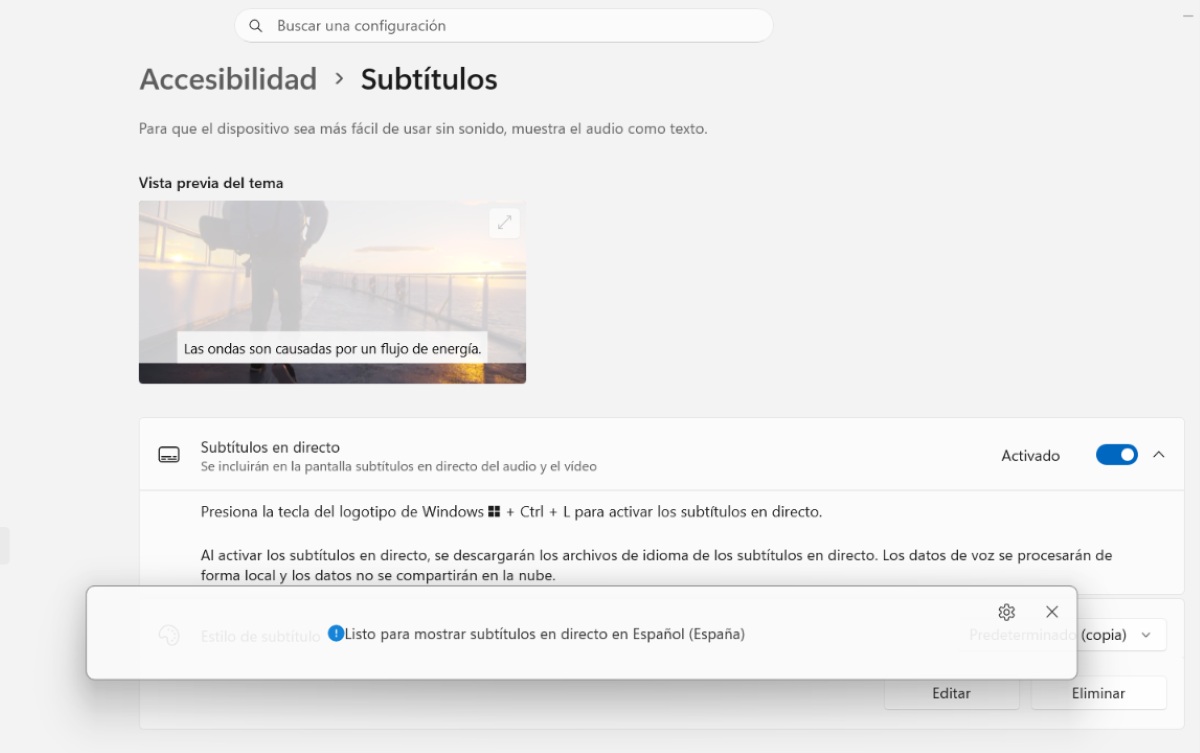
If you thought live captions were only for people with hearing difficulties, you were wrong. This tool Transcribe in real time any audio playing on your PCFor example, YouTube videos, video calls, podcasts, or local videos. These will appear directly in a floating window on the screen. To activate them, follow this path:
- Configuration – Accessibility – Subtitles – Live subtitles.
The live subtitles They are perfect for to know what they are saying in a video if you are in a noisy environment which makes it difficult to hear properly. They are also useful when you need to keep the volume muted or simply when you need to concentrate better in a virtual meeting.
Which accessibility settings should you enable in Windows 11: Voice access
If you're wondering which accessibility settings you should enable in Windows 11, voice access is a must. It's one of the most useful tools in Windows 11. With it, you can... Control absolutely the entire operating system with just your voiceFor example, you can open apps, click buttons, drag items, browse the web, and so on. You can find it here:
- Configuration – Accessibility – Voice – Voice access.
Both voice access and voice dictation allow you tell Windows what to do or what to writeEven with your hands full, you can divide the screen into numbered sections. This lets you focus on specific areas for more precise clicks. Not to mention the relief your wrists get from long periods of typing.
Mouse pointer and text indicator visible
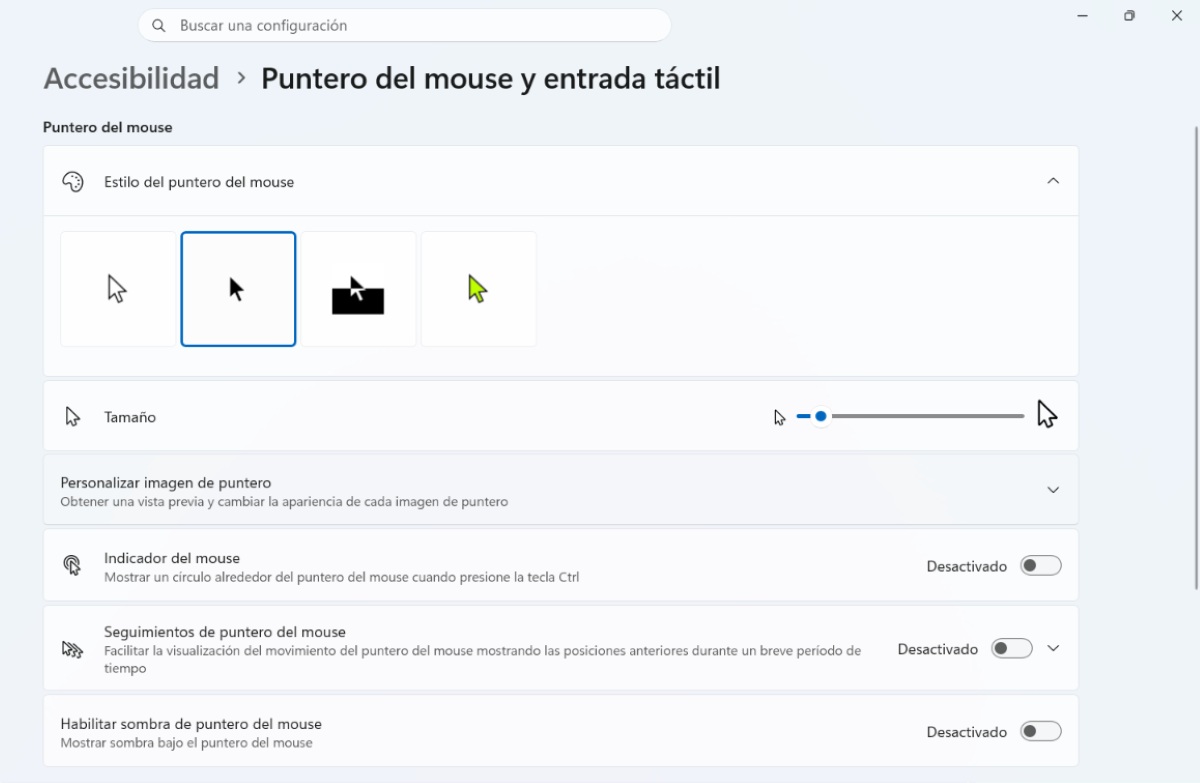
Now then, if you use large screens or multiple monitorsIt's normal for the mouse cursor to sometimes disappear from view. Changing the pointer's color and size can help you find it more easily. You can also turn on the Text Cursor Indicator, which adds two glow-in-the-dark arrows to the blinking bar where you type.
- Go to Configuration – Accessibility – Mouse pointer and touch input – Text cursor.
Making these adjustments to the mouse pointer and text cursor will help you to Stop wasting time spinning the mouse around and around trying to find it on the screen. Plus, you'll no longer get lost when typing long texts. The result? Time savings and reduced eye strain.
Mono audio
Mono audio combines the left and right audio channels into one. sending exactly the same sound to both sidesThis tool is ideal if you usually do your activities using only one earbud to stay aware of your surroundings. It's also useful if you're watching an old video where the voices are only coming from one side.
- Go to Configuration – Accessibility – Audio.
Which accessibility settings should you enable in Windows 11: Filter keys
If you're still wondering which accessibility settings you should enable in Windows 11, Don't forget the filter keysThis function ignores short or duplicate keystrokes. Filter keys are ideal if you have an older keyboard that's starting to malfunction and accidentally types the same letter twice when pressed once. Activate them in the following location:
- Configuration – Accessibility – Keyboard.
What would we say is the biggest advantage of enabling this accessibility setting? On the one hand, you can mitigate this problem through software, and on the other hand, You extend the lifespan of your keyboard before having to change the switches or buy a new one.
Which accessibility settings should you enable in Windows 11: Magnifier
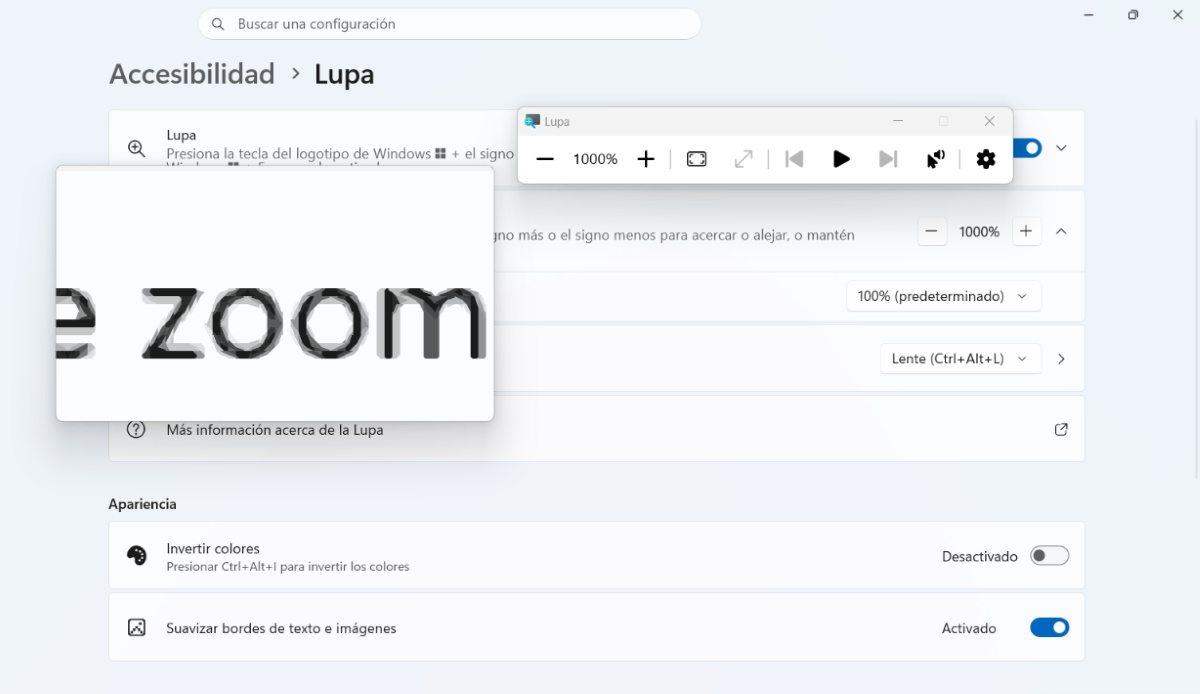
Did you think magnifying glasses were only for people with low vision? It's time to break down that misconception. This tool is truly versatile. It greatly improves technical or creative work.Why? Thanks to Lens Mode, a floating box is created that follows your cursor as if you had a real magnifying glass in your hand.
- Activate it from: Configuration – Accessibility – Magnifying glass – View – Lens mode.
With the possibility of zoom in on only a section of the screenYou can check pixels, align elements in a document, or review small details in images without having to zoom in on the entire workspace. Additionally, if you frequently share your screen or record tutorials, activating the magnifying glass will show you the most detailed steps of what you're doing.
Turn off transparency and animation effects
This last point doesn't talk about which accessibility settings you should enable in Windows 11, but rather about which setting to disableWhile Windows animations look nice, they actually consume a lot of graphics card resources and add milliseconds of lag to the interface. Disabling them makes the system faster, smoother, and more responsive. To do this, follow these steps:
- Go to Configuration – Accessibility – Visual effects and deactivate them. Take advantage of Also disable Transparency Effects.
In short, if you're wondering which accessibility settings you should enable in Windows 11, remember that it's not a matter of necessity, but rather advanced customization. Enabling (or disabling) certain settings helps you to work more comfortably, quickly and efficientlyTake a look at this configuration and adapt your system to make it as comfortable and practical as possible for you.

Index
- 1 Which accessibility settings should you enable in Windows 11 even if you don't need them?
- 1.1 Live Captions
- 1.2 Which accessibility settings should you enable in Windows 11: Voice access
- 1.3 Mouse pointer and text indicator visible
- 1.4 Mono audio
- 1.5 Which accessibility settings should you enable in Windows 11: Filter keys
- 1.6 Which accessibility settings should you enable in Windows 11: Magnifier
- 1.7 Turn off transparency and animation effects