- The discrepancy between Windows scaling and native resolution is the main cause of visual blurriness.
- Precise ClearType tuning and updated graphics drivers optimize font rendering.
- The quality of the cabling and the OSD menu settings of the monitor directly influence the sharpness of the image.

Why does text look blurry on a monitor even when using its native resolution? It's frustrating to turn on the computer, set the recommended resolution, and still feel like the text has a kind of haze or that the edges of the letters aren't defined. This is a very common situation, especially when we're using a new monitor or setting up a project on small screens, where the content seems stretched or blurred as if there were frosted glass in front of it.
The truth is that this problem doesn't usually indicate that the panel is broken, but rather that there is a communication conflict between the operating system, drivers, and hardware. Whether you work in design, programming, or simply browse the web, having a clear image is essential to avoid ending the day with tired eyes.
The dilemma of resolution and escalation
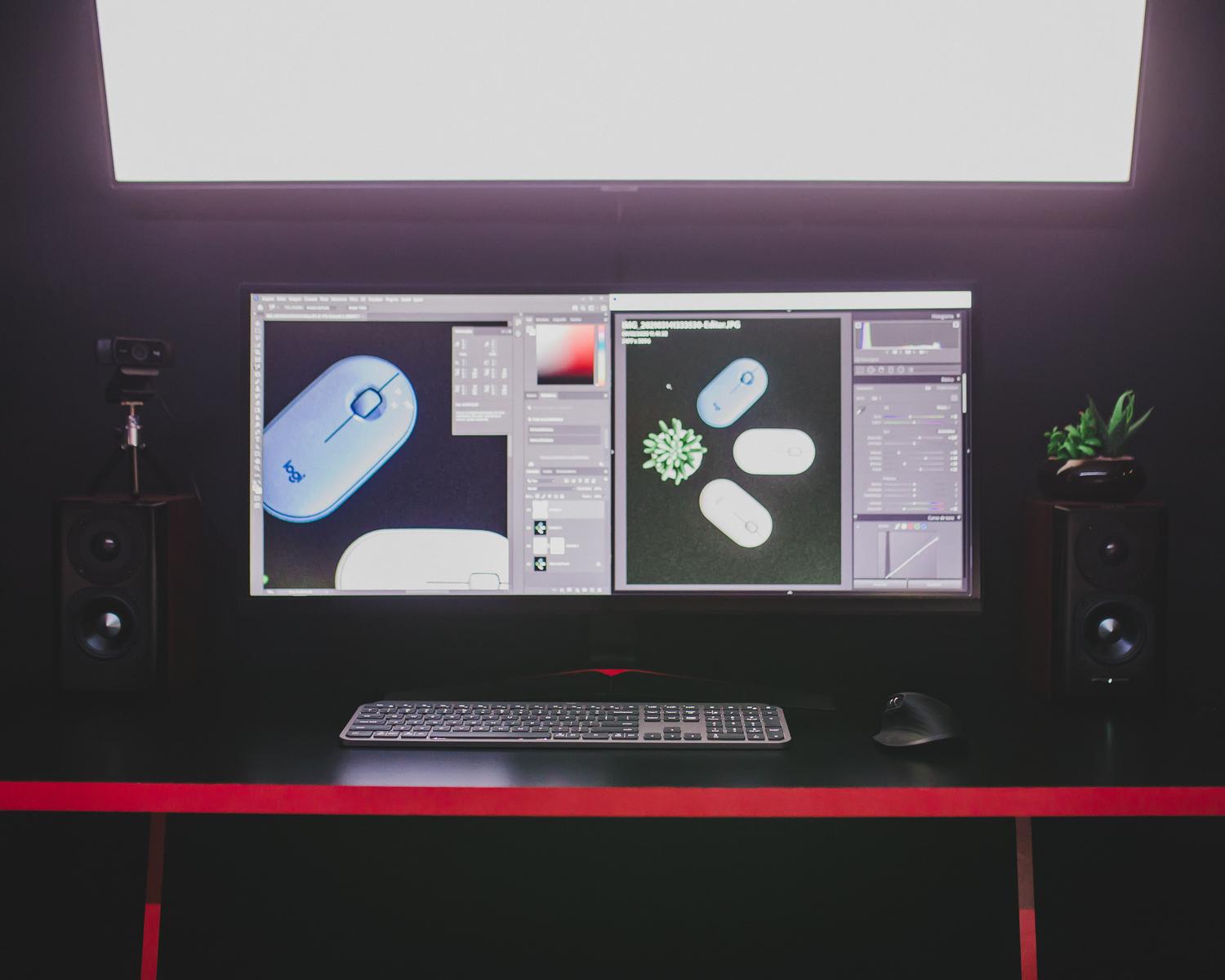
When the output resolution doesn't exactly match the panel's native resolution, the system has to perform workarounds to convert the image, which inevitably degrades visual qualityTo avoid this effect, it is imperative that the option marked as "Scale and layout" is selected in the Windows 11 display settings (right-click on desktop > Display settings > Scale and layout). recommended.
However, the real culprit is usually DPI scaling. Windows sometimes applies a 125% or 150% zoom to prevent icons from appearing tiny, but this can cause some applications to look blurry. Ideally, maintain the same percentage scale on all connected monitors to prevent text from becoming distorted when moving windows from one screen to another.
Software adjustments to restore sharpness
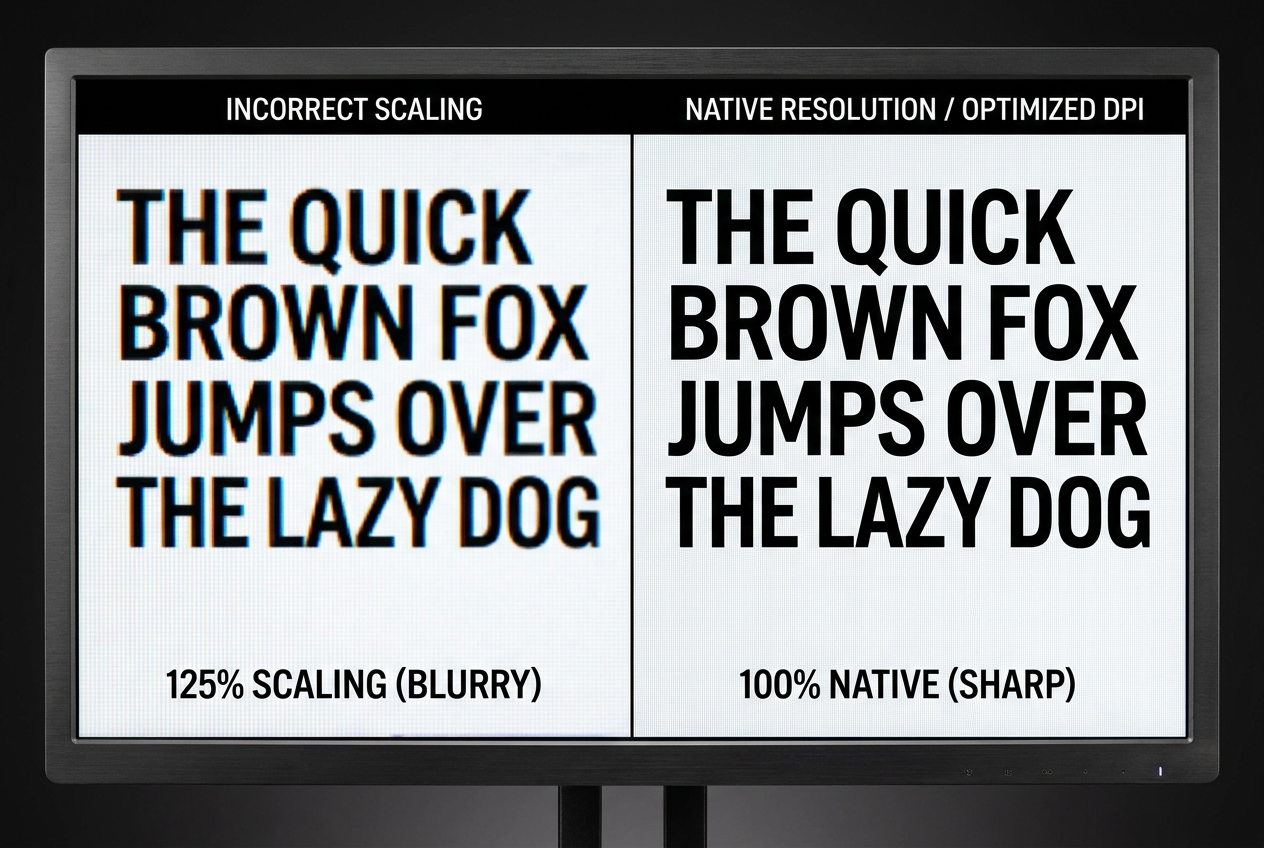
One tool we often overlook is the tuner. Windows ClearTypeThis system smooths fonts on LCD screens; if it's not configured to suit your vision and monitor, letters may appear jagged or jagged. Simply search for "ClearType" in the Start menu and follow the steps to select the text samples you see. cleaner and more defined.
On the other hand, the graphics card drivers (NVIDIA, AMD, or Intel) dictate how pixels are drawn. An outdated driver may ignore subpixel optimizations, so it's advisable to perform an update. clean installationIf the problem persists in a specific application, you can go to the executable's properties, enter Compatibility, and select the option to Disable high-resolution scaling.
Hardware factors and connections
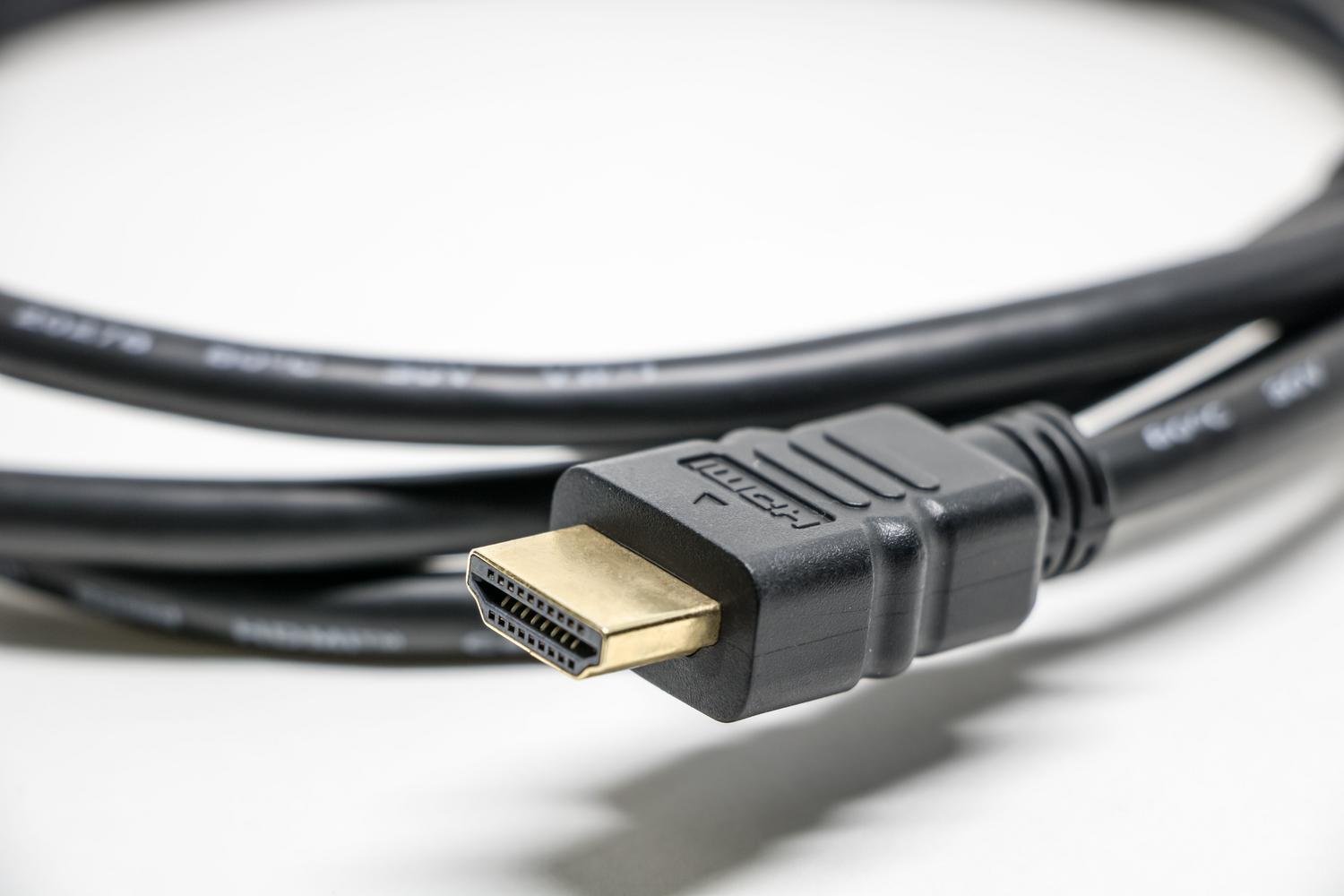
It's not all software; sometimes the problem is the cable. Poor quality or excessively long HDMI or DisplayPort cables can introduce noise into the signal, which translates into moiré interference patterns or wavy lines in the finer details. Using a short, certified cable is usually the quickest solution in these cases.
Additionally, it's worth taking a look at the OSD menu (the physical buttons on the monitor). Sometimes the option to sharpness It's too high, creating unnatural and annoying borders around the text. It's best to leave this value at a midpoint, usually between 50% and 70%to avoid distortions.
Special cases: Small screens and LCD modules
In projects with 7-inch screens or custom modules (like those for Raspberry Pi), it's very common for the system to try to force a resolution that the panel doesn't support. To fix this, it's vital block the resolution in the system configuration files to prevent auto-scaling from ruining readability.
If you're designing a professional team, the best option is to choose custom LCD modules that exactly match the required interface and resolution, thus avoiding any interpolation process that generates blur from the very beginning.
The key to eliminating blurriness lies in aligning the native resolution, unifying Windows scaling levels, calibrating font smoothing using ClearType, and ensuring that the cabling is of high quality, thus ruling out any physical panel failure through testing with other devices.

Passionate about technology since he was little. I love being up to date in the sector and, above all, communicating it. That is why I have been dedicated to communication on technology and video game websites for many years. You can find me writing about Android, Windows, MacOS, iOS, Nintendo or any other related topic that comes to mind.