Have you noticed that Windows Search is using a lot of CPU or disk space? If your computer has started to slow down, freeze, or you hear the fans running louder than usual, it could be because The Windows Search process is not working as it should.Next, let's see step by step how to diagnose the problem and solve it quickly.
Windows Search is using a lot of CPU or disk space: how to fix it

Windows Search consumes a lot of CPU or disk space when it becomes corrupted or processes too many files. To find out if Windows Search is using more resources than normalThe quickest method is to use the Windows Task Manager. To find out, do the following:
- Press the key combination Ctrl + Shift + Esc to open the Task Manager.
- Make sure you're on the tab Processes.
- Click the column header CPU or Disk to order the processes from highest to lowest consumption.
- Find the Microsoft Windows Indexer process (Search SearchIndexer.exe) or Windows Search / Search (SearchHost.exe).
Under normal conditions, The SearchIndexer.exe process should consume 0% to 1% of CPU when you're not actively using the computer. If the boot loader stays high for several minutes without you saving thousands of new files, it means it's stuck or corrupted. Fortunately, there are some steps you can take to fix this problem. Let's look at the most effective solutions.
1. Rebuild the search index
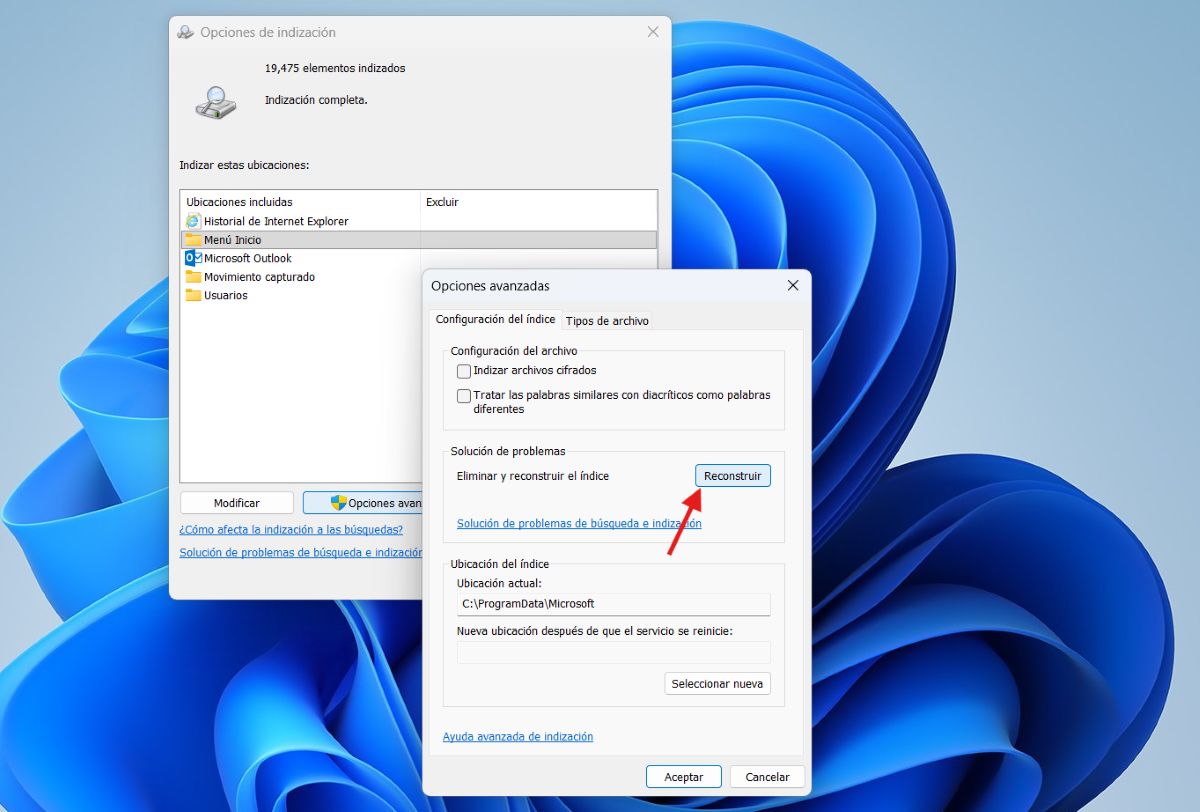
When the search database becomes corrupted, the system enters a loop trying to process the files. This is one possible reason why Windows Search consumes a lot of CPU or disk space. Rebuilding it may be the solution to this problem. To achieve this, follow these steps:
- Press Windows + R, type control and press Enter to open the control Panel.
- Switch the view to small icons (top right) and select Indexing options.
- Click the button Advanced options.
- On the tab Index configuration, within the section Troubleshooting, click on Rebuild.
- Confirm by tapping on Accept. This process will run in the background and may take some time; during that time, CPU usage will gradually return to normal.
2. Exclude bulk folders or temporary files
Si You have folders with too many small files (such as download folders, project source code, caches, etc.) the indexer will be constantly working. If you think that's why Windows Search is using a lot of CPU or disk space, do the following:
- In the same window of Indexing options (mentioned in the previous point), click on Modify.
- Now it's time to Show all locations.
- Uncheck the folders that change frequently or that contain thousands of unnecessary files.
- Guard Make the changes and you're done.
3. Run the troubleshooter if Windows Search is using a lot of CPU or disk space.
Windows included a Integrated diagnostics to restore search servicesAccess it by navigating to the following path:
- Go to Home – Settings – System – Troubleshooting – Other troubleshooters.
- Seeks Search and indexing and click on Execute.
- Check the box Searching or indexing is slow and follow the on-screen instructions.
4. Restart the Windows Search service
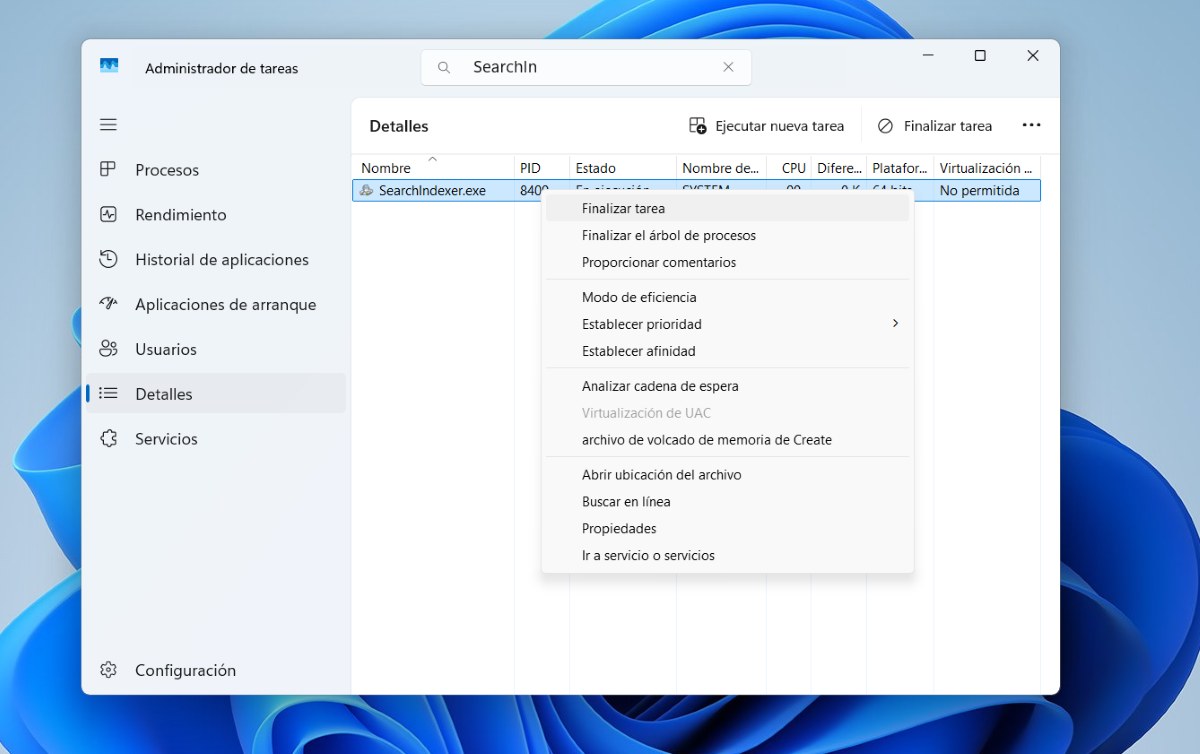
If the problem isn't just that Windows Search is consuming a lot of CPU or disk space, but that The process has frozenYou need to restart it. To do this, follow these steps:
- Press Ctrl + Shift + Esc to open the Task Manager.
- Go to the tab Details.
- Seeks SearchIndexer.exe o SearchHost.exe.
- Beam right-click about it and select Finish taskIn this way, the service will restart automatically after a few seconds.
Windows Search also performs web searches using Bing, which can increase processor and network usage. So, one other thing you can do is... Disable Internet and Bing results in Windows Search. Here We'll briefly explain how to do it in Windows 10 and Windows 11:
- Press Windows + R, writes regedit and press Enter.
- Navigate to: HKEY_CURRENT_USER\SOFTWARE\Policies\Microsoft\Windows\Explorer.
- If you don't see the Explorer folder, create it by right-clicking on Windows – New – Key.
- Inside Explorer creates a new DWORD (32-bit) value called DisableSearchBoxSuggestions.
- Beam double-click about him and changes its value to 1.
- Finally, restart your computer so that the changes are saved correctly.
Windows Search uses a lot of CPU or disk space. How can I disable it completely?
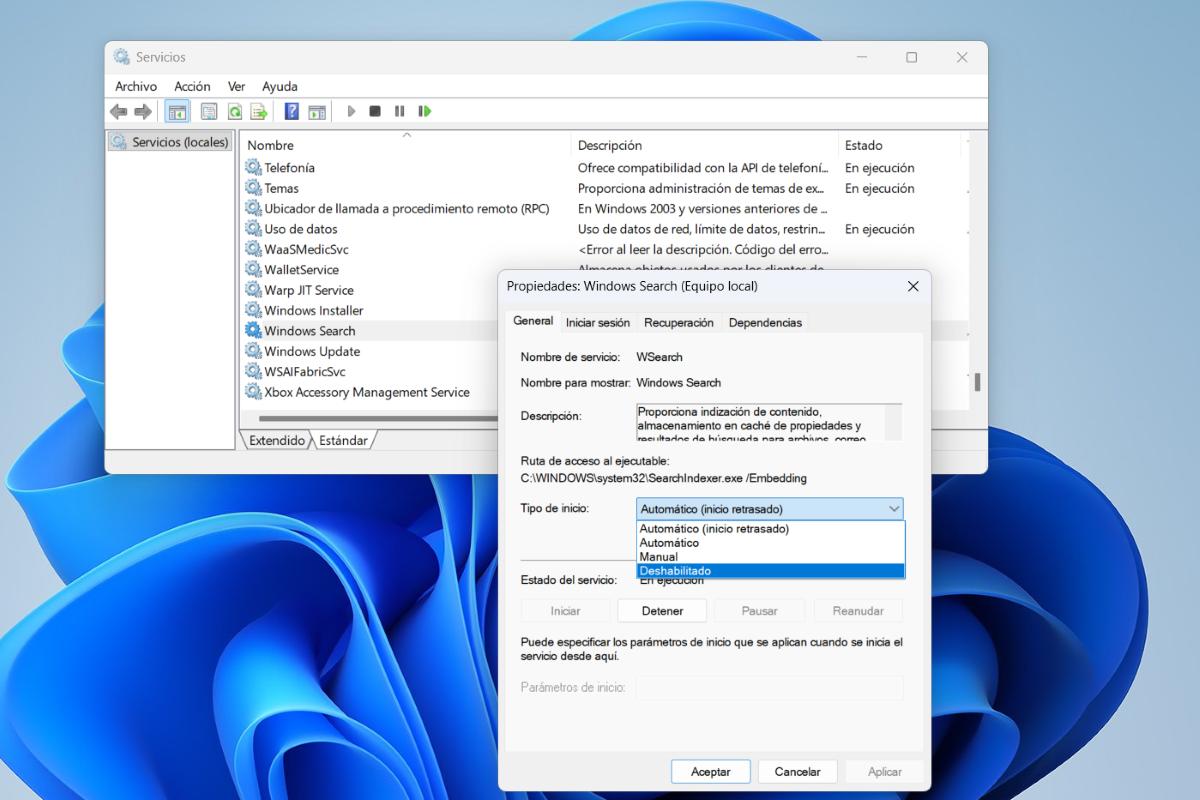
However, if despite trying all of the above, Windows Search is still consuming a lot of CPU or disk space, you might prefer to do without it. It's possible to disable this service completely and replace it with a lightweight third-party tool, such as... Everything (Voidtools)Follow these Steps to stop background indexing and permanently disable the process:
- Press Windows + R, writes services.msc and press Enter.
- In the list of services, scroll until you find Windows Search.
- Double-click on it to open the Properties.
- In the section Start type change it to Disabled.
- In the service status, click the button Arrest.
- Click on Apply and then in Accept.
Please note that by disabling this service, Searching in the Start Menu and File Explorer will be slower To find local files, since there won't be a pre-existing index. But what alternative can you use?
- Everything (Voidtools): This is the fastest and lightest alternative for Windows. It indexes entire multi-terabyte disks in just a few seconds and uses minimal RAM and CPU. It's more accurate and faster, and performs instant searches by filename.
Windows Search is using a lot of CPU or disk space: you can fix it
If Windows Search is using a lot of CPU or disk space, you're probably a little fed up. However, while it's an annoying problem, it's easy to fix. In most cases, you just need to... Simply rebuild the search index or exclude unnecessary folders to restore normal system performance.
However, if the problem persists, you know you can disable the service completely and opt for lightweight tools like Everything to keep your computer fast and optimized. If you apply these practical ideas You will get your computer running smoothly again without sacrificing efficiency. when using file search.
Index
- 1 Windows Search is using a lot of CPU or disk space: how to fix it
- 1.1 1. Rebuild the search index
- 1.2 2. Exclude bulk folders or temporary files
- 1.3 3. Run the troubleshooter if Windows Search is using a lot of CPU or disk space.
- 1.4 4. Restart the Windows Search service
- 1.5 5. Disable Bing results in the Start menu
- 1.6 Windows Search uses a lot of CPU or disk space. How can I disable it completely?
- 2 Windows Search is using a lot of CPU or disk space: you can fix it

From a young age, I've been fascinated by all things scientific and technological, especially those advancements that make our lives easier and more enjoyable. I love staying up-to-date on the latest news and trends, and sharing my experiences, opinions, and tips about the devices and gadgets I use. This led me to become a web writer a little over five years ago, focusing primarily on Android devices and Windows operating systems. I've learned to explain complex concepts in simple terms so my readers can easily understand them.