- The blocking occurs due to kernel isolation and memory integrity security policies.
- The affected driver is identified by the .sys file name or the Device Manager.
- Solutions range from updating official drivers to disabling digital signatures at startup.
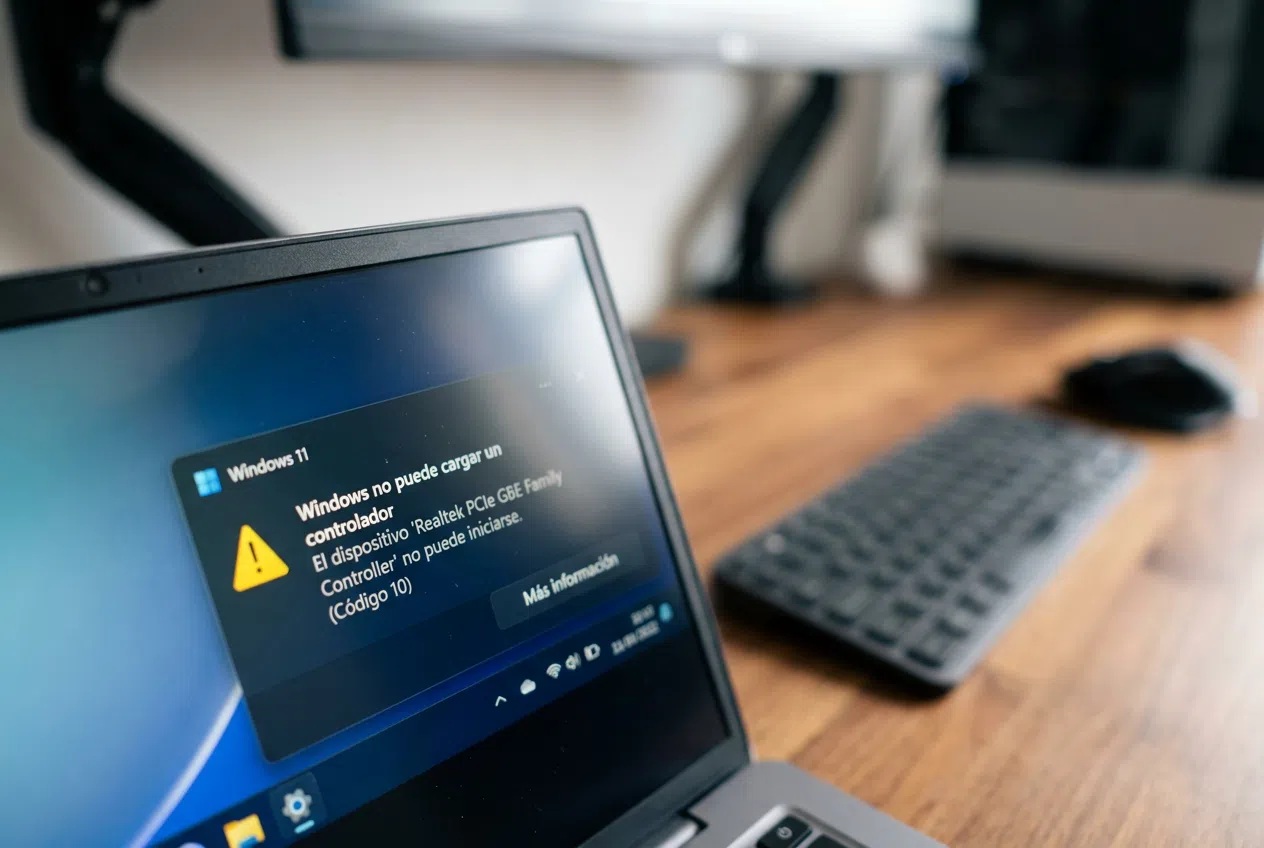
Did you suddenly get a notification saying that Windows cannot load a driver on your computer? It's a fairly common scare, especially after a system update, and it usually leaves you wondering what on earth is going on and, more importantly, which exact component is causing the problem.
This problem usually occurs because modern Microsoft security layers, such as the core isolationThey detect that a .sys file is old or vulnerable, blocking its execution to prevent malware from sneaking in. Let's see how to identify the culprit and what options you have to fix it without breaking anything in the process. Now let's get to the issue where Windows warns that it can't load a driver: how to identify the affected one.
How to tell which controller is failing

When the notification appears, the system is sometimes a bit cryptic, but there are ways to find the file name. For example, it's common to see errors associated with files like ene.sys (related to the management of RGB lighting on motherboards or peripherals) or AMDRyzenMasterDriver.sys (related to AMD processor optimization). If the notice is unclear, you can check the Device ManagerIf you see an icon with a yellow exclamation markThere you have the culprit that isn't working properly.
Solutions to restore functionality

Depending on how critical the controller is and how much security you want to maintain, you have several options:
- Direct update: The first and most sensible option is to go to the manufacturer's official website (such as ASUS or AMD) and download the latest driver versionOften the problem is simply that the driver is old and a patch already exists that complies with current security standards.
- Clean reinstallation: If updating doesn't work, try right-clicking on the affected device in Device Manager and selecting Uninstall deviceWhen you restart your PC, Windows will attempt to reinstall it automatically, which sometimes clears up internal conflicts.
- Memory Integrity Settings: If you need to use older hardware (such as licenses on discontinued USB drives), you may need to disable the Memory integrityTo do this, go to Windows Security > Device Security > Kernel Isolation Details and turn off the option. Note that this reduces protection from your core against attacks.
- Compatibility mode and signatures: For more stubborn cases, you can try running the installer in Windows 10 compatibility modeIn extreme situations, some users resort to disabling the driver signing application through the Advanced Startup menu (F7 on restart) or using the command
bcdedit /set testsigning onin the administrator console, although the latter is only recommended if you know exactly what you are doing.
For those who use brand-name equipment, such as ASUS laptops, it is vital to check that the firmware or BIOS Stay up to date, as a firmware update error usually manifests itself precisely with those annoying yellow triangles in the system.

To make everything clear, this mistake is basically a conflict between security from the isolation of the Windows kernel and outdated or uncertified drivers. The ideal solution will always be update the software from the official source, but if the hardware is old and there is no support, the only way out is relax the restrictions system security or force the loading of signatures, knowing that the equipment is left slightly more exposed.

Passionate about technology since he was little. I love being up to date in the sector and, above all, communicating it. That is why I have been dedicated to communication on technology and video game websites for many years. You can find me writing about Android, Windows, MacOS, iOS, Nintendo or any other related topic that comes to mind.