- Acrobat allows you to listen to PDF summaries through short podcasts or audio introductions in PDF Spaces.
- Highlights summarizes the document; In-depth analysis offers a more extensive conversational explanation.
- Reading aloud reproduces the text of the PDF and serves a different function than summarizing.
- Review transcripts, figures, and original pages before using conclusions generated by artificial intelligence.

A lengthy report might contain just the information you need, yet still be impossible to review calmly before a meeting or while traveling. Adobe Acrobat offers several ways to listen to the content of a PDFYou can receive a short summary, generate a more developed podcast, or have the application read the document text aloud.
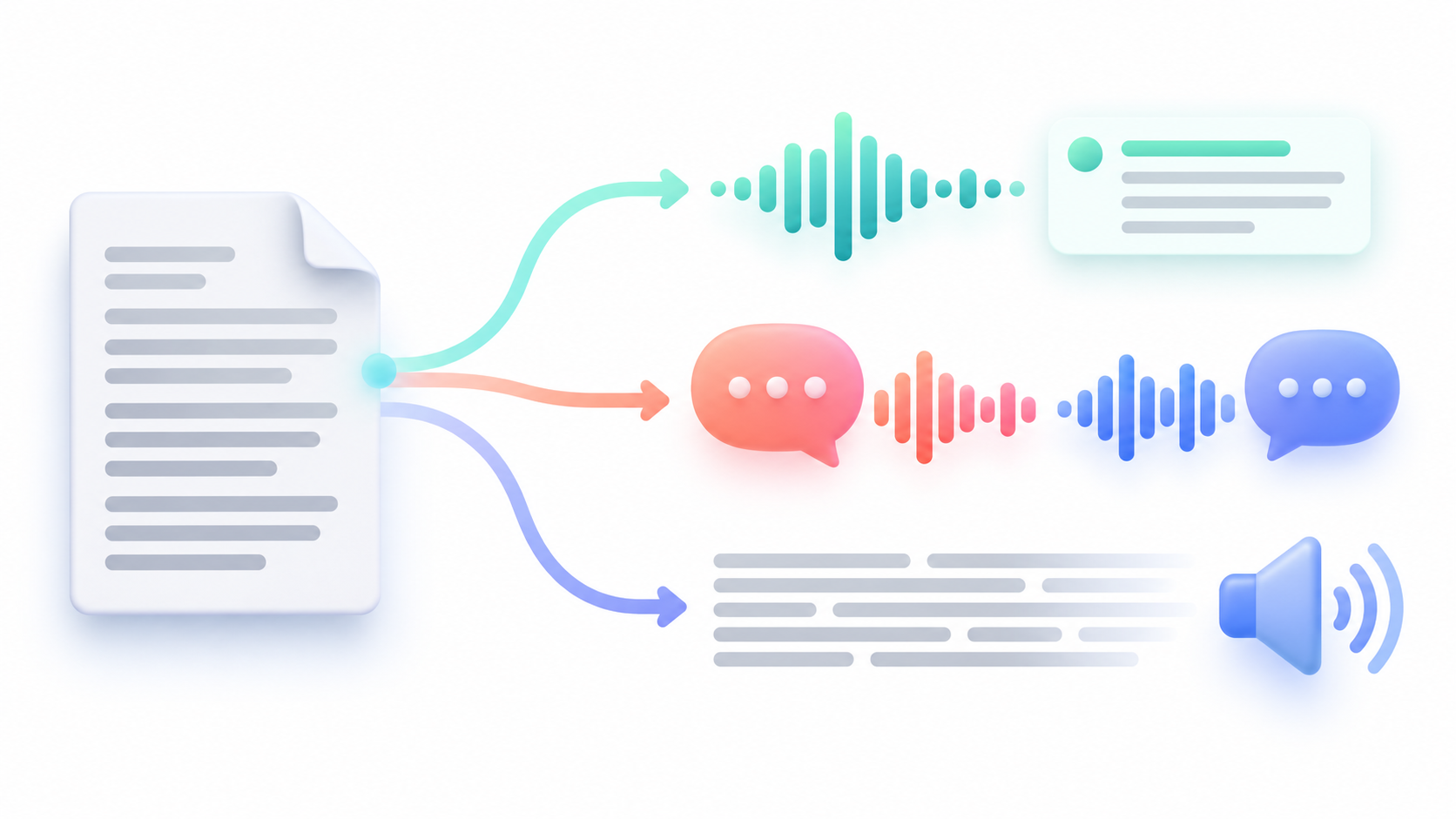
Choosing the correct option avoids a common confusion. Reading aloud reproduces the textWhile summaries and podcasts select and rephrase main ideas using AI, let's see how to access each feature, what the differences are between them, and what you should check before trusting what you hear.
Audio summary, podcast and read-aloud: what changes
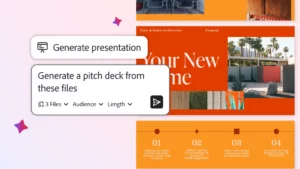
En PDF SpacesAcrobat can display a audio summary on the General Information page. It is designed to quickly present the content of the files gathered in that space. Its owner can review and edit the transcript to adjust what other people will hear when they open it.
The function Generate podcasts Create an explanation in a conversational format. If you're starting with a single PDF, you can choose between Highlightsfor a synthesis focused on the essentials, and In-depth analysisTo hear a more in-depth explanation, you can also create a podcast from a PDF Space and give it a specific focus.
Finally, Read aloud It's used to listen to the text of the file. It's the right choice if you need to follow the written content while doing another task or resting your eyes, but you don't want an AI to reduce the document to a selection of ideas.
If you are looking for a comparison of services to obtain written summariesYou can consult our guide to AI-powered automatic PDF summariesHere we will focus on Acrobat's audio options.
How to generate an audio summary of a PDF in Acrobat Web
To listen to a summary of an individual document, open Acrobat on the web and sign in with your Adobe account. Then open the PDF you want to review. In the options menu, look for Listen to this document and choose the podcast format that fits the time you have available:
- Select Highlights if you want to know the main conclusions.
- Choose In-depth analysis If you need more context and explanations.
- Wait for Acrobat to prepare the audio and press Reproduce.
- Open View transcript if you want to follow the text while you listen.
The player offers controls for pausing, skipping between sections, and adjusting speed or volume. This is useful when a section contains figures, names, or technical terms that you need to hear again. The exact names of some buttons may vary depending on the language and interface version.
Adobe explains the process in its Official help for creating podcasts from PDFs in Acrobat WebBefore you begin, check that your plan includes the feature Generate podcastsThe availability of AI tools is not identical across all accounts.
How to listen to audio summaries of multiple PDFs in PDF Spaces

When information is spread across several reports, you can consolidate them into one. PDF SpaceIn Acrobat Web, go to PDF Spaces, create a space, and add the related files. When you open your page... General informationYou will find the presentation elements that Acrobat generates to help you understand the whole, including a written summary and an audio summary.
Play the summary and check if it includes the documents and topics you're interested in. If you're going to share the space with colleagues or clients, you can edit the audio summary transcriptOpen the editing option, correct the wording, add context, or delete a section and update the content. This way you control the message that recipients will hear.
This overview serves as an introduction to the space. If you need a more detailed conversational explanation, open the section on Podcasts From PDF Space, create a new one. Acrobat allows you to specify a topic, audience, or focus, for example: "Explain only the risks and timelines mentioned in these three reports."
Keep in mind that the summary may change when you modify the space's sources. Adobe notes that automatically generated elements are updated with new content. as long as they have not been manually editedIf you have customized the transcript, review it after adding or removing documents to ensure it still accurately represents the current material.
How to listen to a PDF on your mobile phone

In the Acrobat mobile app, you can also create a podcast from a PDF. Sign in, open the file, and go to Options > Generate podcastOnce it's ready, you can play it, pause it, adjust the speed, and view the transcript. On iPhone, you can also open a PDF Space and access its audio options.
If the short format falls short, use Change format To request a more in-depth analysis, this option generates an additional explanation, so it's worth starting with the highlights when you just want to decide whether you need to examine the entire document.
There is another possibility for specific inquiries: the AI Assistant voice modeYou can ask them about a section of the PDF and listen to their response. This is more practical for specific questions—"What's the deadline?"—than for getting a continuous introduction to the entire document.
When to use Read Aloud
You might not want a summary. But if you're studying a text, reviewing a clause, or following a procedure, it might be important to listen. everything the PDF saysIn that case, use Read aloud from Acrobat's reading tools.
The difference is important: a podcast can omit secondary details to make the content more concise. Reading aloud follows the text of the document and allows you to keep the page open while listening. If you need to verify an exact phrase, always refer to the original PDF.
Requirements and checks before trusting the audio
AI features require a connection, a compatible Adobe account, and access enabled on the corresponding plan. Adobe collects the Spanish is among the languages accepted for creating podcasts in its current technical documentation. If the option does not appear, update Acrobat and check the feature's availability in your account and region.
The file must also be scannable. A password-protected PDF, a scan with illegible text, or a document consisting mainly of complex diagrams can cause problems. Adobe sets technical requirements for file size, page count, and content. When the text comes from a faulty scan, it is advisable to recognize it using OCR and review the result before requesting a summary.
Listen to the audio as initial orientationIf it mentions a figure, an academic result, a contractual obligation, or a decisive conclusion, go back to the relevant page and verify the information. The transcript helps you locate the passage you want to check; listening to a convincing explanation is not a substitute for consulting the source.
For a single PDF, the Highlights format is often the most direct path to an audio summary. For multiple documents, PDF Spaces lets you add context and prepare an audio introduction that others can also listen to. And when every word counts, the right option is to read the entire document aloud with Read Aloud.

I am a technology enthusiast who has turned his "geek" interests into a profession. I have spent more than 10 years of my life using cutting-edge technology and tinkering with all kinds of programs out of pure curiosity. Now I have specialized in computer technology and video games. This is because for more than 5 years I have been writing for various websites on technology and video games, creating articles that seek to give you the information you need in a language that is understandable to everyone.
If you have any questions, my knowledge ranges from everything related to the Windows operating system as well as Android for mobile phones. And my commitment is to you, I am always willing to spend a few minutes and help you resolve any questions you may have in this internet world.