
Tired of wasting time using Windows Search? The native search tool isn't as fast as we'd like and often combines local searches with Bing results. Fortunately, there's an alternative you can use. In this article, we'll explore it. How to completely replace Windows search with EverythingToolbar in a very simple way.
How to completely replace Windows search with EverythingToolbar
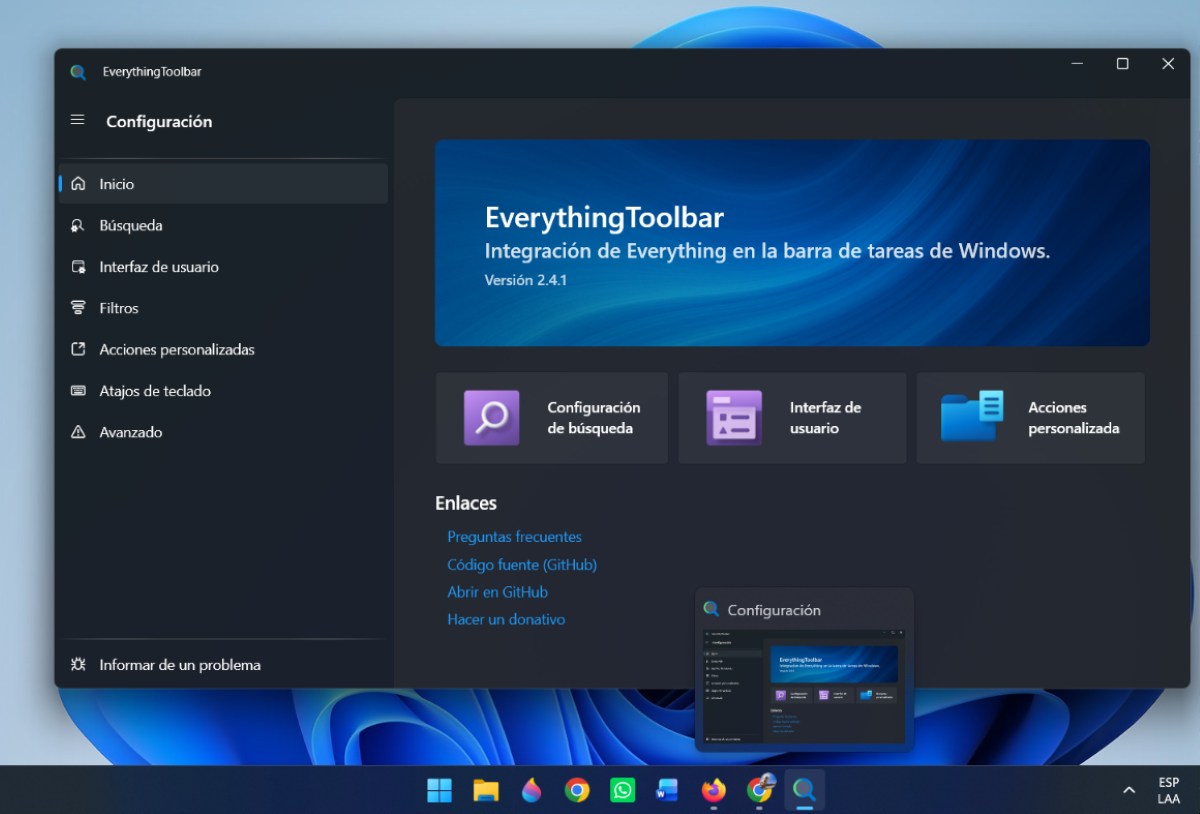
Completely replacing Windows search is possible with tools like EverythingToolbar. It's a A lightweight and very fast solution that will help you access your filesInstantly access local folders and documents. Below, we'll look at a detailed step-by-step guide to fully transition and disable the native Windows search function.
Step 1: Prerequisites
The first thing you should do to replace Windows search is Install Voidtools EverythingDownload Everything from the official website of Voidtools If you don't already have it, make sure the Everything Toolbar service is enabled during installation so it runs in the background. Then, install Everything Toolbar from its official repository on GitHub or using `winget` in the command line:
- winget install EverythingToolbar
Step 2: Set EverythingToolbar as the default search engine
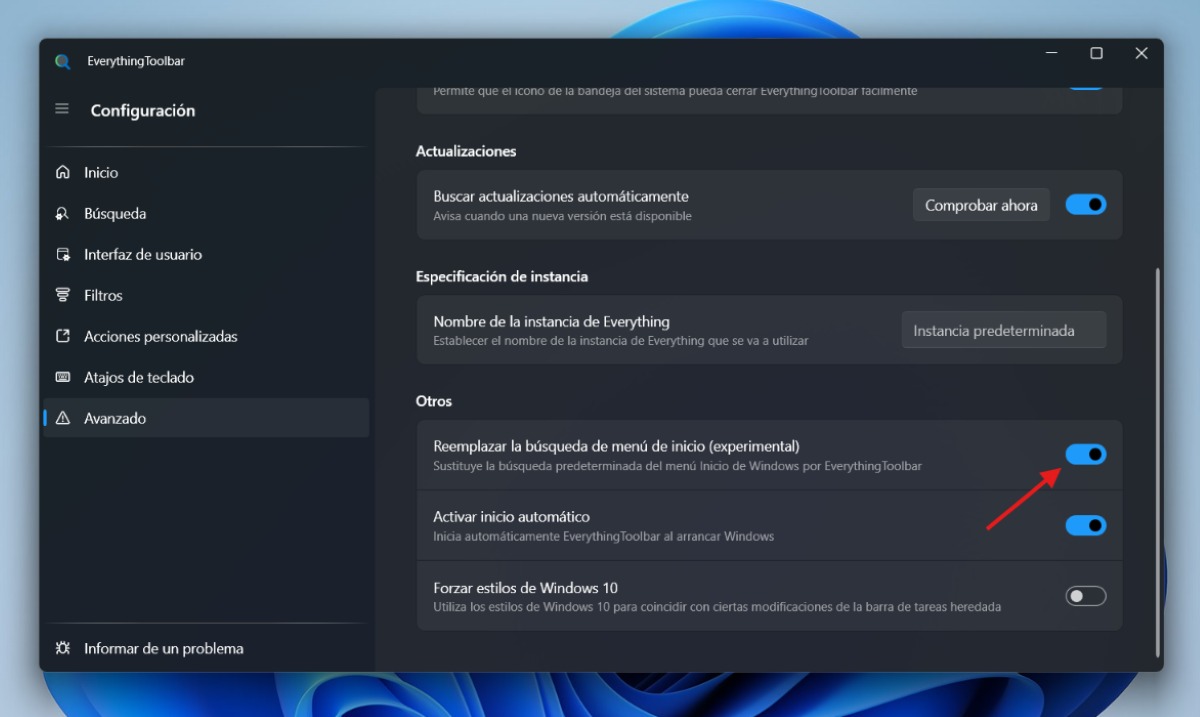
The next step to completely replace Windows Search with EverythingToolbar is Configure the tool as the default search engine.To do this, follow these steps:
- Open EverythingToolbar.
- Tap the gear icon in the top right and select Configuration.
- In the sidebar, go to the section Advanced.
- Activate the option Replace Start Menu Search to completely replace Windows search with EverythingToolbar.
- Go to the Keyboard Shortcuts section and in Open search windowPress the key combination you normally use to open Windows Search. (This will cause the combination to open EverythingToolbar directly instead of Windows.)
Additional tip: In Windows 11, you can search for files from the taskbar Using EverythingToolbar, you can pin the shortcut there. Just right-click on the application and select Pin to taskbarYou can even drag the icon left or right to place it exactly where the original Windows magnifying glass was.
Step 3: Hide the native Windows taskbar icon
Once you've pinned the tool to your taskbar, the best thing to do is clean up the interface and hide the native Windows iconThis will help you avoid confusion between the two.
- In Windows 11: Go to Settings – Personalization – Taskbar. Under Search, select Hide.
- In Windows 10: Right-click on an empty space in the taskbar. Select Search – Hidden.
Step 4: Disable the Windows Indexing Service (Optional)
Now, if you want to do more than just completely replace Windows search with EverythingToolbar and completely free up system resourcesYou can disable the Windows Indexing Service. To do this, follow these steps:
- Press Win + R, writes services.msc and press Enter.
- Search for the service called Windows Search (Windows search).
- Right-click on it and select Properties.
- In Startup type, change it to Disabled.
- Click on Arrest to pause the service immediately and then press Accept.
Why completely replace Windows search with EverythingToolbar?
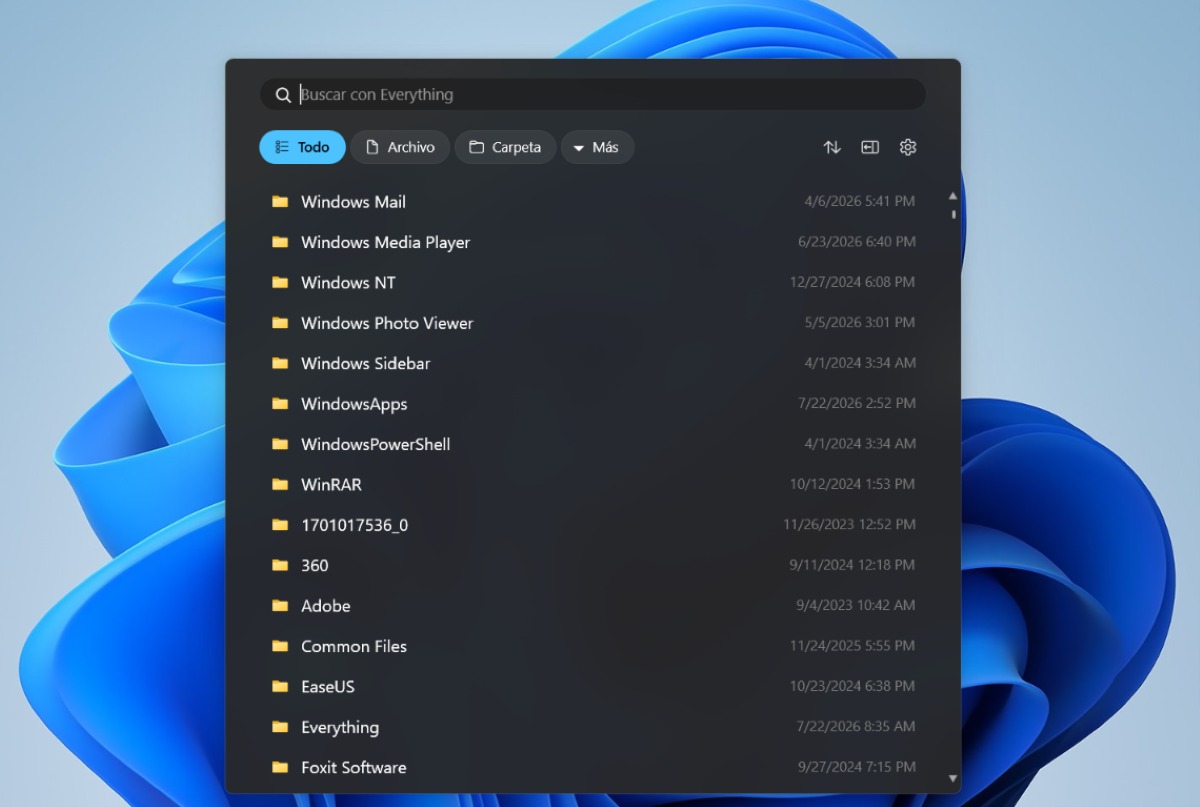
Why completely replace Windows Search with EverythingToolbar? Although Windows includes its own search bar, it's not as fast or accurate as you might expect. There are several Compelling reasons why some advanced users prefer to use EverythingToolbarLet's look at some.
Higher performance and lower resource consumption
Speed is the main reason To use EverythingToolbar, Everything reads the Master File Table (MFT) directly from NTFS-formatted folders and disks. This means it can index hundreds of thousands of files in a couple of seconds and provide instant results as you type.
On the other hand, Resource consumption with EverythingToolbar is minimalUnlike the Windows indexer, which typically generates significant CPU and disk usage in the background, Everything frees up memory and processing cycles considerably if you set it as your default search engine.
Greater search accuracy
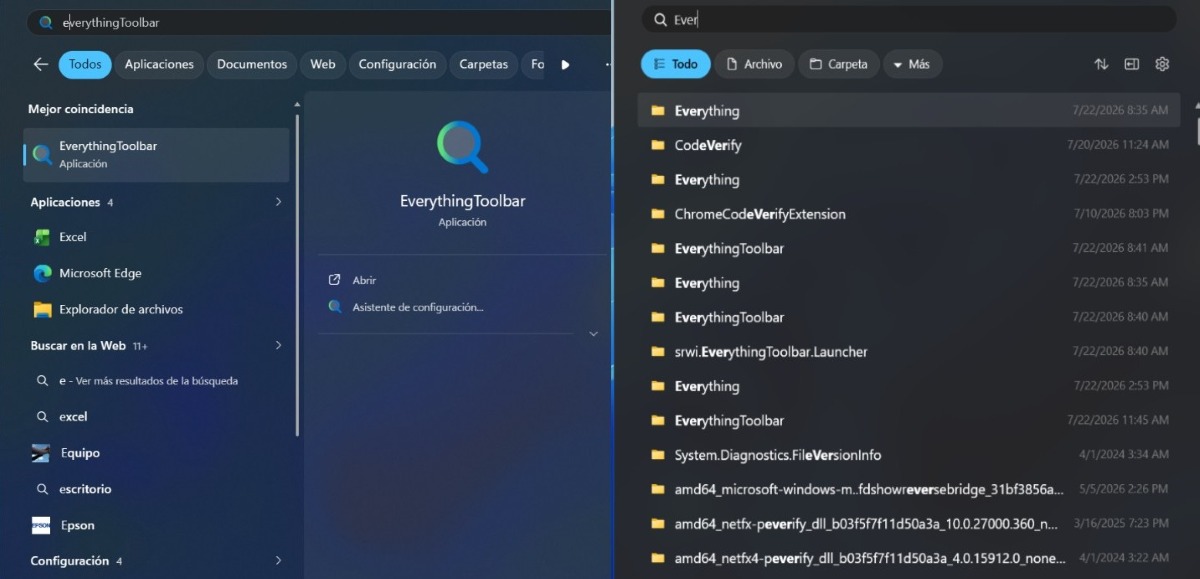
Another reason to use EverythingToolbar is the accuracy of the resultsFor example, with this search engine you won't receive suggestions, news, or links to an Explorer or answers from the web when you try to open a folder or a local application, as you would with the native search engine in Windows 10 and 11.
Furthermore, you gain complete control over your searches, since This tool focuses 100% on your local filesapps and recent history. This ensures that the first result that appears is exactly what you're looking for on your device. In fact, you have advanced search capabilities if you do the following:
- Filters by extension and attributes: You can filter searches in a few seconds if you use specific extensions such as .py, .iso, .pdf, as well as particular folder paths or file size.
Clean integration into Windows
One final reason why some users prefer to completely replace Windows search with EverythingToolbar is the clean aesthetic integration that the tool has.
- Unlike opening the Everything floating window, EverythingToolbar It integrates directly into the Windows taskbar. and it has support for dark/light mode to match the operating system's aesthetics.
- Same keyboard experience: If you bind the default system shortcuts (Win + S or Win + Q), you won't lose your usual workflow or the muscle memory you had when opening the Windows search bar.
Completely replacing Windows search is possible
Completely replacing Windows search with EverythingToolbar can completely change your daily productivityWhen you eliminate unnecessary distractions like web searches or new applications, you gain complete control over your files with faster and more accurate results.
With these simple setup steps, you'll have a tool at your fingertips that It will optimize your Windows experience without complicating your life.You don't have to keep wasting time looking for an important document. The search process can be much faster and more efficient than it already is if you use EverythingToolbar.
Index

From a young age, I've been fascinated by all things scientific and technological, especially those advancements that make our lives easier and more enjoyable. I love staying up-to-date on the latest news and trends, and sharing my experiences, opinions, and tips about the devices and gadgets I use. This led me to become a web writer a little over five years ago, focusing primarily on Android devices and Windows operating systems. I've learned to explain complex concepts in simple terms so my readers can easily understand them.