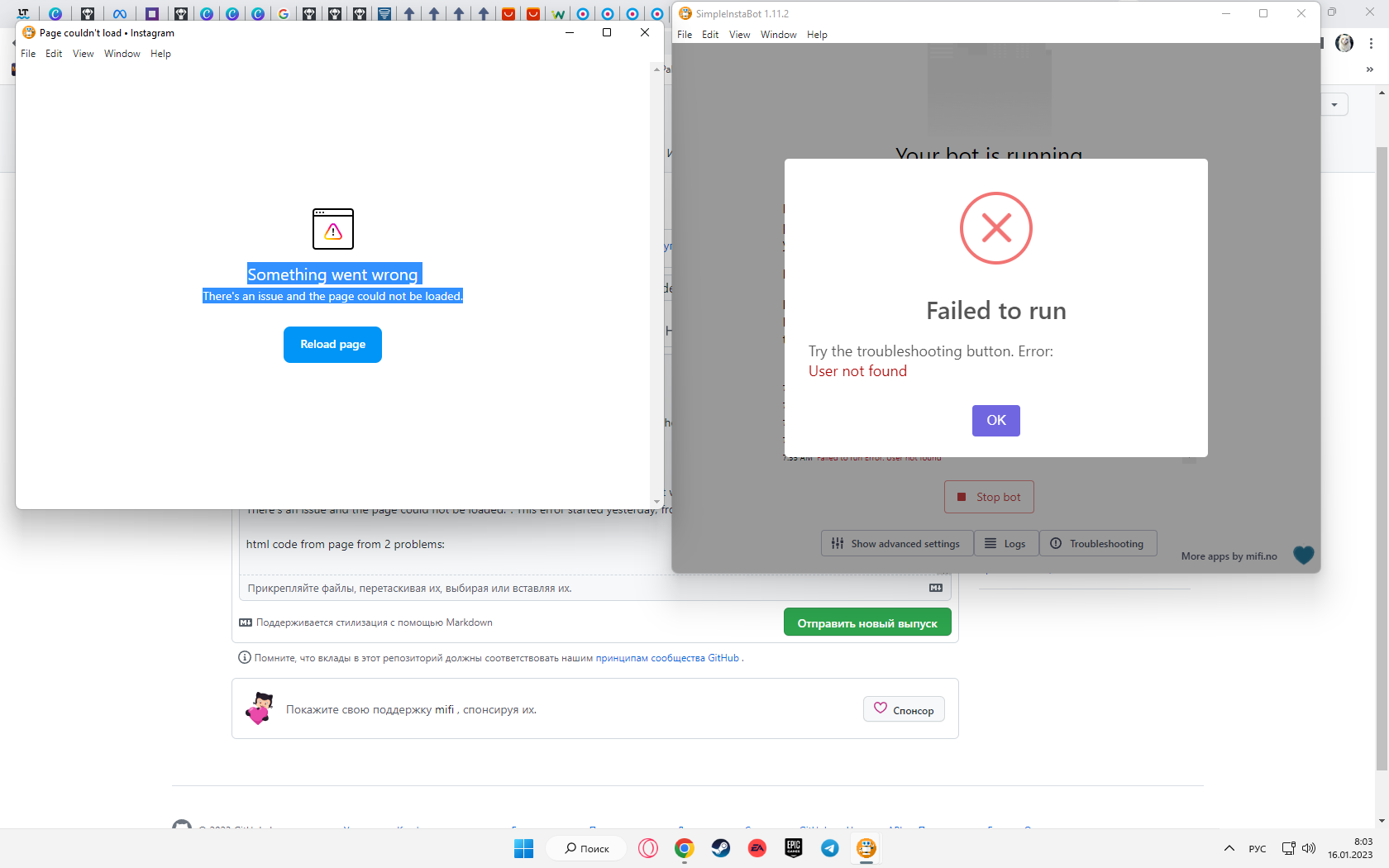
- The "Something went wrong" error usually affects a specific account and appears on both the Instagram website and app.
- The problem is usually in the account data on the servers, not in the mobile phone or browser used.
- Many users claim to have solved it with a specific method using iPhone, Safari in private mode, and alternating between web and app.
- Instagram offers few direct support options, so it's best to combine this method with basic security measures and patience.

Suddenly, the message appears “Something went wrong” on Instagram web And for a few moments, we don't know if it's a simple or serious error. In any case, the account stops working, the feed doesn't load, you can't log in, and the warning keeps appearing no matter how many times you try. Worrying.
When the error persists, even after changing your phone, browser, or even Wi-Fi network, it's time to take action. Below, we explain what's happening and, most importantly, how to find solutions.
What does the "Something went wrong" error mean on Instagram?
When this message appears, Instagram is basically telling you that Something went wrong with the loading of your account or sessionBut without giving further details. It could be a problem with the platform itself, a conflict with your account data, or a temporary security block.
In many cases, this failure does not affect the entire service, but only a specific accountYou can open other profiles without a problem, but yours constantly displays the warning. This means that restarting your phone, changing networks, or trying different browsers won't solve anything, because the root of the problem is related to your account on Instagram's servers.
Some people have tried the typical: Uninstall and reinstall the app, clear cacheLog out of all devices… and although it sometimes seems to improve briefly, the error reappears shortly after. This “false solution” is very common: it seems fixed, but after a while the message blocks your access again.
To complicate matters further, Instagram offers hardly any additional information or an easy way to report the problem to supportTherefore, many users feel completely lost, not knowing if the account is banned, blocked, or if it is simply a one-off technical failure.
Why sometimes the error only affects your account
One of the most important details that many users have reported is that the error It doesn't disappear even if you change devicesThey have tried their account on different mobile phones, computers, different browsers and even other networks, and the message kept appearing the same.
This indicates that the origin of the failure is usually... in the data that Instagram has associated with your profile (internal settings, sessions, security, etc.), and not so much the specific mobile device, app, or browser you're using. That's why the "broken" account fails everywhere, while other accounts on the same device work without problems.
Another characteristic behavior is that the error message appears both in the app and on the web version of InstagramIn other words, you try to log in from the browser (for example, on your mobile phone or computer), enter your username and password, and you still encounter the same message that something has gone wrong, even if you have just reinstalled the application.
The problem is compounded because Instagram does not offer, in a visible and direct way, a simple contact channel with supportMany people try to find help forms, emails, or chats and find very limited options, which leads to more "creative" or unusual solutions circulating among users who have managed to recover their account on their own.
The iPhone method that many users claim works
Among the testimonies of people who struggled with this mistake for days, there is a very specific procedure that has been repeated many times and which, according to them, It only works using an iPhone.It's a somewhat convoluted method, but several users have stated that it was the only way they were able to regain access to their account without the error reappearing.
The first thing they point out is that it is essential use an iPhone to complete the processThey tested the same system on other devices (Android, desktop browsers, etc.) and didn't get the same results. The trick seems to be based on how iOS interacts between Safari and installed apps.
As they explain, the procedure begins with something simple: Delete the Instagram app from your iPhone Download it again from the App Store, but don't open it after downloading. It's important that the app is installed, but completely closed, before proceeding to the next step.
After reinstalling the app, you need to open Safari and activate private browsing modeUsers insist that this detail is key and should not be skipped: private mode prevents the use of certain cookies and saved data, which seems to be related to how the problematic session is managed.
Once in Safari's private mode, you access the official Instagram website by directly typing the URL or searching for it in the browser, and here begins the most particular part of the whole method, with several changes between the web and the app.
Step by step: detailed procedure to try to fix the error
Although the original explanation came from people whose English wasn't perfect, the entire process can be reconstructed so that it becomes as clearly as possible in SpanishThe idea is to combine the web and iPhone app sessions until Instagram is "forced" to correct the account error.
- On your iPhone, Uninstall the Instagram app completely.
- Go to the App Store y Redownload Instagram To install it. But don't open the app when you're finished. Leave it closed, without logging in yet, because the trick depends on the app being installed but not in use.
- Open Safari on your iPhone and turn on the private browsing mode.
- In the address bar, go to the Instagram website (instagram.com). When it loads, Safari will most likely show you a pop-up window asking if you want to Open the page in the Instagram appHere you need to tap on “Cancel” to remain on the web version.
- Once you're on the Instagram website, enter your username and password to try Log in from your browser.
- Although the error "Something went wrong" now appears, what users who have managed to solve it recommend is: refresh page several timesIn other words, refresh the website two or three times, even if the same message reappears. The idea is to keep trying until the part of the system that manages the account "reacts."
- After these recharges, a blue button with the text "for" should still appear at the top or somewhere visible. “Open in the app.”
- Tap the blue "Open" button to go directly from the website to the Instagram app. This will open the app you installed earlier.
- Here comes the most confusing part to describe, but very important: you have to alternate between the app and the websiteRefreshing on both sides. That is, refresh the content in the app (by swiping down to reload) and then return to Safari, reload the webpage, and again tap the blue "Open" button.
- This back-and-forth between the web version and the app, coupled with the recharges, seems to be forcing Instagram to Revalidate your session and correct the information associated with your accountUsers explain that, after several repetitions (not always on the first try), the error disappears from both sites.
- When you notice that the message no longer appears in the app and you can browse, upload stories, or view your feed normally, go back to Also check on the web You can log in without seeing the "Sorry, something went wrong" message. From that point on, many have been able to use their accounts normally.
It is worth noting that this procedure It is neither official nor documented not by Instagram, but it arises from the real experience of users who found in this "trick" the only effective solution after trying many other things that did not work for them.
Limitations, risks, and why Instagram isn't very helpful
The first major problem with all of this is that, since it is not an official method, There are no guarantees that it will work in 100% of casesIt has helped many users, but there may also be people who, despite following the steps in detail, continue to see the same error.
Furthermore, the requirement to use an iPhone excludes those who only have Android devices or they prefer not to depend on a specific system. The key seems to lie in the way iOS integrates Safari and apps, something that doesn't behave exactly the same way in other environments.
On the other hand, the anger of those who suffer this error is understandable because Instagram, as a platform, It does not provide direct support.There's no clear button to say "hey, my account has this message and there's no way to log in," and often the automated help forms are limited to generic responses that don't solve anything.
There is also some anxiety about not knowing if the account is partially blocked, limited or under reviewThe message "Something went wrong" is so generic that it does not distinguish between a simple temporary server failure and a deliberate security measure applied to the profile.
For all these reasons, many users end up resorting to solutions shared in forums, social networks and comments, where methods like this one for iPhone and Safari in private mode are explained, which arise more from practice and trial and error than from an official guide from the company itself.
Alternatives and additional recommendations if the failure persists
If, even after following the iPhone procedure in detail, you still encounter the message "I'm sorry, but something went wrong."There are a number of additional steps you can try to rule out other problems related to your account or your environment.
A first recommendation is to check if your account has recently had suspicious or unusual activity: logins from unusual locations, use of third-party apps for tracking or automation, sudden changes to the password or associated email, etc.
It's also a good idea to try logging in from a completely different desktop browserIn incognito or private mode, manually enter the Instagram address and your information. While many people have tried this unsuccessfully, it has allowed others to at least complete security checks.
If you can't access it in any way, try using Instagram's help forms related to compromised accounts or access problemsThey are not particularly intuitive or fast, but in some cases the system sends you verification emails, codes, or identity confirmation requests that can unlock the situation.
It's also a good idea to check the email associated with your account in case Instagram has sent you a message. security alerts or temporary lockdownsSometimes these messages include links or instructions to confirm your identity, and until you follow them, the account may remain in a "strange" state that generates generic login errors.
Regarding the technical environment, make sure the Instagram app is Updated to the latest available version in your store (App Store or Google Play), that the date and time on your device are correct and that you are not using VPNs or strange network configurations that may trigger automatic security filters.
In extreme cases, some users have chosen to wait 24-72 hours without attempting to log inThis will reset any temporary blocks on the servers, and then you can repeat the process on the iPhone using Private Safari. Patience, though frustrating, sometimes pays off when dealing with automated protection mechanisms.
The "Something went wrong" error on Instagram web is one of those glitches that generates a lot of frustration because It directly affects access to your account And the platform itself offers no clear guidance or effective support channels. For many, the method using an iPhone, Safari in private mode, and switching between the web and app has become the only way to truly regain control of their profile when everything else failed.

Editor specialized in technology and internet issues with more than ten years of experience in different digital media. I have worked as an editor and content creator for e-commerce, communication, online marketing and advertising companies. I have also written on economics, finance and other sectors websites. My work is also my passion. Now, through my articles in Tecnobits, I try to explore all the news and new opportunities that the world of technology offers us every day to improve our lives.