
El SIM card PIN is a security code that protects access to information stored on the card, such as contacts and text messages. This code is requested every time the mobile device is turned on, thus preventing unauthorized use of the SIM card in the event of theft or loss of the phone.
Main functions of SIM card PIN
The SIM card PIN fulfills several important functions To ensure the security of your data:
- Protects information stored on the SIM card, such as contacts and text messages
- Prevents unauthorized use of the SIM card in the event of theft or loss of the mobile device
- Adds an additional layer of security to mobile network access
Reasons to keep the SIM card PIN activated
Although it may seem like a hassle to enter your PIN every time you turn on your device, It is highly recommended to keep this security measure activated. Some reasons not to remove the SIM card PIN are:
- Protection of personal data in case of theft or loss of the device
- Preventing unauthorized use of the SIM card and associated services, such as calls or messages
- Compliance with corporate security policies or legal regulations in some cases
Create a secure SIM card PIN
If you decide to keep the SIM card PIN activated, it is important choose a secure and easy-to-remember code. Some tips for creating a strong PIN are:
- Avoid birth dates, consecutive or repeated numbers, and other easily guessable patterns
- Use a combination of random numbers that you can remember
- Do not share your PIN with other people and avoid writing it down in accessible places

Steps to deactivate the SIM card PIN on Android
If you still decide to remove the SIM card PIN on your Android device, follow these steps:
- Open the app Settings on your Android device
- Find the section Security o Security and location, depending on your Android version
- Select option Set up SIM lock or similar
- Enter the Current PIN from your SIM card when prompted
- Disable the option Lock SIM card or similar
How to remove your SIM PIN on iOS devices
To remove the SIM card PIN on an iOS device, such as an iPhone or iPad, follow these steps:
- Open the app Settings on your iOS device
- Select option Mobile data o Mobile
- Press on SIM options o SIM PIN
- Enter the Current PIN from your SIM card when prompted
- Disable the option SIM PIN
Essential requirement: know the current SIM card PIN
It's important to know that To deactivate the SIM card PIN, you will need to know the current code. If you have forgotten your PIN or entered it incorrectly too many times, you will need to contact your mobile operator to obtain the PUK (Personal Unblocking Key) code and unlock the SIM card.
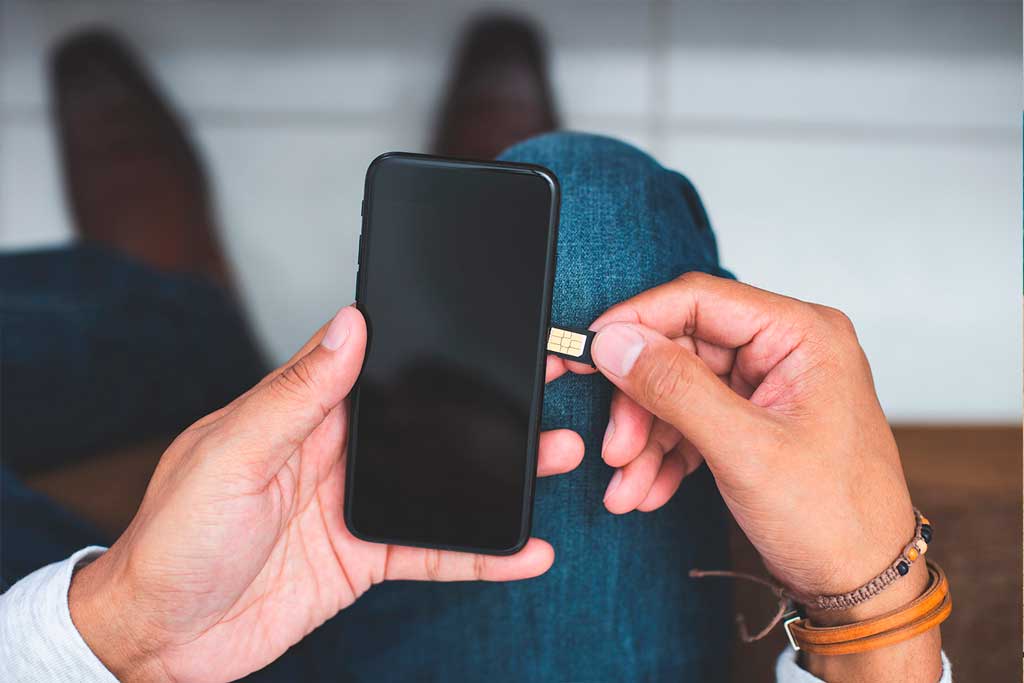
Alternative method to change SIM card PIN on iOS and Android
If you prefer not to access your device settings to change the SIM card PIN, there is a alternative and generic method which works on all phones, both iOS and Android, regardless of the manufacturer's customization layer:
- Open the app Telephone on your device
- Mark the following code: **04*current_PIN*new_PIN*new_PIN#
- Press the button Call to confirm the change
Although it is possible to disable the SIM card PIN on iOS and Android, It is recommended to keep this security measure activated to protect your personal data and prevent unauthorized use of your SIM card.
Pros and cons of removing the SIM PIN
Removing the SIM PIN has its pros and cons. Below are some of the most relevant ones:
Benefits
- Quick access: You don't need to enter the PIN every time you turn on the device.
- Easy to use: Less complications for users who don't want to deal with additional codes.
Risks
- Less Security: Without the SIM PIN, if someone steals your phone, they can easily access your mobile network.
- Unauthorized access: Increased risk of misuse if the device is lost or stolen.
It is important to evaluate these factors before deciding to deactivate your SIM PIN. The security of your personal data and your mobile network must be a priority.
Security measures when deactivating your SIM PIN
Disabling the SIM PIN makes it easier to use the phone, but it also reduces a layer of security. If you decide to disable PIN, consider enabling other security measures such as screen lock via fingerprint, facial recognition or a strong access code.
Additionally, if you have trouble disabling the PIN or prefer not to do it yourself, many mobile service providers offer technical support that can assist you in the process.

I am Sebastián Vidal, a computer engineer passionate about technology and DIY. Furthermore, I am the creator of tecnobits.com, where I share tutorials to make technology more accessible and understandable for everyone.