- Setting up an intelligent video surveillance system based on object detection using AI.
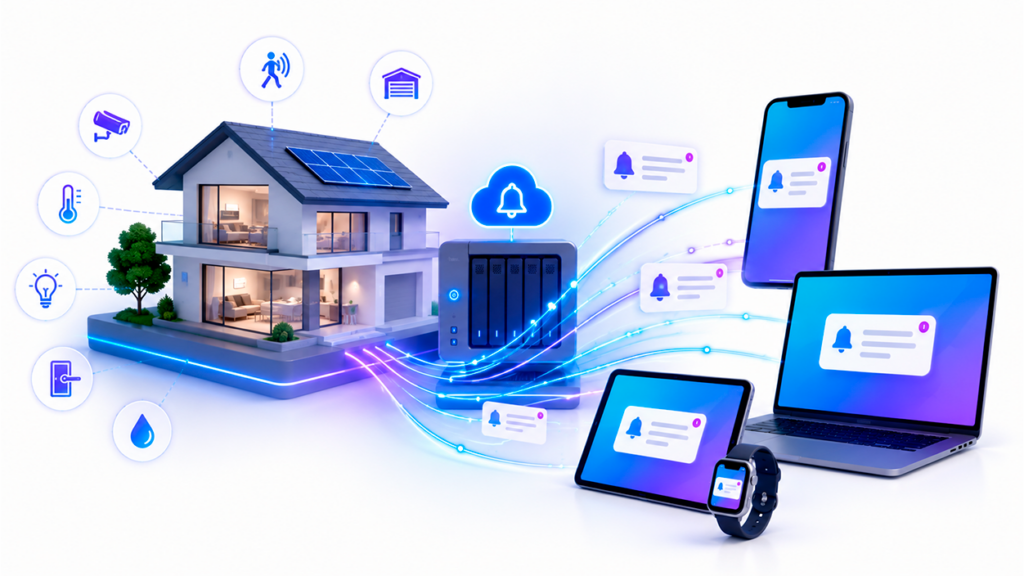
- Synchronization of security events between the Frigate server and the Home Assistant interface.
- Implementation of advanced automations for real-time alerts and device control.

How to use Frigate with Home Assistant? If you're into home automation, you probably already know that Home Assistant is the crown jewel for managing your home. But if you want to take it to the next level and stop relying on dubious cloud services for your cameras, setting up a system with Frigate is simply the best decision you can make. It's not just about recording video; it's about... your house really knows what's going ondistinguishing whether the one who has entered the garden is the dog, a delivery person, or a curious cat.
For those who aren't programmers or computer experts, the process might seem like a maze of YAML files and Docker containers, but it's really just a matter of follow the steps with common senseYou don't need a NASA-level setup; with an old PC or a Raspberry Pi you can put together a very decent deployment. The coolest thing is that, by combining the power of Frigate with the versatility of HA, you can create automation that seems like science fiction, such as turning on the hallway light just as the AI detects that you have arrived home.

Preparing the ground: Home Assistant installation
Before we get into the cameras, you need to make sure the brains of the whole thing, the HA OS, are up and running. An easy way to do this if you have a spare PC is to use Ubuntu from a USB In trial mode. Simply open your browser, go to the Home Assistant website, and download the image to install the operating system directly to your computer's hard drive. Once the image is restored and your PC has restarted, you can access the graphical interface using the following address. homeassistant.local:8123 or the corresponding IP address from any computer on your network.
A key detail for beginners is to activate the advanced mode in user settingsIf you don't do this, you'll miss out on a lot of critical options that will appear later. Also, it's vital to understand that Home Assistant uses configuration files in YAML format; don't be intimidated by the name, they're basically lists of instructions where we tell the system how it should behave and how it should connect with other services.
The heart of the system: Frigate and the MQTT Broker

Frigate isn't just an app; it's an NVR server that uses artificial intelligence for video analytics. To enable it to communicate with Home Assistant, you must install a [missing information - likely a specific component or software]. MQTT agent, like MosquittoThink of MQTT as the postman delivering "I saw someone" messages from Frigate to Home Assistant. For this to work, you need to install the Mosquitto plugin and then the corresponding integration in the Devices & Services section.
One important trick is Create a dedicated user for MQTT in the People section of Home Assistant. Don't use your main account; create a specific credential that you will then enter in the Frigate configuration file for smooth and secure communication. For maximum efficiency, ideally Frigate should be deployed on a Docker containerseparating it from the HA core to avoid overloading the CPU, especially if you have multiple cameras constantly analyzing images.
Hardware Acceleration: The Google Coral
If you notice your processor is running at full speed and the system is slow, it's time to talk about the Google Coral USB AcceleratorThis small device is a TPU that handles AI detection processing, freeing the processor from the heavy workload. To make it work on a Raspberry Pi, for example, you'll need to install the PyCoral drivers and the corresponding runtime through the Linux terminal.
When you configure Frigate with Coral, in the file config.yml You must specify that the detector is of type edgetpuThis drastically reduces inference time, allowing the system to detect objects in milliseconds. If you don't have Coral, Frigate will still work using the CPU, but keep in mind that Resource consumption will be much higher and you might experience delays in alerts.
YAML file technical configuration
The part where most people get stuck is the file frigate.yamlThis is where you define your cameras using the protocol. RTSP (Real Time Streaming ProtocolIt is recommended to use two streams: one high-resolution stream for recordings (subtype 0) and one low-resolution stream for AI to detect objects without consuming too much memory (subtype 1). You can verify that your stream is working by opening the RTSP URL at VLC Media Player before putting it in the code.
Within the file, you must define which objects you want to track, such as person, car, dog or catYou can also create masks to prevent the system from analyzing areas where there is always movement (like a tree swaying in the wind), and so on. avoid false positives annoying. Don't forget to set the retention time for clips and snapshots so your hard drive doesn't fill up in a couple of days.
Final integration and automation
To unite the two worlds, the simplest thing is to use HACS (Home Assistant Community StoreFrom there, search for the Frigate integration, install it, and restart your system. Then, go to Settings > Devices and Services and add the integration by entering the URL of your Frigate instance (usually port 5000 or 8971). Once this is done, all your cameras will appear as entities in Home Assistant.
Now comes the fun part: automations. You can create rules where the trigger is that the the number of people is greater than 0As an action, you can configure a light to turn on or, even better, receive a notification. Telegram message with the intruder's photo and a direct link to the video clip. For the latter, a Telegram bot service is used that sends the URL of the snapshot generated by the Frigate API, allowing you to see what's happening at home in real time.
With a proper HA OS installation, an MQTT broker configuration, and correctly defined RTSP flows in the YAML, you'll have successfully set up a professional surveillance system. The combination of AI detection, hardware acceleration, and Home Assistant's automation capabilities transforms simple cameras into a sophisticated solution. intelligent, private and extremely powerful security system It doesn't depend on any external company. Now you know how to use Frigate with Home Assistant.

Passionate about technology since he was little. I love being up to date in the sector and, above all, communicating it. That is why I have been dedicated to communication on technology and video game websites for many years. You can find me writing about Android, Windows, MacOS, iOS, Nintendo or any other related topic that comes to mind.