- It allows you to generate native Android applications in Kotlin and Jetpack Compose using AI instructions without prior installations.
- It offers a workflow that goes from cloud prototyping with emulators to publishing on the Google Play Console.
- It enables the integration of modern web projects into native containers using Capacitor and Android Studio to generate APKs.
- It facilitates access to advanced hardware features such as GPS, Bluetooth, and sensors through native Android APIs.

Google AI Studio allows you to describe an idea in words and turn it into a native project for AndroidYou can see it running in an emulator within your browser, and if you have a mobile device handy, you can install it directly via USB. For this initial test, you don't need to download Android Studio or configure the SDK on your computer.
That doesn't mean any idea will immediately become a release-ready application. It's helpful to know what AI Studio generates, what its emulator can test, and what options you have for bringing the project to a real device. Here we follow the specific process of create and install an Android app with Google AI Studio, without mixing it with the conversion of web pages to APK.
What type of Android application does Google AI Studio create?
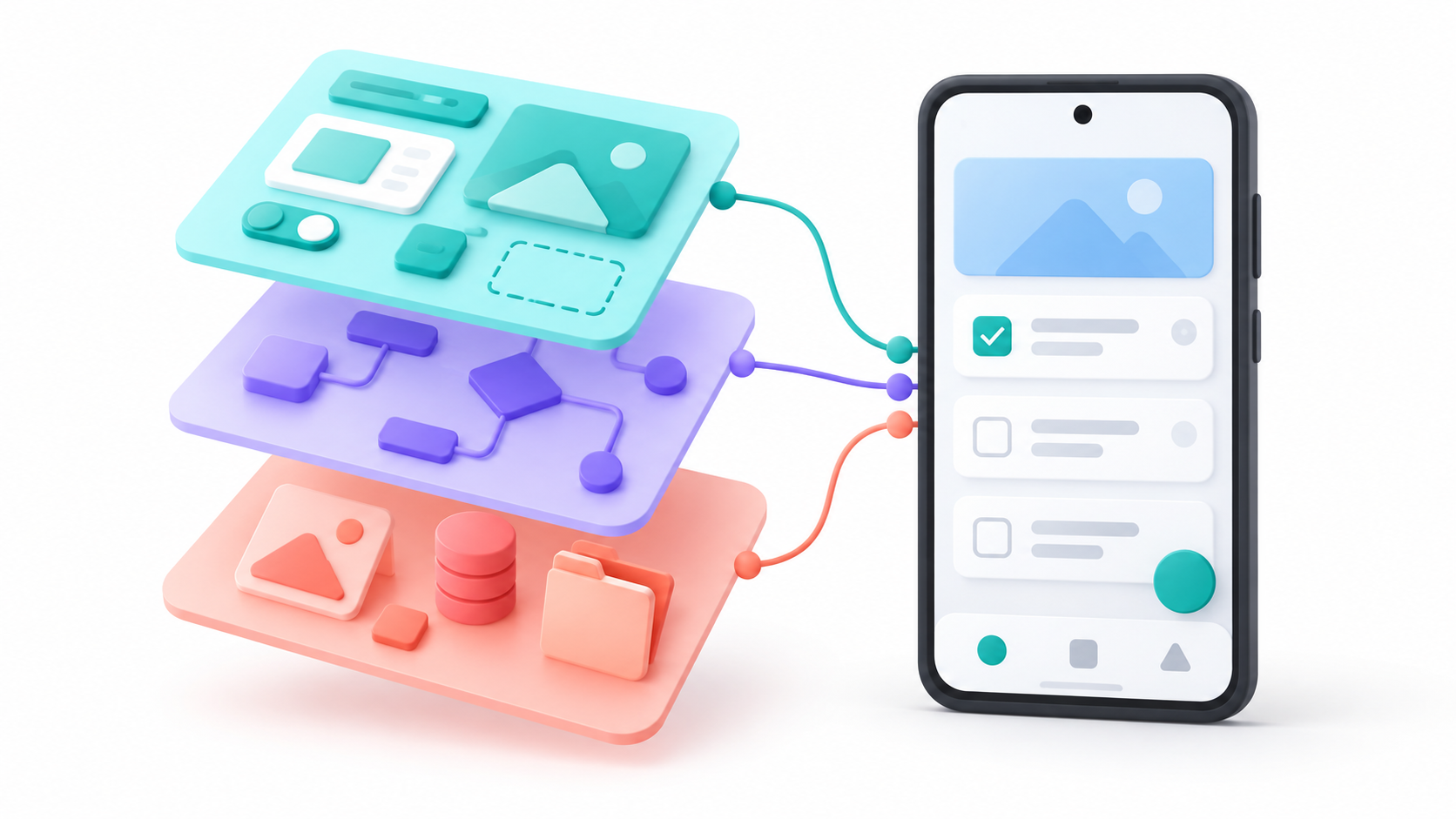
When you choose the Android platform in Build mode, AI Studio uses an agent to generate a project in Kotlin and Jetpack ComposeIt's not simply a web page opened within a mobile window: the result includes Gradle configuration files, resources, and an Android manifest that you can examine and edit.
The easiest way to start is to request a small, easy-to-test feature. For example: "Create a task app with categories, local storage, and a button to mark each task as completed." Once the first version is released, you can request specific changes, such as adding a search function, adjusting the colors, or fixing an unresponsive button.
The tool is designed to apps for phones and tabletsAndroid projects generated from this workflow use Jetpack Compose and a single-activity, single-module structure. It currently does not support projects for Wear OS or Android TV, nor components written in C or C++.
How to create the app and test it in the browser

To prepare your first version, follow these steps:
- Open Google AI Studio and sign in with your Google account.
- Enter the Build mode and select Android in the platform selector. Check this point: the web option generates a different project type.
- Describe what the app should do, how its screens will be used, and what information it should store. The more specific the request, the easier it will be to review the result.
- Wait for the project to be generated and test the application in the emulator that appears in the browserTap the buttons, enter data, and rotate the screen if the design needs to work in landscape mode.
- If something goes wrong, it will show you the exact behavior in the chat. You can also open the code tab to review the generated files.
The emulator runs in the cloud and displays the app in your browser, so you don't need to install a local emulator for this stage. It's useful for checking navigation, forms, and visual changes, but It does not replace a test on a real mobile device..
Specifically, this emulator does not allow testing of the camera, NFC, or Bluetooth. Location is simulated, and functions that rely on Google Play services are not tested as they would be on a physical device.
How to install the app directly on your Android mobile
Once the preview works, you can send the compiled version to the phone from AI Studio. You need a USB cablea WebUSB-compatible browser—such as Chrome or Edge—and the USB debugging activated on Android.
- On your mobile device, open Settings and locate the compilation numberTap it seven times to enable developer options. The exact location of the menu depends on the manufacturer.
- Enter Developer options and activate USB debugging.
- Connect the mobile phone to the computer using a cable that allows data transfer.
- In the AI Studio preview panel, press Install on Device or the equivalent option to install on the device.
- Select your phone from the browser's USB devices list. If Android asks for permission to debug from that computer, accept it.
AI Studio will transfer and install the APK and open the application on the mobile device. Communication is done through the browser via WebUSB, so You don't need to install ADB separately To use this option, it's time to check features that the emulator can't verify and to review permissions, screen size, and offline functionality, depending on what your app does.
How to share it with other people so they can try it
If you want other people to try the app, AI Studio can send it to Google Play internal testing channelTo do this, you need a developer account and to have your profile completed in Google Play Console.
From the project, open Settings > Publishchoose Publish to Play Store and authorizes the connection to your developer account. AI Studio handles signing the APK with a managed key, creating the initial version or uploading a new version, and providing a link for testers. The internal channel supports up to 100 testers.
This option is used for internal testsIf you later want to distribute the app publicly, you'll need to manage the production launch in the Google Play Console. Before you get to that point, thoroughly test the app and review the permissions and data it handles.
Export the project and continue in Android Studio
If the prototype grows or you need to work directly on the code, download the Android project in ZIP format from AI Studio. After extracting it, you can open it in Android Studio, let Gradle sync the dependencies, and continue developing it with the usual Android tools.
From Android Studio you can generate a Debug APK For testing or preparing a signed release build. Signing is especially important if you're going to distribute successive versions: for Android to recognize a new build as an update to an already installed app, the application's identity and a compatible signature must be maintained. Organize this process before moving from testing in AI Studio to your own distribution.
There is a distinction that prevents many mistakes: the Direct export to GitHub, as described for AI Studio web projects, is not currently available for your Android projects.In this case, download the ZIP file first, and if you want to use GitHub, upload the project to the repository yourself afterward.
What limitations should you be aware of before expanding the app?
The Android applications created with this flow are, for now, client-side projectsAI Studio does not provide them with their own server. Features that require a server environment, such as secret management, certain Firebase integrations or Google Workspace APIs, and multiplayer experiences, belong to the platform's web application pipeline.
Therefore, if your idea relies on a private API key, don't include it directly in the generated Android code: that code will end up on the user's device. For a more complex application, you'll need to design the necessary architecture outside of this prototype and carefully review the integrations before publishing.
You should also distinguish this native project from a website created in AI Studio. If you already have a React, Vue, or Angular application, Capacitor can package its web part for AndroidHowever, that process requires Node.js, the Android project, and its own configuration. These are not the steps needed to directly install the native app created with Kotlin and Jetpack Compose on a mobile device.
Google AI Studio thus offers a short and practical path: describe an app, test it in the browser, and install it on a phone connected via USB. To move from prototype to a distributed product, the work continues with real-world testing, code review, a signing strategy, and, when necessary, further development in Android Studio.

I am a technology enthusiast who has turned his "geek" interests into a profession. I have spent more than 10 years of my life using cutting-edge technology and tinkering with all kinds of programs out of pure curiosity. Now I have specialized in computer technology and video games. This is because for more than 5 years I have been writing for various websites on technology and video games, creating articles that seek to give you the information you need in a language that is understandable to everyone.
If you have any questions, my knowledge ranges from everything related to the Windows operating system as well as Android for mobile phones. And my commitment is to you, I am always willing to spend a few minutes and help you resolve any questions you may have in this internet world.