- Stirling PDF is a free, local tool that allows you to perform more than 50 operations with PDF files without relying on the cloud.
- The installation is done using Docker containers, and is compatible with Raspberry Pi, Synology NAS, and various Linux distributions.
- It allows you to configure environment variables to customize the language, security via login, and data persistence for OCR.

Installing Stirling PDF with Docker allows you to turn the application into a private server to manage PDF documentsOnce deployed, you can access it from any computer, mobile phone, or tablet on the network using a web browser, without installing the program on each device.
The files are sent to the server you configure, not to Stirling PDF's servers. This gives you more control over your documents, although ultimate privacy also depends on you. where the server is located, who can access it, and how the connection is protected.
If you're only going to use the tool from a single PC, the native application might be simpler. In that case, see how. install Stirling PDF on Windows without configuring Docker or publishing a network service.
Which Stirling PDF image should you choose?
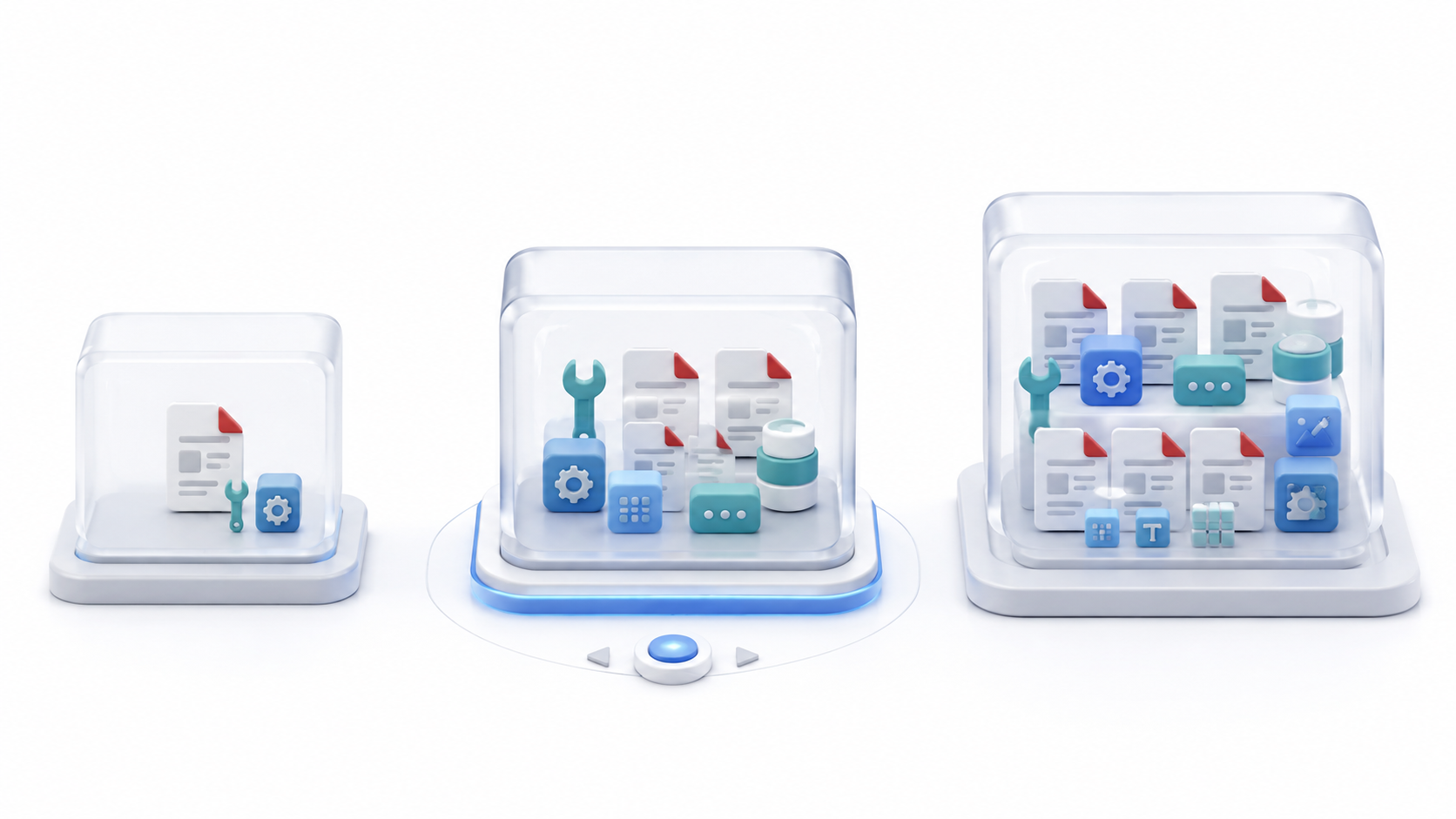
Stirling PDF publishes three variations of its image. The choice influences the available functions, the space occupied, and the resources required.
| Version | Label | Recommended use |
|---|---|---|
| Standard | latest |
Most home users and servers |
| Fat | latest-fat |
Maximum compatibility, additional fonts and tools |
| Ultra-Lite | latest-ultra-lite |
Raspberry Pi, small VPSs and basic operations |
The image latest This is the recommended option when you don't have special requirements. It includes the usual management, conversion, OCR, and security features while maintaining a reasonable size.
The variant latest-fat It includes more fonts and optional tools, which can improve compatibility for certain conversions. In return, it requires more storage space.
latest-ultra-lite It reduces size and power consumption for limited devices, but omits some features. It's suitable for merging, splitting, rotating, or rearranging documents on modest computers.
Once the server is installed you will be able to Merge multiple PDFs with Stirling PDF, delete pages, rearrange documents or Convert multiple images into a single PDF.
Requirements for installing Stirling PDF with Docker
For a basic deployment you need:
- Docker Engine 20.10 or later.
- Docker Compose installed.
- A minimum of 2 GB of RAM.
- At least 5 GB of storage for a basic test.
- A folder where persistent settings can be stored.
- Access to a terminal or a Compose-compatible interface.
For a server that is used regularly, the following are recommended: 2 CPU cores, 4 GB of RAM and 10 GB freeConversions, rendering, and OCR can require several times the size of the document in memory.
Check the installation:
docker --version
docker compose version
In current systems it is preferable to use docker composewith a space. Some older interfaces and versions continue to show docker-composeHowever, both commands are not always available simultaneously.
Quick installation using Docker Run
To try Stirling PDF without yet creating a Compose file, run:
docker run -d \
  --name stirling-pdf \
  -p 8080:8080 \
  -v ./stirling-data:/configs \
  docker.stirlingpdf.com/stirlingtools/stirling-pdf:latest
Then open:
http://localhost:8080If Docker is running on another machine, replace localhost by their IP address:
http://192.168.1.50:8080The volume ./stirling-data:/configs It retains settings and the database when the container is deleted or updated.
This method is suitable for a quick test. For a permanent installation, Docker Compose is more convenient, as it documents ports, volumes, variables, and reboot policies.
How to prepare persistent folders
Create a folder for the project and several persistent directories:
mkdir -p ~/stirling-pdf/stirling-data/{configs,logs,pipeline,tessdata}
cd ~/stirling-pdf
Each directory serves a different function:
configs: settings and internal database.logs: operation and error logs.pipeline: configurations for automated processing.tessdata: linguistic models used by Tesseract.
You can also create a volume for /customFiles If you need fonts, themes, signatures, or other custom files.
No configuration is required PUID y PGID in all installations. Some community templates for NAS or Unraid use these variables, but the basic official configuration relies on the permissions of the mounted folders.
How to install Stirling PDF with Docker Compose
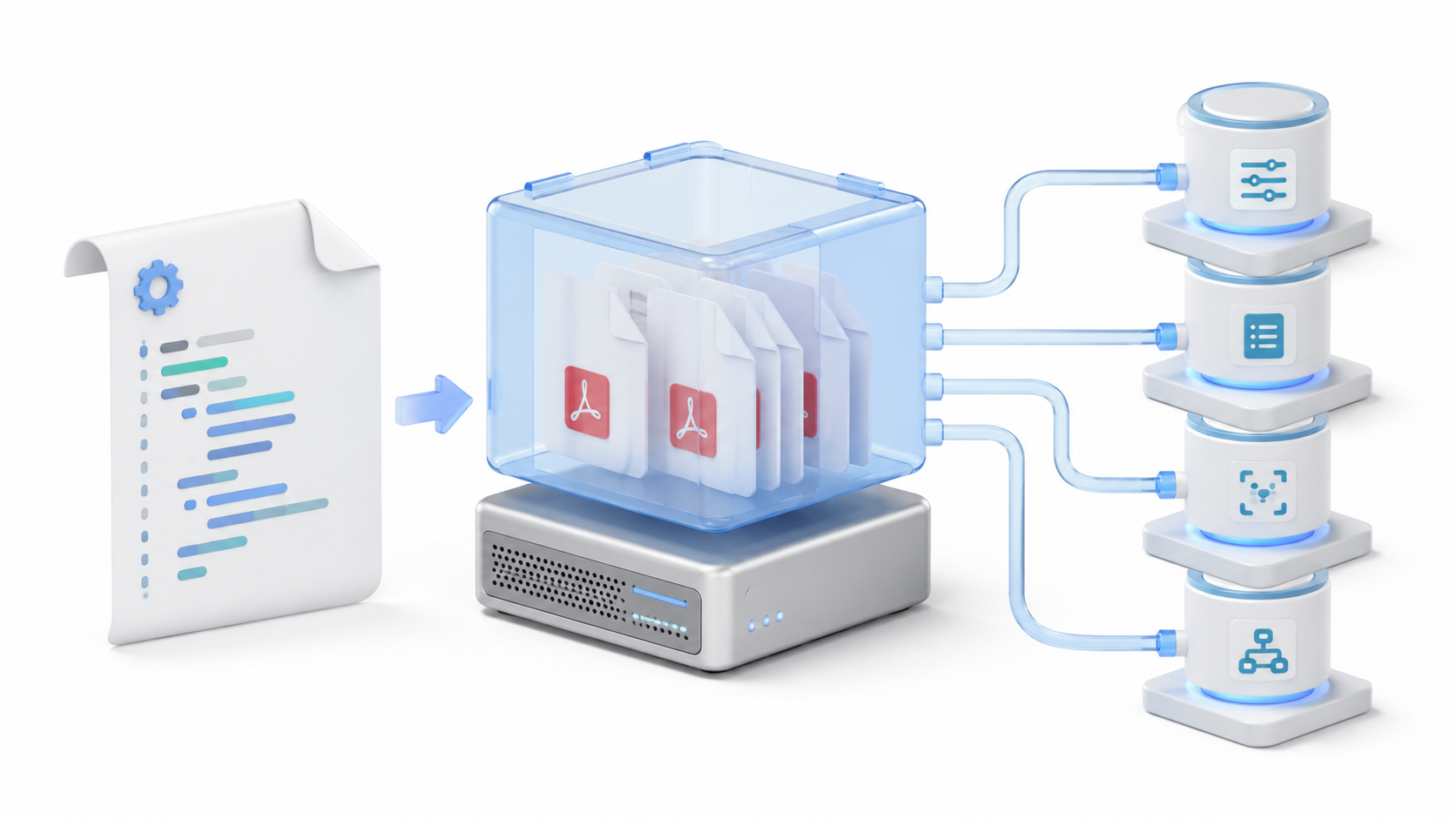
Within ~/stirling-pdf, creates a file called docker-compose.yml with this content:
services:
  stirling-pdf:
    image: docker.stirlingpdf.com/stirlingtools/stirling-pdf:latest
    container_name: stirling-pdf
    ports:
      - "8080:8080"
    volumes:
      - ./stirling-data/configs:/configs
      - ./stirling-data/logs:/logs
      - ./stirling-data/pipeline:/pipeline
      - ./stirling-data/tessdata:/usr/share/tessdata
    environment:
      SECURITY_ENABLELOGIN: "true"
      SECURITY_INITIALLOGIN_USERNAME: "admin"
      SECURITY_INITIALLOGIN_PASSWORD: "${STIRLING_ADMIN_PASSWORD}"
      SYSTEM_DEFAULTLOCALE: "es-ES"
    restart: unless-stopped
It also creates a file .env in the same folder:
STIRLING_ADMIN_PASSWORD=INTRODUCE_UNA_CONTRASEÑA_SEGURAProtect the file so that only your user can read it:
chmod 600 .envThen the service starts:
docker compose up -dCheck its status:
docker compose psThe container should appear as started. During the first boot, it may take a few seconds to prepare the database and internal components.

How to configure the language and authentication
Current Docker images have the login enabled by defaultIf you do not define initial credentials, an account will be created with:
- User:
admin - Password:
stirling
You must change this password immediately. The previous configuration prevents its use by requiring you to set your own password from the first deployment.
The variables SECURITY_INITIALLOGIN_USERNAME y SECURITY_INITIALLOGIN_PASSWORD These are used when creating the initial account. They cannot be used to change the password of an existing user later; that change must be made from the interface.
If the server is completely isolated and you want to use it without authentication, you can specify:
SECURITY_ENABLELOGIN: "false"Do not disable authentication if other users can reach the port, if you are using a shared network, or if you are going to publish the service on the Internet.
To use Spanish as the default language, the current variable is:
SYSTEM_DEFAULTLOCALE: "es-ES"If not set, Stirling PDF attempts to detect the browser language. To limit the available languages in the selector, you can use UI_LANGUAGES, whose codes use underscores:
UI_LANGUAGES: "es_ES,en_US"How to add OCR in Spanish
Stirling PDF uses Tesseract to recognize text within scanned documents. OCR extracts text, but It does not automatically rebuild tables, formulas, or complex structures..
To recognize documents in Spanish, download the file spa.traineddata Download it from the official Tesseract repositories and save it to:
~/stirling-pdf/stirling-data/tessdataThe folder is connected to /usr/share/tessdata inside the container using the Compose file.
Do not delete eng.traineddataStirling PDF needs to retain the English template even if you add other languages.
You can choose between:
- tessdata_fast: Smaller, faster files, with potentially lower accuracy.
- tessdata: heavier models that can offer better results.
After adding the file, restart the container:
docker compose restart stirling-pdfOCR allows you to convert a scan into a searchable PDF. If you later need to modify the content, you can Convert PDF to Word with Stirling PDFBearing in mind that fidelity will depend on the original design.
How to access from other devices on the network
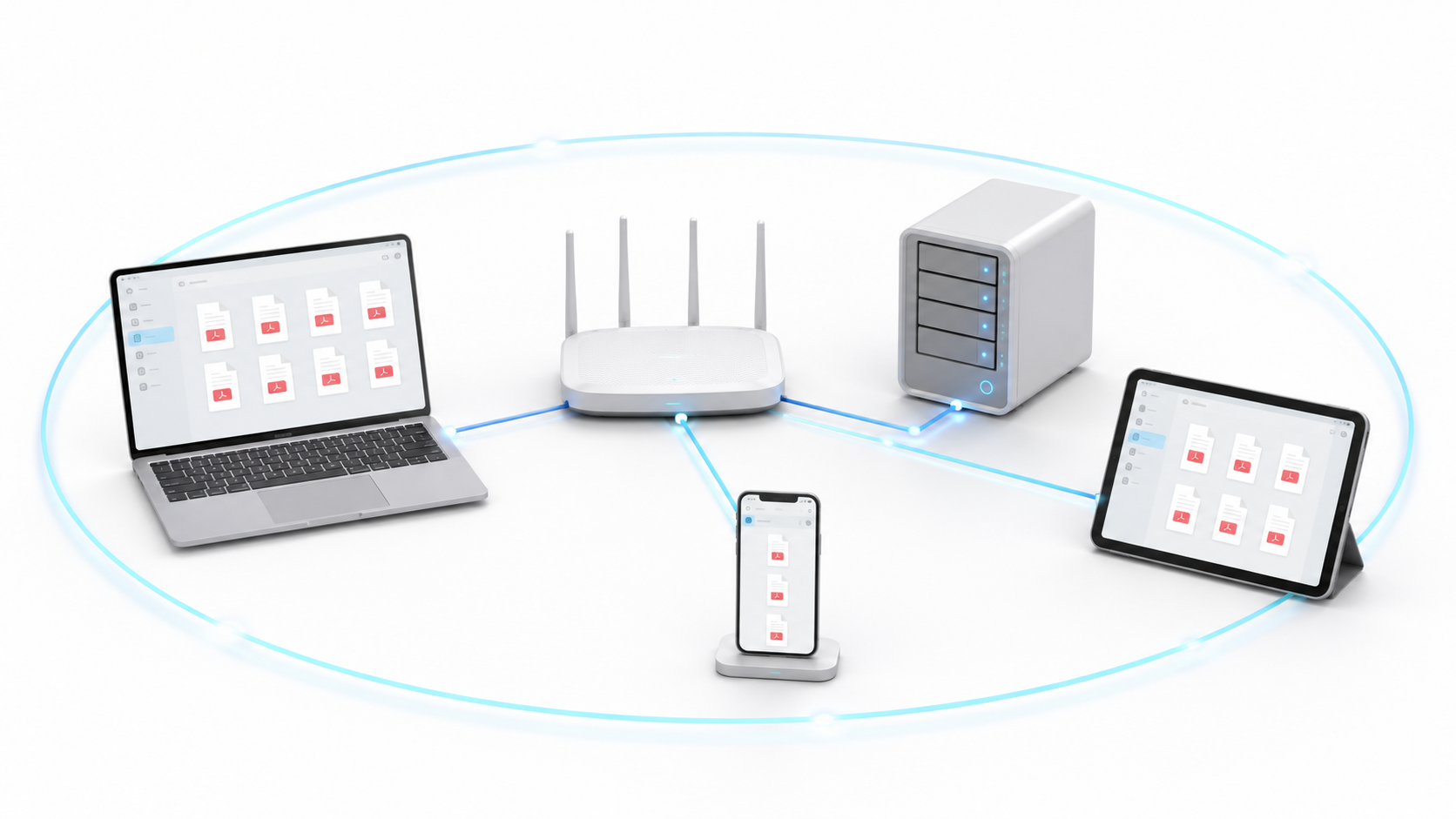
Find the IP address of the machine running Docker and open it from another device:
http://DIRECCION_IP:8080For example:
http://192.168.1.50:8080If the page does not load, check that the firewall allows TCP connections to port 8080 from the local network.
You don't need to advertise the port on your router to use it within your home or office. Keeping it limited to your LAN reduces the attack surface.
From the interface you can perform operations such as delete blank pages and edit documents, add annotations or add a watermark to a PDF.
How to access remotely and securely
Do not directly expose port 8080 to the internet using router port forwarding. The connection would use HTTP and could be accessible to trackers or attackers.
The safest alternatives are:
- Access via a Private VPN like WireGuard or Tailscale.
- Use a reverse proxy with a domain and HTTPS certificate.
- Configure an authenticated tunnel as a Cloudflare Tunnel.
Nginx, Caddy, or Traefik can act as a reverse proxy and send HTTPS requests to the container using http://localhost:8080The certificate can be managed with Let's Encrypt or with the domain provider.
Stirling PDF authentication must remain enabled even when the proxy is already protecting the connection. HTTPS encryption secures the transport, while the login controls who can use the application.
How to install Stirling PDF on a Raspberry Pi or a NAS
On a Raspberry Pi with limited resources, you can change the image to:
docker.stirlingpdf.com/stirlingtools/stirling-pdf:latest-ultra-liteSimple operations should work correctly, but OCR, Office conversions, and processing large documents may be slow or exceed available memory.
On Synology, QNAP, and other compatible NAS devices, you can deploy the same file using Docker Compose, Container Manager, or Portainer. In Portainer, open Stacks > Add stackPaste the configuration and adjust the paths to point to persistent shared folders.
Check the write permissions on configs, logs, pipeline y tessdataUse PUID y PGID only when the specific NAS template allows them.
How to adjust performance
A small equipment installation can begin with 2 cores, 4 GB of RAM and 10 GB freeDocuments with many pages, embedded fonts, or vector graphics can expand considerably during processing.
The most demanding operations are usually:
- OCR using Tesseract or OCRmyPDF.
- Converting documents with LibreOffice.
- Converting PDFs to images.
- Compression and repair of large files.
Do not increase the limits for concurrent processes without monitoring memory. On modest servers, it is preferable to process documents in the queue rather than cause an error due to insufficient RAM.
If the server serves multiple users, check the usage using:
docker stats stirling-pdfHow to update Stirling PDF without losing data
Before updating, create a copy of the persistent folders, the Compose file, and the file .env:
tar -czf stirling-backup.tar.gz \
  stirling-data docker-compose.yml .env
Save the copy to another device or storage system. The file .env It contains the initial password and must remain protected.
Then update the image:
docker compose down
docker compose pull
docker compose up -d
The data remains in the mounted folders. On a critical server, it is advisable to replace latest by a specific version to control when changes are applied.
Common mistakes when installing Stirling PDF with Docker
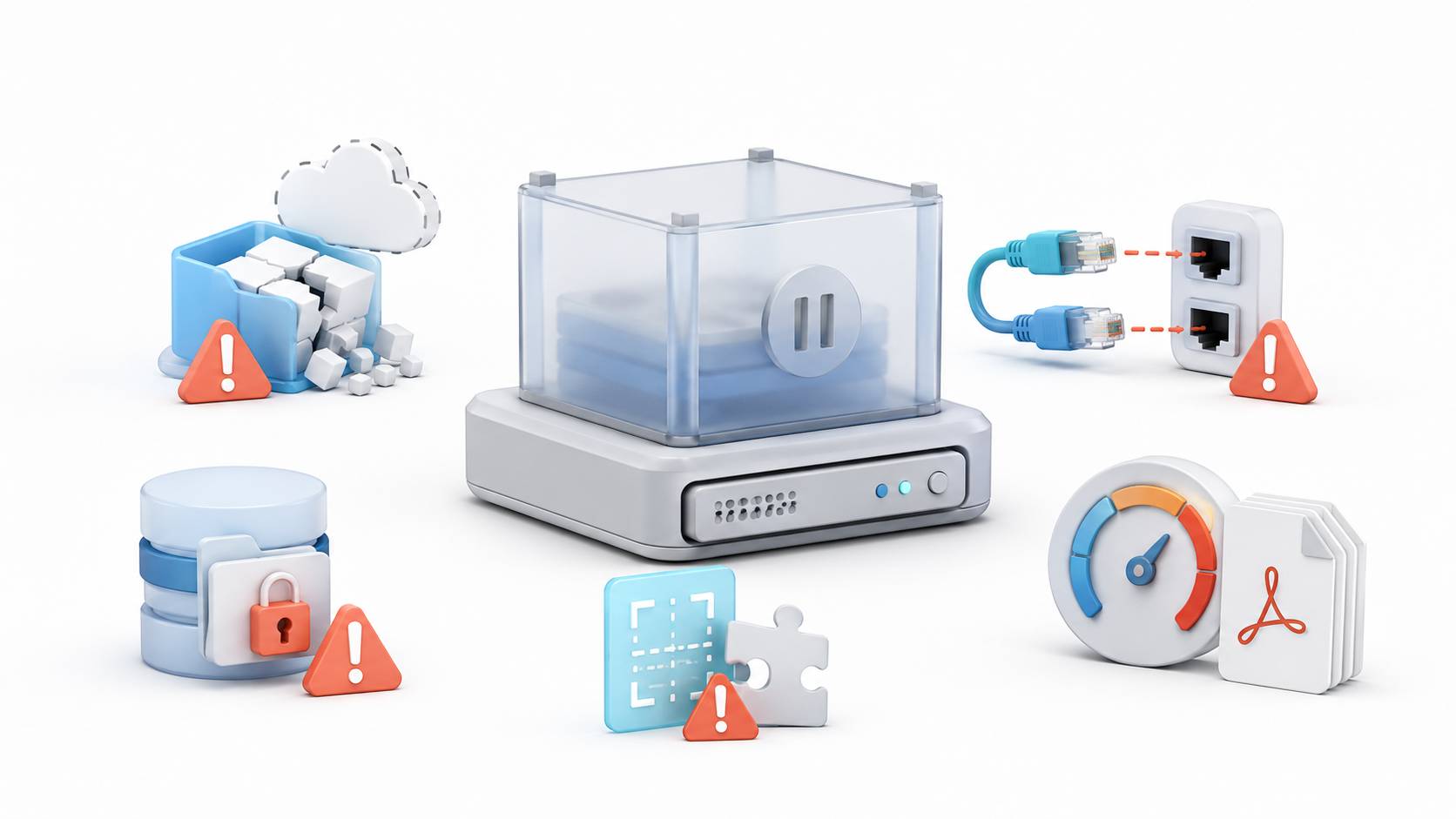
Docker cannot find the frooodle/s-pdf image
Old guides used frooodle/s-pdfReplace that reference with:
docker.stirlingpdf.com/stirlingtools/stirling-pdf:latestIf the main registry is not responding, you can also use:
ghcr.io/stirling-tools/stirling-pdf:latestPort 8080 is already occupied
Only change the port on the host computer:
ports:
  - "9000:8080"
Then access via http://localhost:9000.
The container keeps restarting
Check the records:
docker logs stirling-pdfCheck the available space, memory, and write permissions on the volumes. On systems with limited resources, test the image. latest-ultra-lite.
The settings disappear after updating
The volume /configs It's not mounted correctly or it points to a different folder. Check the path within docker-compose.yml and that the container user can write to it.
The interface is not available in Spanish.
Use SYSTEM_DEFAULTLOCALE=es-ESThe old variable LANGS=es_ES It does not set the default language in the current configuration.
OCR does not display Spanish
Check that spa.traineddata exists within the mounted folder and that the volume points to /usr/share/tessdataIt also preserves eng.traineddata.
I can't log in
On a new installation without custom credentials, test admin y stirling and immediately change the password. If the database already existed, the initial startup variables do not replace the saved credentials.
Permission denied when using a volume
Create the folders before starting the container and check their owner and permissions. Do not apply global write permissions indiscriminately or configure 777 as a permanent solution.
The application works locally, but not from another computer.
Check that you are using the server's IP address, that the port is open, and that the firewall allows connections from the local network. localhost It always refers to the device from which you open the browser.
The server runs out of memory with large files.
Reduce the number of simultaneous operations; use the Ultra-Lite variant if you don't need advanced tools, or increase your RAM. OCR and rendering can consume several times the size of the original file.
Installing Stirling PDF with Docker allows you to offer a centralized document management platform to all devices on a network. The standard image is suitable for most users, while the Fat and Ultra-Lite variants allow you to prioritize compatibility or reduced resource consumption.
The critical part involves mounting the volumes correctly, maintaining authentication, configuring OCR only when necessary, and protecting any remote access with VPN or HTTPS. You should also back up your data. /configs before updating, as it contains the installation settings and database.

I am a technology enthusiast who has turned his "geek" interests into a profession. I have spent more than 10 years of my life using cutting-edge technology and tinkering with all kinds of programs out of pure curiosity. Now I have specialized in computer technology and video games. This is because for more than 5 years I have been writing for various websites on technology and video games, creating articles that seek to give you the information you need in a language that is understandable to everyone.
If you have any questions, my knowledge ranges from everything related to the Windows operating system as well as Android for mobile phones. And my commitment is to you, I am always willing to spend a few minutes and help you resolve any questions you may have in this internet world.