- The use of quantized models in GGUF format allows powerful AIs to run on hardware with little memory.
- Manually managing GPU offload layers prevents the system from resorting to slow RAM and causing performance to plummet.
- Strict control of context length is essential to avoid overloading video memory.

Running artificial intelligence on your own computer offers privacy, freedom to switch models, and the ability to work without constantly relying on the internet. The problem arises when LM Studio tries to load more data than fits in the available memory, and the system starts using RAM, shared memory, or even the page file.
At that moment they may appear Extremely slow responses, freezes, errors loading the model, or a computer that barely respondsThis doesn't necessarily mean you need to buy a new graphics card. In many cases, simply choosing the right model and adjusting the quantization, context, GPU offload, and KV cache settings is enough.
LM Studio can automatically configure many of these parameters, but it also allows you to modify them before loading each model. If your computer has limited RAM or VRAM, learning to control these settings can make all the difference. one model that won't start and another that generates responses smoothly.

What uses RAM and VRAM in LM Studio

When LM Studio loads a model, the downloaded file isn't the only element that occupies memory. Total memory consumption is distributed among several components:
- Model weights: They contain the parameters learned by the neural network and usually represent the majority of the consumption.
- KV Cache: It retains information about the processed tokens so that it doesn't have to recalculate them during the conversation.
- Context: It includes the instructions, history, documents, and the generated response.
- Buffers and computation memory: These are temporary spaces that the engine needs to perform operations.
- Batch evaluation: determines how many tokens are processed together during the input reading.
- Additional components: Vision models may need extra memory to process images.
For this reason, a 5 GB GGUF file doesn't necessarily only take up 5 GB when running. LM Studio needs some additional space, and that space can increase considerably when configuring a large context.
RAM and VRAM are not equivalent. VRAM is directly connected to the GPU and offers significantly higher bandwidth. If part of the data remains in RAM, the CPU can process it, but it will typically do so at a slower speed. Constant data transfers between the two types of memory can also occur.
In Windows, Task Manager can show shared GPU memoryThis memory comes from the system's RAM and doesn't magically transform an 8GB graphics card into a 16GB one. While it can prevent some errors, its performance is significantly lower than that of dedicated VRAM.
Choosing a model that fits the equipment
The first step isn't moving sliders, but choosing a model that matches the hardware. The number of parameters provides a rough estimate, but it doesn't tell you the power consumption on its own. Quantization, architecture, context, and the model's features also play a role.
As a general guideline:
- Devices with 8 GB of RAM: It is advisable to use small models of approximately 1B to 3B parameters and close other applications.
- Devices with 16 GB of RAM: They tend to perform better with quantized models from 3B to 8B.
- Devices with 32 GB of RAM: They offer more margin for 8B, 12B, 14B models or some higher.
- GPU with 4 GB or 6 GB of VRAM: It can speed up small models or download only a portion of the layers.
- GPU with 8 GB or 12 GB of VRAM: It allows you to fully load many small and medium quantized models.
- GPU with 16 GB or more: It supports larger models, broader contexts, and less compressed configurations.
These ranges are not absolute limits. A model can work even if it doesn't fit entirely on the GPU because LM Studio distributes some of the work to the CPU. However, Just because a model can be loaded doesn't mean it will respond at an acceptable speed..
Use appropriate quantization
Quantization reduces the precision with which model weights are stored. This decreases the file size and the memory required to run it, at the cost of some loss of quality.
In the GGUF models you will find variants such as Q2, Q3, Q4, Q5, Q6 or Q8. LM Studio recommends choosing, whenever the equipment allows, a quantization of 4 bits or higher.
The most common options are:
- Q4_K_M: It usually offers a good balance between size, quality, and speed.
- Q5_K_M: It retains slightly more accuracy, but uses more memory.
- Q6_K: It is closer to high-quality quantizations and requires greater capacity.
- Q8_0: It does not reduce the quality much compared to more precise formats, although the file is considerably larger.
- Q3 or Q2: They can be useful when memory is very limited, but the degradation can become more evident.
It is incorrect to state that Q4 always reduces consumption by an exact percentage. The final size depends on the quantization method and which model components are preserved with greater accuracy.
If a Q5 variant doesn't fully fit the GPU, a Q4 of the same model can provide more speed, although its accuracy will be slightly lower. In a modest system, this is usually preferable. a smaller model running entirely on fast memory that one huge one continuously moving data.

Limit the length of the context
The context length indicates how many tokens the model can have present during a request. This includes instructions, previous messages, attached documents, and the generated response.
Just because a model supports 32.000, 128.000, or more tokens doesn't mean you should always allocate the maximum. The larger the configured context, the more memory it may need. KV Cache.
For normal conversations, a context of 4096 or 8192 tokens It's usually a reasonable starting point. You can expand it when you need to analyze long documents, preserve very long conversations, or work with large snippets of code.
In LM Studio, you can change this value in the model loading settings. If the advanced parameters don't appear, enable the Developer mode from Settings > Developer.
You can also set the context from the terminal:
lms load identificador-del-modelo --context-length 4096Reducing the context doesn't change the size of the weights, but it can significantly lower the consumption associated with the conversation. The exact difference varies depending on the model, the type of attention, and the format used for the KV cache.
Adjust GPU Offload without filling VRAM

GPU Offload determines what proportion of the model is processed by the graphics card. The more layers offloaded to the GPU, the higher the speed will typically be, but VRAM usage will also increase.
LM Studio can automatically calculate a configuration compatible with your equipment. If you need to manually limit power consumption, you don't necessarily have to start at 50%. It's more practical to follow this procedure:
- Select the model and open its charging settings.
- First, configure the context you actually need.
- Check the memory estimate shown by LM Studio.
- Increase GPU Offload without exhausting all VRAM.
- Leave room for the operating system and other applications that use the GPU.
- If errors or a sudden drop in performance occur, slightly reduce the download speed.
From the CLI you can specify a ratio between 0 and 1:
lms load identificador-del-modelo --gpu 0.5To try to offload the entire model to the GPU:
lms load identificador-del-modelo --gpu maxAnd to run without GPU Offload:
lms load identificador-del-modelo --gpu offThe fastest configuration is usually the one that keeps as much of the model as possible on the GPU. without causing memory loss or excessive reliance on shared memory.

Enable Flash Attention and compress the KV Cache
Flash Attention optimizes attention calculations and can reduce memory consumption, especially when using long contexts. It can also improve performance on compatible hardware.
LM Studio allows you to save this option within the default settings for each model. However, its availability and results depend on the model, runtime, and installed GPU.
Another possibility is to quantize the KV cache. In supported models and runtimes, LM Studio allows the use of lower precision for keys and values stored during the conversation. This can significantly reduce resource consumption when working with large context windows.
You should keep the following in mind:
- A lower-precision KV cache uses less memory.
- The impact on quality depends on the model and the level selected.
- Value Cache quantization requires Flash Attention in certain configurations.
- It is recommended to try Q8 first before resorting to more aggressive levels.
If you're only using contexts of 4096 tokens, the difference might be less significant. However, when you're trying to work with tens of thousands of tokens, Quantifying the KV cache can be crucial for the model to fit in memory.
Reduce batch size and download inactive models
The evaluation batch size determines how many tokens the engine processes together during the input phase. A larger value can improve prompt processing speed, but it also requires more memory.
If LM Studio runs out of memory when reading long documents or lengthy prompts, try reduce the Eval Batch SizeThe initial processing may take a little longer, but it will reduce the peak consumption.
It's also a good idea to check that multiple models aren't loaded simultaneously. You can view active models using:
lms psTo download all the memory models, use:
lms unload --allIf you run LM Studio as a server, you can set a time to live (TTL) for the model to be downloaded after remaining inactive:
lms load identificador-del-modelo --ttl 3600In this example, the model will be removed from memory after one hour of inactivity. This option is useful when LM Studio shares the computer with video games, video editors, or other applications that require a lot of VRAM.
Estimate memory before loading the model
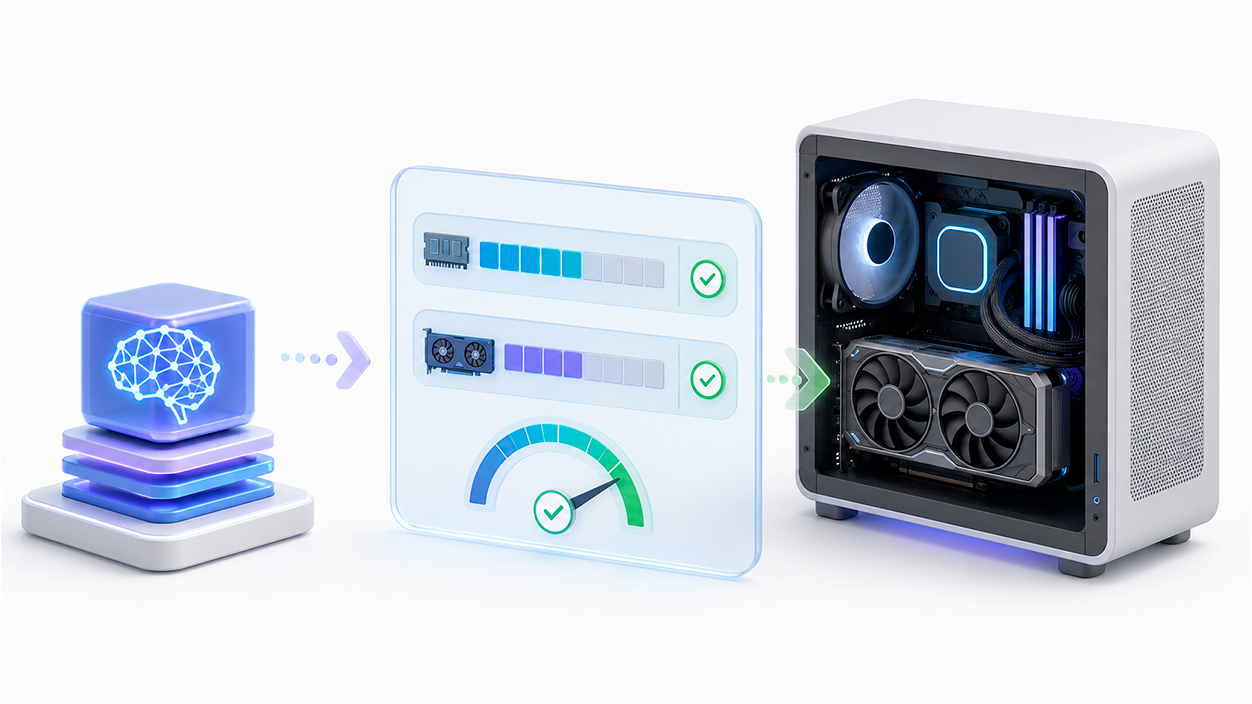
LM Studio includes an estimator that allows you to calculate consumption without actually loading the model. You can first check the downloaded models with:
lms lsThen, use its identifier with the parameter --estimate-only:
lms load --estimate-only identificador-del-modeloThe estimate takes into account factors such as context, Flash Attention, and the model's visual capabilities. You can also compare different configurations:
lms load --estimate-only identificador-del-modelo --context-length 4096 --gpu maxIf the estimate is too close to the available memory, first reduce the context, try lower quantization, or offload fewer layers to the GPU.
This calculation is still an estimate, and it's advisable to allow for some leeway. Windows, the browser, graphics acceleration, and other applications can also use VRAM while LM Studio is running.
How memory works in MoE models
Mixture of Experts (MoE) models contain different groups of specialized parameters. During generation, only some experts are activated for each token, reducing computational cost compared to a dense model with the same total number of parameters.
However, this does not mean that inactive experts disappear from memory. The model's weights still need to be stored in RAM, VRAM, or both.Therefore, a 120B MoE model may need tens of gigabytes even if it only activates a fraction of its parameters during each step.
Some configurations allow you to keep certain weights or expertise on the CPU and use the GPU for other parts of the model. This can make loading easier, but it requires a significant amount of RAM and can considerably reduce speed due to data transfers.
MoE games are interesting for systems with plenty of RAM and a more limited GPU, but they shouldn't be presented as a way to run any gigantic game on an 8GB card. The result will depend on... the total memory of the device, quantization, and available bandwidth.

Differences between Windows, Mac, and Linux
LM Studio is available for Windows, macOS, and Linux, but memory management varies depending on the hardware.
Windows
On a PC with a dedicated GPU, RAM and VRAM are separate memory spaces. If the model doesn't fit on the graphics card, part of it may be run by the CPU. It's recommended to close games, browsers with many tabs, and hardware-accelerated applications before loading large models.
LM Studio supports compatible Windows x64 and ARM64 systems, although exact support depends on the CPU, GPU, and installed runtime. It is not advisable to set AVX2 or 32 GB of RAM as universal requirements for all models.
Mac with Apple Silicon
Macs with Apple Silicon use unified memory, so the CPU and GPU access the same pool of memory. This eliminates some of the memory transfers that occur on a PC with a dedicated GPU, but macOS also needs to reserve memory for the system and other applications.
LM Studio can run GGUF models using llama.cpp and also supports models prepared for MLXThe fastest format will depend on the model, its quantization, the runtime version, and the hardware. There is no universal three-fold improvement from using MLX.
Linux and AMD GPU
In Linux, compatibility and performance depend on the driver, runtime, and GPU used. Some AMD systems with unified memory allow you to reserve a larger portion of the RAM for graphics tasks from the BIOS.
Certain AMD Ryzen AI Max processors with large amounts of unified memory can allocate very high capabilities to the GPU. However, Not all AMD GPUs allow you to convert 96 GB of RAM into VRAM.It is a possibility associated with specific platforms and not a general function of LM Studio or any equipment with VGM.
Recommended settings to reduce consumption
If LM Studio uses too much RAM or VRAM, apply the changes in this order:
- Choose a smaller model or a Q4_K_M variant.
- Reduce the context a 4096 or 8192 tokens.
- Activate Flash Attention if the model and hardware are compatible.
- Quantizes the KV Cache when you need a broad context.
- Adjust GPU Offload leaving VRAM margin for the system.
- Reduce the Eval Batch Size if the error appears when processing long prompts.
- Download other models that continue to occupy memory.
- Use the estimator before loading demanding configurations.
The best configuration isn't always the one that uses the largest model or offloads all layers to the GPU. The goal is to find a balance that allows for stable speed without filling up memory or causing paging.
With proper quantization, a reasonable context, and a well-tuned GPU Offload, LM Studio can run useful models even on computers with limited resources.If performance remains insufficient after optimizing these parameters, it will usually be more effective to switch to a lower-end model than to force one that clearly exceeds the equipment's capabilities.

I am a technology enthusiast who has turned his "geek" interests into a profession. I have spent more than 10 years of my life using cutting-edge technology and tinkering with all kinds of programs out of pure curiosity. Now I have specialized in computer technology and video games. This is because for more than 5 years I have been writing for various websites on technology and video games, creating articles that seek to give you the information you need in a language that is understandable to everyone.
If you have any questions, my knowledge ranges from everything related to the Windows operating system as well as Android for mobile phones. And my commitment is to you, I am always willing to spend a few minutes and help you resolve any questions you may have in this internet world.