- Configure Safari on iPhone to block pop-ups, fraudulent ads, and limit cross-site tracking.
- Reduce personalized advertising by disabling Apple ads, app tracking, and unnecessary geolocation.
- Strengthen your privacy with ad blockers, content extensions, and installing apps exclusively from the App Store.
- Control ads in games and apps by managing internet access, mobile data, and blocking options on a case-by-case basis.

Those who use iPhones daily are fed up with the pop-ups, intrusive ads, and trackers that appear both in Safari and within many apps and games. Besides being annoying, they can pose a risk to your privacy and, in some cases, even to the security of your device. Limit ad tracking on iPhone It is, more than a whim, a necessity.
Is there anything that can be done? The answer is yes. iOS includes several features for Limit ad tracking on iPhone, block pop-ups, disable personalized advertising and better control what data you share with Apple and its apps. By combining these settings with ad blockers, you can browse much more peacefully and minimize aggressive advertising.
Why it's important to limit tracking and ads on iPhone
It's not just about convenience. Today's online advertising is based on detailed profiles of each userThese profiles are built from your browsing history, app usage, location, and many other data points. This constant tracking allows for highly personalized ads, but it also opens the door to abuse and risks.
Many free websites and apps rely on advertising to fund themselves, but in return they may bombard you with banners, videos, interstitials and notifications that slow down your phone, consume data and battery, and hinder any task you're performing.
In addition, some advertisements are used as vector for scams and malwareThis is known as malvertising: ads that mimic security alerts, fake prizes, or official Apple messages to trick you into sharing your personal data or installing unwanted software.
In the case of minors, the situation is even more delicate. Platforms like YouTube or TikTok block ads on Instagram they can gather information about children's habits and teenagers to target them with particularly aggressive campaigns, with inappropriate content or content that promotes unhealthy consumption patterns.
Therefore, it's worth making the most of the iPhone's tools to reduce both tracking and ad volumeand complement these functions with ad blockers and good browsing practices.
Pop-ups, fake ads and scams: what you should know
Pop-up windows may appear in the same tab, in a new window or in another tab of the browser. Not all are malicious: some are part of legitimate websites (forms, notices, players, etc.), but many are used as very aggressive advertising or as bait for fraud.
One particularly dangerous type is the Pop-up windows that mimic ads from Apple or other companiesThey often warn of supposed viruses, problems with your account, or offer you fake gifts. The goal is to get you to click on the ad to enter personal or financial information, or to install profiles and apps you don't need.
Other pop-ups offer supposed free downloads, software updates or plug-insIn reality, what they want is for you to install adware (software that generates advertising) or other unwanted programs that can multiply ads or disrupt your browsing experience.
The first safety rule is simple: If you're not completely sure a pop-up is legitimate, don't interact with it.Do not click on Accept, Download, Allow, or even on suspiciously flashy buttons to close.
In fact, many ads include fake closure buttons These are designed to be clicked, triggering a redirect or downloading something you don't want. If something seems off, it's best to close the tab or exit Safari altogether rather than risk it.
Configure Safari on iPhone to block pop-ups and malicious websites
Safari It includes several settings that help you to Control pop-ups, suspicious pages, and trackersIt's a good idea to review them and configure them properly for safer browsing.
To activate pop-up blocking on your iPhone, do the following: open the app SettingsScroll down until you find Safari and go into its options. Inside you'll see the switch “Block pop-up windows”Leave it enabled so Safari blocks most pop-ups before they appear.
In that same Safari menu you can also activate the option “Fraudulent website warning”This feature uses lists of dangerous addresses to warn you when you are about to enter a website associated with phishing or other attacks, which is especially useful if you often click on links from emails or social networks.
If a pop-up ever gets stuck on your screen and there's no clear way to close it, you can enter a new web address in the search bar To exit the problematic site. If you don't see the bar on your iPhone or iPad, tap the top of the screen to make it reappear.
In extreme cases, if Safari seems blocked by a page that has taken over the screen, you can close the browser completely (by swiping up from the bottom and dismissing the app in the app switcher) and reopening it. On a Mac, there's an additional trick: quit Safari and hold down the Shift key when reopening it to prevent the previous windows from automatically restoring.
Improve privacy in Safari: cookies, tracking, and IP address
In addition to blocking pop-ups, it's advisable to adjust some extra Safari settings to reduce cross-site tracking and limit the use of cookies.
From Settings > Safari you will find the section dedicated to Privacy and security within the browser itselfHere you can activate features such as Intelligent Tracking Prevention, which prevents third parties from tracking you from one website to another using cookies and tracking scripts.
You also have the option to Block all cookies in SafariThis increases privacy, but it can disrupt the experience on some websites (for example, it will frequently log you out or prevent you from saving preferences). It's a more drastic option that should only be used if you're willing to accept these drawbacks.
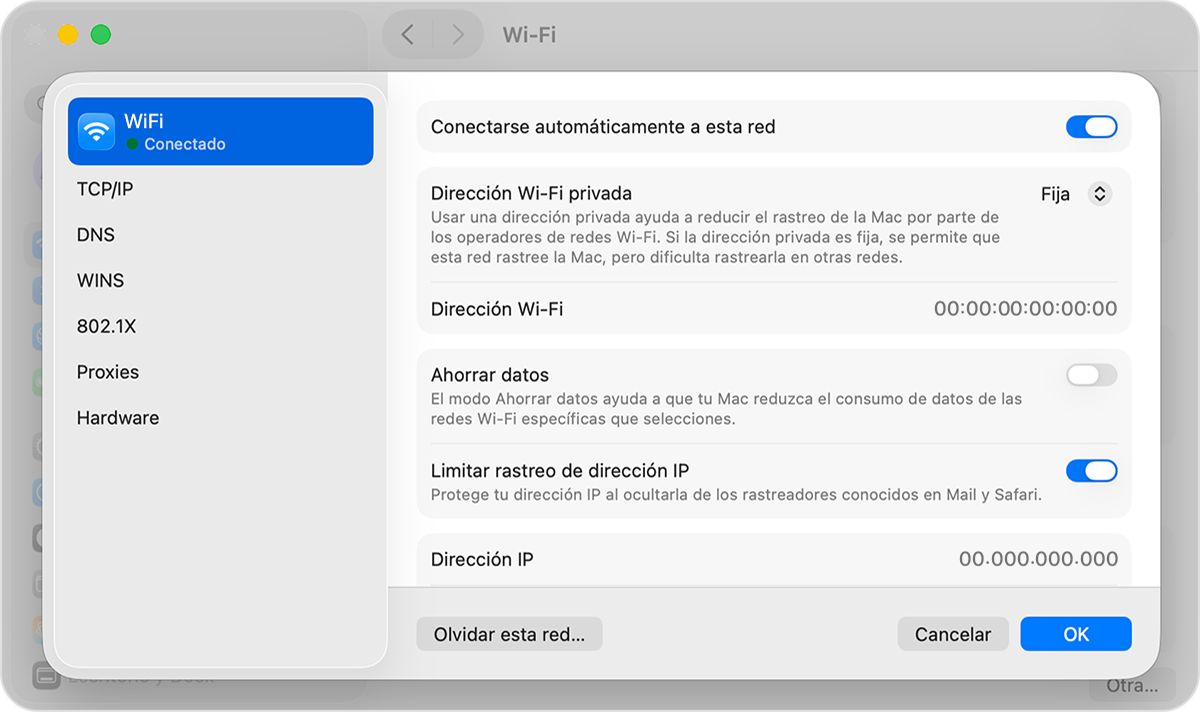
Another useful setting is the option to Hide your IP address from trackersBy enabling it, Safari will prevent certain scripts from linking your IP address to your browsing activity, making it harder to create profiles for targeted advertising.
Finally, Safari supports content extensionsThese include ad blockers. From Settings > Safari > Extensions, you can see which extensions you have installed, enable or disable them, and tap "More Extensions" to go to the App Store and download new ad blockers.
Keep iOS and apps always up to date
Updating the operating system isn't just about getting new features; it also includes Security improvements and protection against trackers and abusive adsVersion after version, Apple strengthens Intelligent Tracking Prevention (ITP) in Safari and other mechanisms that minimize the advertising footprint.
To check for pending updates on your iPhone, go to Settings > General > Software UpdateIf a new version is released, download and install it when you have WiFi and sufficient battery power or your charger handy.
These updates also help to third-party ad blockers and Safari extensions They function optimally, as many developers adapt their apps to the latest iOS versions and take advantage of new security APIs.
The same applies to other Apple products, such as the Mac: always install the latest versions of macOS, Safari, and other applications It reduces the likelihood that a malicious ad or fraudulent website will exploit old vulnerabilities.
Regarding apps, try to update them regularly from the App Store. Some bug fixes are intended to limit intrusive behavior or correct privacy problemsespecially in alternative browsers and security tools.
Block personalized ads and app tracking on iPhone
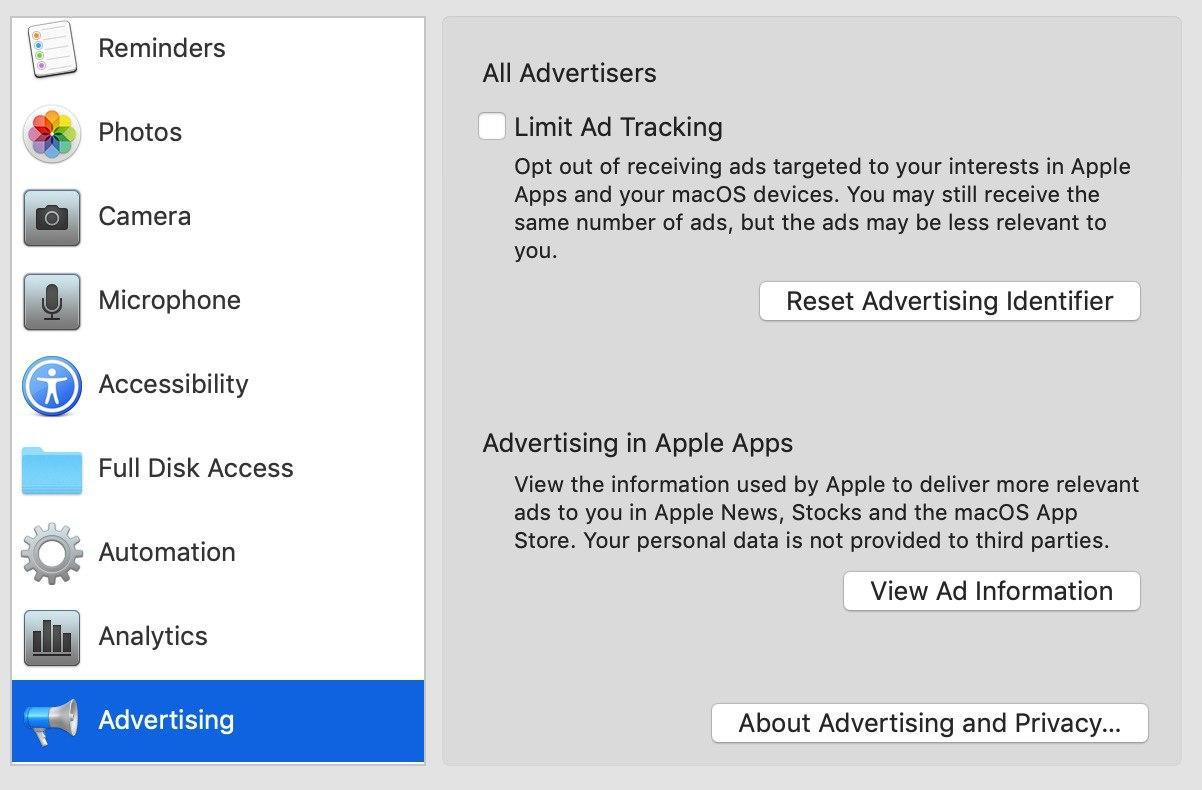
The ads you see on your iPhone can be more or less intrusive depending on the amount of data you share. iOS lets you limit Apple's personalized ads and control which apps can track your activity outside of them.
To reduce the personalization of Apple's advertising, go to Settings > Privacy & Security > Apple AdvertisingInside, turn off the "Personalized ads" switch. You'll still see ads in services like the App Store or Apple News, but they won't be as tailored to your profile.
This change does not decrease the number of ads, but it does prevent Apple from Combine your activity data to create such a detailed profile of yourself.It's a good way to regain some of your privacy while still using the Apple ecosystem.
The next step is to review the section Settings > Privacy and security > TrackingHere you can prevent apps from requesting permission to track your activity on other apps and websites. If you disable the main "Allow apps to request to track you" option, apps will stop showing that request and won't be able to use the advertising identifier in the usual way.
If you prefer more granular control, you can leave the request enabled and decide on a case-by-case basis Which apps can track you and which can't? It's advisable to be very restrictive, except with services you fully trust and that offer a clear justification for how they use that data.
Turn off location-based ads on iPhone
Many ads rely on your geographic location to show you local or highly contextual advertisingWhile such personalization might make some sense, it also involves sharing sensitive information about your movements.
If you want to cut off location-based advertising at the root, go to Settings > Privacy and security > Location services and turn off the main switch. By doing so, no app will be able to use your GPS, which limits location-based ads.
Keep in mind, however, that completely disabling Location Services will affect apps for maps, delivery, transportation, weather, and many more that depend on your position to function correctly.
A more balanced alternative is to review, within Location Services, the list of applications one by one and adjust each setting: Never, Ask next time, When using the app, or Always. You can be very strict with gaming apps, social media apps, or free utilities that don't really need to know your location to function.
This selective management allows you to Significantly reduce location-based ads without completely losing the convenience of those apps where geolocation does make sense.
Block ads in Safari: settings and extensions
If ads bother you most while browsing, Safari has several ways to reduce them to a minimumWe've already seen how to block pop-up windows, but you can go a step further.
In Settings > Safari, in addition to enabling “Block Pop-ups”, go to the options for Privacy and security And make sure "Prevent cross-site tracking" is checked. This will prevent many advertising networks from tracking you from page to page.
To further strengthen protection, you can use extensions and content blockers that work directly in Safari. From Settings > Apps > Safari > Extensions, tap on “More Extensions” and the App Store will open with a list of recommended ad blockers.
Once the blocker is installed, return to the same Extensions menu and Activate the blocking options within Safari.This usually involves allowing the extension to filter ads, trackers, social media elements, and other scripts that slow down pages.
Some blockers also offer whitelists so that allow ads on specific websites you want to supportMany websites rely on advertising, so it might be a good idea to allow them to display ads on trusted sites you visit frequently.
Choose recommended ad blockers for iPhone
In the App Store you'll find a good number of ad blockers, both free and paid. One of the best known is... 1BlockerIt allows you to filter ads, limit trackers, and restrict adult content. Its free version only lets you activate one blocking category at a time, so if you want complete filtering, you'll need a subscription.
Another interesting option is Firefox FocusA privacy-focused browser that includes tracker blocking and automatic history deletion. While not as heavily focused on ad blocking as some others, it offers a very clean browsing experience with no in-app purchases.
There are many more alternatives, such as OFGB to block adsso it's worth it Check reviews and ratings on the App Store Before you choose one, consider their transparency regarding the data they collect, the frequency of updates, and how easy they are to set up.
In any case, remember that ad blockers are not magic: Not all ads disappear completely.And on some websites, they can cause minor design flaws or prevent certain elements from loading. If a page isn't working properly, try temporarily disabling your ad blocker to see if that's the problem.
If you'd like to support your favorite sites, add those websites to your ad blocker's whitelist. That way you can browse relaxed on most pages and, at the same time, contribute to maintenance of the projects you truly value.
How to block ads within games and apps
One of the biggest headaches are the ads embedded in free games and appsespecially those full-screen videos that force you to wait several seconds or interact with advertising to continue playing.
The most direct solution is usually to pay the ad-free version or premium package offered by the game itself. If your goal is to avoid spending money, you have other options, albeit with certain limitations.
A basic measure consists of Cut off the internet connection when you're going to use a game that abuses ads, or Use your router to block ads throughout the house. Since most banners and videos require data or Wi-Fi, they will stop appearing if there is no connection.
To do this, you can activate the Airplane mode Open Control Center (by swiping down from the top right corner) and tapping the airplane icon. You can also manually turn off Wi-Fi and mobile data from the same panel or from Settings.
If you prefer something more refined, iOS lets you Turn off mobile data only for certain appsGo to Settings > Mobile data, scroll down to find the game or app you want to limit, and turn off its switch. This will prevent that app from using your data plan, although it will still show ads when you're on Wi-Fi.
What are ad blockers and how do they work?
Ad blockers are apps or extensions that, once configured, They analyze the content of web pages and the interfaces of apps to block anything that fits typical advertising patterns.
They function as a kind of filter between your iPhone and advertising serversWhen you load a page, the blocker checks the requests that the browser tries to make and cancels those that correspond to domains known to serve ads or trackers.
Many are based on filter lists updated periodicallywhich include rules to block banners, tracking scripts, social widgets, embedded video players and other elements that are usually related to advertising.
In some blockers you can adjust in quite detail. what type of content to block: ads only, ads + trackers, adult content, pop-ups, overlays, etc. The more aggressive the filtering, the cleaner the web will be, but it also increases the chances that something legitimate will stop working.
Ideally, you should try different levels of blocking until you find a balance point between comfort, privacy and usability of the websites and apps you use most.
Risks of adware and unwanted software on iPhone and Mac
Although iOS is fairly well protected against traditional malware, it can still be affected by adware and suspicious configuration profiles that modify your browsing experience and increase the number of ads you see.
The safest way to install apps on iPhone is always the Official App StoreAvoid downloading apps from ads, strange links, or third-party websites that promise "free" versions of paid apps or miracle tools to optimize your mobile.
In the case of Macs, the risk increases because you can install software from almost anywhere. Some download sites include, along with the program you want, additional components that generate advertising, toolbars, or browser changes without you even noticing.
If you notice that on your Mac they appear constant pop-up windows that don't disappearIf you notice strange changes in your Safari or Chrome search engine, or are constantly redirected to suspicious pages, you may have installed adware or some type of advertising-focused malware.
In these situations it is advisable choose reputable security tools to clean the system, check browser extensions, remove unexpected configuration profiles, and, if necessary, restore some settings to their original state.
Why are you getting so many ads on your iPhone?
If you feel like your iPhone has become an advertising display, it's usually due to a combination of Free apps, websites loaded with banners, and data tracking systems.
On the one hand, many apps and websites are financed almost exclusively by advertising. This means they include constant ads between game levels, before playing videos, or even in the form of notifications that appear when you least expect them.
On the other hand, advertisers use tracking technologies that collect information about you browsing history, searches, social media activity, and app usageWith this data, they create a very detailed profile that allows them to show you ads tailored to your interests, but it also puts you in the crosshairs of very persistent campaigns.
You'll probably especially notice the advertising in social media platforms like how to block ads on FacebookInstagram, TikTok, or X. These apps rely on ads targeted by age, location, interests, and behavior, and often repeat the same ad over and over until you interact with it.
In some cases, an unusual number of pop-ups or strange banners may indicate the presence of adware or a malicious profileIf you suddenly start seeing ads even on sites that didn't show them before, or if your browser is redirecting you to strange pages, it's a good idea to carefully review which apps you've recently installed and what permissions they have.
To reduce personalized ads from Apple, remember to go to the Apple Advertising section and disable “Personalized ads”By combining this adjustment with a good ad blocker and changes to Safari, the volume of advertising should decrease noticeably.
How to disable or unblock ads when you need to
You may encounter situations where you are interested view ads on a specific website (for compatibility or to support the site) or with loading problems that are only solved by temporarily disabling the blocker.
If you use an ad-blocking app, you should be able to Disable it from its own settings Or you can simply uninstall it like any other app. Once you disable it, the ads will reappear as normal.
In Safari, if you only want to allow pop-ups on a specific website, you can adjust website settings You can disable "Block Pop-ups" from the browser itself or from Safari's settings on your iPhone. Disabling "Block Pop-ups" will cause pop-ups to reappear on all pages.
The trick is to remember that you can always reverse any changes and restore the lock as soon as you have finished the task that required viewing those advertising elements, whether it was downloading a file, completing a form, or accessing an online tool.
By using a combination of iOS privacy settings, Safari options, content blockers, and a little common sense when installing apps and tapping links, you can keep annoying ads and abusive tracking in the background, enjoy much smoother browsing, and keep your iPhone much better protected from scams, intrusive pop-ups, and over-the-top advertising campaigns.

Editor specialized in technology and internet issues with more than ten years of experience in different digital media. I have worked as an editor and content creator for e-commerce, communication, online marketing and advertising companies. I have also written on economics, finance and other sectors websites. My work is also my passion. Now, through my articles in Tecnobits, I try to explore all the news and new opportunities that the world of technology offers us every day to improve our lives.