- Check that the model supports images.
- Try a simple, compatible file.
- Use the SDK or the corresponding endpoint schema.
- Avoid modifying the internal chat JSON.

If LM Studio won't let you attach images, or the model responds as if it hasn't received them, start by checking which model you have loaded. The application can work with vision models, but A model that only supports text does not acquire that capability by adding a file..
It's also important to distinguish between chat failures and problems sending images from a script. The most useful test is to use a simple image and check each method separately before modifying settings or reinstalling the program.
Verify that the uploaded model supports images
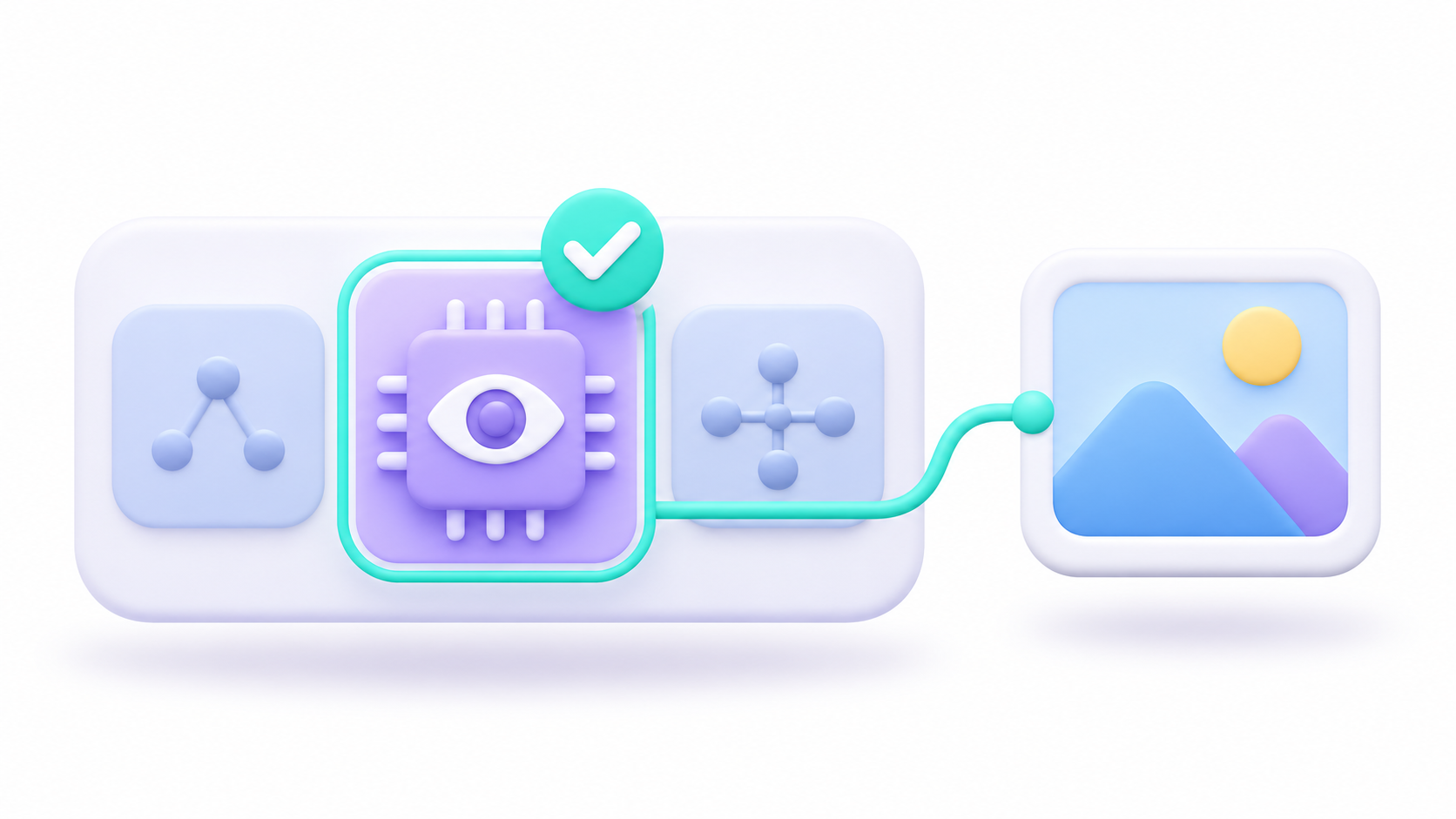
To interpret photographs, screenshots, or scanned documents, you need a vision and language model, also called VLMIt's not enough for the name to belong to a well-known family: check the variant and its capabilities before downloading it.
- Check the exact name of the selected model in the chat.
- Check its specifications to confirm that it supports image input.
- If you need another model, look for it in Discover and choose a distribution compatible with LM Studio.
- Upload it and try it with a single image and a simple request, such as describing the objects that appear.
The built-in search engine lets you find models by name or by their repository address on Hugging Face. To open Discover, you can use Ctrl + 2 in Windows and Linux, either Cmd + 2 on Mac.
If a manually imported download fails, first compare the result with a distribution obtained from the application's search engine. This helps distinguish a problem with the model's package from a bug in your code.
Test the file and check the image input settings
As a diagnostic test, use a small image that you can open correctly with the system viewer. The documented formats for server image input are: JPEG, PNG and WebP.
If the original file uses a different format, actually export it to PNG or JPEG. Simply changing the extension will not convert its content.
Also check what the error means exactly:
- You cannot select or attach the image: Check the loaded model and reproduce the problem in a new chat.
- The submission resulted in an error: Keep the entire message and try another simple file.
- The image is processed, but the small text is misinterpreted: Check the input resolution and try cropping the important area.
LM Studio has image adjustments in Settings > Chat > Image InputsThe application has incorporated changes in both resizing and visual processing, so it's advisable to check the release notes if you're using an older installation.
Reducing the size of a large image can be a useful test if it fails, but it can also impair the readability of small print. Compare both results before setting a permanent limit.
How to send an image from Python without editing internal chats

To automate the analysis, use the Official Python SDKYou can install or update it in your project environment:
python -m pip install --upgrade lmstudioWith LM Studio running and a downloaded vision model, this example prepares the file and incorporates it into the message:
from pathlib import Path
import lmstudio as lms

ruta = Path("imagen.png").resolve()

if not ruta.is_file():
    raise FileNotFoundError(f"No existe la imagen: {ruta}")

modelo = lms.llm("IDENTIFICADOR_DEL_MODELO_CON_VISION")
imagen = lms.prepare_image(str(ruta))

chat = lms.Chat()
chat.add_user_message(
    "Describe los elementos principales de esta imagen.",
    images=[imagen],
)

respuesta = modelo.respond(chat)
print(respuesta)
Replace the identifier with your model's identifier and place a valid image in the specified path. The example first checks that the file exists to avoid confusing a location error with a view failure.
Writing the path in the message text does not attach the file. In this workflow, the image is prepared with prepare_image() and is incorporated through the argument images.
If you encounter a connection error, check your installation's host, port, and authentication settings before modifying the file. The client configuration must match the server you are trying to connect to.
If you are using HTTP, check the endpoint and its scheme

The native LM Studio API and the OpenAI-compatible interface use different structures. Don't mix their fields within the same request.
En POST /api/v1/chatThe entry can include a block of text and another of image with this structure:
{
  "model": "IDENTIFICADOR_DEL_MODELO_CON_VISION",
  "input": [
    {
      "type": "text",
      "content": "Describe esta imagen."
    },
    {
      "type": "image",
      "data_url": "data:image/png;base64,BASE64_REAL_DEL_ARCHIVO"
    }
  ]
}
This JSON is a template: you must replace the identifier and the base64 encoding. The MIME type of the prefix must correspond to the actual file. In this endpoint, data_url It contains the full data URI.
To use HTTP, activate the server from the development section or with lms server startIts default address is http://localhost:1234Add the corresponding authentication if you have it enabled.
If your application uses /v1/chat/completionsConsult the schema of that interface. The preceding block belongs to the native API and should not be copied without adaptation to another endpoint.
Avoid modifying internal files as a general solution.

LM Studio saves conversations in JSON and allows you to locate their files from the chat's context menu. However, its documentation It advises against editing them manually or relying on their structure..
Therefore, creating files in internal folders or rebuilding their metadata is not a recommended solution for a common attachment problem. A procedure discovered for a specific version may stop working after an update.
To prepare a reproducible incident report, note the LM Studio version, the exact model, the image format and dimensions, the path used, and the complete error message. Test with a file containing no personal data that you can share. This comparison allows you to investigate the error without altering your saved conversations.

I am a technology enthusiast who has turned his "geek" interests into a profession. I have spent more than 10 years of my life using cutting-edge technology and tinkering with all kinds of programs out of pure curiosity. Now I have specialized in computer technology and video games. This is because for more than 5 years I have been writing for various websites on technology and video games, creating articles that seek to give you the information you need in a language that is understandable to everyone.
If you have any questions, my knowledge ranges from everything related to the Windows operating system as well as Android for mobile phones. And my commitment is to you, I am always willing to spend a few minutes and help you resolve any questions you may have in this internet world.