
Proton Pass is one of the best and most secure password managers available, and it recently received a major update. You can now organize your passwords into folders and subfolders with Proton Pass, a feature users of the platform have been requesting for some time. Here's how. What has changed, how to take advantage of this new feature and what limitations it has.
How to organize your passwords into folders and subfolders with Proton Pass
For years, password managers have solved the problem of remembering credentials, but they may have created another: chaos. Especially when you accumulate hundreds of logins, email aliases, secure notes…the list becomes a maze. With this in mind, it's now possible to organize your passwords into folders and subfolders with Proton Pass.
Proton is one of the most complete and secure alternatives to Google services: email, cloud, calendar, document editors, authenticatorpassword manager, VPN, video calls and even AI assistantRecently, their password manager, Proton Pass, received an update that introduced improvements in organization.
Until now, Proton Pass exclusively used the concept of "vault" or "safe" as an organizational unit. A safe is an encrypted container that groups several items and allows you to share them with others. The problem is that creating a new safe just to separate, for example, the five streaming accounts from the twenty work tools, ended up cluttering the sidebar.
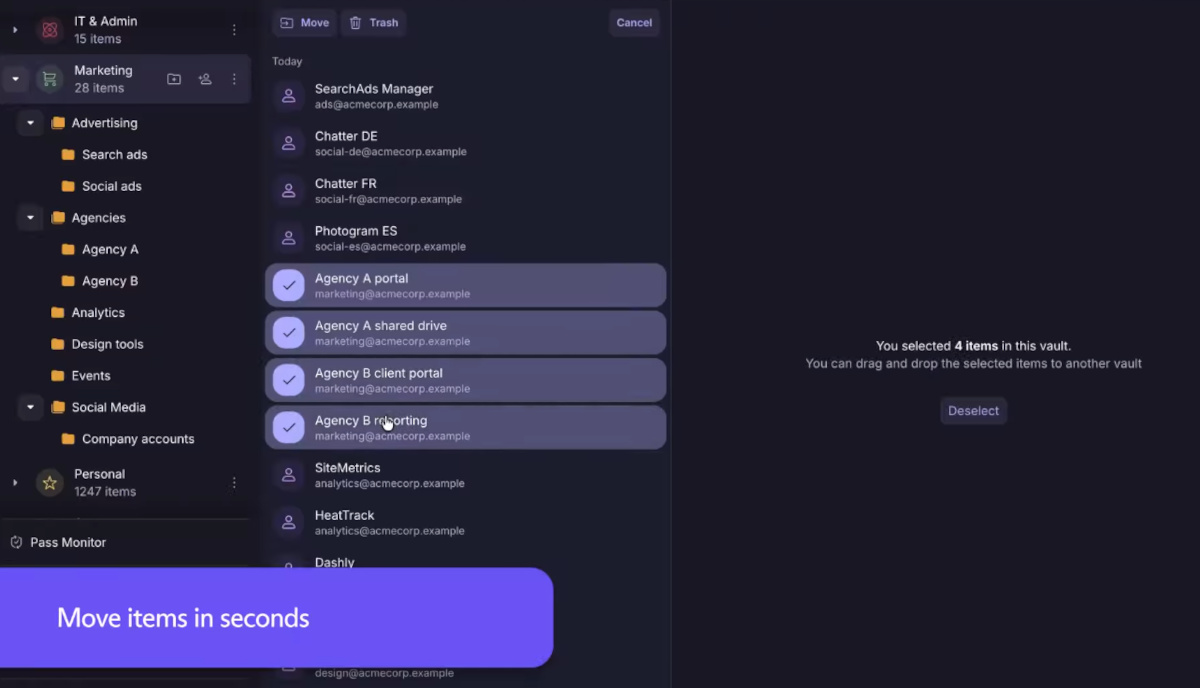
The solution? Folders are designed to solve exactly that problem. What they do is allow group items within the same safe without needing to create a new oneWithin each folder, you can create subfolders to organize items hierarchically. You can also drag and drop items between folders and even between vaults, and perform specific searches within a folder and subfolder without scanning the entire database.
Requirements for organizing your passwords into folders and subfolders with Proton Pass
The update is fantastic, but it's not available for all user accounts. Organize your passwords into folders and subfolders with ProtonPass It is not available on the free plan or in Pass Essentials.To use it, you need a paid subscription: Proton Pass Plus, Proton Pass Family, Proton Unlimited, or business plans like Proton Pass Professional or Proton Workspace.
If you have a free accountYou can use folders that someone with a paid plan has created in a shared vault with you. But you won't be able to create your own. Thinking about it, this feature is geared more towards businesses or individuals who manage a huge number of passwords and other items. Let's see how to use this new feature.
How to create your first folder structure in Proton Pass

Organizing your passwords into folders and subfolders with Proton Pass is simple and intuitive. It works on both... browser extension as in the mobile apps and the web appThe first thing to do is open Proton Pass and select the safe where you want to organize your items.
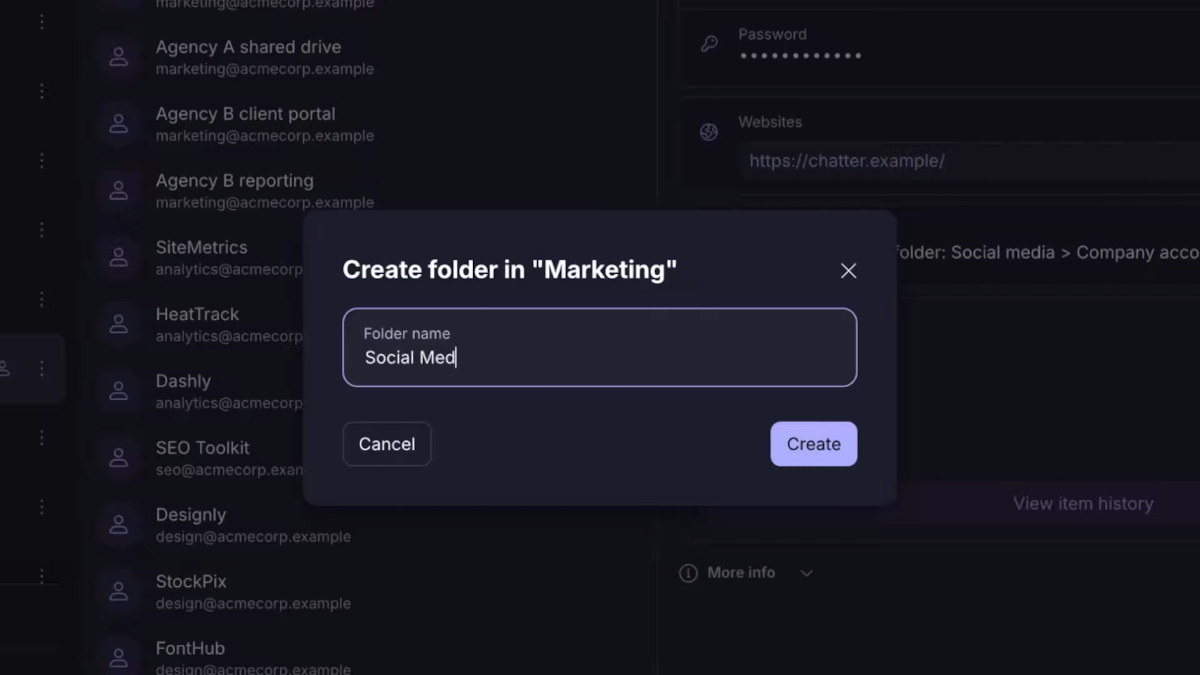
Within it, click on the option to Create new folder (a folder icon with a plus sign). Immediately, a floating window opens with a text field to name the folder. Give it a descriptive name and click Create: the folder is then placed inside that safe.
And once the main folder has been created, You can create subfolders within it by repeating the operationThe idea is to design a structure that allows you to identify the main categories of items and passwords. Some examples for folders and subfolders are:
- Job: subfolders for "Development Tools", "Communication Platforms" or "Billing Services".
- Personal finances: subfolders for "Banking", "Investments" and "Leisure Subscriptions".
- Social networks: subfolders for "Primary Accounts" and "Secondary or Test Accounts".
- Shopping: subfolders for "Regular stores" and "Occasional purchases".
Once the structure is created, all that remains is to organize your passwords into folders and subfolders with Proton Pass. The advantage is that you can drag items directly From the main safe view, you can move items to the appropriate folder or subfolder. And if an item changes category, you can move it without any problem.
Ideas for organizing your passwords into folders and subfolders with Proton Pass
Creating folders is easy; the hard part is keeping them useful over time. While this feature is brand new, it's possible to think about how to optimize its useHere are some recommendations for organizing your passwords into folders and subfolders with Proton Pass.
First, Don't turn folders into disguised safesIt's true you can create as many subfolders as you want, but it's not a good idea to go too deep. You could end up with such a deep structure that finding something will require more clicks than before. A suggestion? Try not to create more than two or three levels deep.
Another useful idea is take advantage of contextual searchThis is a very useful feature, as it allows you to filter and search within a folder and its subfolders. So you don't need to remember the exact name of the item. For example, you open the "Work" folder and search for "jenkins" to see all the credentials related to that server, even if they are in different subfolders.
Separate shared items from private ones before organizing
This suggestion for organizing your passwords into folders and subfolders with Proton Pass deserves its own section. It's important to remember that Each folder automatically inherits the sharing settings of the safe that contains it.For now, it is not possible to share an individual folder independently; Proton has said that this feature is on their roadmap.
Therefore, If you share a safe, any folders you create inside will be visible. for all members of that safe. So, if you have credentials you don't want to expose to anyone, keep them in a separate, non-shared safe. That's right: before organizing, separate what's shared from what's private.
In conclusion, organizing your passwords into folders and subfolders with Proton Pass is a much-needed bonus. It's undoubtedly a great help to anyone who has accumulated more than fifty items in its managerNow you can design a simpler structure by dragging and dropping items into folders and subfolders.

From a young age, I've been fascinated by all things scientific and technological, especially those advancements that make our lives easier and more enjoyable. I love staying up-to-date on the latest news and trends, and sharing my experiences, opinions, and tips about the devices and gadgets I use. This led me to become a web writer a little over five years ago, focusing primarily on Android devices and Windows operating systems. I've learned to explain complex concepts in simple terms so my readers can easily understand them.