
The Windows 11 Widgets panel is very useful if you want Check the weather or the news with a single glance. However, the fact that it opens automatically when you barely touch the icon with the mouse is very annoying and can interrupt your workflow. Fortunately, Preventing Windows 11 widgets from opening when you hover the mouse over them is very easy.Next, we'll explain how it's done.
How to prevent Windows 11 widgets from opening when you hover over them

Preventing Windows 11 widgets from opening when you hover over them is necessary if You constantly open this panel accidentallyDoing so will help keep your desktop clean, optimized, and distraction-free while you work, browse, or play. You can easily disable this behavior directly from this panel's settings in Windows 11.
Steps to prevent Windows 11 widgets from opening when you hover over them
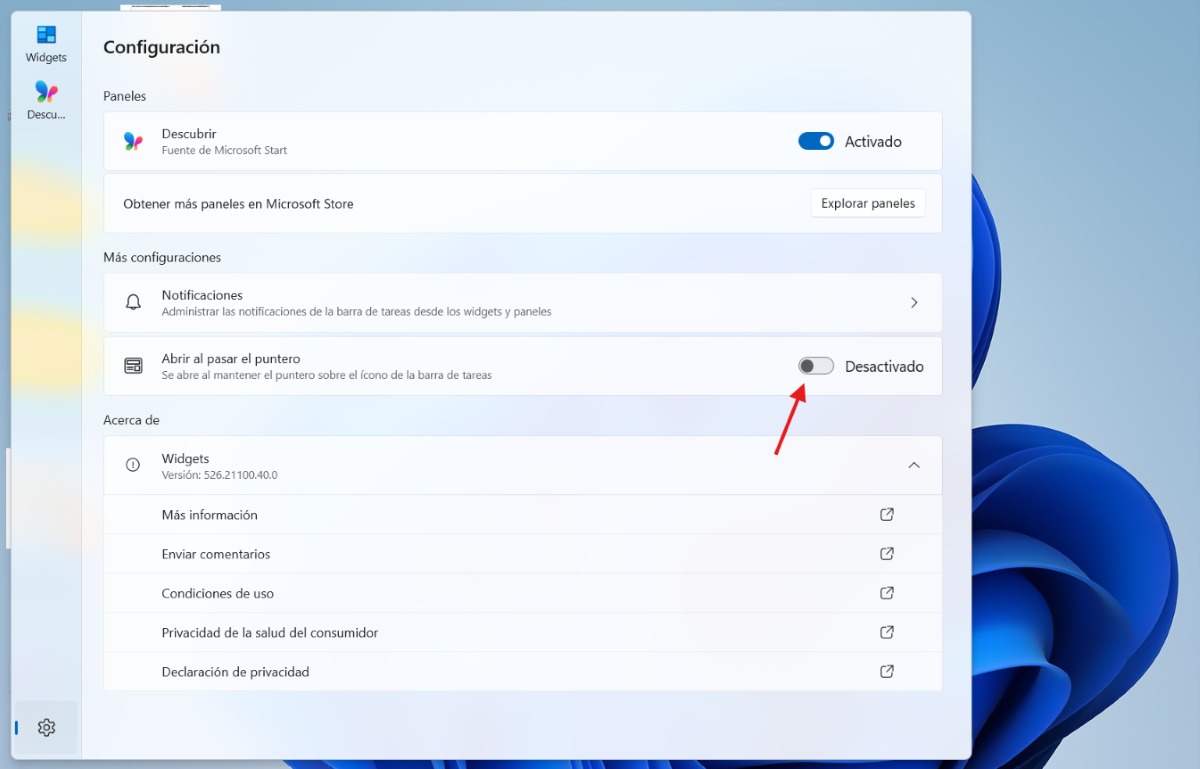
Follow these Steps to prevent Windows 11 widgets from opening when you hover the mouse over it:
- Open the Widgets panel: Click on the Widgets (or weather) icon located in the taskbar. Press the Windows + W key combination or simply hover your mouse over the icon and it will open (which is what we want to prevent).
- Access Settings: Within the Widgets panel, click on the gear icon to enter Settings.
- Disable opening on mouse hover (pointer, cursor): Look for the "Open on hover" option and change the switch to Off.
Check the result: Hover your mouse over the weather icon in the taskbar and leave it there for a few moments. The panel should no longer open automatically; from now on, it will only open when you click directly on the icon.
How to permanently remove widgets from the taskbar
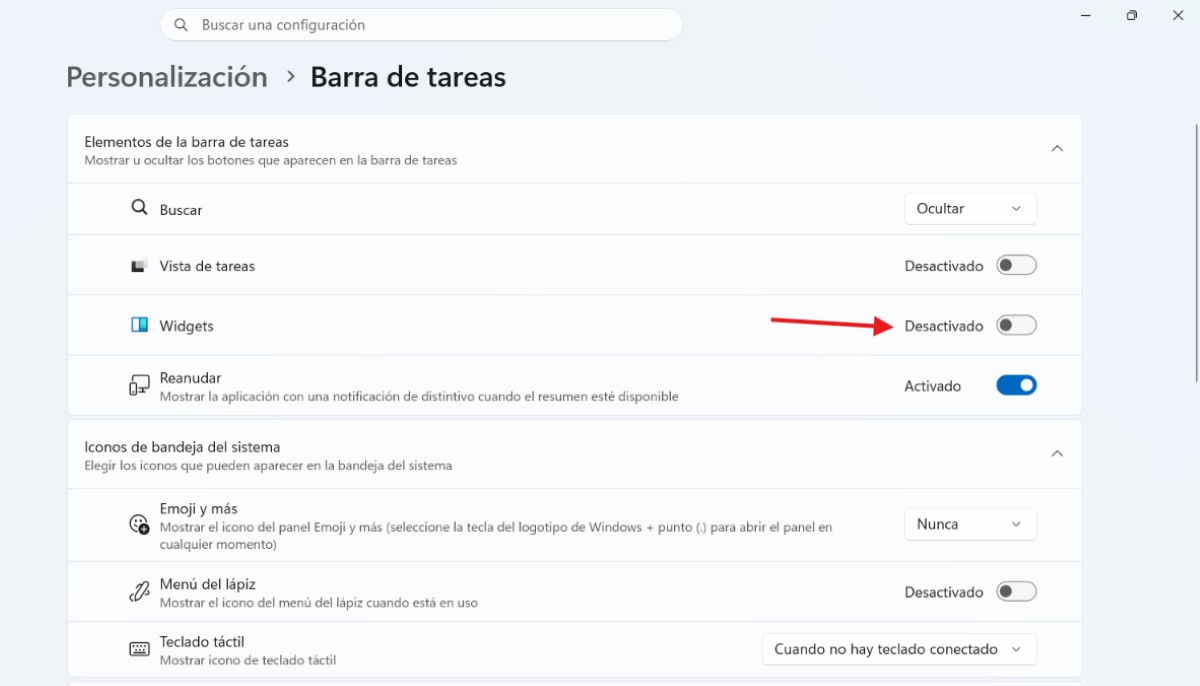
But what if you prefer Remove shortcuts to widgets To prevent any accidental openings? Besides preventing Windows 11 widgets from opening, you can completely hide the taskbar button. When you do this, the panel will no longer occupy visible space, although you can still open it whenever you want using the Windows + W keyboard shortcut. To remove it permanently, follow this path:
- Open the taskbar settings: Right-click on any empty space on the taskbar and tap on Taskbar settings.
- Disable Widgets: Look for the option Widgets within the list of items and change the switch to Deactivated.
Check the result: Look at the corner of the taskbar. The weather widget icon should have completely disappeared. If you ever want to show it again, don't worry, the process is reversible; just repeat these steps and turn the switch back on.
Why prevent Windows 11 widgets from opening when you hover the mouse over them?
So why do some users prefer to prevent Windows 11 widgets from opening when they hover the mouse over them? The truth is, this feature (known as "hover") is a bit... uncomfortable and annoying for many for several key reasonsThese are the main ones:
- Accidental openings: This is the most common reason. We usually move the mouse around the entire screen. If we move it to the bottom left corner (or the center, depending on where the weather icon is), it's common to hover the pointer over it without intending to open it, and this interrupts navigation.
- Unnecessary consumption of resources: Every time the Widgets panel opens, it loads real-time information such as news, weather, sports, and traffic. This generates unnecessary RAM and CPU usage in the background.
- Visual distractions and unsolicited news: This section typically includes news headlines and content from Microsoft that may be unimportant to you or intrusive to your work environment.
- Interruption of your activities: Preventing Windows 11 widgets from opening when you hover over them prevents the panel from suddenly covering part of the screen while you're working or playing.
- Saturation and small monitors or laptops: On a small screen like a laptop, the widgets panel takes up a lot of space (more than half the screen), forcing you to click elsewhere to close it.
Other recommendations to avoid unnecessary distractions
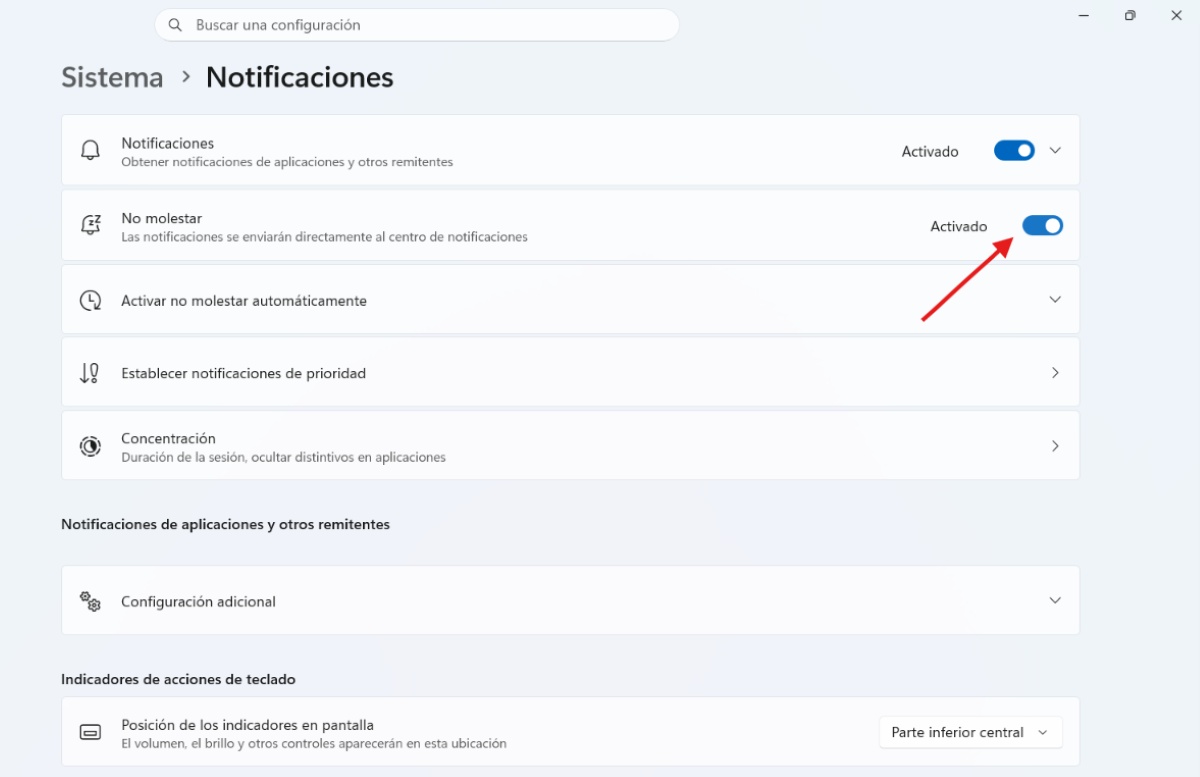
In addition to preventing Windows 11 widgets from opening when you hover over them, you can apply some Key adjustments to maintain a focused work environment and avoid annoying visual interruptions. Here are some practical ideas:
- Activate Concentration mode: Click on the date and time or the notification center and activate the section for ConcentrationThis disables alerts, stops app blinking, and temporarily silences notifications.
- Activate Do Not Disturb: Go to Settings – System – Notifications and turn on Do Not Disturb. Set up automatic rules to activate it in specific situations, such as when you mirror your screen, while playing games, or at certain times.
- Clean and hide the taskbar: Right-click on the taskbar and select Taskbar Settings.
- Hides the Search box, the Task View button, and Copilot.
- Enable the Automatically hide taskbar option if you prefer to use all the screen space.
- Turn off notification badges for apps to avoid the temptation to constantly and impulsively check them.
- Disable notifications from third-party apps: From Settings – System – Notifications, look at the list of applications and disable alerts for non-essential applications.
In conclusion, prevent Windows 11 widgets from opening when you hover over them. It's a small adjustment that noticeably improves your experienceWith this change, you avoid annoying interruptions, reduce resource consumption, and regain full control over when and how to access that information.
Index

From a young age, I've been fascinated by all things scientific and technological, especially those advancements that make our lives easier and more enjoyable. I love staying up-to-date on the latest news and trends, and sharing my experiences, opinions, and tips about the devices and gadgets I use. This led me to become a web writer a little over five years ago, focusing primarily on Android devices and Windows operating systems. I've learned to explain complex concepts in simple terms so my readers can easily understand them.