We're going to tell you how to prevent multiple Outlook rules from affecting the same email. We'll see how you can change the priority order We'll discuss rules for better organization. We'll also talk about how to activate the "Stop processing more rules" option, as well as other helpful ideas to declutter your email.
Prevent multiple Outlook rules from acting on the same email

If you use Outlook as your primary email service, you surely know how important it is to organize your inbox. Messages from work, family, and services and subscriptions can easily get mixed up and lost. With this in mind, the Outlook rules They are a very useful tool for automate the organization of all that chaos.
An Outlook rule is a automated instruction This tells the program what to do with emails that meet certain predefined conditions. For example, you can set it so that if the word "invoice" is in the body of an incoming email, it is forwarded to the "Accounting" folder. Or you can specify that a message is marked as read, archived, or deleted if it meets a certain condition.
The advantage is that You can create as many rules as you need Outlook is designed to automatically sort emails. However, problems arise when a message arrives that meets multiple criteria from different rules. These rules then compete for the same message, ultimately archiving it in the wrong folder or even deleting it. This raises the question: how can you prevent multiple Outlook rules from affecting the same email?
First: Use the "Stop processing more rules" switch

To prevent multiple Outlook rules from affecting the same email, you need to activate the "Stop processing more rules" switch. This will... When a specific rule is successfully applied to a message, all other rules for that message will be ignored..
Let's explain it with a example It's simple. Imagine you have a rule called "Projects" that moves all emails from your boss to the "Urgent" folder. Below that, you have another rule called "Attachments" that automatically deletes any messages with large attachments to avoid cluttering your inbox. But what if your boss sends you an important email with a 20MB PDF attachment?
Outlook executes the first rule: the email is moved to "Urgent." But immediately afterward, it executes the second rule: the email, which is already in "Urgent," is deleted. What a mess! This doesn't happen if you activate the "Stop processing more rules" switch. By doing so, you prevent multiple Outlook rules from acting on the same email. In the example, After applying the first rule, the second is ignored..
Prevent multiple Outlook rules from affecting the same email in the new Outlook and Outlook web
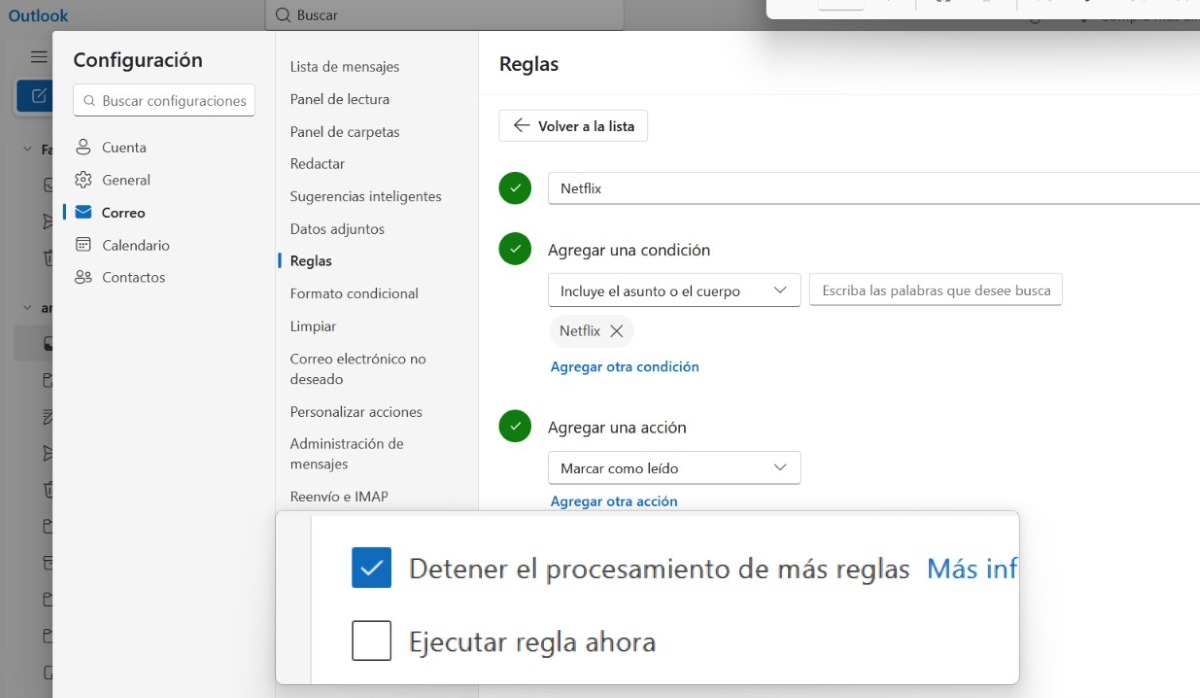
If you are using the latest version of Outlook for Windows, Mac or the web version (Outlook.comThe process is quite straightforward. You need to go to the rules settings and edit the one that acts as the first barrier.
- At the top right of the page, click on the three horizontal dots and select Configuration.
- Go to Mail and then to Rules.
- Find the rule you want to have the final say (for example, the "Projects" rule that handles the boss's emails). And select Edit.
- In the rule options, find and check the box Stop processing more rules.
- Save the changes.
This checkbox prevents multiple Outlook rules from affecting the same email. So, if the boss's email with the PDF falls under the "Projects" rule, Outlook will move it to "Urgent" and it will stop thereThe attachment deletion rule will never be executed for that message, saving it from being deleted.
Second: Design a better hierarchy of rules
The "Stop processing more rules" option prevents multiple Outlook rules from affecting the same email. However, it will be ineffective if... You design a hierarchy of rules that is logicalThe general recommendation is to place the most specific rules at the top of the list and the most general ones at the bottom. Let's look at another example.
If you have a rule that says "Move all mail from [email protected] "To the trash," that should be very specificBut if you have one general rule The rule that says "Move all emails containing the word 'invoice' to the 'Accounting' folder" should be used with caution. If the spam rule is first and has the stop box checked, spam emails containing the word "invoice" will end up in the trash (correct).
However, if the accounting rule is set to "up" and there's no hold, the email will go to Accounting and then to the trash (incorrect). Therefore, the golden rule is: Place the rules you want to have absolute priority at the top and activate stopping on them.Leave the general organizational rules (such as "move") newsletters to the reading folder" below and without stopping. This will act as a safety net for everything that wasn't captured by the upper filters.
Another thing: It is not advisable to activate the stop box on too many rules.If you place this option in a very general rule at the top of the list, you could inadvertently block other useful rules from running. It's best to reserve it for exclusion or routing rules, provided you're certain you don't want anything else to happen to that email. This is the smartest way to prevent multiple Outlook rules from acting on the same email.
You can prevent multiple Outlook rules from acting on the same email.

It's that easy to prevent multiple Outlook rules from affecting the same email! The next time you set up a rule to move important emails, ask yourself what might happen if another rule also tries to act on that message. If you conclude that You don't want anything else to touch that email., then activate the stop box.
And don't forget: Take five minutes to review the order of your rules Activate this option in the higher-level rules. Outlook is a very powerful tool, but its power lies in the precision of its instructions. If you take the time to fine-tune the details, your inbox and your peace of mind will thank you.
Index

From a young age, I've been fascinated by all things scientific and technological, especially those advancements that make our lives easier and more enjoyable. I love staying up-to-date on the latest news and trends, and sharing my experiences, opinions, and tips about the devices and gadgets I use. This led me to become a web writer a little over five years ago, focusing primarily on Android devices and Windows operating systems. I've learned to explain complex concepts in simple terms so my readers can easily understand them.