
On Android devices, search trends They are those popular queries that other users are asking at that moment. Are tendencies They can be useful for discovering what topics are of general interest, but they can also be a distraction or invade the privacy of your search.
Goodbye to search trends on Android
Eliminating search trends has several benefits. Protect your privacy, allows for a more search experience personalized and avoid exposure to irrelevant or unwanted content. Furthermore, it eliminates possible distractions and helps maintain focus on your specific search objectives.
Steps to disable search trends on Android
Follow these steps to turn off search trends on your Android device:
The first step: Open the Google application
First, open the app Google on your Android device. This application is generally represented by the colorful "G" icon.
Access the settings
In the lower right corner of the screen, tap the icon Further (three vertical dots) and select Configuration in the drop-down menu.
Enter the "General" section
Within the settings menu, find and select the option General. This is where you can find various customization options for your Google app.
To finish: Turn off search trends
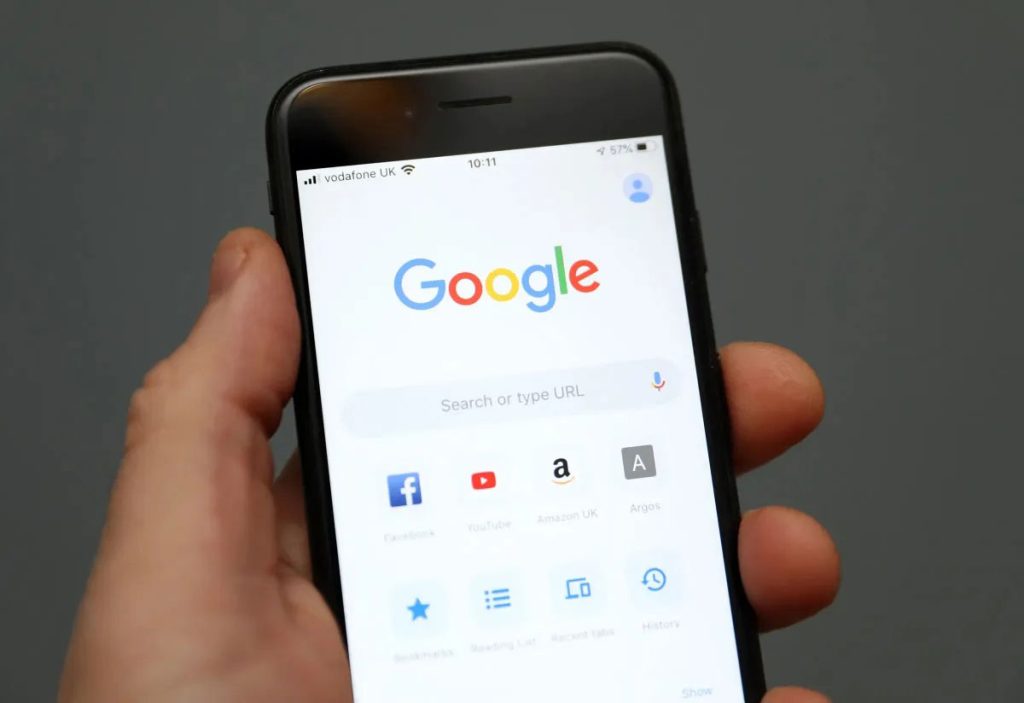
In the section of GeneralLook for the option Autocomplete with search trends and deactivate it. This will prevent search trends from appearing when you use the Google search bar.
Additional privacy settings
To further improve your privacy, consider adjusting other settings within the Google app and your Google Account. Here are some additional recommended settings:
| Configuration | Description |
|---|---|
| Web and application activity | Control whether Google saves your activities on websites and apps to personalize your experience. |
| Location history | Manage whether Google can save and use your location history to provide more accurate recommendations. |
| Activity management | Review and delete activities saved in your Google account to maintain your privacy. |
Alternative browsers new horizons
Consider using alternative browsers that offer more control over your search data. DuckDuckGo y Brave They are popular options that prioritize user privacy. These browsers do not track your searches or display search trends unless you allow it.
Managing search trends in other services
In addition to Google, other search services such as Bing y Yahoo They can also show search trends. Here's how to turn them off for these services:
Bing without trends: Your search, your control
For Bing, open the app Bing on your device, access Configuration, and look for the option Search trends to deactivate it.
Yahoo tailored to you: Redefine your results
For Yahoo, open the app Yahoo Searchgo to Configurationand disables the option Search suggestions.
Personalizing the search experience
Personalizing your search experience not only means turning off search trends, but also adjusting the settings to best suit your needs. This includes managing the personalized results, adjust the language preferences and modify the security settings.
Benefits of a personalized search experience
A personalized search experience gives you faster access to relevant information, improves efficiency of your searches and provides more results precise y useful. Additionally, it reduces the noise digital, allowing you to focus on what really matters.
Your privacy in searches: Stronger than ever
Managing and removing search trends on Android is a simple but crucial process to improve your search experience. By following these steps, you can ensure that your searches are more private, relevant, and free of unwanted distractions.

I am Sebastián Vidal, a computer engineer passionate about technology and DIY. Furthermore, I am the creator of tecnobits.com, where I share tutorials to make technology more accessible and understandable for everyone.