
If you've been using your Gmail account for several years, you've probably logged into more than one app or service with it. Sometimes, we think that using the Gmail account for everything is much simpler and faster. But is it safe? What does it mean to have a Gmail link with other accounts? Is it possible to remove Gmail links to social media accounts? Let's see.
Are you thinking about removing Gmail links to social media accounts, but you don't know if it's possible? You'll be happy to know that, In addition to being possible, it is very simpleTo do this, you have to log into your Google profile, go to the “Manage your account” section and click on Security. Then, you have to locate the social network you want to unlink, delete the access with Google and that’s it.
How to remove Gmail links to social media accounts?
Before removing Gmail links to social media accounts, it is good to understand the benefits of these affiliationsOn the one hand, they allow you to unlock useful features that you wouldn't have access to with a regular account. On the other hand, they share data that is necessary to provide you with a more personalized service and information that is more relevant to you.
Now, what if you don't know how many third-party apps or services are linked to your Gmail account? Finding out is very easyIn fact, once you access this information, you can decide whether to remove Gmail links to social media accounts or leave some of these third-party services affiliated with your account.
Steps to remove Gmail links to social media accounts
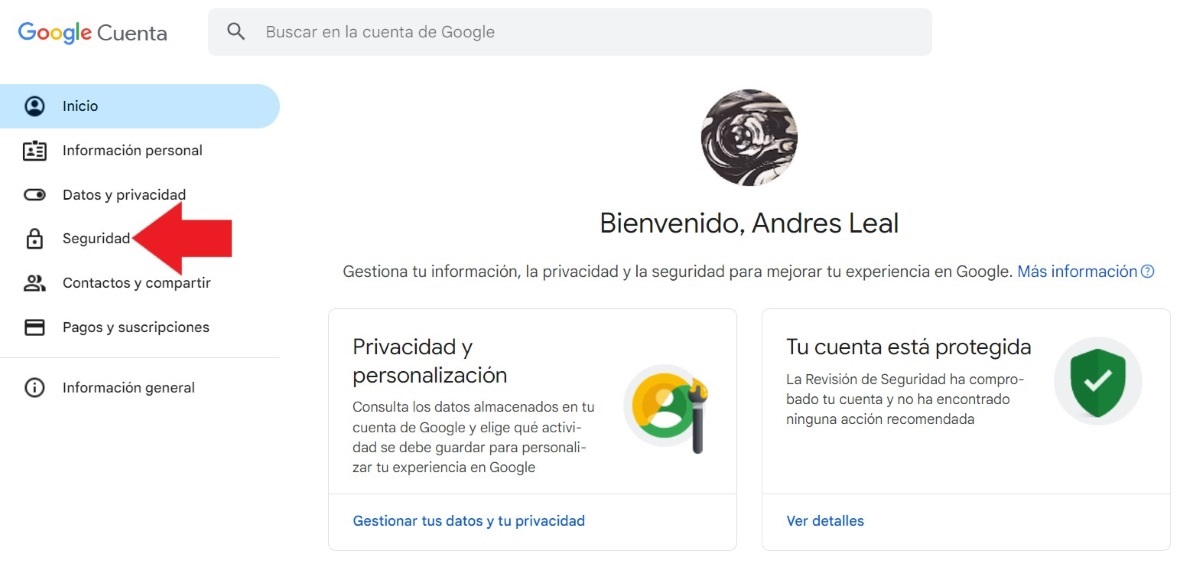
On other occasions we have seen How to unlink one Google account from another. On this occasion, we will teach you how to find the social media accounts or applications in which you have logged in with your Google account. At the same time, we will leave you the Steps to remove Gmail links to social media accounts once and for all:
- Log into your Gmail account and Tap on your profile picture (You can also do this from Chrome by tapping on your profile picture).
- If you're in Gmail, tap on Google Account or Manage or Manage your Google account from Chrome.

- Now it's time to Security.
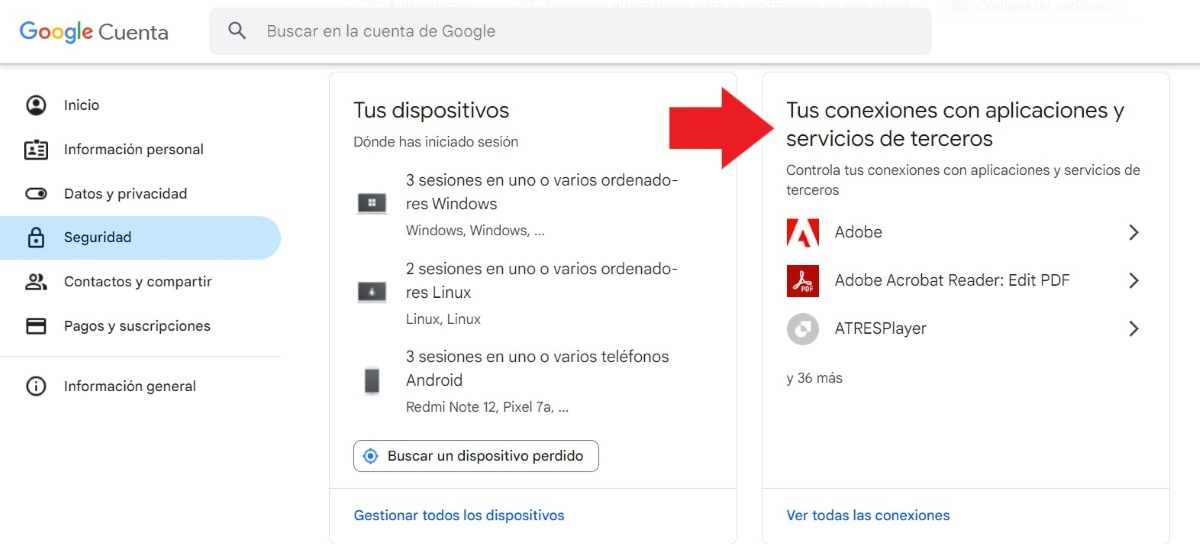
- Swipe until you find the entry “Your connections to third-party apps and services"

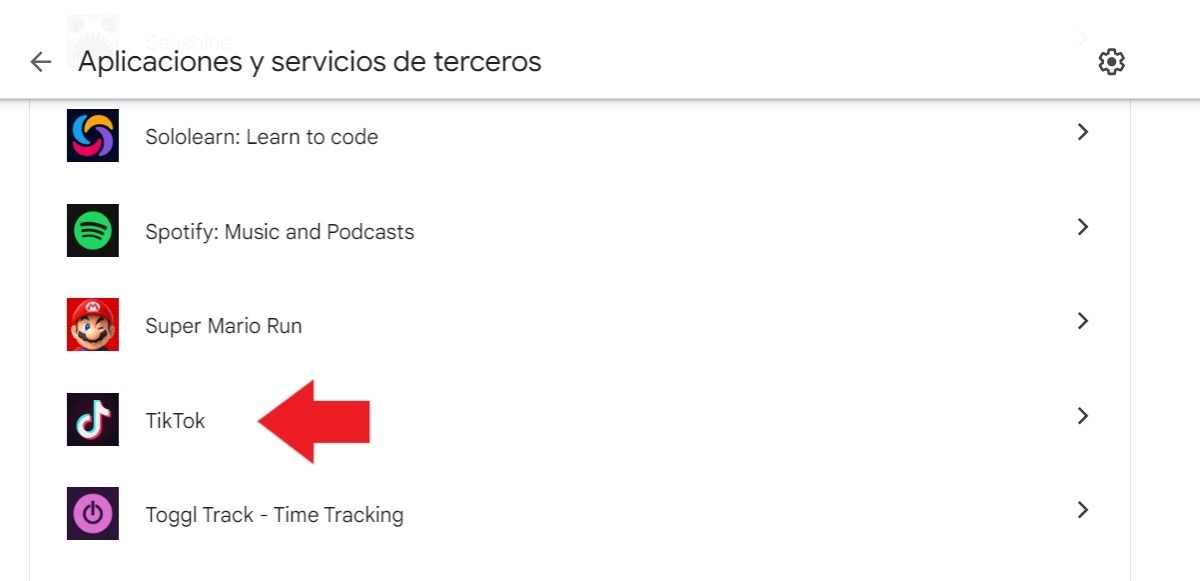
- Tap on See all connections to see the List of apps and services linked to your account from Gmail.
- Select the social network you want to unlink from your account.

- Click on the option “Delete all connections you have with (the social network in question)”.

- A pop-up window will open to confirm that you want to remove the social network link with Gmail. If you are sure you want to do so, press "Confirm" And that's it.

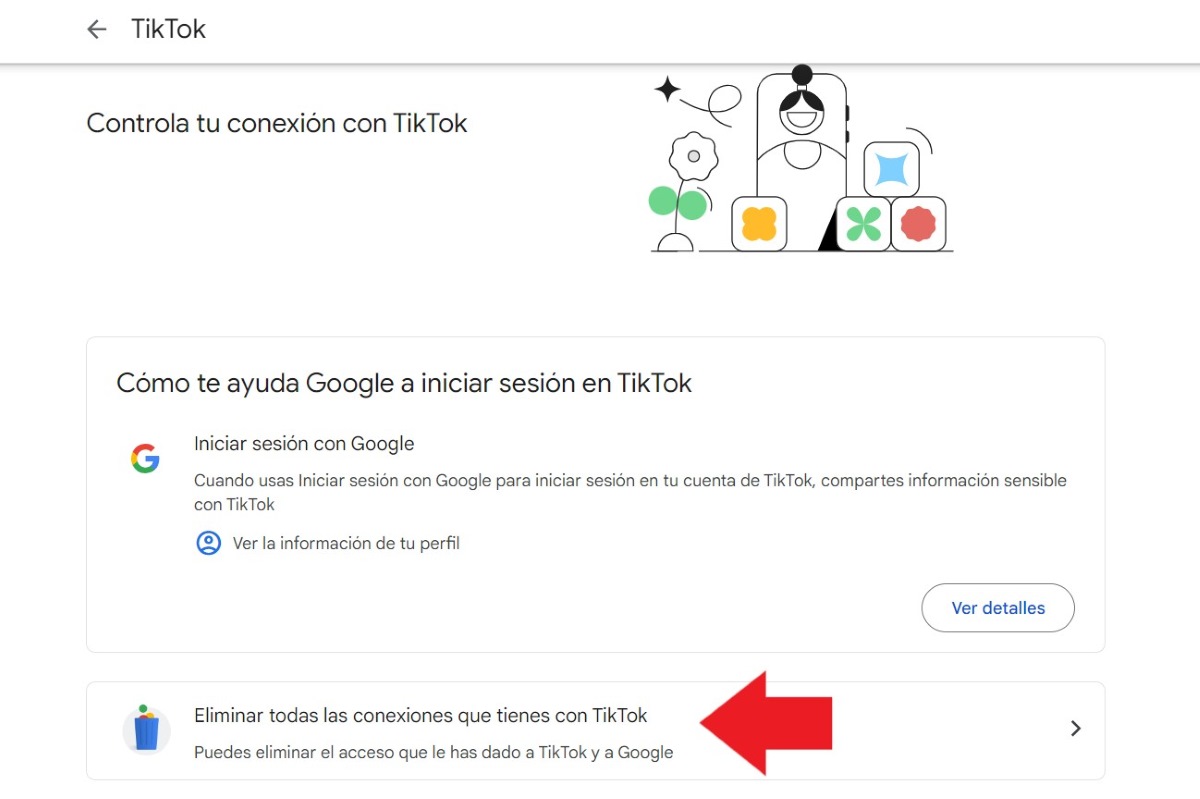
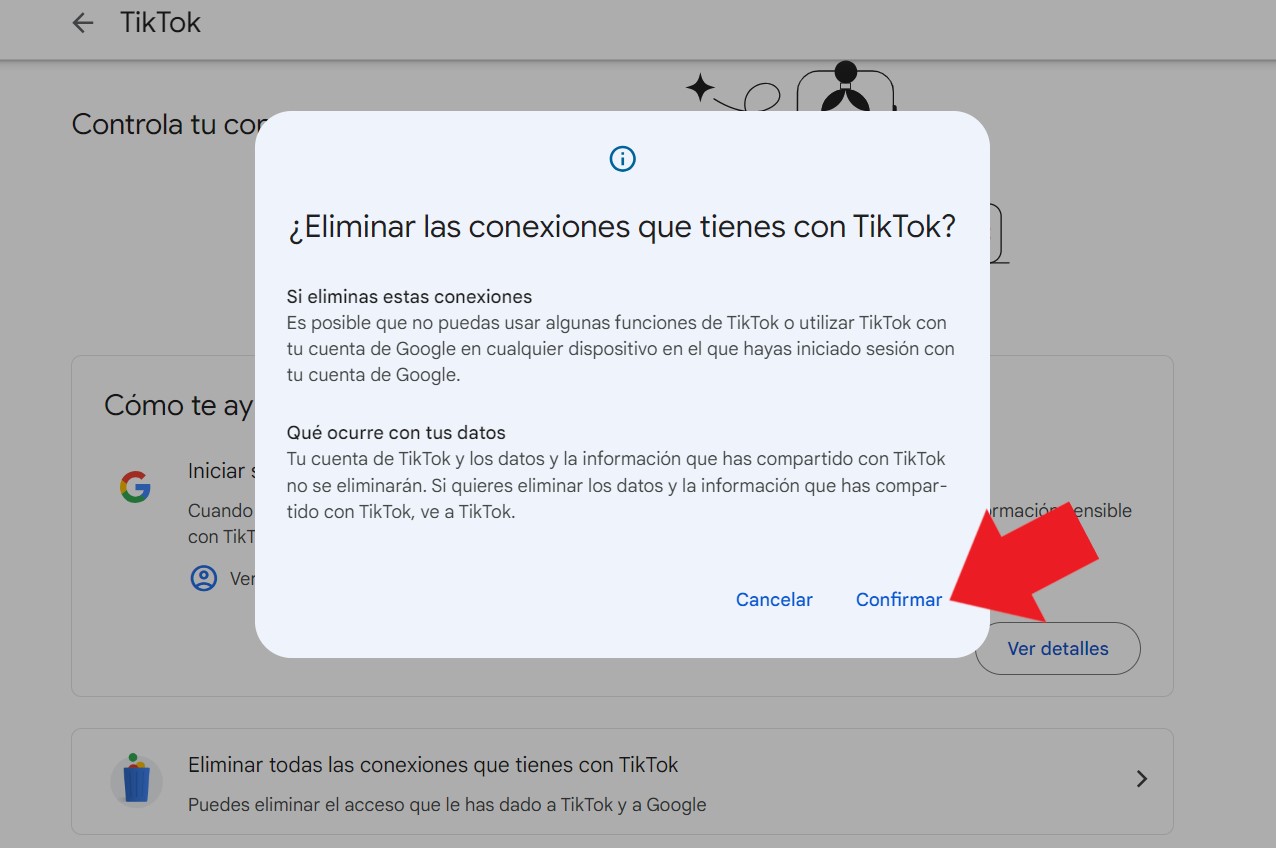
What happens if you remove the link between Gmail and your social network account? There's no need to guess, Google tells us what happens when we delete these connections. On the one hand, it's possible that You may no longer be able to use some of the social network's features. And you won't be able to use it from any of the devices you're signed in to with your Google account.
Now, don't worry about your data being deleted from the social network or your account being deleted. In case you want to delete the information or data shared on that social network, you will have to do it directly from there. And, if you want Re-enter the social network using your Gmail account, you just have to select the option, grant the permissions again and that's it.
Why is it important to do this?
Knowing how to remove Gmail links to social media accounts is of significant importance. Why? Because once you grant permissions for both services to connect, data is shared between them. And There are those who consider this to be a risk to their privacy.. Especially if they send you emails with dubious information.
However, remember that Google only shares data with trusted third-party apps or social networks. Also, will never establish connections without consulting you firstIn fact, Google does not share sensitive data such as your password with the application or third-party social networks, nor does the social network share with Google the password you have created.
How to remove Gmail links to social media accounts from the networks themselves?
What if you want to delete the Gmail email that you linked to your social networks? You have to do this directly from the social network in question. For example, to change or remove the Gmail link with your Instagram accountYou must do the following:
- Touch your profile picture.
- Press the three lines from the top right to open the menu.
- Choose the first option “Account center"
- Now, tap on “Personal data"
- Click on “Contact information"
- Select the Gmail email you want to delete.
- Finally, it touches on “Delete email"And that's it."
- Also, you can choose the option “Add new contact” to add another email and phone number.
In the case of other social networks such as WhatsApp or Facebook, you can also remove the links they have with your Gmail. With Facebook, You just have to enter the Account Center – Personal Data – Contact Information and delete the mail, just as it is done in Instagram.
Now, in WhatsApp things change a little. To remove Gmail links to social media accounts like WhatsApp, These steps:
- Open the WhatsApp app.
- Tap on the three points from the top right.
- Select Settings.
- Now it's time to Account.
- Choose the option “Email address” and there you will see your verified Gmail email.
- Select the email to edit.
- Tap on the three points that you will see at the top right.
- Choose “Delete email“ – "Eliminate" And that's it.
In short, we have seen how easy it is to remove Gmail links to social media accounts. This procedure also works for Delete any logins you've made in any other program, game, or platform. When you try this, you might find (like I did) that you need to do some debugging of links you no longer need.

From a young age, I've been fascinated by all things scientific and technological, especially those advancements that make our lives easier and more enjoyable. I love staying up-to-date on the latest news and trends, and sharing my experiences, opinions, and tips about the devices and gadgets I use. This led me to become a web writer a little over five years ago, focusing primarily on Android devices and Windows operating systems. I've learned to explain complex concepts in simple terms so my readers can easily understand them.