- Snap Layouts allows you to organize multiple windows with predefined layouts and create easily accessible workgroups.
- The Windows + Z shortcut is the fastest way to open Snap Layouts and select a layout using only the keyboard.
- Snap Layouts work very well with virtual desktops, focus mode, and clipboard history.
- Extra features such as voice dictation and PowerToys further enhance productivity in Windows 11.
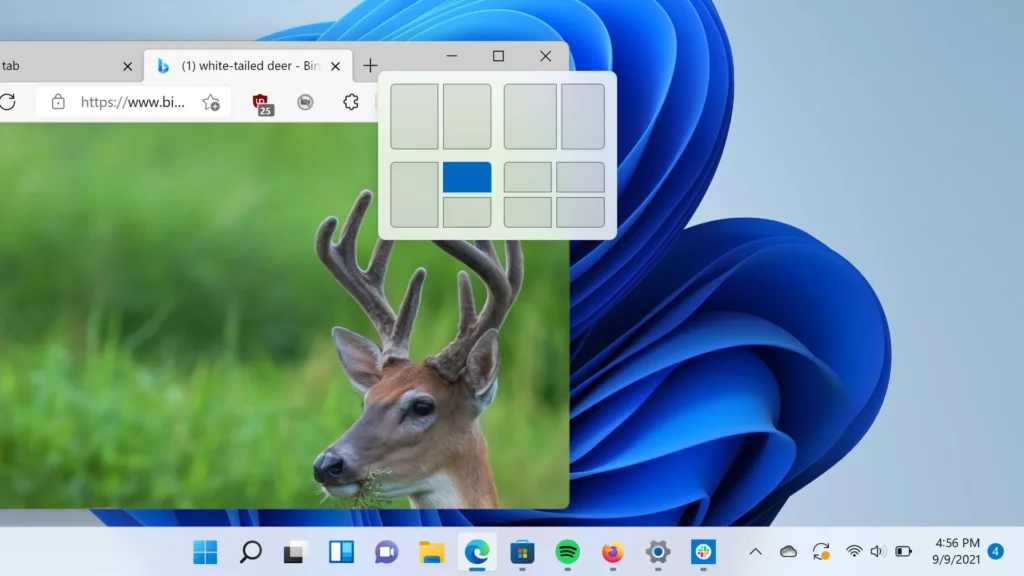
Probably Snap Layouts This is perhaps the most underrated productivity trick in Windows 11. It's not just for fitting two apps on the screen. In fact, its possibilities are enormous, allowing you to organize your desktop without wasting time dragging and resizing windows like a game of Tetris. Here's a look at the Main tricks of Snap Layouts in Windows 11.
In the following lines you will see How this tool works, all its shortcuts, access methods, and advanced tricks, in addition to other complementary system functions (virtual desktops, concentration mode, voice dictation, clipboard history, PowerToys…).
What are Snap Layouts and why are they changing the way you use Windows 11?
Snap Layouts is the Windows 11 feature that allows arrange multiple windows on the screen using predefined layouts...without struggling with the mouse to get everything right by eye. It was born with the system and, with the latest updatesIt has improved to become a key feature for multitasking.
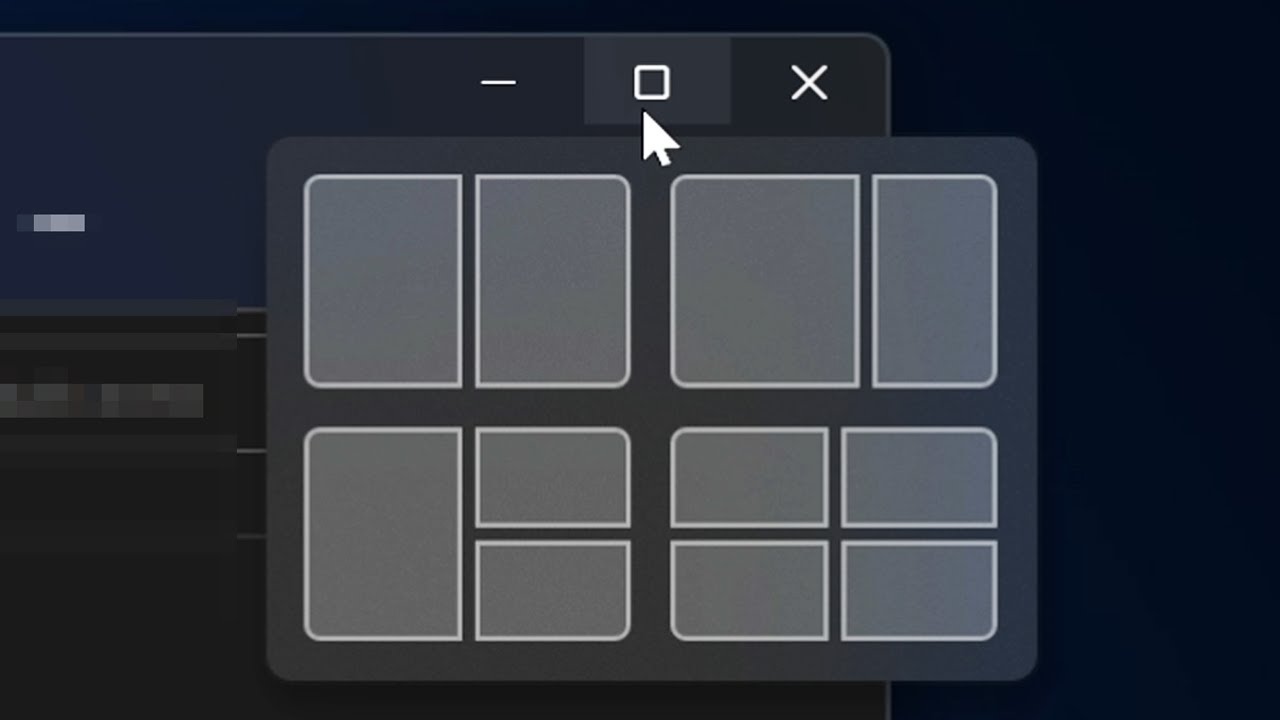
When you use Snap Layouts, Windows shows you different distribution templates (two half-open windows, three columns, one large and two small, four in a grid, etc.). Depending on the size and resolution of your monitor, There may be more or fewer schemes available.But the idea is always the same: choose a space and fit the active app there.
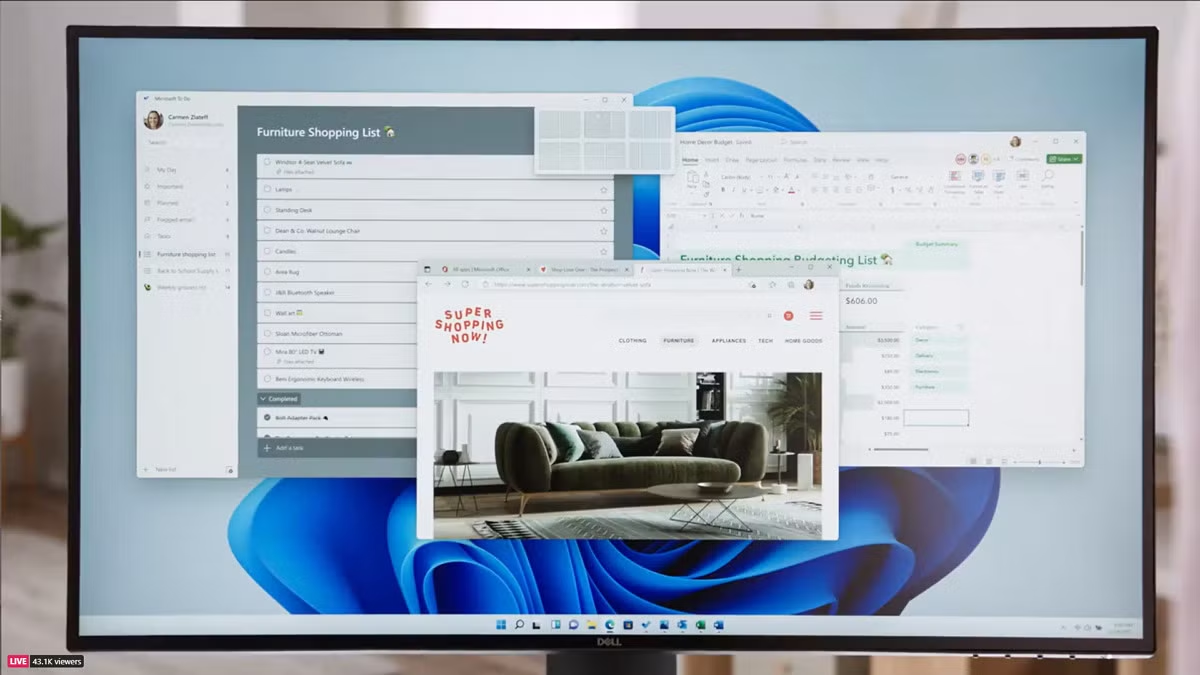
One of the great advantages is that, as it fills in gaps, Windows creates window groupsThese groups appear in the taskbar and in task view as sets, so you can to switch from one work group to another abruptly (for example, "work" group, "leisure" group, "study" group) instead of jumping from window to window.
This organization makes it possible to work with a browser, a word processor, a messaging app, and a music player simultaneously. be much less chaoticYou're not constantly maximizing, minimizing, and searching for where everything has hidden: everything is anchored to a coherent pattern.
The Windows + Z shortcut: the key trick for Snap Layouts
Although Snap Layouts can be activated in several ways, the fastest and the one that many users are still unaware of is the keyboard shortcut Windows + ZThis trick works as long as you have an active window, that is, not on an empty desktop.
When you press Windows + Z A small menu with the available Snap designs appears at the top of that window. Numbers appear above each design, so You can choose the layout directly with the keyboardSimply press 1 through 6 (or up to the number your monitor offers) to select the pattern you want.
For example, if in your case design number 5 corresponds to a large window on the left and two small ones on the right, when you press Windows + Z and then 5The app you have active will automatically occupy the large space on the left. Then, the system will show you the other open applications so you can... Fill in the remaining gaps with a couple of clicks or with the arrow keys and the Enter key.
The beauty of this shortcut is that You don't depend on the mouse to organize your windows.If you're someone who's always on the keyboard, you can switch between layouts and apps at lightning speed, combining Windows + Z with window switching shortcuts like Alt + Tab.
Change the size and position of windows with Snap's new interface
In addition to the shortcuts menu, Windows 11 incorporates a very convenient visual interface for managing Snap Layouts: the "platform" that appears when you move a window to the top of the screenThis interface is especially useful if you primarily work with a mouse.
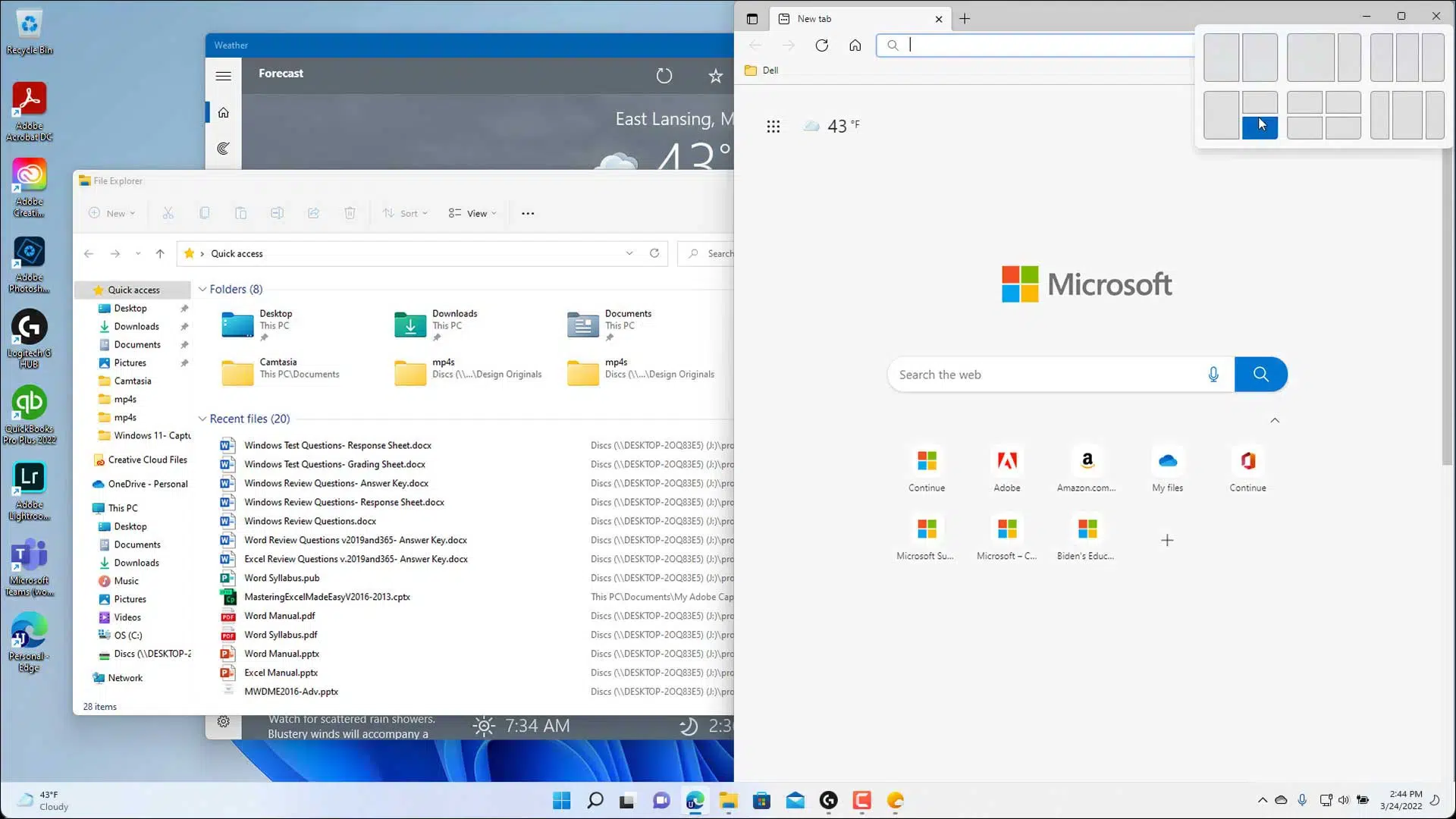
The procedure is simple: Click on a window's title bar and drag it to the topYou'll see a discreet tab or bar appear where you can drag and drop the window. Doing so will open the full Snap Layouts selector with all the layouts your screen supports.
At that moment you just have to drag the window into the opening from the template you're interested in. Before releasing, Windows displays a shadow that allows you to preview the final size and positionWhen you release it, the window anchors there, and in the remaining gaps you'll see suggestions from the other open apps to complete the group.
Once the group is created, you will see it in both the taskbar and the task view of Windows 11. miniatures representing the entire set of windowsThis allows you to switch between groups from the bar or with Alt + Tab, prioritizing the group view over the individual view, which greatly improves workflow during long multitasking sessions.
If you need several combinations at once, nothing prevents you. create different Snap groups for different tasksOne for text editing and browsing, another for email and chat, another for multimedia playback, and switch between them with Alt + Tab or from the icons grouped in the taskbar.
Other ways to enable Snap Layouts in Windows 11
Although the Windows + Z shortcut is the fastest method, Windows 11 maintains all classic access points to the window anchoring functionThis is ideal because, depending on how you work (more mouse, more keyboard, more touchscreen…), you can choose the method that is most comfortable for you.
From the maximize button of each window
One of the most visual ways to use Snap Layouts is to place the mouse over the maximize/restore button for any windowHovering the cursor over that icon for a few moments displays a small menu with the different Snap designs.
In that menu you will see the same anchoring combinations as in the rest of the interface, adapted to the size of your monitor. Simply choose the space within the design you want and the application will automatically reposition itself in that area of the screen.
It is worth noting that Not all programs are fully compatible with this featureSome apps based on technologies like Electron (for example, certain web service clients) may not display the Snap menu when you hover over maximize, even though the rest of the system does take advantage of the feature.
Dragging windows to the edges of the screen
If you're coming from Windows 10 or even earlier versions, you're probably already used to drag windows to the sides to anchor themIn Windows 11 this still works, but with more nuances and options.
When you drag a window to a corner, Windows places it occupying a quarter of the screenThis lets you quickly create grids of four apps. If you drag it to the left or right side without going to the corner, it snaps to the exact half From the desktop, the classic setup of having two windows paired together.
If instead of corners or sides you go to the upper central area, the window maximize to full screenIn some scenarios and with certain resolutions, it is also possible to use vertical third layouts by moving the window to the sides from the top, making the app occupy approximately one-third of the monitor's width.
Again, as long as you don't release the mouse button, Windows will display a shadow indicating the intended position and sizeso there are no surprises when you finish the gesture. It's a physical and intuitive way to achieve the same results as with the Snap menu.
Classic keyboard shortcuts for moving and docking windows
In addition to Windows + Z, Windows 11 retains the traditional shortcuts for moving and snapping windowswhich are perfect for those who prefer to minimize mouse use:
- Windows + Right Arrow: anchors the active window to the right half of the screen or moves it to that area within an existing layout.
- Windows + Left Arrow: does the same but towards the left side, adapting the size according to the current desktop design.
- Windows + Up Arrow: maximizes the window or sends it to a top corner in certain Snap combinations.
- Windows + Down Arrow: reduces the window, sends it to lower areas of the design or minimizes it, depending on the situation.
By combining these keys with Windows + Z, you can Reorganize your entire workspace virtually without touching the mouseSomething that, once you get used to it, makes a huge difference in speed and convenience.
Snap Layouts as the foundation of your workspace in Windows 11
Once you've mastered Snap Layouts, the next step is Think of your desk in terms of work “areas” or “zones”.It's not just about fitting windows together haphazardly, but about grouping applications you use together logically.
For example, you can dedicate the left half of the screen to a single key application, such as a text editor or a programming IDE, and reserve the right half, split in two, for a browser and a messaging app. This way, the important elements have more space, and the secondary ones remain visible but less intrusive.
Another very common combination is the four-window grid: an app for every cornerThis layout works well if you work with information panels (email, calendar, tasks, music player) that don't need to be constantly in the foreground, but are still visible.
The interesting thing is that each design is saved as a Snap group in the taskbarIf you open a different set, you can switch between them with a click, as if they were completely different "scenarios." For those who switch between multiple tasks throughout the day, this avoids having to rearrange their desktop each time.
If you also work with multiple monitors, it's worth enabling the option to Show the taskbar on all screens From Settings > Personalization > Taskbar > Taskbar behavior. This way you'll have your Snap groups readily available on each monitor without having to go to the main one.
Perfect complements to Snap Layouts: more productivity tricks
Snap Layouts shines especially when combined with other productivity-oriented Windows 11 features, such as Start menu settingsIf you use them together, You can set up a very agile working environment without installing almost anything extra.
Virtual desktops to separate contexts
Virtual desktops are used for create “layers” of completely separate applicationsWhile Snap Layouts organizes windows within a single screen, virtual desktops allow you to have multiple desktops running simultaneously and move between them depending on what you're doing.
You can, for example, use one virtual desktop just for work (browser, word processor, office tools), another for leisure (games, streaming platforms, personal apps), and a third for messaging apps or music running in the backgroundThis way you avoid distractions by not having everything mixed up.
To view and manage virtual desktops, press Windows + Tab Or click the Task View button on the bar. There you can create a new desktop using the "+" button and to change the name of something meaningful (for example, “Work”, “Study”, “Games”) with a right click.
From that same panel you can also move windows between desktops or duplicate them in several, something useful if you want a certain app (like Spotify or an email client) to be available in all contexts without having to open it multiple times.
Concentration mode and focus sessions
Another good companion for Snap Layouts is the Concentration mode (or focus mode)designed to work in uninterrupted time blocks, similar to the Pomodoro technique.
From the Windows 11 Clock app you can set up work sessions with scheduled breaksChoose which tasks you want to complete (integrated with Microsoft To Do if you use this app) and automatically activate Do Not Disturb mode and the smart automatic lock.
During these sessions, notifications are kept to a minimum, especially if you also configure Concentration rules in Settings > System > ConcentrationIt's ideal for combining with a dedicated virtual desktop and a Snap group: set up your "workspace", launch a focus session and forget about the rest.
Voice dictation: writing without touching the keyboard
If you spend your day writing long texts, emails, or reports, Windows 11's voice dictation can save you a lot of time. With the shortcut Windows + H opens the dictation tool, which converts your voice into text quite accurately.
A good idea is to activate the automatic scoring from the tool's own options, so you don't have to manually enter all the symbols. Once you develop a certain level of fluency, you can draft entire sections while speaking, for example, a word processor and a browser anchored with Snap Layouts.
Clipboard history and essential shortcuts
The clipboard history is another one of those small details that They completely change the way we workInstead of relying solely on Ctrl+C and Ctrl+V, you can enable this feature in Settings > System > Clipboard and then use Windows + V to see everything you've copied recently.
From that panel you will be able to Paste text or images that you copied a while ago and pin certain elements to have them always at hand. If you're browsing multiple tabs in a browser pinned to one part of the screen and writing in another, this feature greatly reduces the need to keep switching back and forth to copy repeated content.
Furthermore, learning a few essential shortcuts multiplies the effect of all the above: Windows + S or simply Press the Windows key and type the name of an app To open it, press Windows + X to access the advanced menu (Task Manager, Terminal, etc.), Windows + A for the Action Center, or Windows + I for system settings.
PowerToys: the extra feature for advanced users
Although it doesn't come pre-installed, PowerToys is an official Microsoft utility package that adds Very powerful tools for users who want to go a step furtherIt's downloaded separately, but it fits very well with the productivity philosophy of Windows 11. If you prefer to do without integrated features like Copilot, learn how to Uninstall Copilot on Windows 11.
Among its most useful features is PowerToys Run, a quick launcher for applications and actions It opens with a configurable shortcut, similar to macOS's Spotlight. It also includes Text Extractor, which allows you to extract text from anywhere on the screen, even from interfaces that don't allow copying.
Another very interesting feature is the advanced gluing, which applies formats or transformations to the clipboard contentsuch as cleaning styles or converting text to other formats. Combined with clipboard history and a well-organized desktop with Snap Layouts, this makes Windows 11 a very flexible tool.
With this whole range of options—from Snap Layouts and the Windows + Z shortcut to virtual desktops, focus sessions, voice dictation, clipboard history, and utilities like PowerToys—it's possible Set up a fast, organized Windows 11 work environment tailored to your computer usage stylewithout falling into the chaos of windows floating everywhere or wasting time reorganizing the desktop every few minutes.


Editor specialized in technology and internet issues with more than ten years of experience in different digital media. I have worked as an editor and content creator for e-commerce, communication, online marketing and advertising companies. I have also written on economics, finance and other sectors websites. My work is also my passion. Now, through my articles in Tecnobits, I try to explore all the news and new opportunities that the world of technology offers us every day to improve our lives.