- 0% in Task Manager usually indicates inactivity, but it can also be a symptom of driver errors, monitoring failures, or hardware problems.
- To resolve this, it's essential to update drivers, check the update settings in Task Manager itself, and ensure your hardware is in good condition.
- Using advanced tools like Process Explorer or HWMonitor can help diagnose whether the problem is software or hardware related.
- Prevention through regular maintenance and monitoring avoids most problems related to incorrect settings in Windows.

El Windows Task Manager It is an essential tool for diagnosing and monitoring PC performance, allowing you to view real-time usage of resources such as the CPU, RAM, GPU, and hard drive. However, What happens when Task Manager reaches 0%?
This is a situation that can generate doubts or concern, especially if we are experiencing unexplained performance issues, slowness, or crashesIs it a system error? Is the hardware failing? Or is it simply a normal value under certain circumstances? We'll try to answer all of these questions here.
What does it mean when Task Manager shows 0%?
When Task Manager displays 0% CPU, GPU, disk, or network, there can be several possible interpretations. First, A value of 0% indicates that the component is not currently being used for active tasks., which is completely normal if there are no processes demanding resources. For example, if you start your PC and don't open any applications, you may see the CPU or GPU idling, showing 0% or very low values.
However, there are times when seeing 0% can indicate problems:
- Driver errors or conflicts after Windows updates.
- Sensor monitoring failure internal or of the tool itself.
- Misconfiguration in the options from Task Manager (update speed paused).
- Hardware issues: components disconnected, damaged, or unrecognized.
- The specific component is not supported by the operating system or the version of Windows used.
Correctly interpreting these values is essential for anticipating potential major failures or detecting software and hardware errors, as well as identifying causes of unexpected high or low resource consumption.
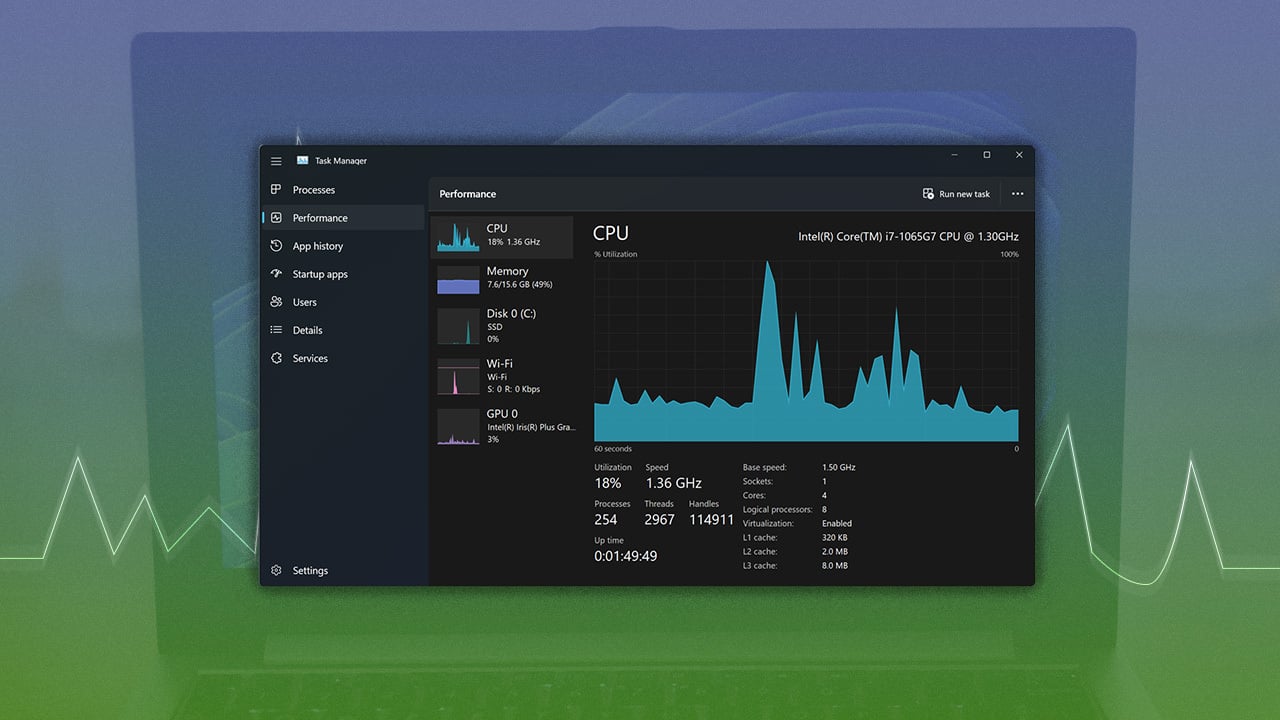
Main causes of 0% in Task Manager
Understanding why that 0% appears is key. The most common causes can be divided into three large blocks:
- Normal or circumstantial operation: Components at rest or absence of active tasks.
- Software errors or misconfiguration: Outdated drivers, faulty updates, or improper settings in Task Manager itself.
- Hardware issues: Physical failures, incompatibilities, or disconnected devices.
Below are all the possible situations in which 0% can appear, along with how to interpret them and how to resolve them.
1. Idle operation: Normal value or cause for alarm?
One of the most common situations is finding the CPU, GPU, or even the disk at 0% when the computer isn't performing any heavy tasks. It's important to note:
There is no need to be alarmed if you see low or zero values. when you only have the desktop open, without running any demanding programs. In fact, this is a good sign, as the system is managing resource consumption and switching components to low-power (idle) states when they're not in use.
However, if you see 0% in the middle of a heavy task, such as rendering video, playing games, or using applications that normally rely on the GPU or CPU, there may be a more serious problem.
Points to consider:
- The CPU and GPU should never be at 0% if you have active and heavy tasks running.
- RAM is always used to some extent (never 0%), even if it's just the operating system.
- The hard drive may show 0% if there are no active reads/writes, but if you install, copy, or open programs it should go up.
- The network may be at 0% if there are no downloads/uploads or online programs running.
2. Driver problems: The big culprit
Much of the monitoring issues and resource errors in 0% are related to the driversThis is especially true for graphics cards, but can also affect the CPU, disks, and network devices.
Common driver-related reasons:
- Outdated or generic drivers that Windows automatically installs and that don't communicate well with the hardware.
- Recent Windows updates cause incompatibilities, especially with NVIDIA or AMD components.
- Faulty driver installations after reconfigurations, motherboard changes, or formatting.
How to troubleshoot driver issues affecting 0%?
- Always update your drivers from the manufacturer's official website (NVIDIA, AMD, Intel).
- Avoid installing generic drivers from Windows Update if you can access specific ones.
- Reinstall the driver and restart your computer afterward to ensure the system recognizes them correctly.
- In some cases, revert to a previous version of the driver if the problem started after a specific update.
- Also check chipset drivers and integrated motherboard drivers.
A very common symptom is that after updating Windows, the GPU appears at 0%, even when gaming or processing video. In most cases, updating drivers fixes this.
3. Incorrect Task Manager configuration
Task Manager itself has options that can be confusing. If, for example, the update rate is set to "Paused" or "Low," the information displayed appears to freeze or shows unrealistic data, such as 0%, even if the computer is busy.
How to check and fix refresh rate:
- Open Task Manager (Ctrl + Shift + Esc or Ctrl + Alt + Del).
- Click on the menu "Sight" and then in Update Speed.
- Choose Normal o High so that the data is refreshed correctly.
If the tool is "paused," the values won't be updated. This is one of the most common causes.
4. Failures or damage to the operating system or files
Sometimes, especially after forced shutdowns, viruses or faulty installations, system files may become corruptedThis can affect monitoring, causing Task Manager to display incorrect data or even 0%.
Recommended solutions:
- Run the command sfc / scannow in the command window as administrator to search for and repair damaged files.
- Test DISM / Online / Cleanup Image / RestoreHealth to repair the Windows image.
- Keep Windows up to date, as patches often fix monitoring and performance issues.
5. The role of antivirus and malware monitoring
It is relatively common for some Antivirus or malware blocks services or processes system critical issues, preventing Task Manager from working properly, or even displaying unrealistic data like 0% even though resources are being used.
What to do in these cases?
- You can experiment with temporarily disabling your antivirus to see if that changes the behavior of Task Manager.
- If you suspect infections, perform a full system scan with Windows Defender or a reputable anti-malware program like Malwarebytes.
- If everything returns to normal after uninstalling your third-party antivirus, consider switching to a different security solution or reviewing its permissions settings.
6. Old hardware or damaged components
If your computer is older or one of its components has suffered knocks, power surges, or wear, the 0% may simply indicate that the component has stopped responding or isn't recognized by Windows. This also occurs with newly installed devices that don't have support or drivers for the latest versions of Windows.
Steps to identify a hardware failure:
- Check from the BIOS/UEFI if the component is physically detected.
- Test the component on another computer, if possible.
- Use tools like Process Explorer o HWMonitor to contrast whether the 0% is exclusive to Task Manager or also appears in other programs.
- If in doubt, contact the manufacturer's technical support.
7. Applications or processes closed incorrectly
Sometimes, resource-intensive applications or games can remain in the background, taking up resources even though you don't see it in the system interface, or, conversely, not freeing up the GPU/CPU after an abnormal shutdown. It can also happen that, after an abrupt shutdown, some processes may hang and the Task Manager may not detect them correctly, showing 0% when they are actually consuming resources.
Solutions for these cases:
- Restart your computer to end all processes and start from scratch.
- Close all applications manually from the Task Manager.
- Disable unnecessary startup programs.
8. Problems with GPU monitoring
One of the problems that most appear in forums and queries is that the GPU shows 0% usage even during demanding tasks such as gaming or video editing. This can be due to several reasons:
- Task Manager may be monitoring the integrated GPU (iGPU) instead of the dedicated GPU (NVIDIA/AMD).
- The game or application is not configured to use the dedicated GPU.
- Graphics drivers not installed or faulty.
Solution:
- In Windows “Graphics Settings,” assign problematic programs or games to the dedicated GPU.
- Update your dedicated graphics drivers from the manufacturer's website.
- Check in Task Manager which GPU is being displayed (you can switch between iGPU and dGPU).
9. Errors after Windows updates
It's not uncommon for incompatibilities with drivers or the system itself to arise after installing a new Windows update, causing errors in resource measurement. Sometimes, a poorly applied update can even temporarily disable GPU, CPU, or disk monitoring.
What is recommended to do?
- Check for new pending updates and apply them, as they may contain patches for these issues.
- If the error appears after an update, try uninstalling the latest patch from "Control Panel > Programs > View installed updates."
- In extreme cases, you can choose to restore your system to a previous point where everything was working correctly.
10. Problems with SysMain, indexing and system processes
Processes such as sysmain (formerly Superfetch), file indexing, and other background services can cause confusion in Task Manager readings. For example, they may be consuming resources even though the interface shows 0%, or vice versa.
To check if SysMain or another service is causing problems:
- From Task Manager, sort the list of processes by CPU, GPU, or disk usage to identify which ones are consuming resources.
- From the same tool, you can disable SysMain if you find that this feature is negatively affecting performance.
- Remove indexing services if you experience recurring disk usage or slowness issues.
When is it best to reset or reinstall Windows?
In cases where after trying all the above solutions the Task Manager still shows incorrect or "dead" values, it may be time to consider a full operating system resetThis erases corrupted system files, restores settings, and can eliminate persistent conflicts with drivers and updates.
Recommended step by step:
- Back up your personal files.
- Go to Settings > Update & security > Recovery.
- Select “Reset this PC” and choose whether you want to keep or delete your files.
- Once finished, reinstall only the essential programs and update drivers from official websites.
When Task Manager displays 0%, there could be several causes. The key to finding the right solution is to accurately diagnose and follow the appropriate steps to resolve any issues, thus preventing small errors from becoming bigger problems.

Editor specialized in technology and internet issues with more than ten years of experience in different digital media. I have worked as an editor and content creator for e-commerce, communication, online marketing and advertising companies. I have also written on economics, finance and other sectors websites. My work is also my passion. Now, through my articles in Tecnobits, I try to explore all the news and new opportunities that the world of technology offers us every day to improve our lives.