- The feature allows you to copy game files between PCs and Steam Decks connected to the same router without using the internet.
- There are four levels of privacy to control who can access the files on your computer.
- The system prioritizes local transfer and resorts to Valve's servers only if data is missing or errors occur.

Installing a game that's over 100 GB can involve a considerable wait, especially with a slow internet connection or when multiple computers need to download the same files. However, if another computer in the house already has the game installed, Steam can use it as the download source.
The function of local network game transfer It allows you to copy installations and updates directly between computers and Steam Deck devices connected to the same network. This way, the files travel through the router instead of being downloaded again from Valve's servers.
It is worth clarifying that this tool It does not share games or grant licenses.To access titles belonging to other accounts, it is necessary Configure Steam Families and share your libraryLocal transfer is limited to reusing game files that the receiving account can already install.

What is Steam local game transfer?
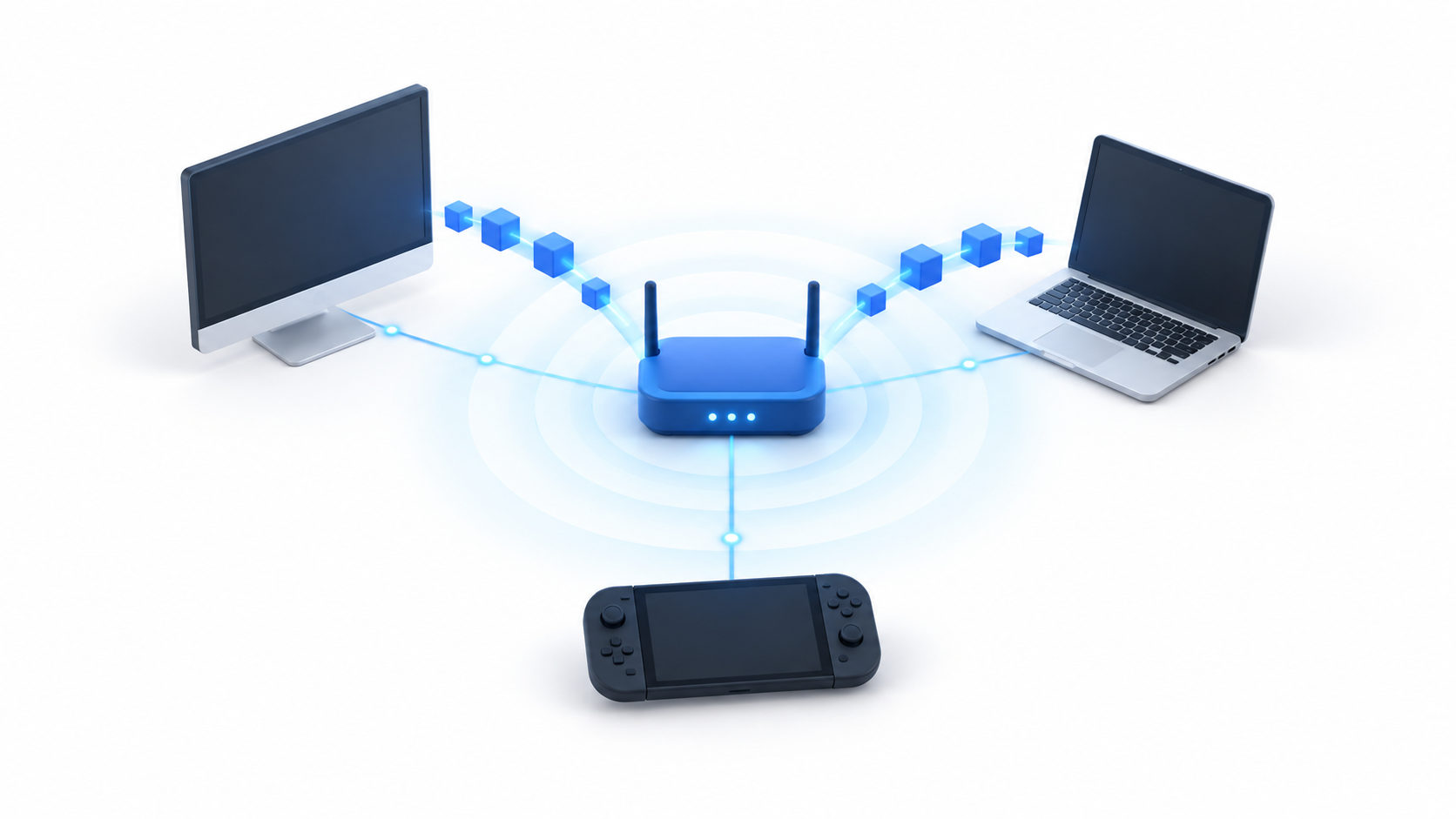
Local transfer allows copy the installation files and updates From a computer that already has them downloaded to another computer on the same network. It is compatible with the Steam client for PC and with Steam Deck.
When you start an installation or update, Steam automatically checks if there's another compatible client on the LAN. If it finds the necessary files and both devices meet the requirements, it requests the transfer from the computer that will act as the sender.
The procedure is automatic. You don't have to locate folders, manually copy files, or use a USB drive.From the receiving device, you only need to start the installation in the usual way.
If the local transfer is interrupted or the sending computer doesn't have all the files, Steam continues downloading the remaining content from its servers. The received data is also checked before installation, so corrupted files or files that differ from the expected version are discarded.
In a modern wired network, the speed can reach approximately 100 MB/sHowever, the result depends on the router, cabling, disks, and processing power of both devices.
Requirements to transfer a game between two teams
Simply connecting two computers to the same router is not enough. Steam requires several conditions before allowing one of them to send files:
- Both clients must be connected and visible within the same local network.
- Steam must remain online on both devices; the transfer will not work in offline mode.
- The permissions configured on both clients must allow the exchange.
- The sending computer must be Inactive, with no games or downloads running.
- The game must have been officially released and be available to both accounts.
- The installation of the transmitting equipment must be fully updated.
- The receiving account must have permission to install and use the game.
The feature does not allow the distribution of preloads for unpublished titles. It also does not bypass account restrictions. Having the files does not equate to owning the game.
A PC can stream content while using the Steam client in desktop mode. Steam Deck can also act as a streamer, but it must be located in the Desktop modeComputers running Steam only in Big Picture mode and custom launchers cannot send files using this feature.
If you don't yet have the program ready on any of the computers, you can check how Download and install Steam correctly before continuing.
How to enable Steam local transfer
Transfer is usually enabled by default for devices where you use your own account. You can review or modify this setting from the Steam client:
- Open Steam on the computer.
- Enter Steam > Parameters.
- Select the section Downloads.
- Locate the option related to the transfer of game files over local network.
- Choose which devices will be able to send and receive files.
- Repeat the check on the rest of the computers or Steam Deck involved.
Steam offers four access levels:
- Deactivated: The device does not search for other clients or allow them to download its files.
- Only my devices: This limits transfers to computers where the same Steam account is logged in. This is the default setting.
- Only my friends: It allows you to exchange files with devices used by contacts on your friends list.
- Any user: authorizes the transfer with any Steam client available on the same LAN.
These permits are bidirectionalIf you authorize a device to receive files from certain users, you also allow it to send them under the same conditions.
For a typical home network, it's best to keep the option. Only my devicesMore open tiers can be useful during a meeting or LAN event, but they allow other connected people to discover which games you have installed.
How to transfer Steam games over a local network step by step
Once the permissions are configured, there's no need to manually select the source computer. Steam will locate it and begin the transfer.
- Turn on the computer that already has the game installed.
- Open Steam and check that the title is fully updated.
- Close any games and pause pending downloads on the sending computer.
- Connect the second computer or Steam Deck to the same local network.
- Open Steam with an account that has access to the title.
- Enter the library and press Install.
- Choose the storage unit and confirm the installation.
- Steam will automatically search for another device that can provide the files.
The download page will indicate that the data is coming from another computer on the network. If some files are not available locally, Steam will only download the remaining portion from the Internet..
The same system can be used to transfer updates. For example, you can first update the game on your main computer and then turn on Steam Deck to receive most of the patch via LAN.
Which files are transferred and which remain on the computer
Steam only transmits the original content that is part of the game installation or update. The transfer does not include personal information associated with the user.
The following elements are excluded:
- Locally saved games.
- Graphics settings and personal configuration files.
- Content stored on Steam Cloud.
- Items downloaded from Steam Workshop.
- Shader files generated by Steam.
Therefore, copying the installation does not automatically transfer your progress. Games compatible with Steam Cloud can be synced later, while local saves must be managed separately. You can consult Where are savegames stored in Windows 11? if you need to make a manual copy.

Files sent over the network are compressed, but They are not encryptedSince Steam considers the contents of an installation to be public information, the receiving client verifies that the data exactly matches the expected files before using it.
How to improve transfer speed

The final speed is limited by the slowest component of the connection. Having high-speed fiber doesn't offer any direct advantage, as files are transferred within the home network.
For best results:
- Connect both devices using Gigabit Ethernet cable whenever possible.
- If you are using Wi-Fi, connect the devices to the 5 or 6 GHz band.
- Avoid guest networks, isolated repeaters, or configurations that prevent communication between devices.
- Do not run games, system scans, or other downloads on the sending computer.
- Check that the storage units have sufficient speed and available space.
- Keep Steam and the game updated on the computer that will send the data.
During the process, the sending computer supports a additional CPU and storage loadTherefore, using it for gaming or intensive tasks can slow down or prevent the transfer from starting.
A standard NAS cannot act as a server for this function on its own. Steam needs a compatible client running in desktop modeAlthough a library may be stored on a network drive, it does not automatically become a distribution cache for other computers.
What to do if Steam downloads the game from the Internet
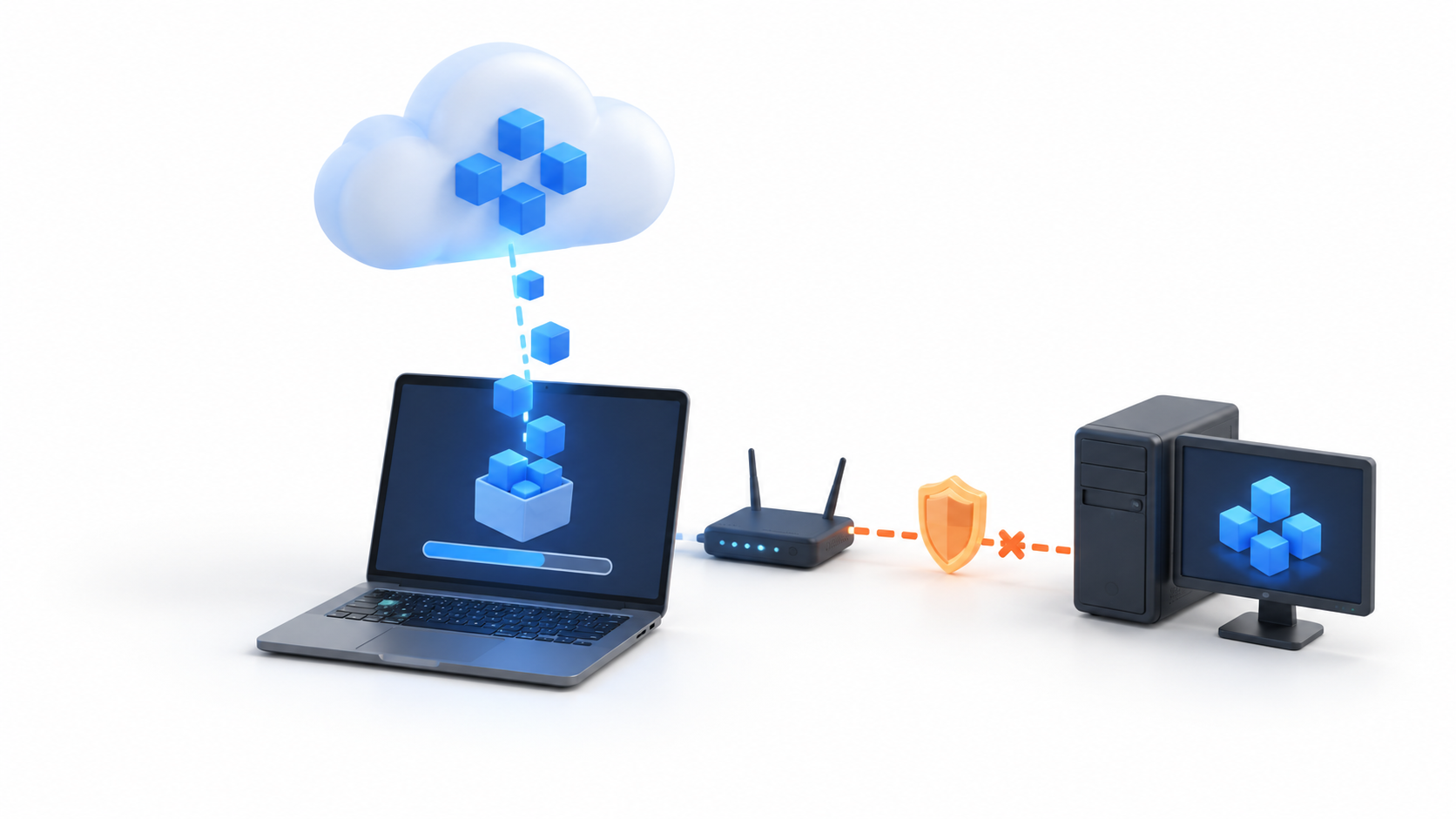
When Steam cannot find a compatible broadcaster, it initiates the download from its servers. Before assuming the feature is broken, check the following:
- The two devices are connected directly to the same LAN.
- None of the clients are in offline mode.
- The transfer permissions match on both devices.
- The sending computer is not running a game or downloading content.
- The original installation is up to date.
- Steam Deck is running in Desktop mode if it acts as the broadcaster.
The firewall can also prevent discovery or transfer. Steam uses the TCP port 27040 to send the files and the UDP ports 27031-27036 To detect clients within the network. Before opening them manually, check that Steam has permission to communicate through the Windows firewall and that the router is not isolating wireless devices.
Steam local transfer is especially useful in homes with multiple computers, a Steam Deck, or internet connections with data limits. By reusing an existing installation, it allows you to reduce internet consumption and speed up heavy installations without manually copying folders.
The important thing is to differentiate this function from Steam Families: one tool shares access to licenses and the other moves exclusively the files necessary to install or update the games.

I am a technology enthusiast who has turned his "geek" interests into a profession. I have spent more than 10 years of my life using cutting-edge technology and tinkering with all kinds of programs out of pure curiosity. Now I have specialized in computer technology and video games. This is because for more than 5 years I have been writing for various websites on technology and video games, creating articles that seek to give you the information you need in a language that is understandable to everyone.
If you have any questions, my knowledge ranges from everything related to the Windows operating system as well as Android for mobile phones. And my commitment is to you, I am always willing to spend a few minutes and help you resolve any questions you may have in this internet world.