- The Shortcuts XL widget is available as a new feature in iOS 27.
- The selected folder determines which shortcuts are displayed.
- You can change the position of the buttons by arranging them in the application.
- Some tasks require permissions, additional information, or opening Shortcuts.

El iPhone Shortcuts XL widget It allows you to gather more shortcuts to your frequently used tasks on your home screen. You can use it to start a routine, work with images, or perform other actions without first searching for the shortcut within the app.
To take advantage of this feature, you need to understand three things: the iOS version that supports this size, the folder that determines which buttons appear, and the actions each shortcut can perform. Below you'll find instructions on how to add and organize shortcuts, and how to check why some tasks open the app or request additional information.
How to add the Shortcuts XL widget to your iPhone
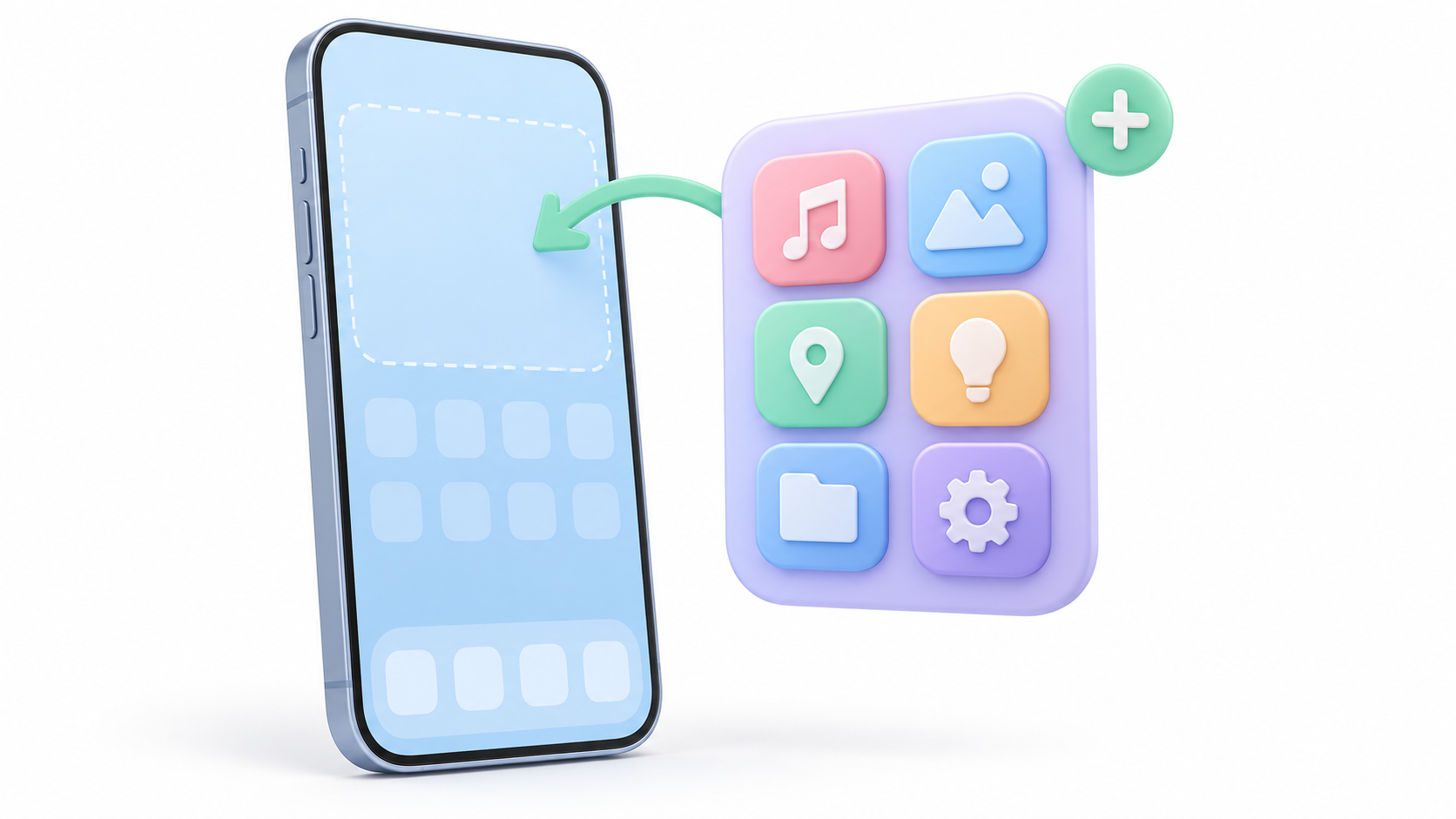
Apple includes the new XL size among the new features of Shortcuts for iOS 27Therefore, having the app installed on an older system version doesn't mean you can choose that format. First, check your iPhone version and available updates.
Next, add the widget from your home screen:
- Press and hold an empty area until the icons start to move.
- Touch Edit and select Add widget.
- Seeks Shortcuts and opens up your options.
- Swipe through the available sizes until you find the XL format.
- Press Add widgetPlace it on your preferred page and confirm with OK.
Before deciding where to place it, think about which apps you need to keep handy. A dedicated page for your regular tasks might be more convenient than a home screen cluttered with shortcuts.
If you want to resize it later, press and hold the widget and choose one of the options from the menu. Not all apps offer the same formats.
Choose which shortcuts appear and change their order
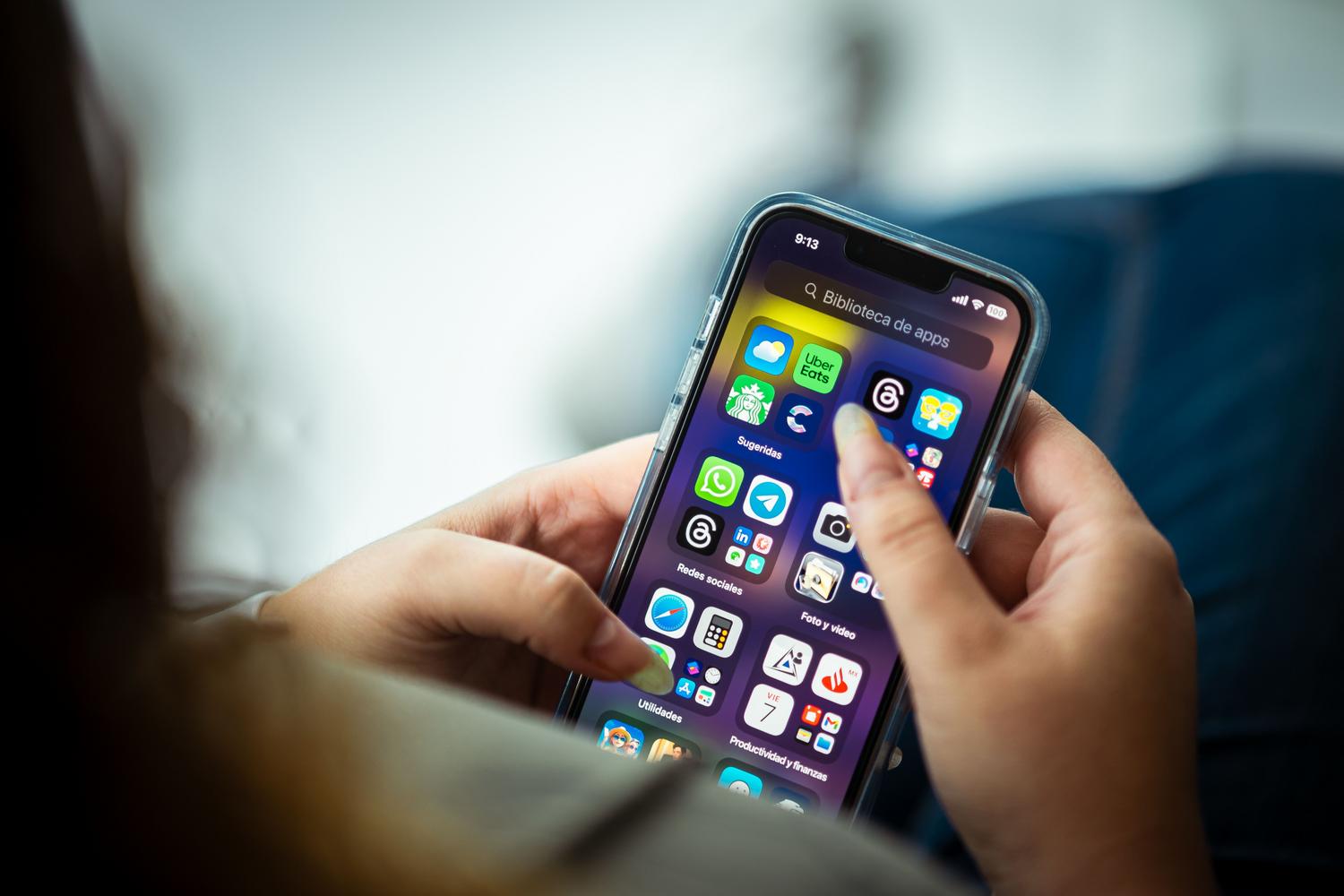
The size of the widget isn't the only thing that determines its usefulness. You also need to select the Shortcuts folder you want to displayIf you use too large a collection, you may end up seeing buttons you barely need.
A practical way to organize it is to create a specific folder:
- Open Shortcuts and returns to the folder view.
- Use the option to create a folder and type a recognizable name, such as "Daily Use".
- Select the shortcuts you want to include and use them Move to move them to that folder.
- Return to the home screen, press and hold the widget, and tap Edit widget.
- Click on the folder name and select the one you just prepared.
To change the button positions, open the Shortcuts folder, tap Edit and drag the shortcuts to the desired order. The app's layout determines how they appear in the widget.
Place the most frequent tasks first and use names you can quickly recognize. "Translate text" or "Today's Meetings" are clearer than several buttons with similar names.
Prepare a shortcut before adding it to the widget
The widget serves as an access point: the behavior of each button depends on the shortcut you've created. If you don't have one set up yet, open Shortcuts, tap + and add the actions you need.
Start with a simple task and an easy-to-verify result. You can choose an action, configure its parameters, and add the next step once you've verified that the previous one works.
Before moving it to the widget folder:
- Give it a descriptive name to identify it among the others.
- Check the parameters: An action may require a location, a recipient, or a file.
- Run the shortcut from the editor and check the result.
- Correct the incomplete steps before using it as your regular access point.
This order makes it easier to detect errors. If a task is already failing within the application, changing its position or the size of the widget will not solve the problem.
Why do some buttons open the application or request permissions?
Tapping a button starts the shortcut execution. However, Not all actions can be completed within the widgetIf a step requires another interface, Shortcuts may open automatically; if information is missing, execution will pause for you to enter it.
You may also see requests to access photos, contacts, location, or other data. Review what the shortcut needs and grant only the permissions appropriate for its function. A pending permission request could explain why the task isn't completing as expected.
Therefore, it's a good idea to test each button after adding it to the widget. Check both the final result and the questions that appear during the process.
Which tasks are worth placing in the XL widget
The best selection depends on your habits. As a practical guideline, prioritize tasks you repeat and that typically require opening multiple screens. These ideas can serve as a starting point:
- Check the agenda: to gather the meetings or commitments of the day.
- Translate text: Prepare a workflow that receives a text and translates it into the chosen language.
- Play music: Start a playlist of songs you listen to regularly.
- Prepare for a trip: Consult directions to a frequently visited destination.
- Working with images: gather actions to edit or combine photographs.
- Contact someone: initiate a call or prepare for frequent communication.
You don't need to fill every slot from the start. My recommendation is to begin with a few tasks, use them for several days, and replace any that don't bring you comfort.
If you're looking for more suggestions, you can check out our guide to iPhone Shortcuts TricksThen, add to the widget the ones that fit your mobile usage style.
What changes with Apple Intelligence and automation?
The XL size can be used to launch conventional shortcuts. The functions of Apple Intelligence They have their own device, language, and region requirements.
Among the new features in iOS 27 are the creation of shortcuts using natural language descriptions, and improvements to the action Use modelstorage between executions and synchronization of automations across devices. Apple details these changes in its Official notes from Shortcuts.
However, simply adding a button to the widget doesn't automatically set up a trigger based on time, location, or accessory connection. You'll need to decide whether to start the task manually or create an automation with your own specific conditions.
What to check if the XL widget doesn't appear
If you cannot find the expected format or buttons are missing, review the problem in parts:
- System version: Make sure you are using iOS 27 and not an earlier version.
- Application installed: Verify that Shortcuts is available and opens correctly.
- Widget sizes: Explore the Shortcuts options in the gallery.
- Selected folder: Check which collection the widget displays and what shortcuts it contains.
- Shortcut order: Put the ones you need to have visible first.
- Execution: If the button appears but fails, try that shortcut from the application and check its permissions.
The XL widget is useful when you group specific, well-organized tasks. Choosing a suitable folder, arranging its buttons, and checking each shortcut will allow you to turn it into a convenient access point to the functions you use most often.
Index
- 1 How to add the Shortcuts XL widget to your iPhone
- 2 Choose which shortcuts appear and change their order
- 3 Prepare a shortcut before adding it to the widget
- 4 Why do some buttons open the application or request permissions?
- 5 Which tasks are worth placing in the XL widget
- 6 What changes with Apple Intelligence and automation?
- 7 What to check if the XL widget doesn't appear

I am a technology enthusiast who has turned his "geek" interests into a profession. I have spent more than 10 years of my life using cutting-edge technology and tinkering with all kinds of programs out of pure curiosity. Now I have specialized in computer technology and video games. This is because for more than 5 years I have been writing for various websites on technology and video games, creating articles that seek to give you the information you need in a language that is understandable to everyone.
If you have any questions, my knowledge ranges from everything related to the Windows operating system as well as Android for mobile phones. And my commitment is to you, I am always willing to spend a few minutes and help you resolve any questions you may have in this internet world.