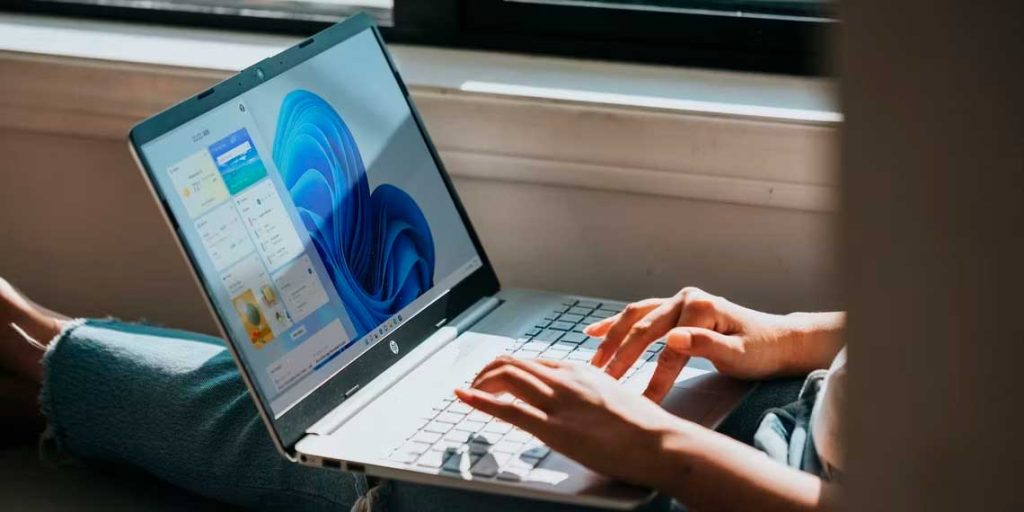
Sistimi e ncha ea ts'ebetso ka ho fetisisa Microsoft, e u lumella hore u be le pono e feletseng le e sebetsang ea metamorphosis. Ha e boloke feela mesebetsi e ananeloang ke basebelisi, empa e boetse e hlahisa a Moralo o Thellang, minimalist le elegantne. Empa tsamaiso ke eng ntle le ho ama motho ka mong? Ka lehlohonolo, Windows 11 e nka motho ka mong ho ea maemong a macha.
Mokhoa oa ho qala ho fetola ponahalo ho Windows 11
Ho fetola tema ea Windows 11, o tlameha ho qala ho fihlella litlhophiso tsa botho. Tobetsa letšoao phetolo lijong qalo kapa tobetsa Lifensetere + I lebokoseng la hao.
Mehato ea pele ea ho fetola sebopeho sa hau ho Windows 11
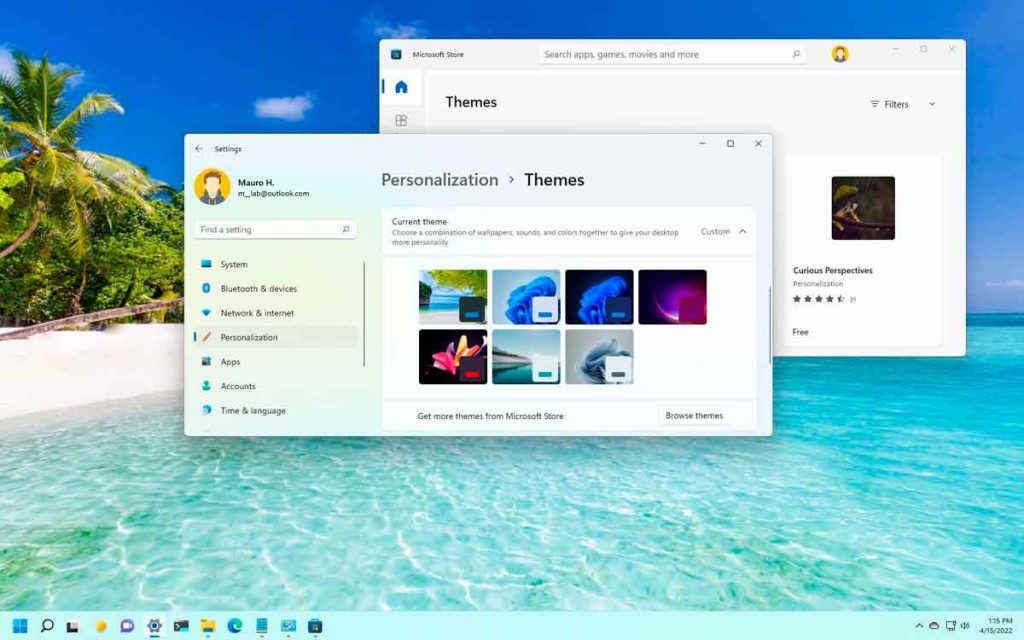
Ka fensetere ea phetolo, Khetha "Ho iketsetsa" 'me joale «Lihlooho». Mona o ka bona le ho khetha lihlooho tse fumanehang ho sistimi ea hau.
Khoasolla lihlooho tse ncha Lebenkeleng la Microsoft
Haeba lihlooho tse kentsoeng pele li sa u khotsofatse, u ka khona khoasolla lihlooho tse ncha ho tloha ho Store Microsoft. Tobetsa "Fumana lihlooho tse ling Lebenkeleng la Microsoft" karolong ea lihlooho ho hlahloba mefuta e fapaneng ea likhetho.
Etsa hore komporo ea hau e phele ka liqapi tse ikemetseng tse nang le lihlooho tsa mokha oa boraro
Ntle le lihlooho tsa molao, u ka boela ua kenya lihlooho tsa batho ba boraro ho tsoa liwebsaeteng tse tšeptjoang. Etsa bonnete ba hore u khoasolla mehloling e sireletsehileng ho qoba likotsi tsa ts'ireletso.
Liwebsaete tse khothalelitsoeng
Libaka tse ling tse tšepahalang tseo u ka li jarollang lihlooho tsa batho ba boraro Ke tsona:
Mekhoa e meng ea ho fetola sehlooho ho Windows 11
Windows 11 e fana ka mekhoa e mengata ea ho fetola lihlooho. Mona re hlahisa tse ling tse sebetsang ka ho fetisisa:
Lenaneo la maemo a komporong
Ho fetola tema ho tsoa ho menyu ea litaba tsa desktop:
- Tobetsa ka ho le letona ho desktop ebe u khetha Ho iketsetsa.
- Ka fensetere ea litlhophiso, tobetsa Lihlooho ebe o kgetha tema eo o e batlang.
Sebelisa sesebelisoa sa li-setting
U ka boela ua fetola theme ka kotloloho ho sesebelisoa sa Litlhophiso:
- Tobetsa Win + Ke ho bula Di-setting.
- Khetha Ho iketsetsa 'me joale Lihlooho.
- Khetha sehlooho seo u se ratang lethathamong le fumanehang.
Ts'ebetso ea ho etsa khetho ea Old Control Panel
Ho fihlella ts'ebeliso ea khale ea tloaelo:
- Tobetsa Hlōla + R, oa ngola shell:::{ED834ED6-4B5A-4bfe-8F11-A626DCB6A921}-Microsoft.Personalization ebe o tobetsa Enter.
- Ka fensetere ea ho iketsetsa motho, khetha sehlooho seo u se batlang.
matha lebokose la taelo
Ho bula litlhophiso tsa theme ka kotloloho:
- Tobetsa Hlōla + R mme o ngole Litlhophiso tsa ms: lihlooho, ebe o tobetsa Enter.
- Khetha theme eo u e batlang ho app ea Litlhophiso.
Lihlooho ka kotloloho ho tsoa ho File Explorer
Fumana lihlooho tse kentsoeng ka File Explorer:
- Tobetsa Hlōla + E ho bula File Explorer.
- Tsamaea ho %LocalAppData%\Microsoft\Windows\Themes ebe o tobetsa habeli faele ea sehlooho ho e sebelisa.
Nchafatsa komporo ea hau ka litaelo tsa CMD
Fetola tema ka ho sebelisa taelo ea taelo:
- Tobetsa Hlōla + X ebe oa khetha Theminale (motsamaisi).
- Ngola C: \ Windows \ lisebelisoa \ Themes \ aero.theme ebe o tobetsa Enter.
Theha tsela e khaoletsang
Ho sebelisa tema kapele u sebelisa tsela e khuts'oane:
- Tobetsa Hlōla + E le ho ea ho C: \ Windows \ lisebelisoa \ Themes \.
- Tobetsa ka ho le letona holim'a sehlooho ebe u khetha Romela ho > Desktop (etsa kgaoletso).
- Tobetsa habeli tsela e khaoletsang komporong ho sebelisa sehlooho.
PowerShell e bula mamati a ho ikamahanya le maemo a tsoetseng pele
Ho fetola tema ka PowerShell:
- Tobetsa Hlōla + R, oa ngola PowerShell ebe o tobetsa Ctrl + Shift + Kena.
- Ngola qala-mosebetsi -filepath «C:\WindowsResources\Themes\aero.theme» ebe o tobetsa Enter.
Theha faele ea batch
Ho fetola tema ka ho sebelisa faele ea batch:
- Bula Notepad ebe u beha mongolo o latelang:
C:\Windows\resources\Themes\aero.theme taskkill /F /IM systemsettings.exe - Boloka faele joalo ka fetolatheme.bat tafoleng.
- Tobetsa ka ho le letona faeleng ebe u khetha Matha e le molaoli.
Mekhoa e meng ea ho etsa Windows 11
Windows 11 e lumella ho ikamahanya le maemo a tsoetseng pele ka ho fetola lintlha tse itseng tsa sehlooho. O ka fetola mebala, melumo esita le chebahalo ea litšoantšo. Likhetho tsena tse eketsehileng li ka fumanoa ho Ho iketsetsa tlhophiso.
Iketsetse phihlelo ea hau ea Windows 11 ka ho hlahloba le ho sebelisa lihlooho tse ncha tse bontšang mokhoa oa hau oa botho. Fetola segokanyimmediamentsi sa sebolokigolo hao le dikgetho ho tswa ho Store Microsoft kapa ka mehloli e sireletsehileng ea batho ba bang. Sebetsa ho fana ka maikutlo a ikhethang tikolohong ea hau ea dijithale.

Ke 'na Sebastián Vidal, moenjiniere oa k'homphieutha ea chesehelang theknoloji le DIY. Ho feta moo, ke 'na moetsi oa tecnobits.com, moo ke arolelanang lithupelo ho etsa hore theknoloji e fumanehe le ho utloisisoa ke motho e mong le e mong.