
Did you just notice that Chrome displays memory usage on each tab? What started as an experimental feature has become a diagnostic tool that stayed in our browsersWhile many users appreciate this feature, others find it visually annoying. So, in this article, we'll explore how to hide it, its limitations, and whether it's really worth doing so.
Why does Chrome show memory usage on each tab?

Chrome displays memory usage for each tab using a floating card that appears when you hover the mouse over it about it. Initially, it only displayed a thumbnail of the page, but now it includes a numerical indicator of the RAM usage associated with that specific process. This feature works in conjunction with "Memory Saver" mode, which suspends inactive tabs to free up resources.
On one hand, Chrome displays memory usage on each tab for to warn you which websites are eating up your memoryOn the other hand, it shows you the real impact of keeping a lot of tabs open at the same time. Because if a user realizes that a design tool or a social network like YouTube uses so much RAMHe's probably alarmed.
Sure, while it's a feature many advanced users appreciate, for the average user it's actually an unnecessary distraction. Because if your browser isn't lagging and is working perfectly, it's not something you should care about (or should it?). In any case, if Chrome displays memory usage on each tab, Here we'll show you how easy it is to hide it..
Chrome displays memory usage on each tab: how to hide it
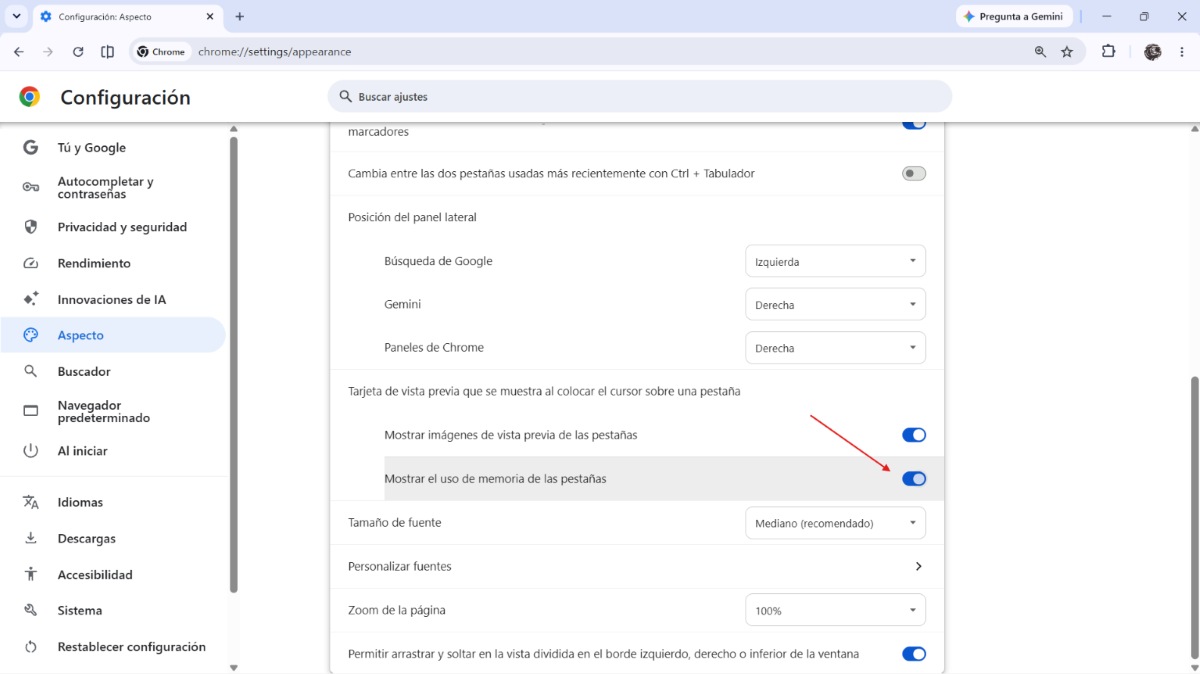
Actually, Google implemented the option to disable the display of memory usage on each tab in 2024. Many users commented on the same thing: they didn't need or simply didn't want to see this information when hovering over a tab in the browser. The procedure is really simple and doesn't require any technical knowledge. Follow these steps. Steps to hide your PC's memory usage in Chrome:
- Open Google Chrome on your computer.
- Click on the 3 vertical dots menu in the upper right corner and select Configuration.
- In the left sidebar, find and click Aspect (It can also be Appearance or Design).
- Scroll down to the section “Preview card who is shown when you place the cursor over a tab”.
- Locate the switch that says “Show tab memory usage”.
- Deactivate it and you're done.
Whether you use Windows Like Linux or Chromebook, you'll find the option under the heading of preview cards. But On macOS, the switch appears more directly such as “Show memory usage in the preview card.” Once you disable it, the thumbnail will appear when you hover over the tabs, but the RAM usage data will be gone.
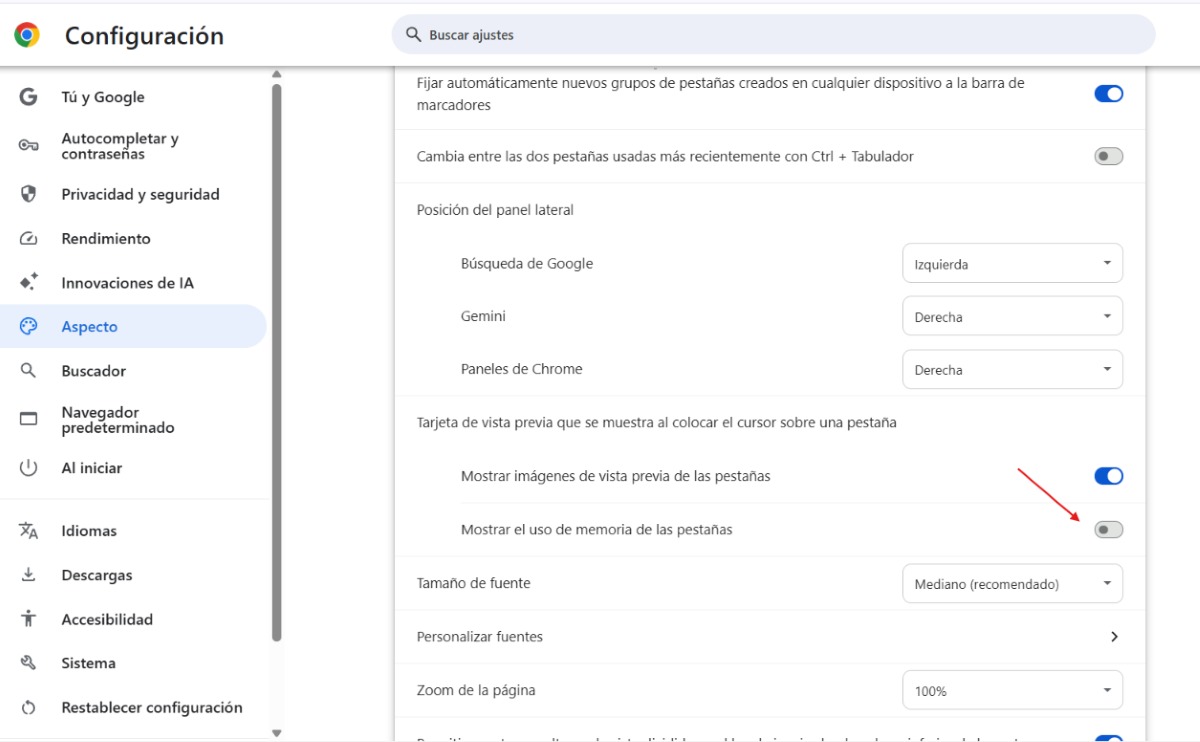
What doesn't turn off
However, there's a warning that doesn't disappear when you hide Chrome's normal memory usage. If a tab reaches a critical memory consumption threshold (for example, if it's considered high by the browser's standards), Chrome will indeed show you a warning notification about that tab., regardless of whether you turned off the Appearance switch.
Even if you hide your memory usage data in the tabs, Google will continue to alert you when something goes wrong, especially during critical moments.Therefore, if you wanted to completely ignore your computer's performance status, you'll still see these notifications in certain situations. But don't worry, it's for your own good.
Are there any advantages if Chrome displays memory usage on each tab?

If Chrome displays memory usage on each tab, you're actually getting direct visibility into your RAM just by hovering your cursor over it. For an advanced user, this is an invaluable tool. The ability to diagnose in a second which tab is consuming too much memory It's invaluable, especially when your PC fan starts making a lot of noise and you don't know who's responsible.
When this feature isn't active, to see which browser tab is using the most memory, you have to open Chrome's Task Manager (Shift + Esc). It's a slightly longer and more cumbersome process. Therefore, being able to access the option to enable or disable the memory usage data view with just a couple of clicks is a welcome feature. Other advantages of Chrome displaying memory usage on each tab include:
- You decide what to keep or close: Instead of blindly closing tabs, you know which one to close first to recover memory.
- You check the effect of Memory Saving: You can see if an inactive tab actually reduces its consumption or if it continues to use resources.
Sure, maybe prefer a cleaner, more minimalist previewFocusing solely on the site's title and address is perfectly fine. Therefore, if Chrome displays memory usage on each tab, your best option is to hide it by following the steps mentioned earlier. This will help you browse without unnecessary distractions that might interrupt your workflow.
Chrome displays memory usage for each tab: conclusion
In short, the option to hide memory usage for each tab is essentially a personal choice. Chrome, for its part, has become more transparent and has enabled the checkbox that allows you to activate or deactivate this toolDepending on each user's needs. If you choose to disable it, the browser will continue to manage memory using its background tab suspension algorithms.
If you choose to keep it visible, you'll have a small window of quick information available whenever you need it. In either case, the fact that there's a switch to turn the view on and off indicates that Google is paying attention to users' specific needs. Ultimately, what matters is that you feel comfortable and can choose the data you actually want to see or which ones you prefer to ignore.
Index
